Day View
The Day view of the Scheduler for Blazor shows a single day to the user.
The Date parameter of the scheduler controls which date is displayed.
In this article:
View Parameters
Generally, the views are designed around the timeframe that they show and the day-based views share some common properties that you will likely have to set to provide a good user experience for the user:
| Attribute | Type and Default Value | Description |
|---|---|---|
EndTime | DateTime | The counterpart to StartTime — defines when the full day ends. Defaults to midnight. If you set the EndTime earlier than midnight, you reduce the elements that render, but the user may not see late appointments. |
HideAllDayRow | bool | Determines whether to render the row for all-day appointments. If set to true, this row will be hidden. |
SlotDivisions | int | The number of partitions in each major time slot. |
SlotDuration | int | The time span of each major time slot in minutes. |
StartTime | DateTime | The first hour displayed in the view. Defaults to midnight. If not set to a value close to the start of the working day, the view may show blank spaces before scrolling down. |
WorkDayEnd | DateTime | The counterpart to WorkDayStart — defines when the working day ends. |
WorkDayStart | DateTime | The start time of the working day; differentiates work hours with a distinct background for easy identification. Influences the Show Business Hours toggle. |
If there are appointments outside of the defined visible time the user will not be able to see them. For most cases where the working day is subject to scheduling this may not be a problem, but if your users need to manage night shifts or irregular work hours, you may want to have a longer day rendered, or to bind the value to a time picker so the user can alter it themselves.
Slots
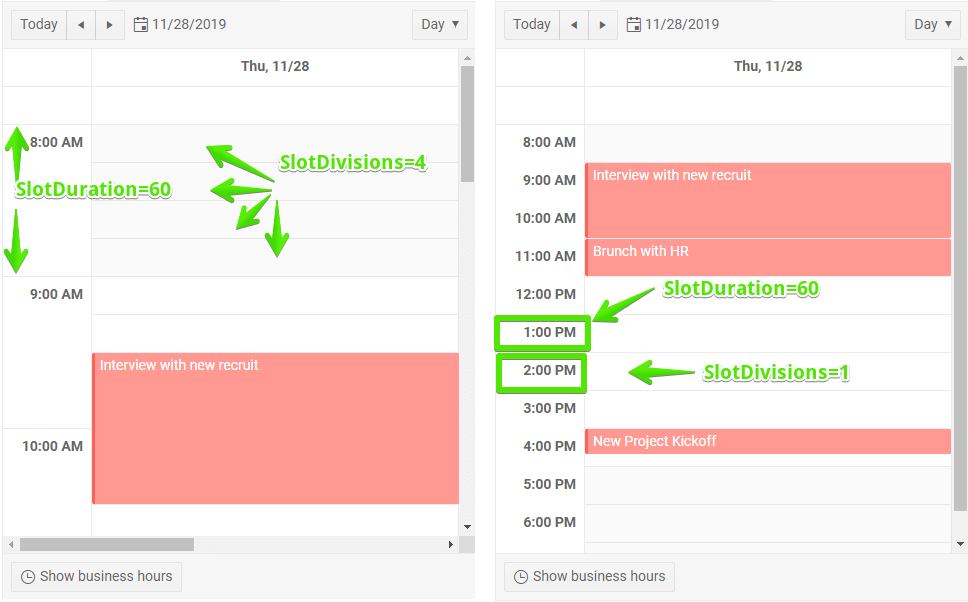
Views that show hours let you control their precision through the SlotDuration and SlotDivisions parameters:
SlotDuration- the time span of each major time slot in minutes.SlotDivisions- the number of partitions in each major time slot.
Figure: Slots explanation
Example
You can declare other views as well, this example adds only the Day view for brevity.
Declare the Day view in the markup