WPF Buttons Overview
Thank you for choosing Telerik RadButtons!
RadButtons for WPF is a set of customizable buttons allowing you to build complex forms and to easily manage the user input. You can style the control consistently with the other controls from UI for WPF and take advantage of the Command support that RadButtons provide.
 Start Free Trial
- If you are new to the RadButtons control, don't miss the Getting Started guide that demonstrates a basic RadButtons scenario.
- Check out the control demos at demos.telerik.com to see the RadButtons in action.
Key Features
The following list presents the most popular features in Telerik's RadButtons:
-
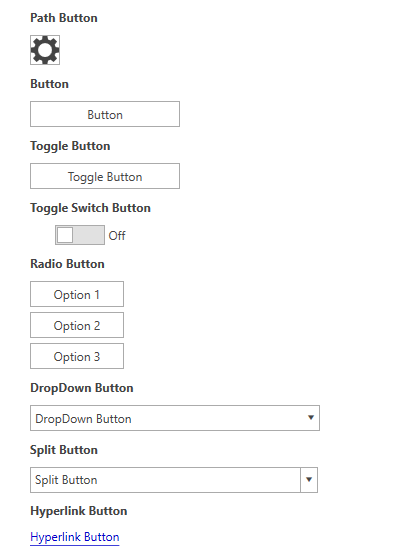
DropDown Button—Provides a menu-like interface model within a button. It can be very handy for creating a more simplistic UI where extensive menus and/or ComboBoxes are not needed. Any kind of content can be placed in the pop-up area displayed upon the activation of the button.
-
Split Button—Extends the DropDown Button's functionality with an action area like in a standard button. The Split Button implements the IsChecked state too.
-
Toggle Button—Mimics the functionality of a check box, but has more flexibility in its design. It offers state management based on the check state of the control.
-
Toggle Switch Button—Mimics the functionality of a Toggle button, but has more flexibility in its design. You can specify two states: Check/Uncheck and On/Off. Every state can be customized with different content.
-
Radio Button—Mimics the functionality of the radio button, but has more flexibility in its design.
-
Speech-Text-Button—This button introduces special events and visuals states designed to allow you to implement smooth speech to text experience. Clicking the button starts a listening action which can be processed and converted to text.
-
Path Button—Derives from RadButton, but provides the ability to set a Path alongside its content.
-
Hyperlink Button—Extends RadButton with hyperlink capabilities.
-
Commands Support—The full implementation of the Command pattern is available by using RadButtons. You can build complex UIs and keep your code simple by using Commands.
Telerik UI for WPF Support and Learning Resources
- Telerik UI for WPF Buttons Homepage
- Get Started with the Telerik UI for WPF Buttons
- Telerik UI for WPF API Reference
- Getting Started with Telerik UI for WPF Components
- Telerik UI for WPF Virtual Classroom (Training Courses for Registered Users)
- Telerik UI for WPF Buttons Forums
- Telerik UI for WPF Knowledge Base