New to Telerik UI for WinForms? Start a free 30-day trial
How to Simulate Hiding Weekends in Timeline View of RadScheduler
Updated on Sep 9, 2026
Environment
| Version | Product | Author |
|---|---|---|
| 2026.3.812 | RadScheduler for WinForms | Desislava Yordanova |
Description
The Timeline View in RadScheduler displays a continuous chronological time scale and does not implement the ISupportShowWeekend interface. As a result, it does not provide a built-in ShowWeekend property like SchedulerWeekView or SchedulerMonthView.
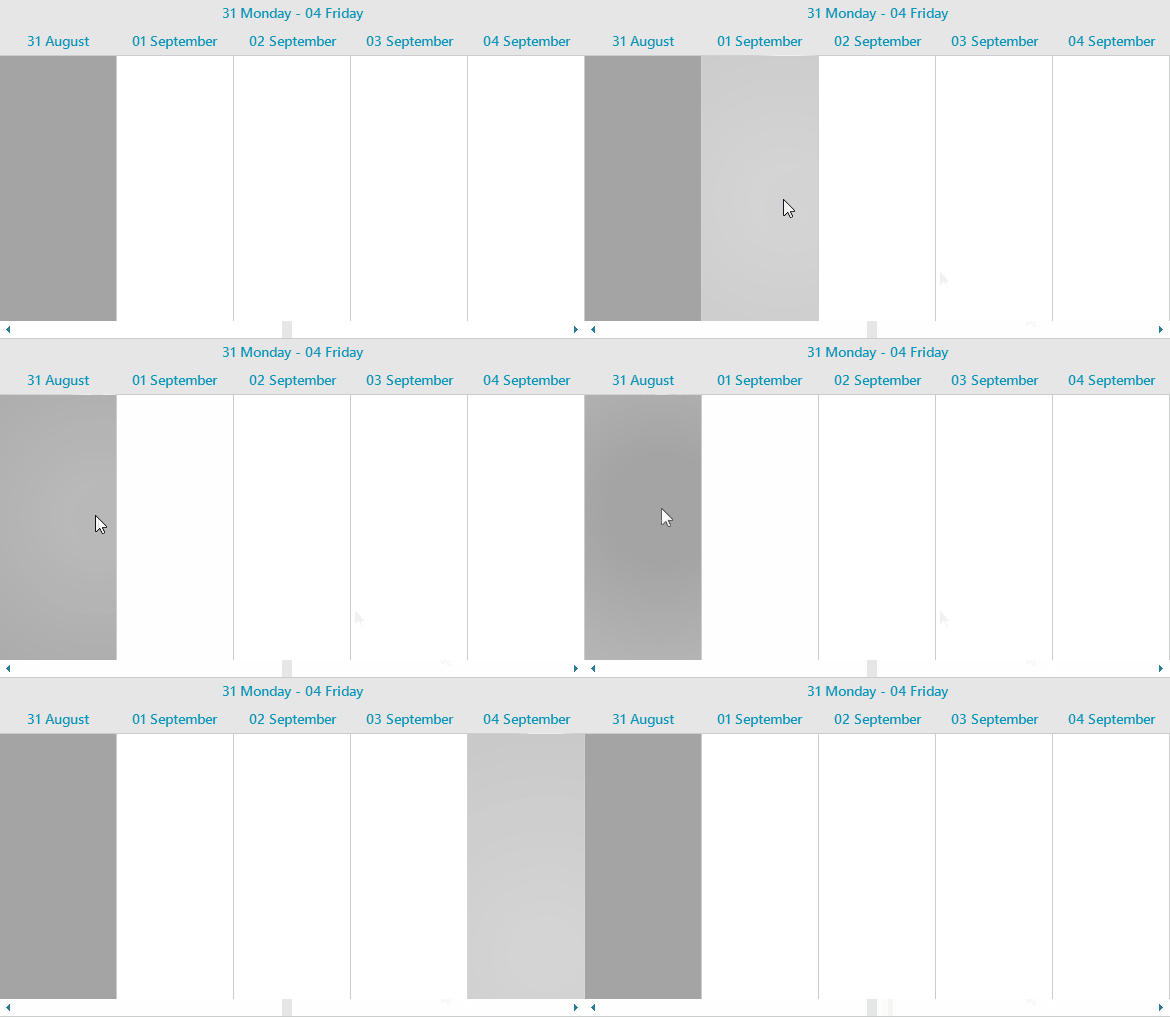
When there is a requirement to display only working days (Monday through Friday) and exclude weekends from the visible timeline, you can simulate hiding weekends by limiting the visible period to 5 days at a time and snapping the start date to Monday whenever navigation occurs.
Figure 1: Simulating Hiding Weekends in Timeline View
Solution
To simulate hiding weekends in Timeline View:
- Set
ActiveViewTypetoSchedulerViewType.Timeline. - Set the
DisplayedCellsCountof the current scaling to5so that only 5 consecutive day columns are visible at any time. - Align the
StartDateof theSchedulerTimelineViewto the Monday of the target week. - Subscribe to the
PropertyChangedevent ofSchedulerTimelineView. When theStartDateproperty changes (e.g., when the user navigates), recalculate the start date to snap to Monday and re-applyDisplayedCellsCount = 5.
C#
public partial class RadForm1 : Telerik.WinControls.UI.RadForm
{
    public RadForm1()
    {
        InitializeComponent();

        radScheduler1.ActiveViewType = SchedulerViewType.Timeline;

        SchedulerTimelineView timelineView = radScheduler1.GetTimelineView();
        timelineView.GetScaling().DisplayedCellsCount = 5;
        DateTime monday = GetMonday(new DateTime(DateTime.Today.Year, 9, 1));
        timelineView.StartDate = monday;

        // Re-apply the work-week whenever the user navigates.
        timelineView.PropertyChanged += TimelineView_PropertyChanged;
    }

    private void TimelineView_PropertyChanged(object sender, PropertyChangedEventArgs e)
    {
        if (e.PropertyName == nameof(SchedulerTimelineView.StartDate))
        {
            SchedulerTimelineView timelineView = radScheduler1.GetTimelineView();
            DateTime newStart = timelineView.StartDate;

            // If the user lands on a weekend, shift to next/previous Monday.
            if (newStart.DayOfWeek == DayOfWeek.Tuesday)
            {
                newStart = newStart.AddDays(6);
            }

            DateTime monday = GetMonday(newStart);
            timelineView.PropertyChanged -= TimelineView_PropertyChanged;

            timelineView.StartDate = monday;
            timelineView.GetScaling().DisplayedCellsCount = 5;
            timelineView.PropertyChanged += TimelineView_PropertyChanged;
        }
    }

    private DateTime GetMonday(DateTime date)
    {
        int diff = date.DayOfWeek switch
        {
            DayOfWeek.Sunday => -6,
            _ => DayOfWeek.Monday - date.DayOfWeek
        };

        return date.AddDays(diff).Date;
    }
}