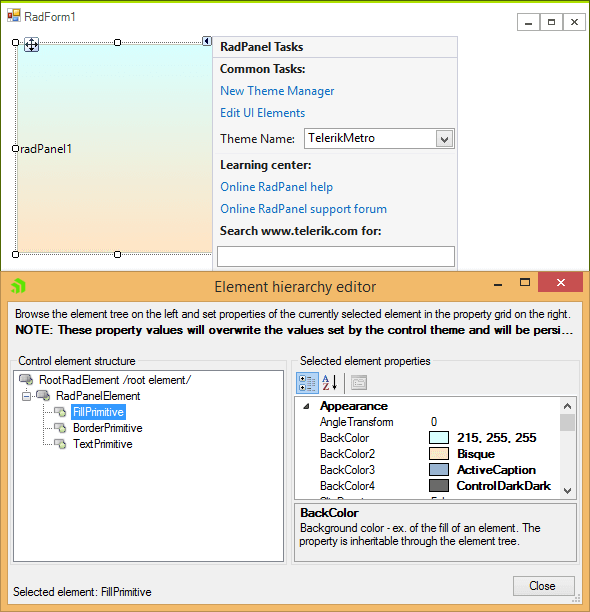
Creating a RadPanel with Gradient Background
You can easily add a gradient background to a RadPanel control by modifying the FillPrimitive which is part of the element hierarchy that builds the visual appearance of this control.
Please, follow the steps below to add a gradient background to a RadPanel control:
-
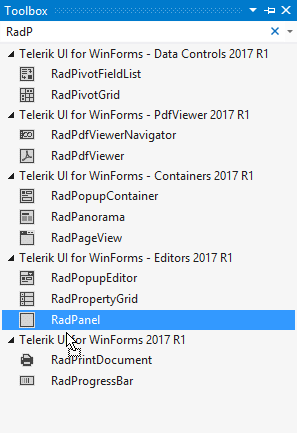
Create a new RadForm control and drop a RadPanel onto the form from the Visual Studio Toolbox:
-
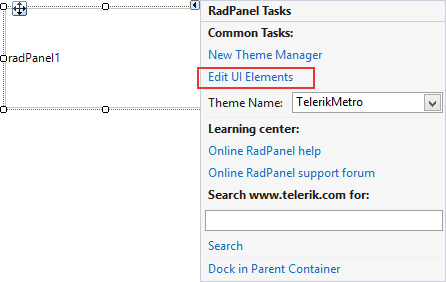
Select the RadPanel and execute the Edit UI Elements action from its Smart Tag:
-
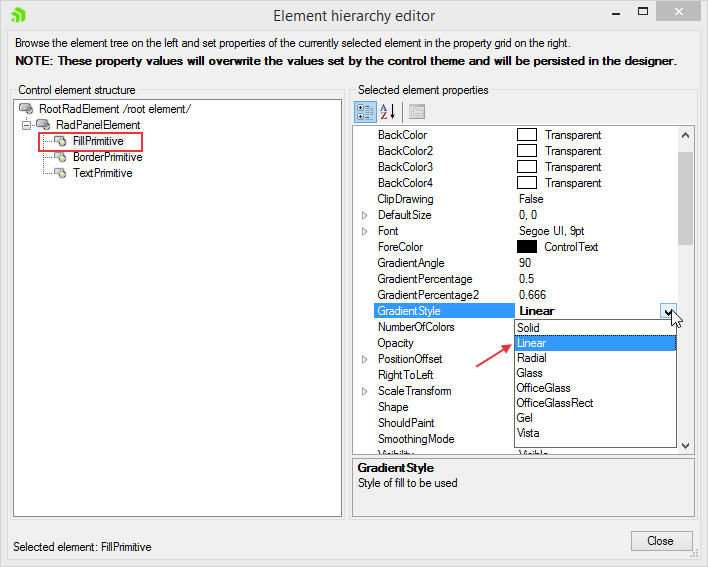
A dialog form will show up. In the Tree View on the right the element hierarchy of the control is populated. Find and select the FillPrimitive node and take a look at the Property Grid on the right:
-
To set up a gradient, you should first set the GradientStyle of the FillPrimitive to Linear. After that you should define the count of the colors which will be blended to build the gradient. The *FillPrimitive * supports up to 4 colors. You can use the BackColor, BackColor1, BackColor2, BackColor3 properties to define the colors for the gradient: The GradientPercentage and GradientPercentage2 properties define the position of the stops between the colors which are blended. You can use these properties to fine tune the appearance of your gradient: