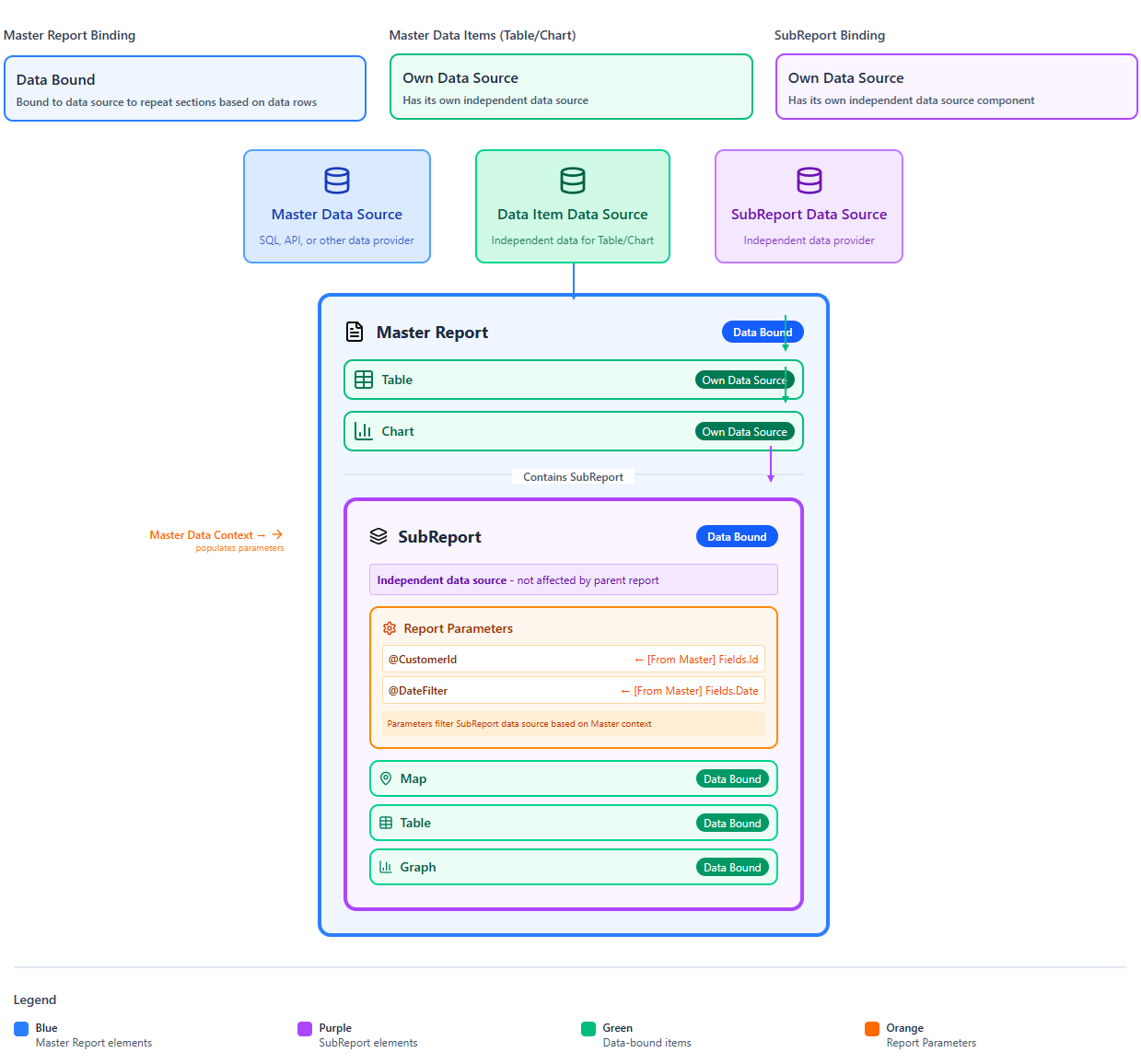
Data Scope
When you build a report in the Telerik Web Report Designer, every item (like a table, chart, or text box) needs to know which data it can see and display. This is called data scope (also known as data context). What data an item can see and display is defined by the item's type and its place in the report hierarchy.
Item Types
Telerik Reporting provides two main categories of report items:
-
Data items—Each data item supports its own data binding, grouping, and layout capabilities, enabling flexible data organization and visualization. Common data items include Report, Table, Crosstab, List, and Graph. For example, the Table item displays data in rows and columns, while the Graph item visualizes aggregated data using various chart types.
-
Non-data items—Non-data items can display text, expressions, images, or identifiers and can be placed within data items or directly in report sections. These include items such as TextBox, PictureBox, Barcode, and others.
Data Scope Levels
Think of data scope levels like a set of nested containers—each one holds a specific set of data than the one around it, and each data scope sits on a different level:
-
Report scope—The top-level report has its own data source and parameters. The report item (for example, “Report1”) defines the top-level data scope that includes all rows returned by its data source (after filtering and sorting). Everything inside the report, but outside nested data items, uses that scope by default. Expressions at this level can use:
=Fields.*(if the report has a data source)=Parameters.*- Aggregates (for example,
=Sum(Fields.Amount))
-
Data item scope (for example, Table, List, Crosstab, Graph)—Each data item can define its own data source and groups (Row/Column groups). Inside the item,
=Fields.*refers to the current row/group data scope of that item. Since Telerik Reporting uses hierarchical data scopes and each data item (Table, List, Group, etc.) creates its own scope, you can use theParentkeyword when you're inside a nested data item and need access to values from an outer scope (for example,=ReportItem.Parent.DataObject.OrderID). -
Group scope—Groups create nested (inner) scopes—Report groups, table/column/row groups, crosstab groups, and detail sections partition the data into smaller sets. Expressions inside a group are evaluated only against that group’s rows. The innermost “detail” is typically a single record. In group headers/footers and detail cells,
=Fields.*resolves in the group’s data scope. -
SubReport scope—A SubReport in Telerik Reporting does not inherit its data scope automatically from its parent report or parent data item. A SubReport always has its own data source, defined entirely by its ReportSource. This means that a SubReport is an isolated report that you load inside a parent report, and you control its data by passing parameters or by assigning it an explicit data source.
Passing Data to a SubReport
The Available Options for passing data to a SubReport are:
- Own DataSource—When the SubReport refers to a separate report (.trdp file) that has its own data source and you pass parameters and let the SubReport query its own data. This is the most common method. A similar approach is demonstrated in Creating Master-Detail Reports where the master report contains a table with Categories data. The SubReport displays Products records filtered by the respective CategoryID.
- Setting the SubReport Data Source from the Parent Report—The SubReport item exposes a DataSource property that allows the parent report to supply data directly to the inner report. When this property is set on the SubReport item, the provided data source is used during report processing instead of the data source defined in the SubReport’s report definition.
- Passing Data from the Parent—You can also use a DataObject as a data source for nested data items, meaning the child item’s entire data source can derive from the parent. A common scenario is when a parent data row contains a JSON column with child items. A similar approach is demonstrated in Creating Nested Hierarchy with SubReports.
Data Scope in Expressions
The data scope directly affects how expressions behave. The same expression can produce different results depending on where it is placed in the report:
- Field access and simple expressions (like
=Fields.Amount) run in the default scope, so inside a detail row it refers to the current record; inside a group footer it refers to the current group instance. - Aggregates (like
=Sum(Fields.Amount)) calculate over the current data scope by default. That is why the same=Sum(Fields.Amount)expression returns a group subtotal when placed in a group footer, but returns the grand total when placed in the report footer.
The Reporting engine provides the Exec aggregate function to perform calculations outside the current data or item scope. Unlike typical aggregate functions such as Sum, Avg, or Count, which operate only on the current data scope, Exec allows you to reference another parent’s scope. This makes Exec extremely useful when you need to display aggregated values in headers, footers, textboxes, or other parts of the report where normal aggregates are not allowed.
=Exec("ReportItemName", AggregateExpression)| Parameter | Description |
|---|---|
ReportItemName | The name of the parent (one or more levels up the hierarchy) data item (for example, a table, group, or list) that defines the scope. |
AggregateExpression | A valid aggregate function (for example, Sum(Fields.Price), Avg(Fields.Quantity)). |
The following example shows how to display Total Sales in a TextBox placed in the header:
=Exec("Report1", Sum(Fields.Price * Fields.Quantity))- Report1 defines the data scope.
- Exec evaluates the Sum expression as if it were inside the report.
- You get the correct total even though you are in the header.
If you don’t specify a data scope in an expression, the default data scope is always the data scope of the closest enclosing data item or group.
Data Scope Inheritance
By default, a non-data item (like TextBox) automatically uses the data scope of its parent. That's why you do not need to connect every item to a data source manually—the Web Report Designer passes data downward through the report's items and data scope levels for you.
Every report starts with a top-level data source. Items placed directly in the report use that data. Items nested inside other items (for example, a text box inside a table cell) inherit the data scope of the item they are placed in. This lets you reuse the parent's data without creating a new data source for each child item.
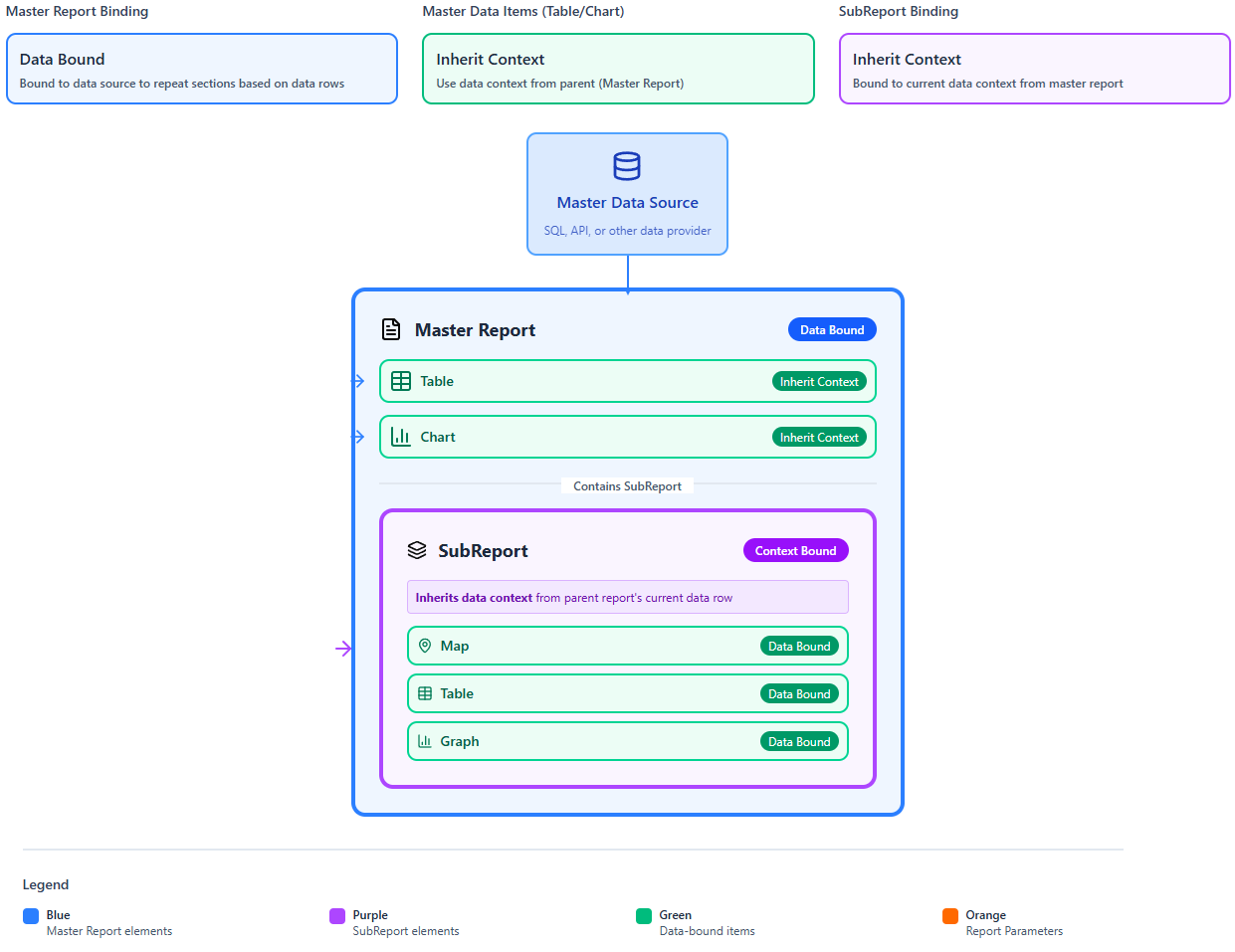
The data scope is inherited only downward, not sideways. Two report items placed next to each other (siblings) do not access each other's data. Each item only inherits from its own parent.
Independent Data Scope
When a data item has its own data source, it creates an independent data scope. Its children inherit that scope, not the parent report's data scope. This means the item's data is completely unaffected by the parent's filtering or grouping, making it easy to reuse tables, graphs, and SubReports across different parent reports.
Two common patterns for using an independent data scope are:
- Master-Detail (Parent-Child)—A parent Table uses DataSource A. Inside the detail row, a child Table, List, or Graph sets its own DataSource B, filtered by a key from the parent row. To pass the parent row's value to the child data source, use
=ReportItem.DataObject.CustomerIdor=Fields.CustomerIdas a data source parameter. The child item then shows only the rows that match the current parent row. - SubReport—A SubReport is self-contained by design. You pass a parameter from the parent (for example, an
OrderId) and the SubReport uses its own data source filtered by that parameter. This pattern is ideal when the same SubReport is reused across multiple parent reports.
See the Creating Master-Detail Reports tutorial.