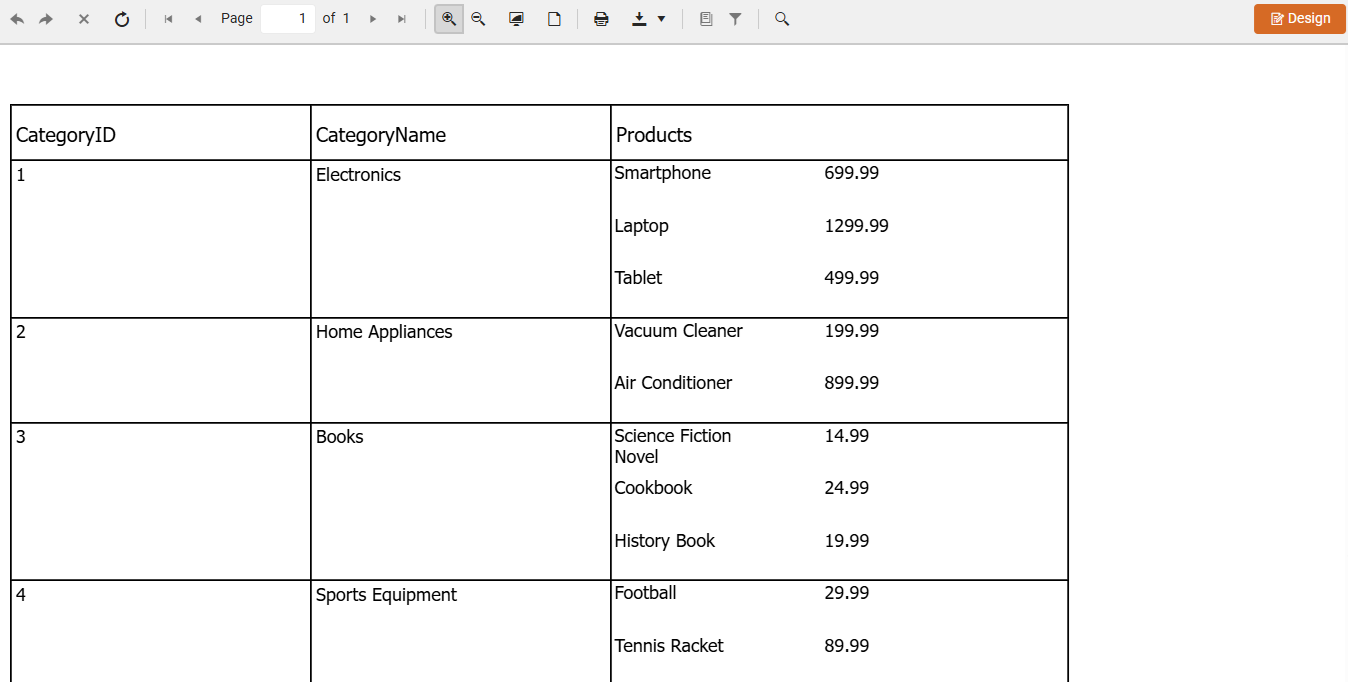
Creating Nested Hierarchy with SubReports
Using a DataSource in the SubReport item allows you to bind the child report directly to a filtered subset of the parent's data, making the hierarchy more intuitive and reduces using parameters for building the hierarchical structure. This approach of implementing a master-detail report scenario does not use different data sources in both reports, as demonstrated in the Creating Master-Detail Reports article.
The main benefits of this approach are:
- No need to define and pass parameters manually. All the data is available in the parent report.
- Works naturally with hierarchical object models or JSON data.
- Cleaner and more maintainable for multi-level hierarchies.
The example in this tutorial shows how to present and organize a report when the used data has a nested (hierarchical) structure. The JSON data for this report represents a collection of Categories. Each category contains a nested list of its Products.
A complete step-by-step video is available here:
To design a report that represents a hierarchy:
-
Create a new report (for example,
CategoriesReport.trdp). You will use it as the main (parent) report to display categories. -
Create a JSONDataSource item using the nested JSON collection for Categories and Products.
-
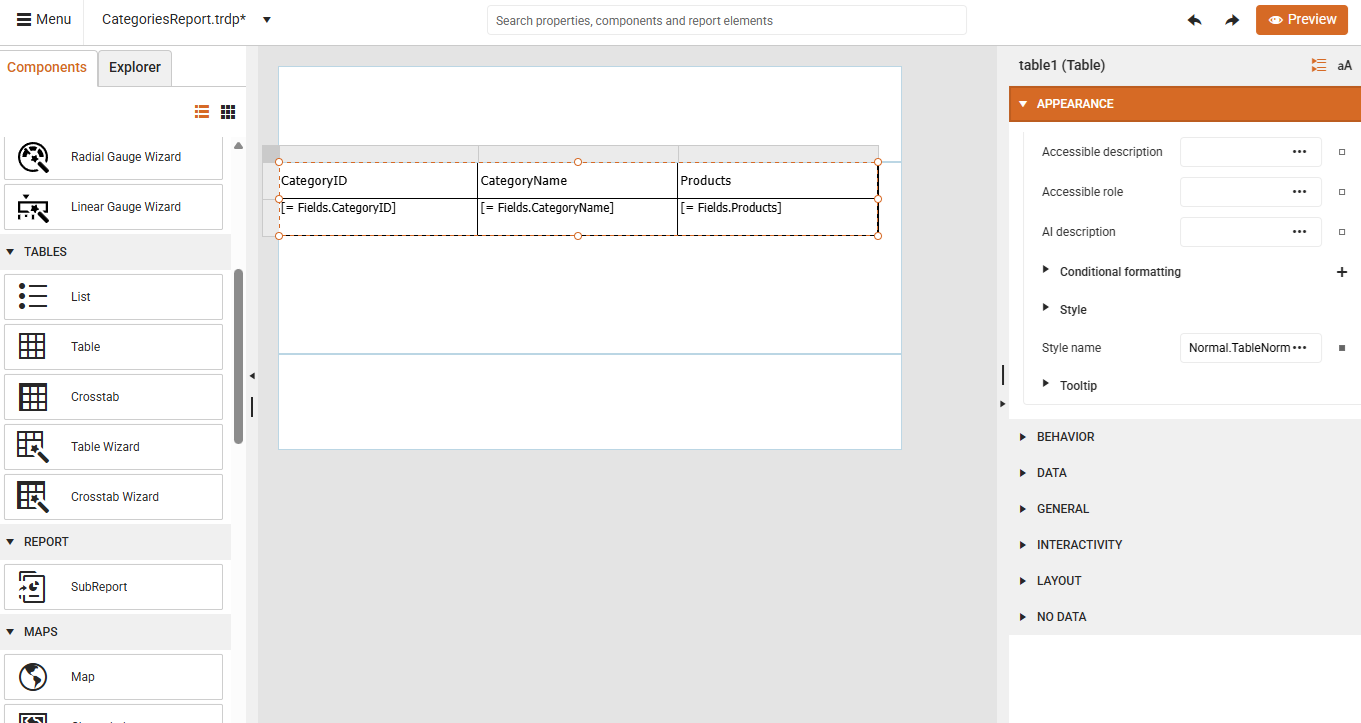
Use the Table Wizard to create a table bound to the JSON source.
-
Select the generated TextBox for the Products field (the TextBox bound to Fields.Products).
-
Navigate to the Components tab and click SubReport. Thus, the TextBox item is replaced by a SubReport item.
-
Using the search box, navigate to the Bindings section and add a new binding for the DataSource field and set the Expression to
"=Fields.Products". Thus, the SubReport item will be mapped to the Products list of the respective category record.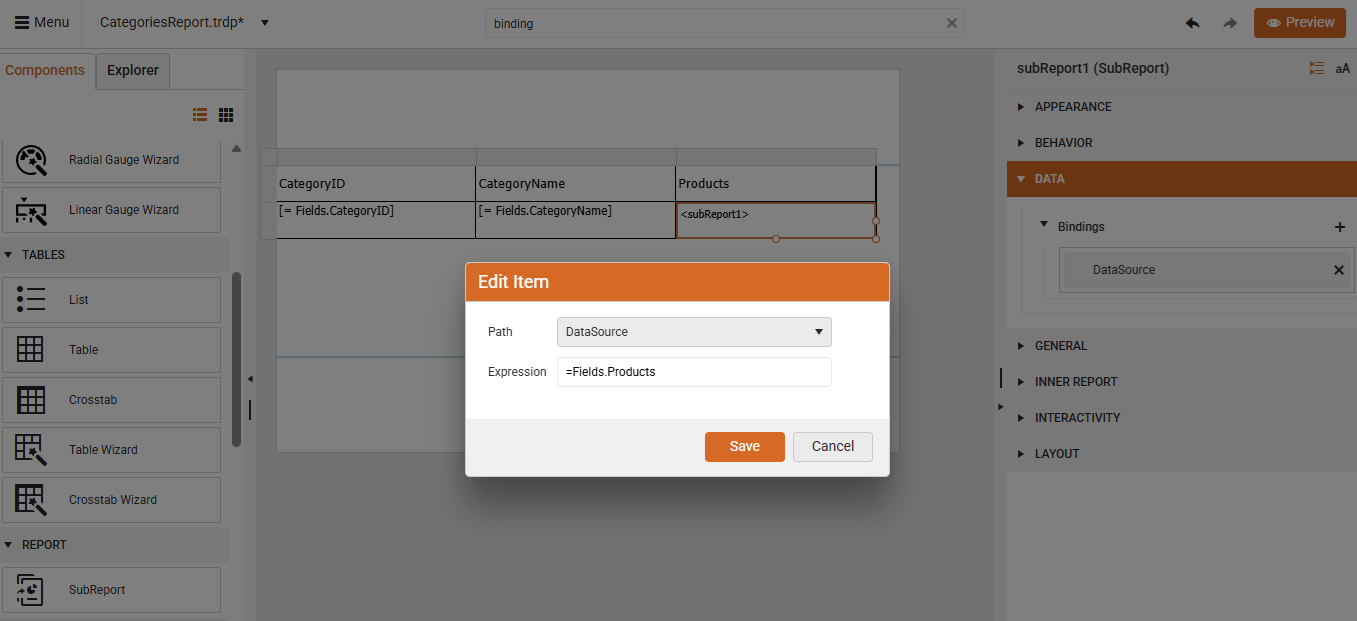
-
Navigate to the INNER REPORT section and select the UriReportSource Type. Now, you need to create a separate report that will be used as a container for the products for each category.
-
Create another report (
ProductsReport.trdp). -
Remove the default header/footer and add two TextBox items (or other Report items according to the data you need to display).
-
Using the search box, navigate to the Value field and bind to
=Fields.ProductNameand=Fields.Pricerespectively. Save the child report. -
Go back to the
CategoriesReport.trdpreport and set the newly createdProductsReport.trdpas Uri for the UriReportSource.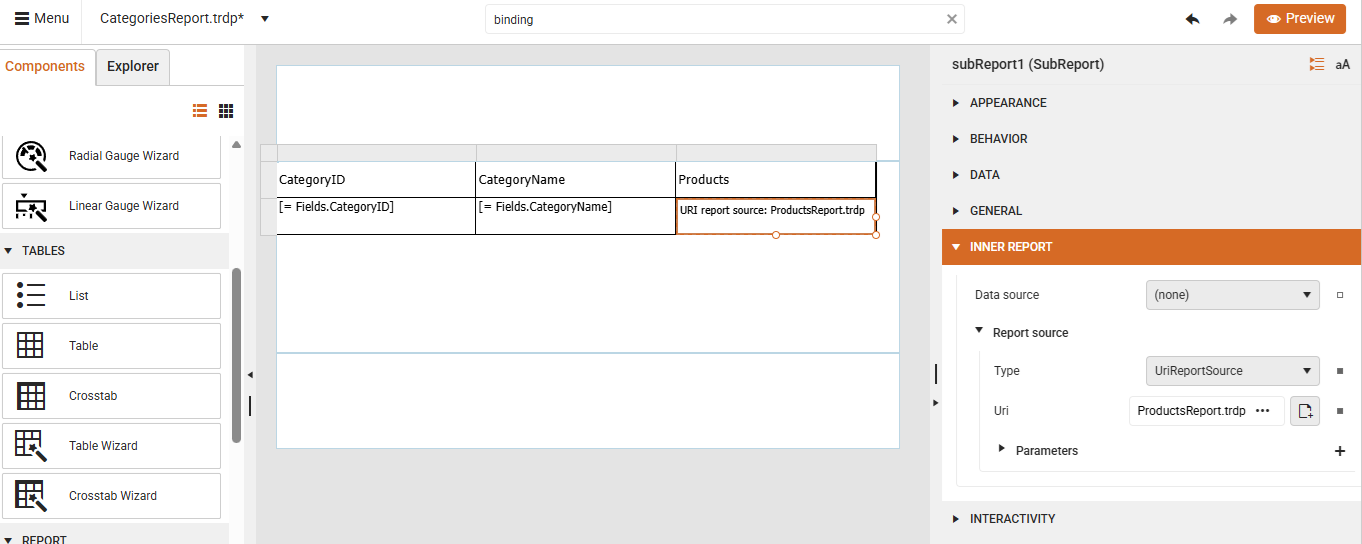
-
Click the Preview button. In the report, you will see the products for each category group.