Visual Studio Report Designer Overview
The Visual Studio Report Designer for .NET is available as a preview starting with Telerik Reporting 2026 Q3 (20.2.26.1007).
The Visual Studio Report Designer edits coded report definitions in Visual Studio. Telerik Reporting provides two designer implementations with different installation and user interface workflows:
- Visual Studio Report Designer for .NET uses the
Telerik.Reporting.VSDesignerNuGet package to edit C# and VB reports in SDK-style projects. It runs in a separate process. - Visual Studio Report Designer for .NET Framework uses the installed Telerik Reporting Visual Studio extension to edit C# and VB reports in .NET Framework projects.
See Structure of the Visual Studio Report Designer for the feature and workflow differences.
Designing Coded Reports for .NET
Start with the bundled sample. Extract the complete bundle, open and build its solution, then open SampleReport.cs with View Designer. No installer or feed registration is required for the sample.
For your own C# or VB reports, configure an existing report project with the required package references and project settings.
The Standalone Report Designer for .NET is an alternative outside Visual Studio. Starting with Telerik Reporting 2025 Q3, it supports coded C# report definitions.
For its prerequisites, code-behind support, and migration workflow, see Coded Reports in the Standalone Report Designer for .NET.
Installation
Both designers require Windows, but use different installation workflows.
Installing the .NET Designer
Reference the Telerik.Reporting.VSDesigner NuGet package, which depends on the same-version Telerik.Reporting package. NuGet restores that dependency automatically. The designer version follows your project's package reference, not the most recent Reporting installation.
The setup requires Visual Studio 2026 version 18.10 or later, the .NET desktop development workload, and net8.0-windows or later with UseWindowsForms=true. The bundled sample targets net10.0-windows.
Follow the bundle quick-start to open the prepared sample. Its nuget.config maps the designer to the bundle root and all other packages to nuget.org. The optional installer registers a permanent designer feed for your other projects; it does not modify or build the sample.
Installing the .NET Framework Designer
The .NET Framework designer is installed with the Telerik Reporting product. The installer detects your Visual Studio versions and lets you choose which supported versions to integrate. See System Requirements - IDE Support.
The .NET Framework designer works with the last installed Reporting version. Use the Upgrade Wizard to upgrade ReportLibrary projects. This installation restriction does not apply to the NuGet-based .NET designer.
Starting the Visual Studio Report Designer and Opening Reports
For .NET projects, use the opening procedure after you configure the package and project. The new designer does not supply Visual Studio report templates.
If Telerik Reporting is installed on your Windows machine with Visual Studio integration, its blank-report template can create a report for the .NET designer. You can ignore the template warning displayed before the blank report is created and continue. For project setup and template usage, see Configuring Your Report Project.
The following template and import procedures apply to the .NET Framework designer.
Creating New Reports and Importing Reports from Other Formats in the Designer
Create a new report through the Telerik Reporting Visual Studio Item Template:
-
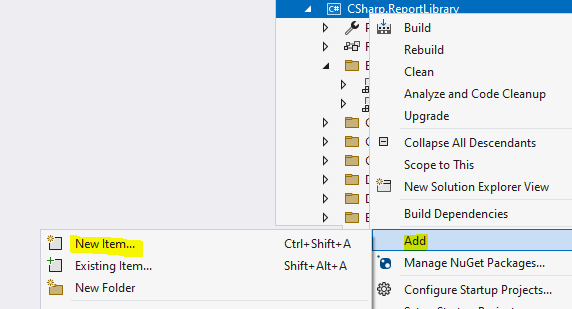
Right-click over the project you want to add the new Report type to. We recommend the ReportLibrary or ClassLibrary project types. Select Add > New Item... from the context menu:
-
From the popped-up
Add New ItemWizard, select theInstalled>C# Items(for C# projects) orCommon Items(for VB projects) >Reportingsection. It gives you three choices: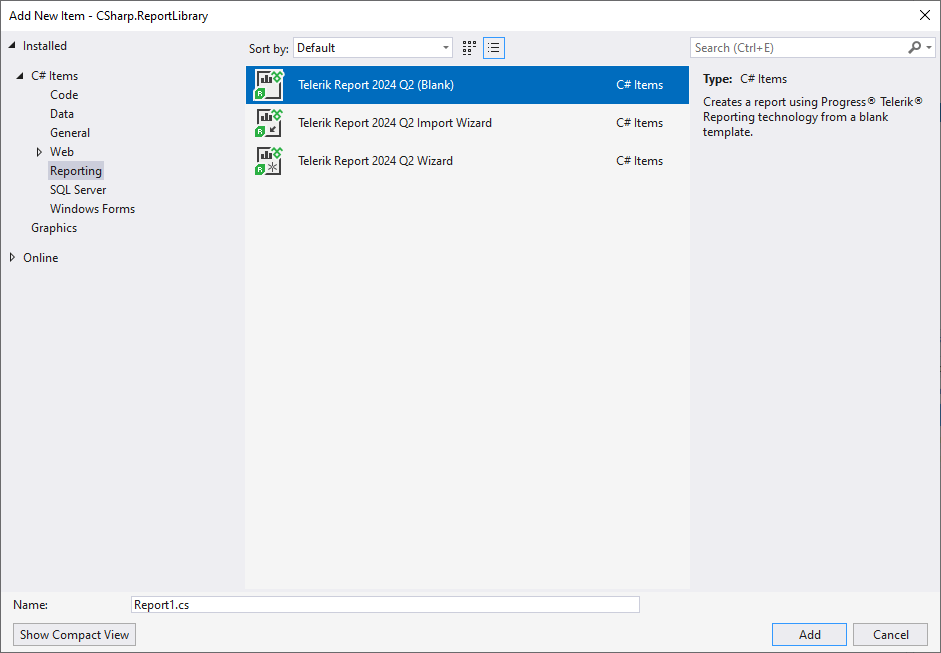
-
Telerik Reporting 2026 Q3 (Blank)option creates a new report -
Telerik Reporting 2026 Q3 Import Wizardoption lets you import a report from a supported format and open it in the designer for editing: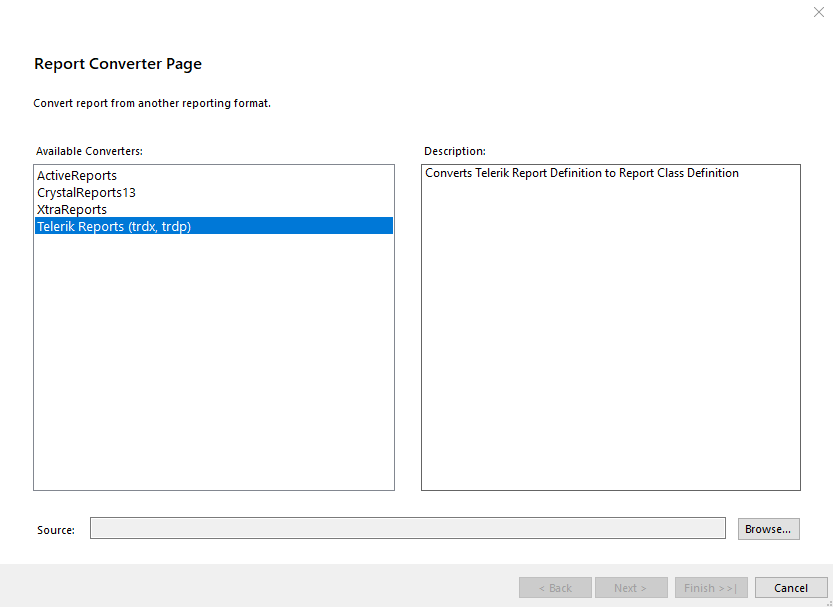
The wizard lets you select one of the external formats we support as explained in the Importing Reports Overview, or import/open a declarative report definition (TRDX and TRDP files) as explained in the article Importing Reports Created with the Standalone or Web Report Designer.
-
Telerik Reporting 2026 Q3 Wizardoption lets you create a new blank report or use one of our wizards to create a specific template: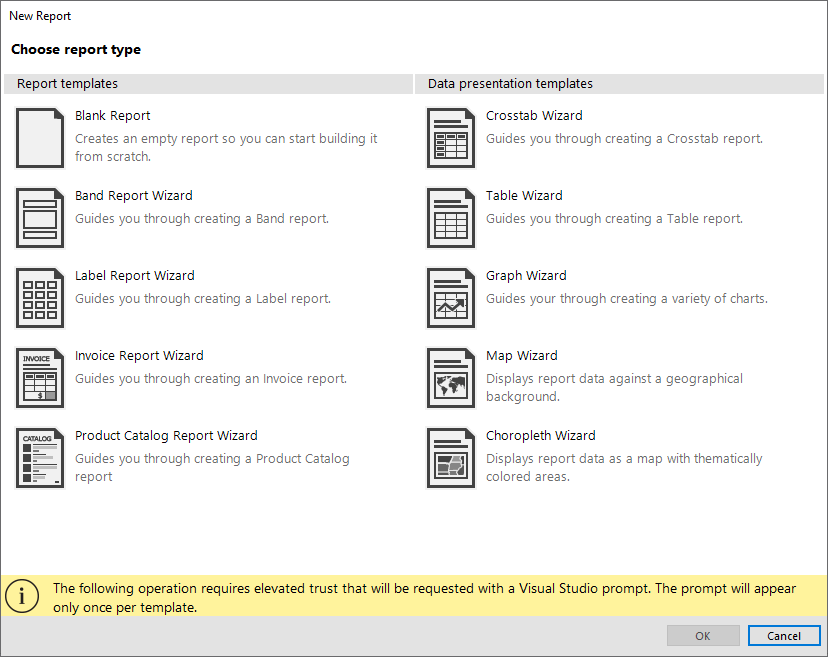
-
-
(optional) If the Security Warning window pops up, click
Trustto let the Visual Studio Report Designer create/open the selected report definition: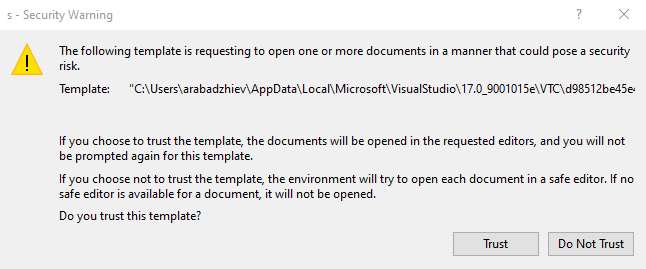
Opening Existing C#/VB Reports in the Designer
In a .NET Framework project, double-click the report type in Solution Explorer, or right-click it and select View Designer.
Opening .NET Reports in the Designer
In a configured .NET project, right-click the report's main .cs or .vb file in Solution Explorer and select View Designer. For an animation and details about the default editor, see Opening a Report.
Key Features of the Visual Studio Report Designer
The following image shows the .NET Framework designer and its key features:
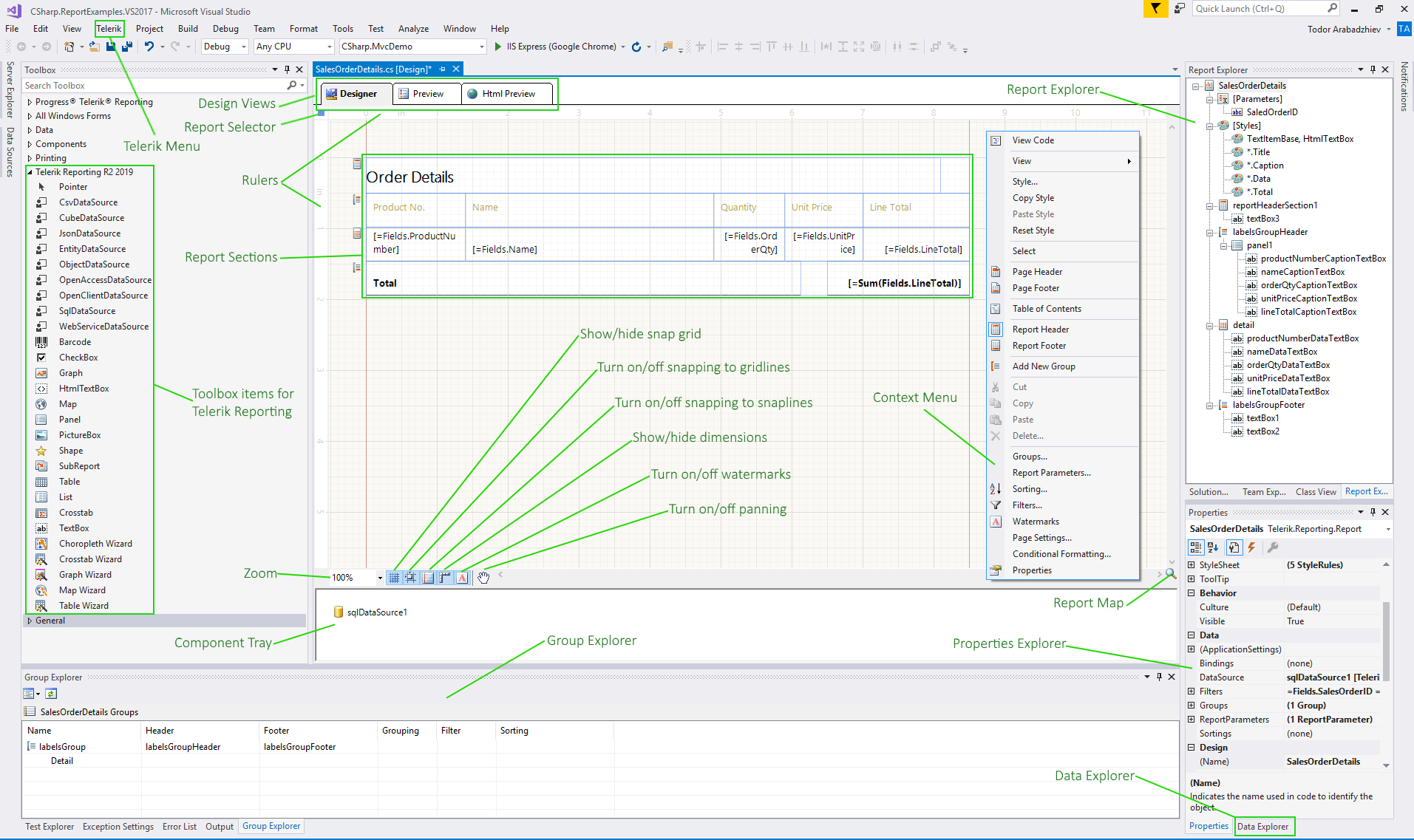
The .NET Framework designer provides the following elements:
- Telerik Reporting Menu
- Design Views Buttons
- Report Selector Button
- Rulers
- Report Sections
- Component Tray
- Context Menu
- Tooltip Buttons
- Show/Hide the Report MiniMap
- Change the Alignment of an Element
- Properties Explorer
- Report Explorer
- Group Explorer
- Data Explorer
The .NET designer also provides report sections, rulers, a component tray, context menus, layout aids, and explorer windows. It has Designer and Preview tabs, but no HTML preview, document map area, or report minimap.
Open its explorers from the report context menu, not the Visual Studio Extensions menu. Report parameters and export options use dialogs, as described in Previewing Reports in the .NET Designer.
For details about each element and supported layout aids, see Structure of the Visual Studio Report Designer.
For the .NET Framework designer in Visual Studio 2022, ensure that the report project's
Platform targetis notx86. Visual Studio 2022 is a 64-bit application and cannot preview 32-bit assemblies in its process.
Working with Code
All Telerik Reporting CS/VB reports, for example, ReportName.cs inherit from the base Telerik.Reporting.Report type. The Visual Studio Report Designer generates automatically the code in the InitializeComponent method of the ReportName type that resides in the ReportName.designer.cs file. It is a special method recognized and parsed by the Report Designer to display the report in design time.
Add custom code to the ReportName type in the ReportName.cs file, which contains by default only the parameterless constructor of the ReportName type. For example, add Report Event Handlers and similar customizations.
Visual Studio Report Designer Troubleshooting
For .NET setup and preview issues, or legacy extension and template issues, see Visual Studio Report Designer Troubleshooting.
See Also
- Structure of the Visual Studio Report Designer
- Getting Started with the Visual Studio Report Designer for .NET
- Previewing Reports in the Visual Studio Report Designer for .NET
- Editing .NET Reports Through a .NET Framework Project (Legacy Workaround)
- Standalone Report Designer Overview
- Web Report Designer Overview
- .NET Coded Report Design, No IDE Strings Attached
- Coded Reports in the Standalone Report Designer for .NET