WebServiceDataSource Wizard of the Report Designer
The Web Service Data Source Wizard allows you to create a new or edit an existing WebServiceDataSource component based on several settings. After the wizard appears you have to perform the following steps:
-
Configure data retrieval Setup the properties of the HTTP request which will retrieve data from the web service:
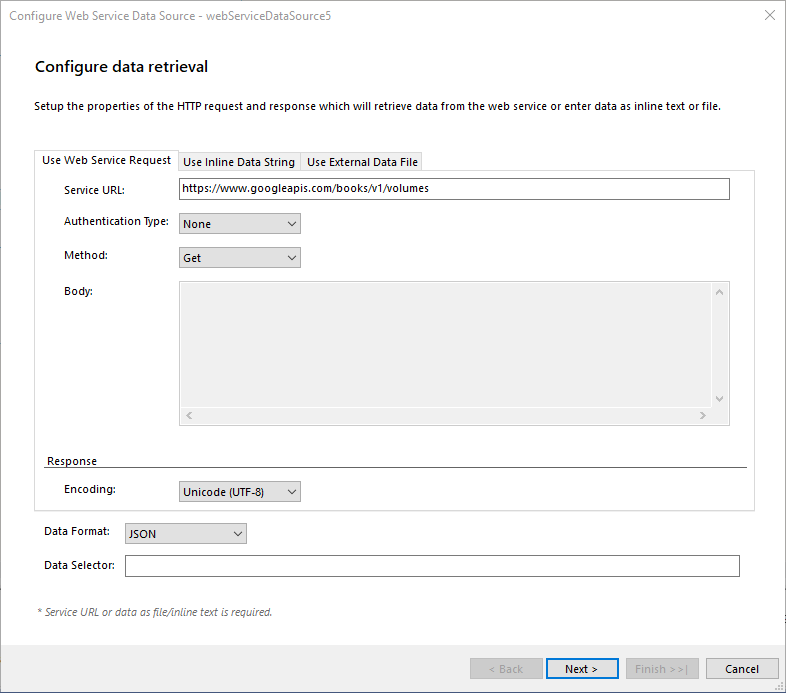
Setting Description Service URL The URL the request is sent to. Returns the data from the web service. Required. Authentication Type The authentication type. We support Basic and 2-step authentications. Encoding Data encoding. Default is UTF-8. Method HTTP request method. GET and POST are the supported methods. Body The body of the POST method. Applicable only for POST HTTP request method. Data Selector The JSONPath expression string which will be used to query the data. For more information please refer to How to Use JSONPath to filter JSON data. And/or enter data inline:
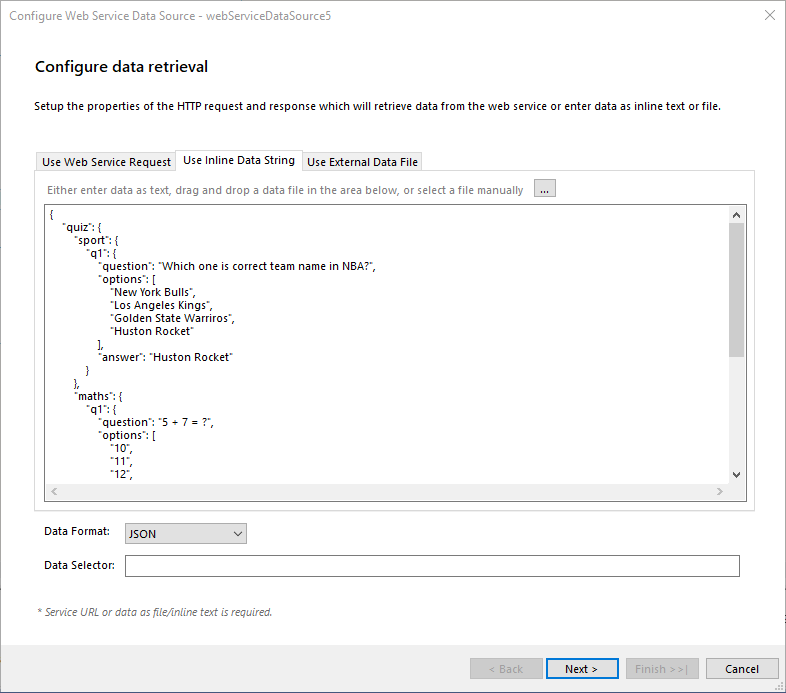
Setting Description Source The inline data string containing the data. Required if Service URL or external data file is not set. Data Selector The JSONPath expression string which will be used to query the JSON data. For more information please refer to How to Use JSONPath to filter JSON data. And/or reference an external data file:
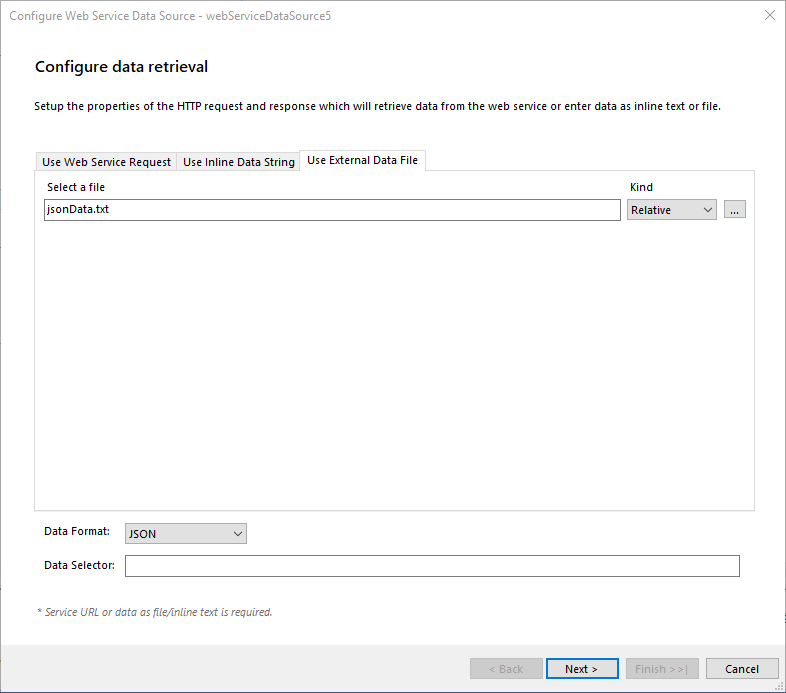
Setting Description Source The external data file containing the data. The URI to the file might be relative or absolute. Required if Service URL or inline data string is not set. Data Selector The JSONPath expression string which will be used to query the JSON data. For more information please refer to How to Use JSONPath to filter JSON data. -
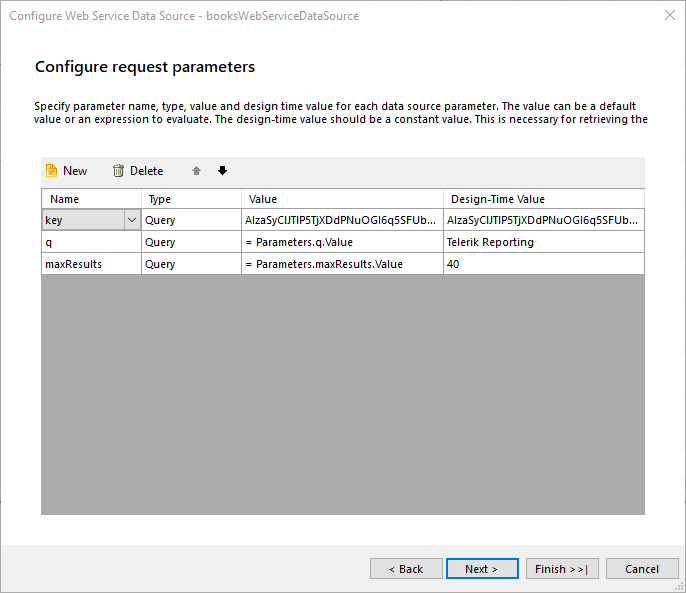
Configure request parameters The parameters of the HTTP request to be applied. The supported types are Query, Header, Cookie, and Inline. The inline parameters are parameters that are used to replace parameter tokens (@param1) in the URL and the Body fields with the expression result or static value.
-
Basic Authentication
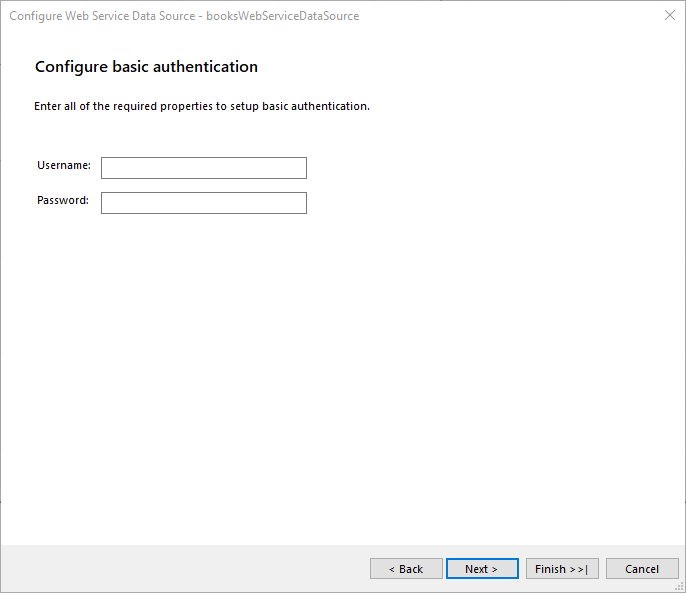
Setting Description Username The username used to authenticate. Required. Password The password used to authenticate. -
2-Step Authentication
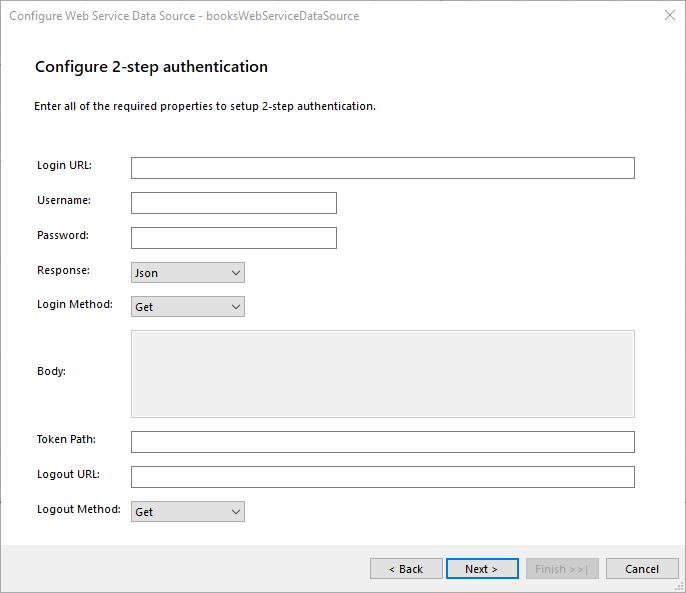
Setting Description Login URL This URL returns the authentication token or session key that allows you to access the API. Required. Username The username used to authenticate. The username and password are needed only when the Login URL uses Basic Authentication to retrieve the authentication token/key. Password The password used to authenticate. Response Specifies the type of the expected response from the Login URL. JSON and plain text are supported. Login Method Specifies the HTTP request method to be used. Token Path This is a regular expression that allows to retrieve the authentication or session key from the response received via the Login URL. For example, when the Login URL returns a JSON response containing the authentication token in the form: {"access_token":"cbm9W3MeTeVPuO5CIq_DTvG5KbzydpRQ","token_type":"bearer","expires_in":1799,"userName":"demouser",".issued":"Tue, 15 May 2018 08:42:32 GMT",".expires":"Tue, 15 May 2018 09:12:32 GMT"} the token path regular expression to retrieve the token would be: (?:"access_token":")(.?)(?:")* Logout URL This URL is called if the resource features a lockout for having too many sessions open. Refresh the report and try again after successfully logging out. Logout Method Specifies the HTTP request method used for the Logout URL. Body The body of the login HTTP request. Applicable only for POST HTTP request method. -
2-Step Authentication Parameters The parameters of the HTTP request to be applied. The supported types are Query, Header, Cookie and Inline. The inline parameters are parameters that are used to replace parameter tokens (@param1) in the URL and the Body fields with the expression result or static value.