OpenAI Image Generation

Summarize with AI:
Learn about OpenAI image generation and how to generate images from text prompts, customize and refine outputs and display them in a React interface.
AI image generation has evolved rapidly, transforming from something novel into a tool that developers and creators use to prototype ideas and bring imaginative concepts to life.
OpenAI’s GPT Image model, combined with the Images API, brings image generation capabilities directly into our JavaScript/TypeScript applications. Whether we’re building user profile systems, content creation tools or design prototyping interfaces, understanding how to programmatically generate, edit and refine images can enhance our creative and development process.
In this article, we’ll explore OpenAI’s image generation capabilities using TypeScript and the Images API. We’ll walk through generating images from text prompts, customizing output options, iteratively refining results and displaying them in a React interface using Progress KendoReact components.
Prerequisites: To follow along, you’ll need an OpenAI API key, which you can obtain from platform.openai.com.
Understanding OpenAI’s Image Generation Capabilities
OpenAI’s GPT Image model is designed for generating high-quality images from text descriptions. The Images API provides a straightforward interface for creating images with the gpt-image-1 model (as well as the older DALL-E models).
The process works by calling the /v1/images/generations endpoint with our prompt and desired parameters and the model returns base64-encoded image data that we can immediately use in our applications.
Getting Started
Let’s start with a simple React component that generates an image from a text prompt. We’ll use the OpenAI JavaScript SDK and build everything in a single App.tsx file.
First, we’ll install the OpenAI package:
npm install openai
Then, we’ll create our basic image generation component:
import React, { useState } from "react";
import OpenAI from "openai";

const App = () => {
  const [imageUrl, setImageUrl] = useState("");
  const [loading, setLoading] = useState(false);

  const generateImage = async () => {
    setLoading(true);

    const openai = new OpenAI({
      apiKey: "YOUR_OPENAI_API_KEY",
      dangerouslyAllowBrowser: true,
    });

    const response = await openai.images.generate({
      model: "gpt-image-1",
      prompt: "A serene mountain landscape at sunset",
      n: 1,
      size: "1024x1024",
    });

    const base64Image = `data:image/png;base64,${response.data?.[0].b64_json}`;
    setImageUrl(base64Image);
    setLoading(false);
  };

  return (
    <div style={{ padding: "20px" }}>
      <h1>OpenAI Image Generation</h1>
      <button onClick={generateImage} disabled={loading}>
        {loading ? "Generating..." : "Generate Image"}
      </button>
      {imageUrl && (
        <img
          src={imageUrl}
          alt="Generated"
          style={{ maxWidth: "500px", marginTop: "20px" }}
        />
      )}
    </div>
  );
};

export default App;
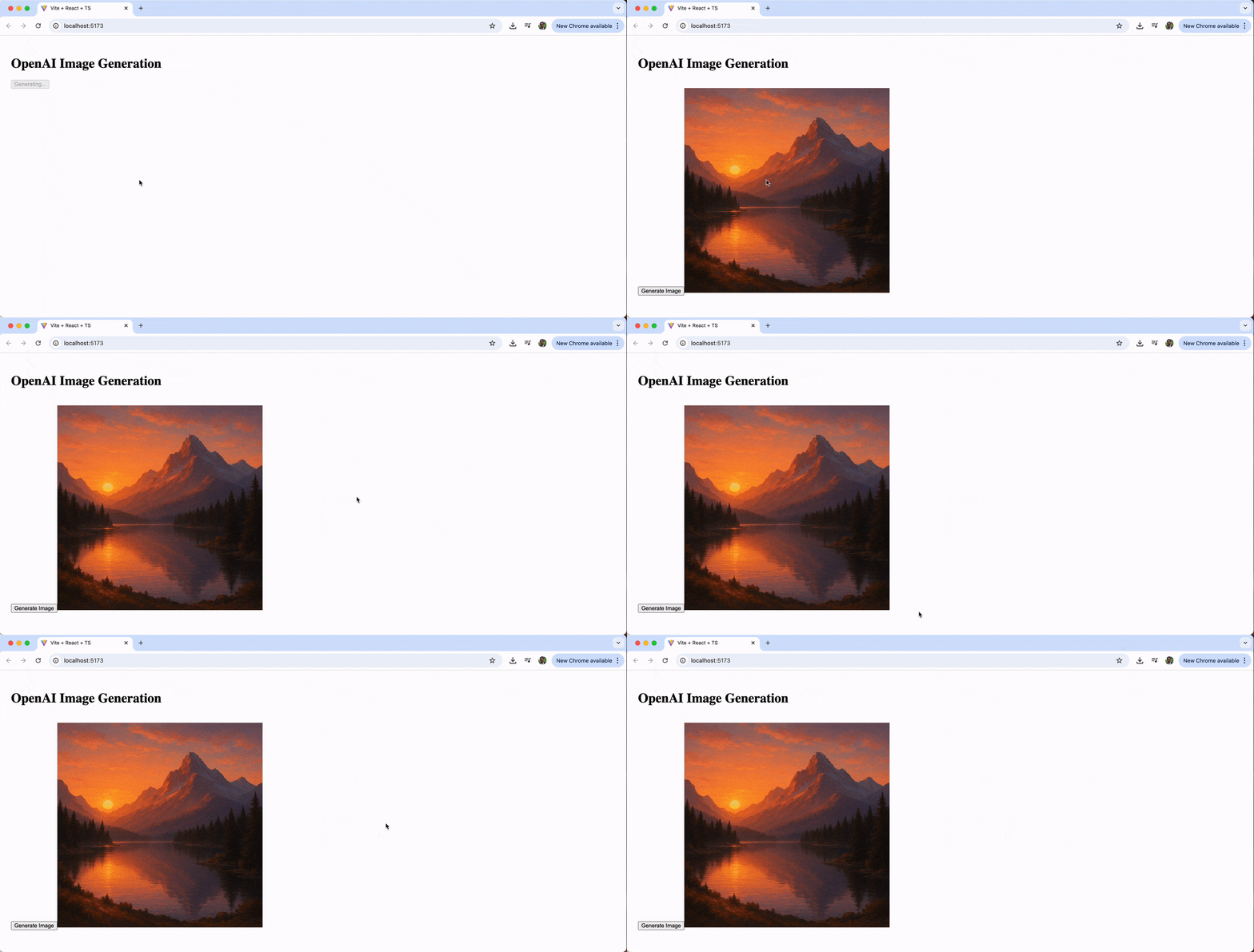
In the above code example, we call openai.images.generate() with the gpt-image-1 model and our prompt. The response contains a data array with generated images, where each image object has a b64_json property containing the base64-encoded image. We convert this to a data URL for immediate display in our <img> tag.
Note: Setting
dangerouslyAllowBrowser: trueallows the API key to be used client-side. In production, we should make these calls from a backend server to keep your API key secure. Furthermore, never embed your API key directly in code or expose it in public repositories.
When we run the application and click the “Generate Image” button, the component makes a request to OpenAI’s API and displays the generated image once it’s ready:
Building a Dynamic Image Generator
Let’s expand our component to allow users to enter custom prompts and see the results. To achieve this, we’ll add state management for the prompt and update our interface as follows:
const App = () => {
  const [prompt, setPrompt] = useState("");
  const [imageUrl, setImageUrl] = useState("");
  const [loading, setLoading] = useState(false);

  const generateImage = async () => {
    if (!prompt) return;
    setLoading(true);

    const openai = new OpenAI({
      apiKey: "YOUR_OPENAI_API_KEY",
      dangerouslyAllowBrowser: true,
    });

    const response = await openai.images.generate({
      model: "gpt-image-1",
      prompt: prompt,
      size: "1024x1024",
      quality: "high",
    });

    const base64Image = `data:image/png;base64,${response.data?.[0].b64_json}`;
    setImageUrl(base64Image);
    setLoading(false);
  };

  return (
    <div style={{ padding: "20px" }}>
      <h1>OpenAI Image Generation</h1>
      <div style={{ marginBottom: "20px" }}>
        <input
          type="text"
          value={prompt}
          onChange={(e) => setPrompt(e.target.value)}
          placeholder="Describe the image you want to generate..."
          style={{ width: "100%", padding: "10px", marginBottom: "10px" }}
        />
        <button onClick={generateImage} disabled={loading || !prompt}>
          {loading ? "Generating..." : "Generate Image"}
        </button>
      </div>
      {imageUrl && (
        <img
          src={imageUrl}
          alt="Generated"
          style={{ maxWidth: "500px", marginTop: "20px" }}
        />
      )}
    </div>
  );
};

export default App;
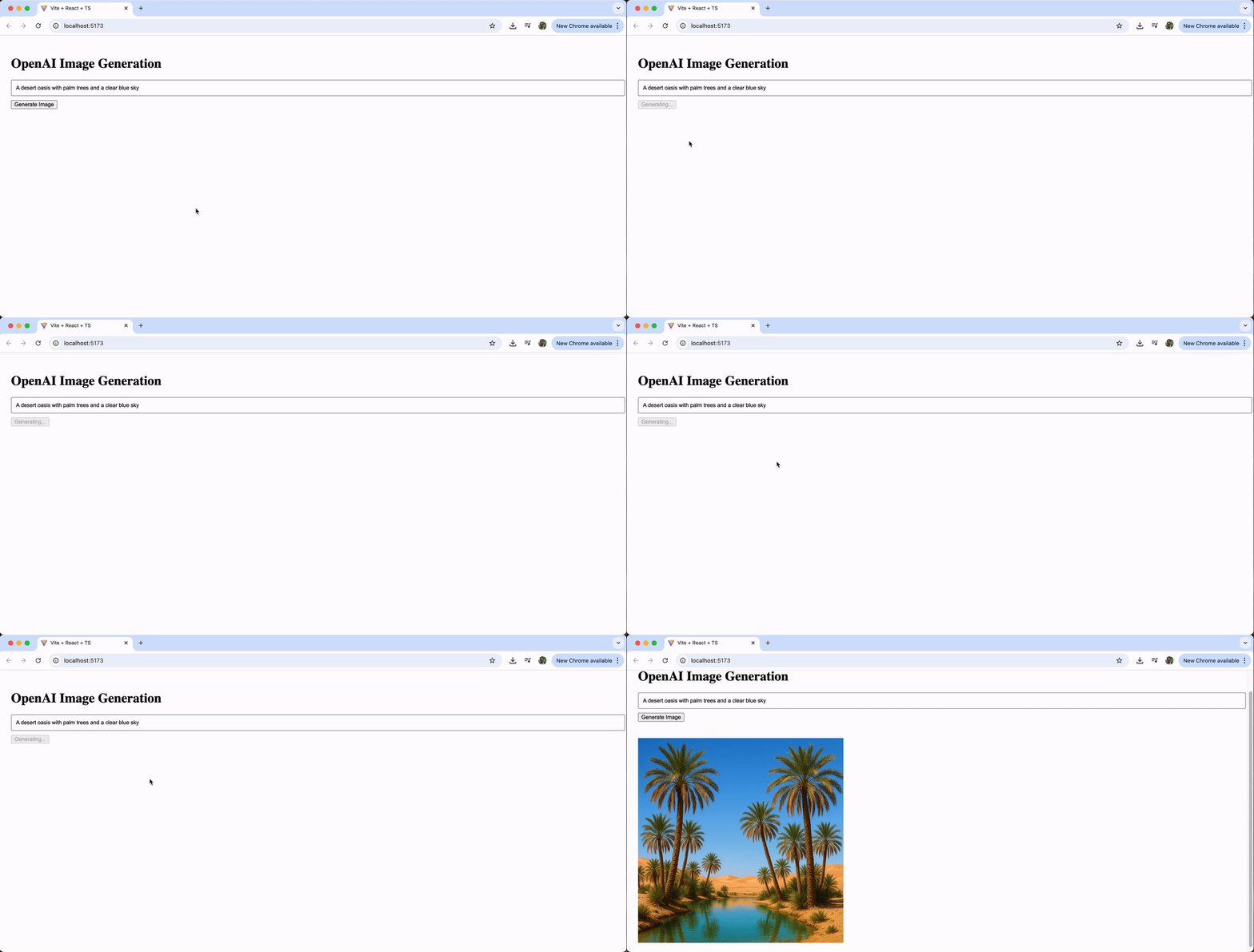
In the above code example, we’ve added a prompt state variable and an input field that allows users to type their custom prompts. The generateImage function now uses this dynamic prompt value instead of a hardcoded string, making the interface interactive.
Now users can enter any prompt they want and generate custom images on demand. Here’s an example of entering a prompt for “A desert oasis with palm trees and a clear blue sky.”
Iterative Refinement with Image Editing
One of the powerful features of OpenAI’s image generation is the ability to edit existing images. Using the /v1/images/edits endpoint, we can refine generated images based on new prompts.
Let’s add image editing capabilities to our component:
const App = () => {
  const [prompt, setPrompt] = useState("");
  const [imageUrl, setImageUrl] = useState("");
  const [loading, setLoading] = useState(false);
  const [editPrompt, setEditPrompt] = useState("");

  const generateImage = async () => {
    if (!prompt) return;
    setLoading(true);

    const openai = new OpenAI({
      apiKey: "YOUR_OPENAI_API_KEY",
      dangerouslyAllowBrowser: true,
    });

    const response = await openai.images.generate({
      model: "gpt-image-1",
      prompt: prompt,
      size: "1024x1024",
      quality: "high",
    });

    const base64Image = `data:image/png;base64,${response.data?.[0].b64_json}`;
    setImageUrl(base64Image);
    setLoading(false);
  };

  const editImage = async () => {
    if (!editPrompt || !imageUrl) return;
    setLoading(true);

    const openai = new OpenAI({
      apiKey: "YOUR_OPENAI_API_KEY",
      dangerouslyAllowBrowser: true,
    });

    // Convert base64 to File object
    const base64Data = imageUrl.split(",")[1];
    const byteCharacters = atob(base64Data);
    const byteNumbers = new Array(byteCharacters.length);
    for (let i = 0; i < byteCharacters.length; i++) {
      byteNumbers[i] = byteCharacters.charCodeAt(i);
    }
    const byteArray = new Uint8Array(byteNumbers);
    const blob = new Blob([byteArray], { type: "image/png" });
    const file = new File([blob], "image.png", { type: "image/png" });

    const response = await openai.images.edit({
      model: "gpt-image-1",
      image: file,
      prompt: editPrompt,
      size: "1024x1024",
    });

    const base64Image = `data:image/png;base64,${response.data?.[0].b64_json}`;
    setImageUrl(base64Image);
    setEditPrompt("");
    setLoading(false);
  };

  return (
    <div style={{ padding: "20px" }}>
      <h1>OpenAI Image Generation</h1>

      {/* Initial Generation */}
      <div style={{ marginBottom: "20px" }}>
        <input
          type="text"
          value={prompt}
          onChange={(e) => setPrompt(e.target.value)}
          placeholder="Describe the image you want to generate..."
          style={{ width: "100%", padding: "10px", marginBottom: "10px" }}
        />
        <button onClick={generateImage} disabled={loading || !prompt}>
          {loading ? "Generating..." : "Generate Image"}
        </button>
      </div>

      {/* Current Image */}
      {imageUrl && (
        <div style={{ marginTop: "20px" }}>
          <img src={imageUrl} alt="Generated" style={{ maxWidth: "500px" }} />
        </div>
      )}

      {/* Edit Section */}
      {imageUrl && (
        <div style={{ marginTop: "20px" }}>
          <h3>Edit Image</h3>
          <input
            type="text"
            value={editPrompt}
            onChange={(e) => setEditPrompt(e.target.value)}
            placeholder="e.g., 'Make it more colorful' or 'Add mountains in the background'"
            style={{ width: "100%", padding: "10px", marginBottom: "10px" }}
          />
          <button onClick={editImage} disabled={loading || !editPrompt}>
            {loading ? "Editing..." : "Edit Image"}
          </button>
        </div>
      )}
    </div>
  );
};

export default App;
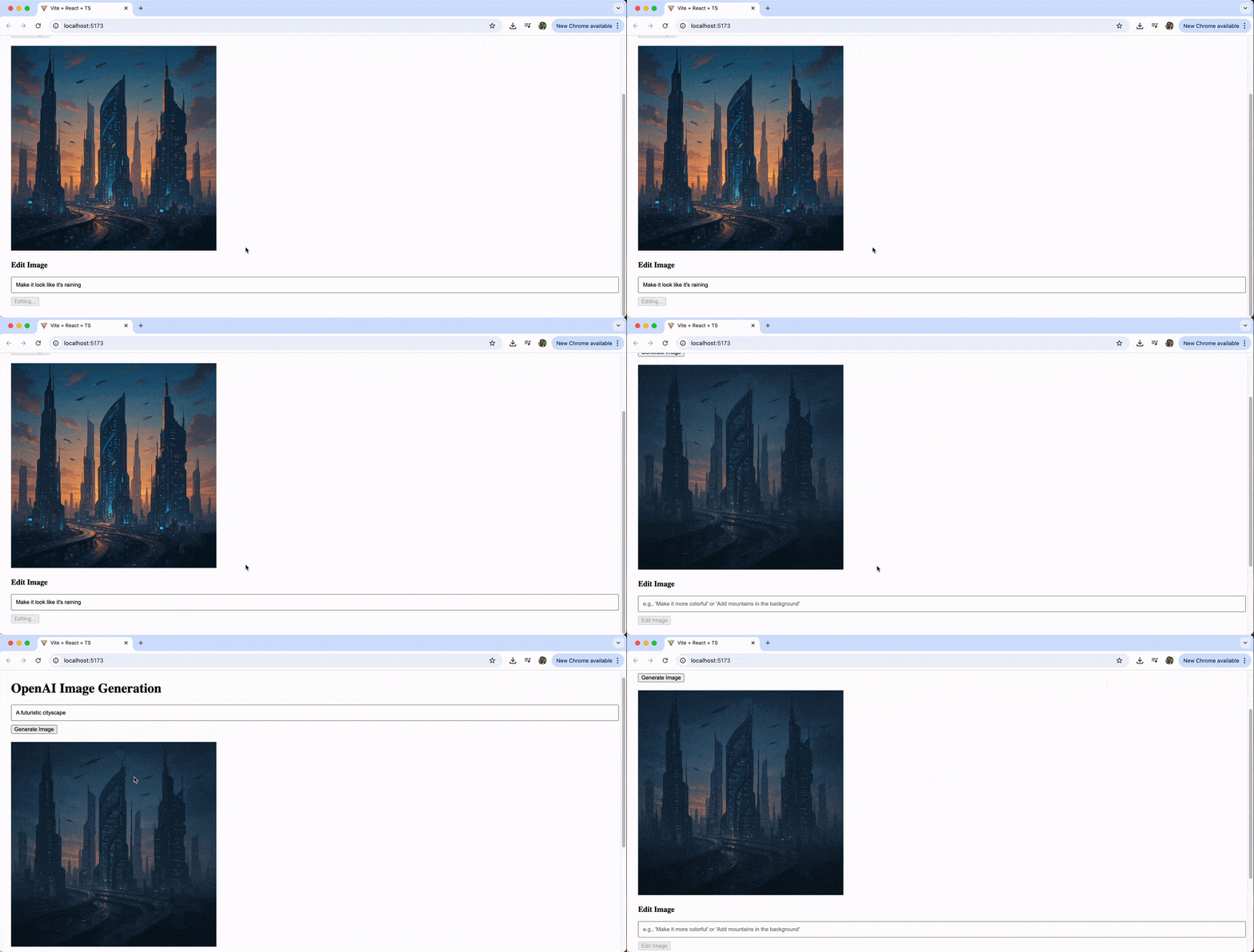
This expanded component introduces image editing capabilities. We’ve added an editImage function that converts the current base64 image to a File object, sends it to the /v1/images/edits endpoint with a new prompt and updates the display.
The image editing feature allows us to iteratively refine our generated images. We might start with “a futuristic cityscape,” then edit it with prompts like “add neon lights” or “make it look like it’s raining.”
Displaying Generated Images with KendoReact
While we’ve been using standard HTML <img> tags, integrating KendoReact components can create a more polished, production-ready interface. The KendoReact Avatar component is helpful in displaying generated profile pictures or user-facing images.
First, install the KendoReact layout package:
npm install @progress/kendo-react-layout
Let’s enhance our image history display using the Avatar component. We’ll wrap each generated image in an Avatar component to create a consistent, polished presentation.
Here’s the complete final implementation where the main change we’ve made now is to display the history of generated images with the help of the Avatar component:
import React, { useState } from "react";
import OpenAI from "openai";
import { Avatar } from "@progress/kendo-react-layout";

const App = () => {
  const [prompt, setPrompt] = useState("");
  const [imageUrl, setImageUrl] = useState("");
  const [imageHistory, setImageHistory] = useState<Array<{ url: string; prompt: string }>>([]);
  const [loading, setLoading] = useState(false);
  const [editPrompt, setEditPrompt] = useState("");

  const generateImage = async () => {
    if (!prompt) return;
    setLoading(true);

    const openai = new OpenAI({
      apiKey: "YOUR_OPENAI_API_KEY",
      dangerouslyAllowBrowser: true,
    });

    try {
      const response = await openai.images.generate({
        model: "gpt-image-1",
        prompt: prompt,
        size: "1024x1024",
        quality: "high",
      });

      const base64Image = `data:image/png;base64,${response.data?.[0].b64_json}`;
      setImageUrl(base64Image);
      setImageHistory([{ url: base64Image, prompt }]);
    } catch (error) {
      console.error("Error generating image:", error);
    } finally {
      setLoading(false);
    }
  };

  const editImage = async () => {
    if (!editPrompt || !imageUrl) return;
    setLoading(true);

    const openai = new OpenAI({
      apiKey: "YOUR_OPENAI_API_KEY",
      dangerouslyAllowBrowser: true,
    });

    try {
      // Convert base64 to File object
      const base64Data = imageUrl.split(",")[1];
      const byteCharacters = atob(base64Data);
      const byteNumbers = new Array(byteCharacters.length);
      for (let i = 0; i < byteCharacters.length; i++) {
        byteNumbers[i] = byteCharacters.charCodeAt(i);
      }
      const byteArray = new Uint8Array(byteNumbers);
      const blob = new Blob([byteArray], { type: "image/png" });
      const file = new File([blob], "image.png", { type: "image/png" });

      const response = await openai.images.edit({
        model: "gpt-image-1",
        image: file,
        prompt: editPrompt,
        size: "1024x1024",
      });

      const base64Image = `data:image/png;base64,${response.data?.[0].b64_json}`;
      setImageUrl(base64Image);
      setImageHistory([
        ...imageHistory,
        { url: base64Image, prompt: editPrompt },
      ]);
      setEditPrompt("");
    } catch (error) {
      console.error("Error editing image:", error);
    } finally {
      setLoading(false);
    }
  };

  return (
    <div style={{ padding: "20px" }}>
      <h1>OpenAI Image Generation</h1>

      {/* Initial Generation */}
      <div style={{ marginBottom: "20px" }}>
        <input
          type="text"
          value={prompt}
          onChange={(e) => setPrompt(e.target.value)}
          placeholder="Describe the image you want to generate..."
          style={{ width: "100%", padding: "10px", marginBottom: "10px" }}
        />
        <button onClick={generateImage} disabled={loading || !prompt}>
          {loading ? "Generating..." : "Generate Image"}
        </button>
      </div>

      {/* Current Image */}
      {imageUrl && (
        <div style={{ marginTop: "20px" }}>
          <img src={imageUrl} alt="Generated" style={{ maxWidth: "500px" }} />
        </div>
      )}

      {/* Edit Section */}
      {imageUrl && (
        <div style={{ marginTop: "20px" }}>
          <h3>Edit Image</h3>
          <input
            type="text"
            value={editPrompt}
            onChange={(e) => setEditPrompt(e.target.value)}
            placeholder="e.g., 'Make it more colorful' or 'Add mountains in the background'"
            style={{ width: "100%", padding: "10px", marginBottom: "10px" }}
          />
          <button onClick={editImage} disabled={loading || !editPrompt}>
            {loading ? "Editing..." : "Edit Image"}
          </button>
        </div>
      )}

      {/* Image History with KendoReact Avatar */}
      {imageHistory.length > 0 && (
        <div style={{ marginTop: "30px" }}>
          <h3>Generation History</h3>
          <div style={{ display: "flex", gap: "20px", flexWrap: "wrap" }}>
            {imageHistory.map((img, idx) => (
              <div key={idx} style={{ textAlign: "center" }}>
                <Avatar type="image" size="large" rounded="medium" border={true}>
                  <img src={img.url} alt={`Version ${idx + 1}`} />
                </Avatar>
                <p
                  style={{
                    fontSize: "12px",
                    maxWidth: "150px",
                    marginTop: "8px",
                  }}
                >
                  {img.prompt}
                </p>
              </div>
            ))}
          </div>
        </div>
      )}
    </div>
  );
};

export default App;
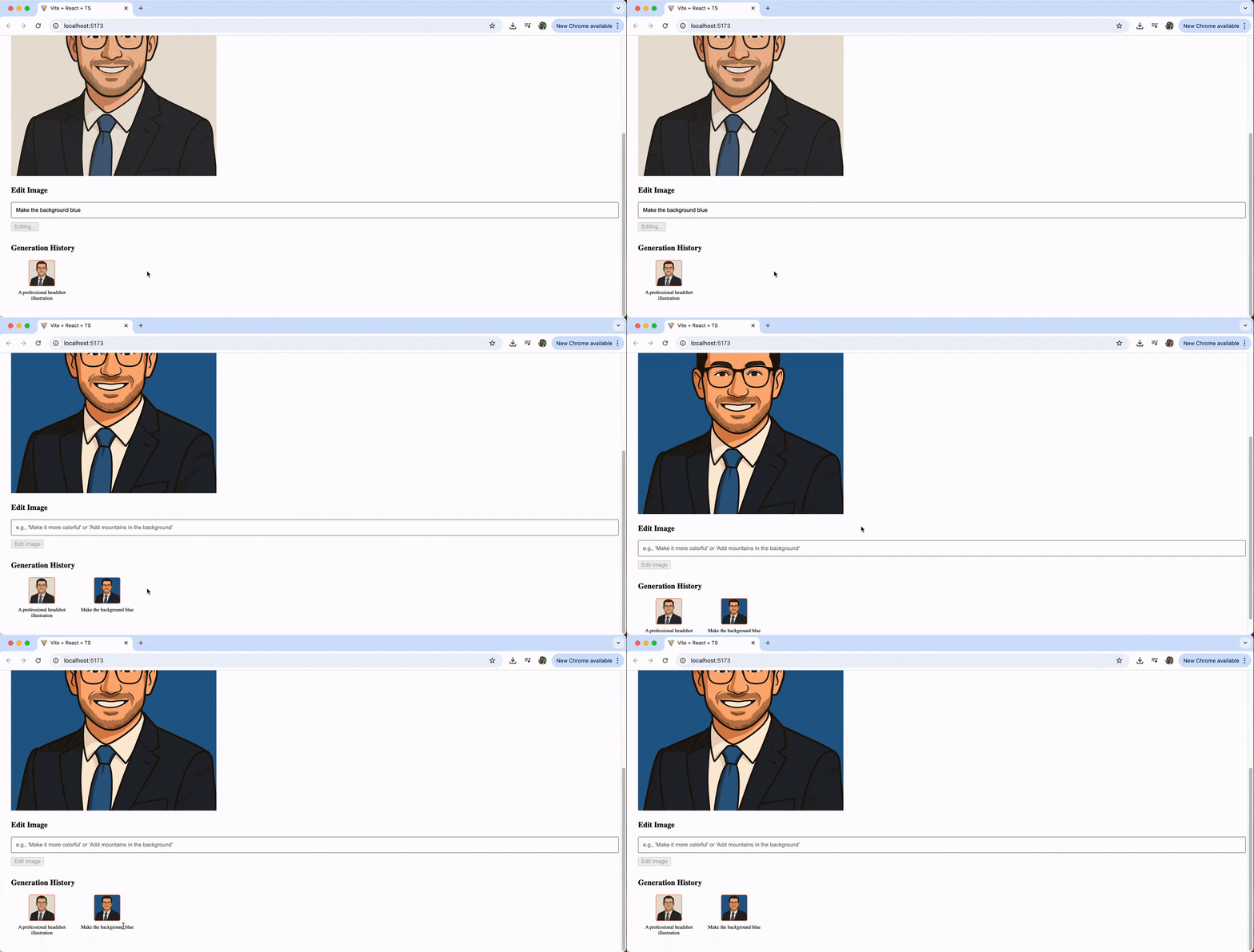
The Avatar component provides a consistent, styled presentation for images with built-in support for borders, rounded corners and different sizes. This is especially useful when generating profile pictures or when we need a uniform display for multiple images.
For example, we might generate an initial profile picture with the prompt “a professional headshot illustration,” then iteratively refine it with edits like “add glasses,” “make the background blue” and “add a friendly smile,” with each version displayed cleanly at the bottom with the help of the Avatar component.
Wrap-up
OpenAI’s image generation capabilities, powered by the GPT Image model and Images API, bring image creation directly into our JavaScript applications. We’ve explored how to generate images from text prompts, edit and refine results iteratively and display them in polished interfaces using React and the KendoReact Avatar component.
To dive deeper into image generation and the KendoReact library, check out the following resources:

Hassan Djirdeh
Hassan is a senior frontend engineer and has helped build large production applications at-scale at organizations like Doordash, Instacart and Shopify. Hassan is also a published author and course instructor where he’s helped thousands of students learn in-depth frontend engineering skills like React, Vue, TypeScript and GraphQL.
Related Posts
Comments
All articles
Topics
Web MobileMobile
Desktop
Design
Productivity
People