Knowledge Boxes in Progress Agentic RAG

Summarize with AI:
Knowledge Boxes are the disparate containers where data lives within the Progress Agentic RAG. Learn how they handle data, access and more.
In our earlier articles, we explored how RAG works, what embeddings are and how to use the Progress Agentic RAG dashboard to upload a document and ask natural-language questions about it. We even looked at tuning search configurations to improve retrieval quality.
In this article, we zoom out a level and look at where that data actually lives. Progress Agentic RAG organizes everything we index: files, webpages, text snippets and even structured Q&A, into isolated containers called Knowledge Boxes.
In this article, we’ll walk through how Knowledge Boxes work, how access is managed and how we ingest different types of data using the Progress Agentic RAG no‑code dashboard.
Knowledge Box
A Knowledge Box is a secure, self‑contained workspace inside our Agentic RAG account. Each Knowledge Box stores its own set of resources (e.g., PDFs, documents, webpages, etc.), along with the embeddings and metadata that make those resources searchable.
This isolation gives us a lot of flexibility in organizing our projects. We might create:
- One Knowledge Box per team (e.g., support, sales, engineering)
- One per project or product area (e.g., documentation for a specific app)
- One per client or environment (e.g., a staging box for experimentation and a production box for end users)
Because each Knowledge Box is independent, its content is never mixed with that of another. When we query a Knowledge Box, the system only searches its index, keeping results scoped and permissions clear.
Public vs. Private Knowledge Boxes
Knowledge boxes can be either public or private, and that choice determines who can see and query their content.
Public Knowledge Boxes are ideal when we want anyone to be able to search a curated set of resources, like product documentation or a public help center, while still keeping control over who can add or modify content.
Private Knowledge Boxes are designed for internal or sensitive data. Only authorized users can access them, and Agentic RAG does not apply field‑level or document‑level permissions inside a box; once someone has access, they can see all its content.
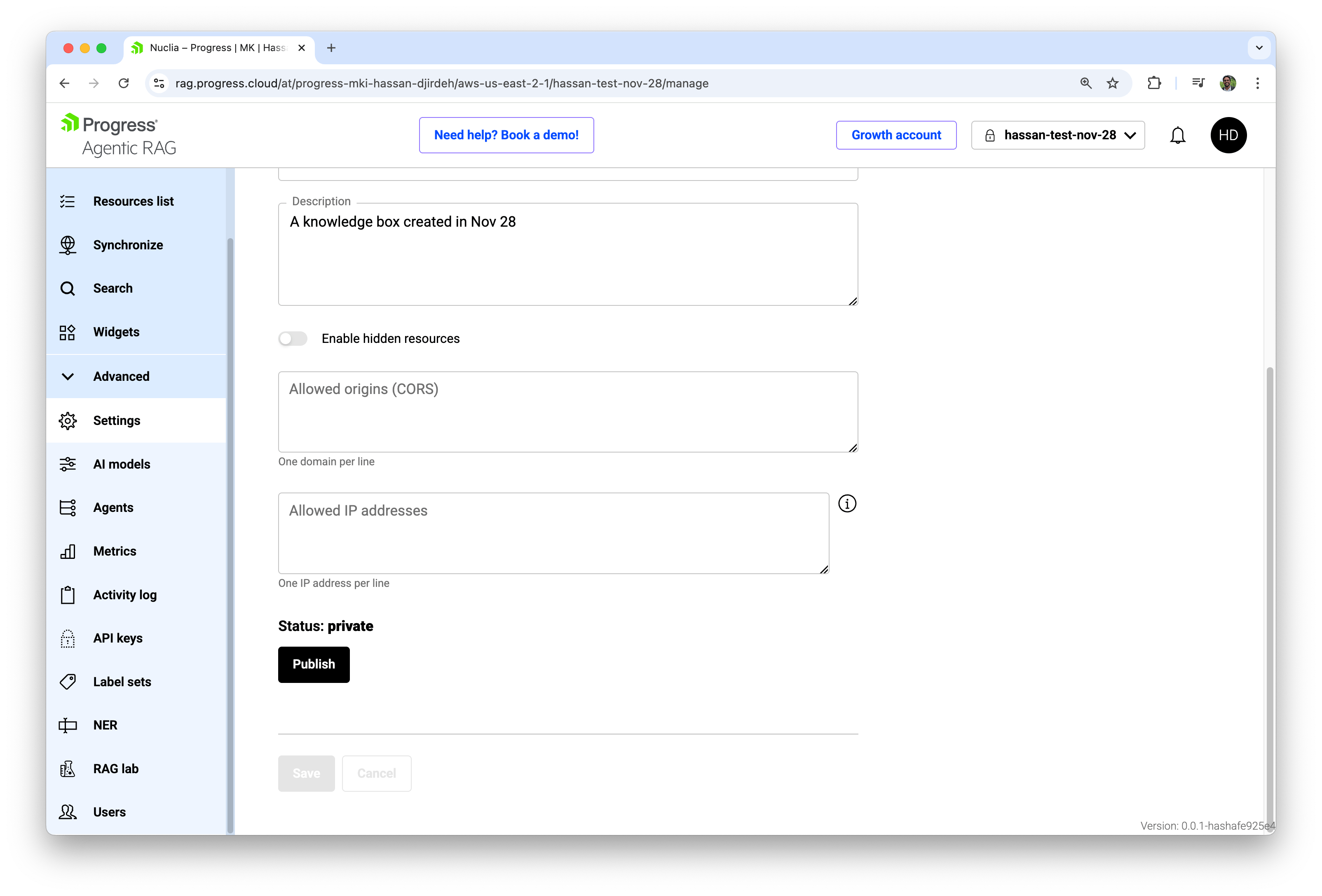
From the dashboard, we can make a Knowledge Box public by opening its Settings and clicking Publish. Private boxes remain fully locked down unless queries come from authenticated users or from applications configured with the appropriate API keys.
Creating a Knowledge Box
When we click Knowledge Boxes in the account sidebar and then select Create Knowledge Box, Agentic RAG walks us through a short form. This is where we define the scope and behavior of the workspace we’re about to create.
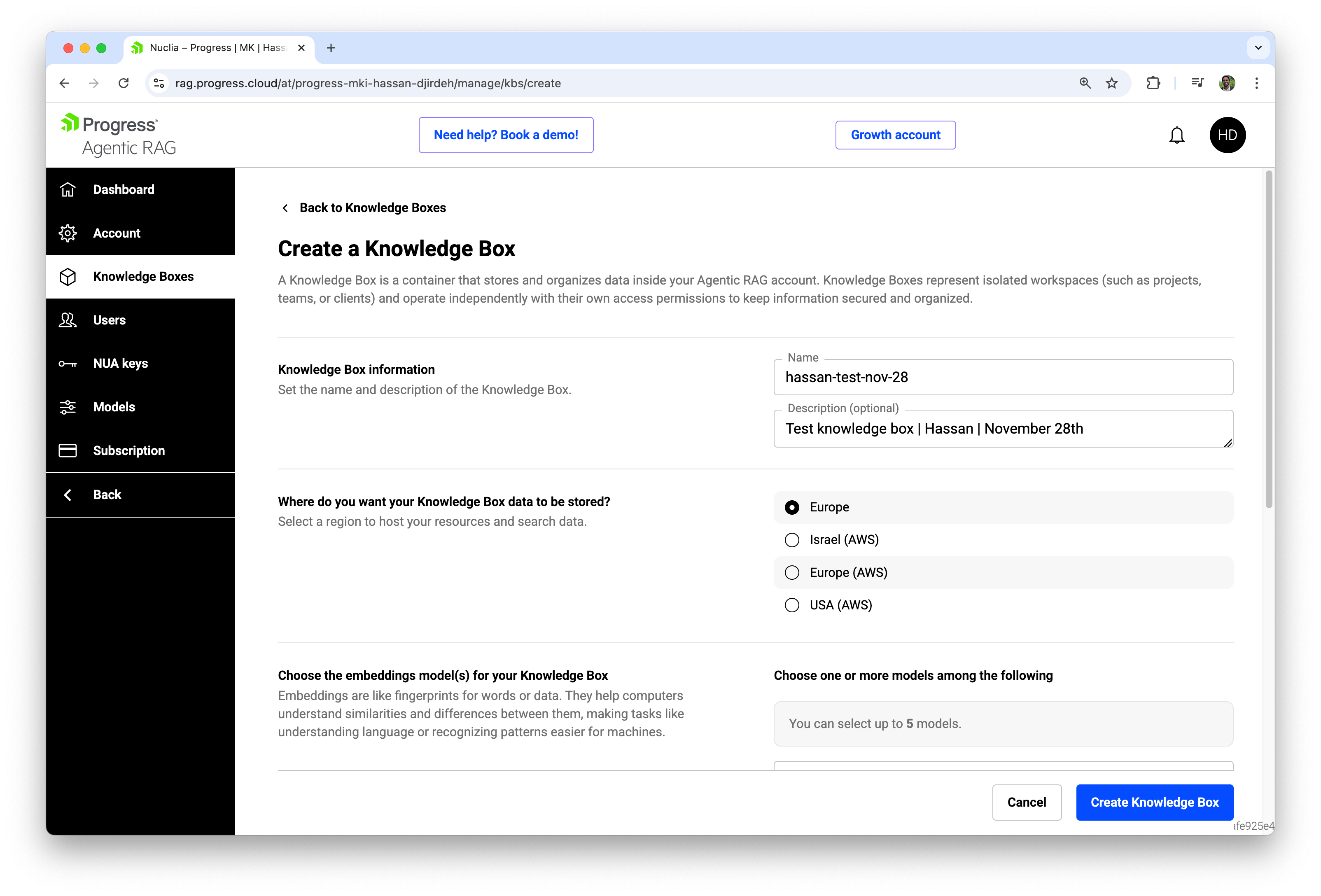
The creation flow is organized into a few key sections:
Knowledge Box Information
We start by giving the box a name and an optional description. The description field is a great place to capture intent: which teams rely on this box, what kinds of questions it should answer, and any high‑level constraints (for example, “Only production‑ready, reviewed content”).
Region
Next we choose where the Knowledge Box data will be stored. Agentic RAG lets us pick between several regions (for example, Europe, Israel (AWS), Europe (AWS), USA (AWS)). This decision impacts:
- Data residency and compliance (e.g., keeping EU data in the EU)
- Latency, since queries are routed to the selected region
In multiregional organizations, we could create separate Knowledge Boxes for each geography to comply with local regulations while still using a consistent RAG platform.
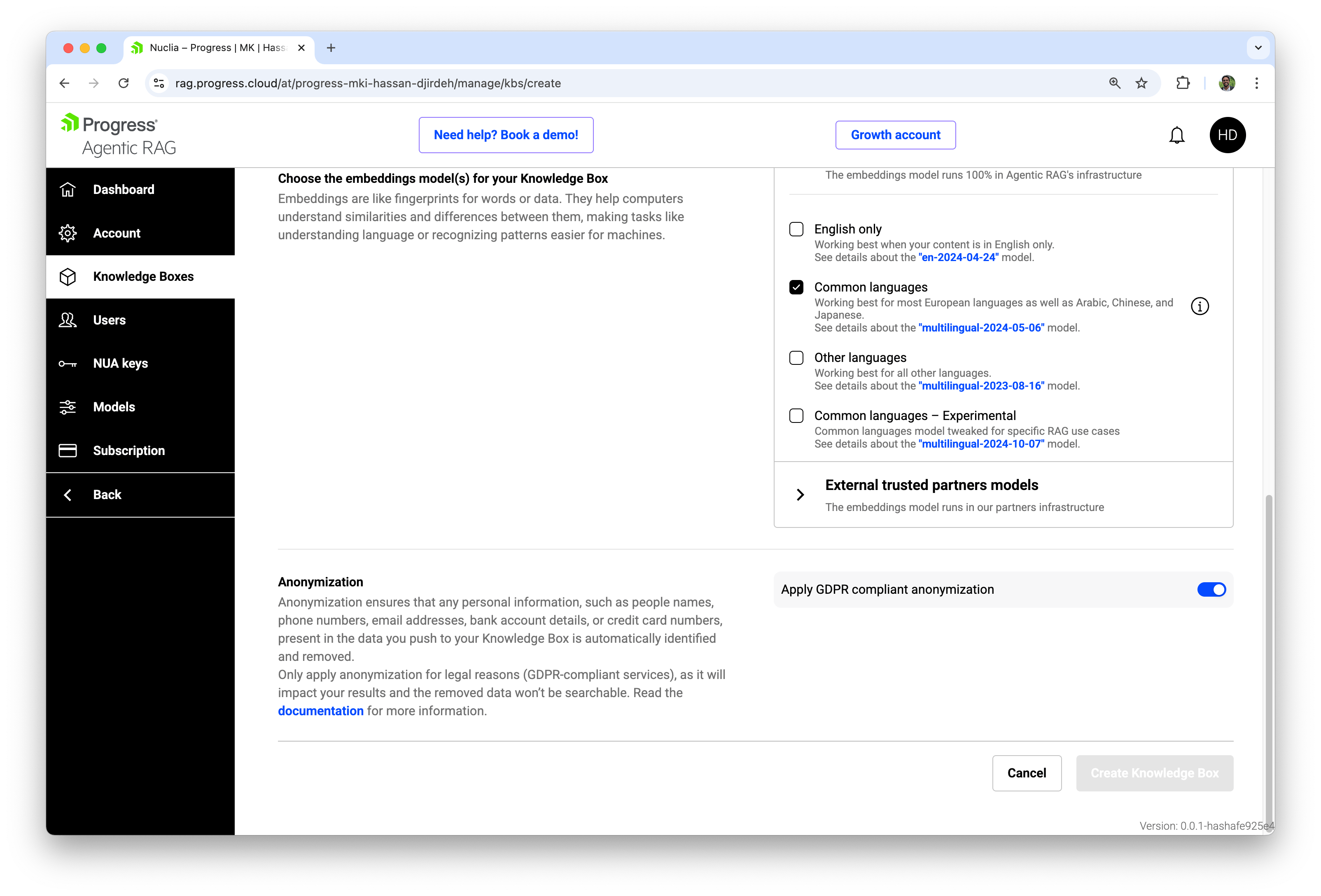
Embeddings Models
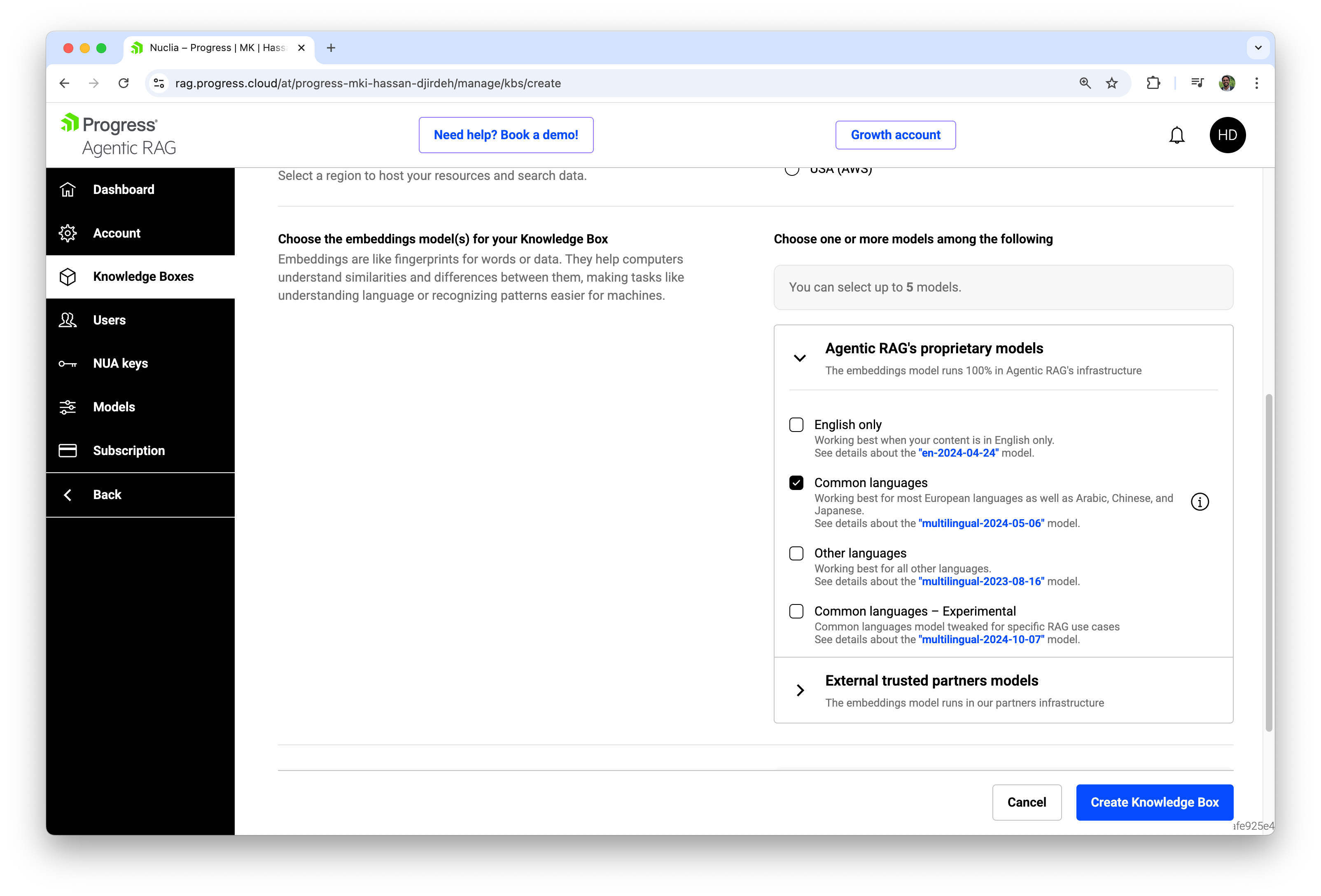
Here, we can choose one or more embedding models for the Knowledge Box. As we covered in our What Are Embeddings? article, embeddings are numerical fingerprints of our content that power semantic search and RAG. Agentic RAG lets us select up to five models, which can be:
- Agentic RAG proprietary models optimized for:
- English‑only content
- Common languages (most European languages plus Arabic, Chinese, Japanese)
- Other languages for long‑tail scenarios
- Common languages – Experimental**, tuned specifically for RAG use cases
- External partner models, where the embeddings are computed on trusted partner infrastructure
We can mix and match these models within a single Knowledge Box, making it easy to compare performance on our real data without re‑ingesting everything from scratch.
Anonymization
Finally, we can optionally enable GDPR‑compliant anonymization. When anonymization is turned on, Agentic RAG automatically detects and removes personal data such as:
- Names of individuals
- Phone numbers and email addresses
- Bank accounts and credit card numbers
This is important for regulated environments, but it comes with an important trade‑off: removed data is no longer searchable. We should only enable anonymization when we need it for legal or compliance reasons.
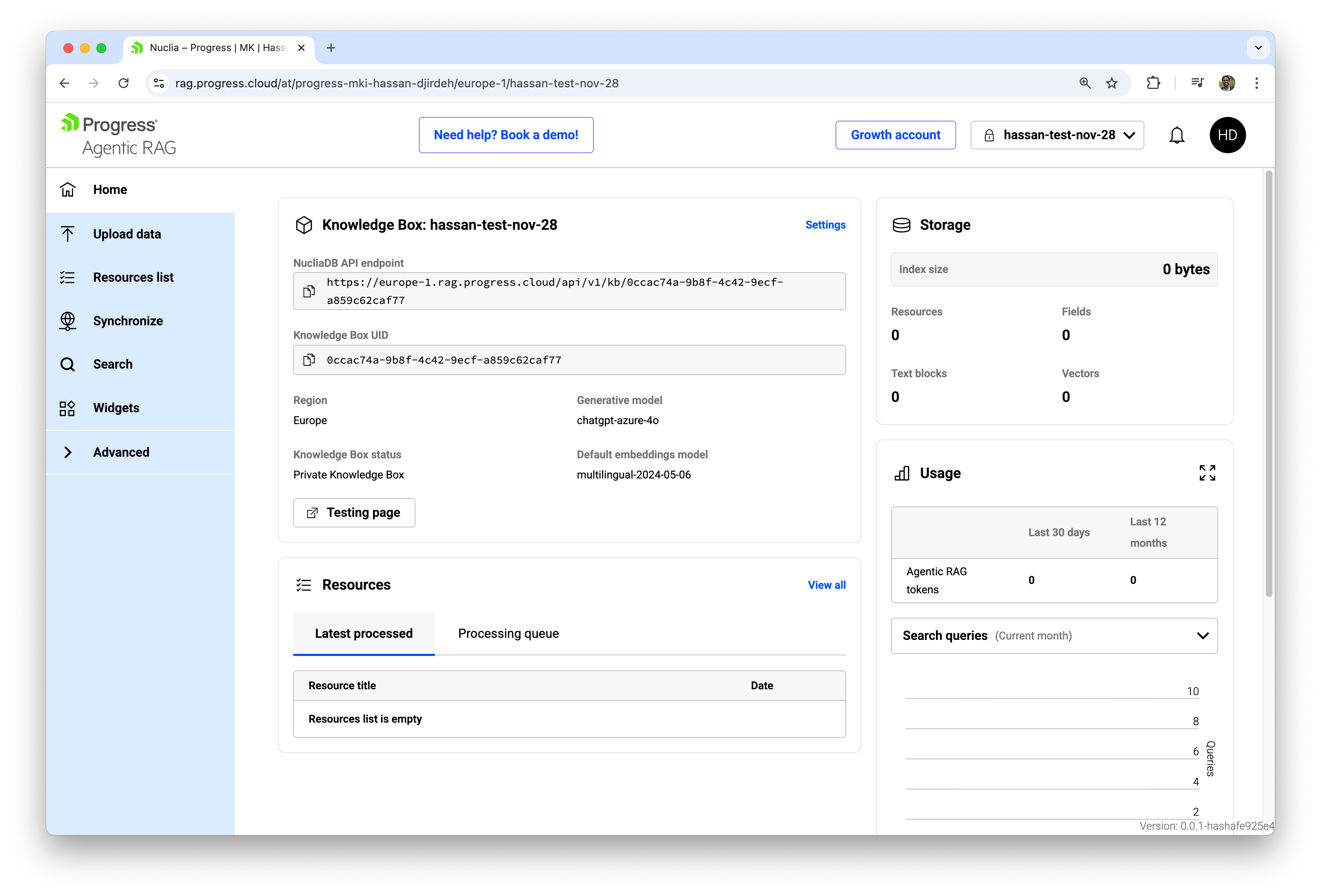
Once these fields are configured, we click Create Knowledge Box, and Agentic RAG provisions a new workspace. Its Home dashboard shows the API endpoint, UID, region, status (public or private), default embeddings model and real‑time metrics for storage and usage.
Uploading Data to a Knowledge Box
With a Knowledge Box created, our next step is to feed it content. From the left navigation inside a box, we select Upload data, which opens a simple dashboard focused entirely on ingestion.
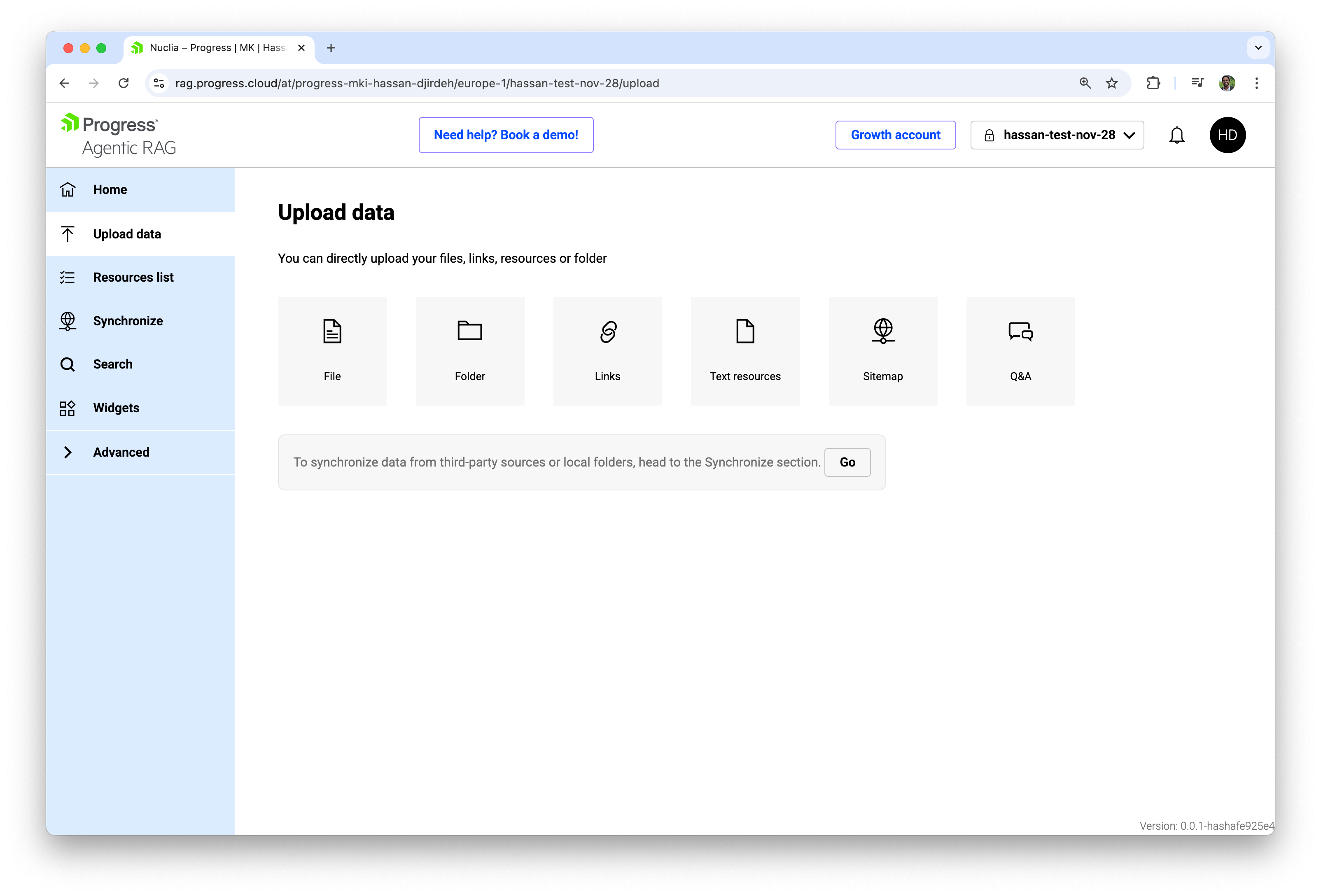
Agentic RAG supports several ingestion methods, such as individual files, folders, web links, text resources, sitemaps and Q&A pairs, allowing us to bring in everything from PDFs and slide decks to website content and structured FAQs without leaving the no‑code interface.
In practice, most teams start by uploading a few key documents as files. We choose the File option, drag and drop one or more documents, keep automatic language detection enabled, and click Add. Behind the scenes, Agentic RAG extracts the text, chunks it into RAG‑friendly segments, generates embeddings using our selected models, and adds the new vectors to the Knowledge Box index.
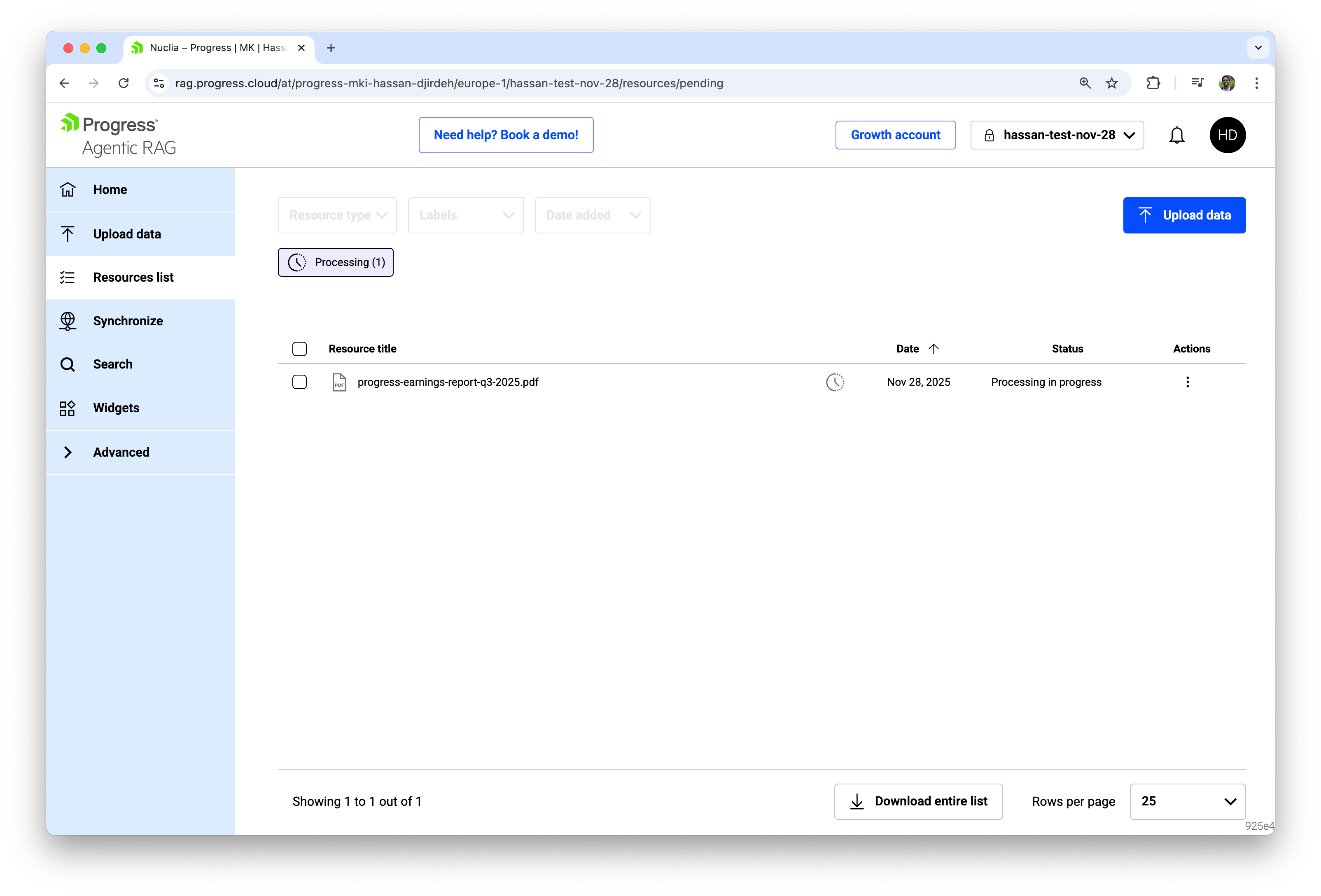
If you’re interested in a walk-through of this process, check out our earlier article on using the Progress Agentic RAG dashboard, where we walk through the whole flow in a bit more detail and show how to upload a document and immediately start asking natural‑language questions about it.
Wrap-up
Knowledge Boxes are the backbone of Progress Agentic RAG. They’re isolated containers that hold the resources our RAG systems rely on.
When we choose the right region, embedding models and anonymization settings, then use the Upload data view to ingest our core documents, we can build rich, well‑organized knowledge bases without writing any code.
Everything else we explored in previous articles, from embeddings to search configuration and RAG‑powered answers, builds on top of this foundation.
For more details and to get started with Progress Agentic RAG, be sure to check out the following resources:
- Progress Agentic RAG
- Progress Agentic RAG Documentation
- Progress Agentic RAG Documentation | Knowledge Box
Next up: Embedding Agentic RAG Widgets

Hassan Djirdeh
Hassan is a senior frontend engineer and has helped build large production applications at-scale at organizations like Doordash, Instacart and Shopify. Hassan is also a published author and course instructor where he’s helped thousands of students learn in-depth frontend engineering skills like React, Vue, TypeScript and GraphQL.
Related Posts
Comments
All articles
Topics
Web MobileMobile
Desktop
Design
Productivity
People