Embedding Agentic RAG Widgets

Summarize with AI:
Learn how to embed (and customize!) semantic search into your app or webpage with Agentic RAG widgets.
In our previous article, we explored the Progress Agentic RAG dashboard. We’ve seen how the no-code interface is great for uploading documents, indexing content and asking natural language questions. What if we want to bring that same search experience directly into our own website or application?
That’s where widgets come in. Progress Agentic RAG provides embeddable web components that let us drop a fully functional RAG-powered search bar into any webpage with just a few lines of HTML. No backend code required!
In this article, we’ll walk through how to embed these widgets, explore the different widget types available, and look at some of the options we can use to customize their behavior.
The Basic Widget Snippet
At its simplest, embedding an Agentic RAG widget requires just three lines of HTML:
<script src="https://cdn.rag.progress.cloud/nuclia-widget.umd.js"></script>
<nuclia-search-bar
  knowledgebox="YOUR-KB"
  zone="ZONE"
  features="answers,filter"></nuclia-search-bar>
<nuclia-search-results></nuclia-search-results>
To break the above code example down:
- The
<script>tag loads the widget library from Progress’s CDN (i.e., Content Delivery Network). - The
<nuclia-search-bar>component renders the search input. We pass in our Knowledge Box ID, the zone where our data is hosted and a list of features we want enabled. - The
<nuclia-search-results>component displays the search results and generated answers below the search bar.
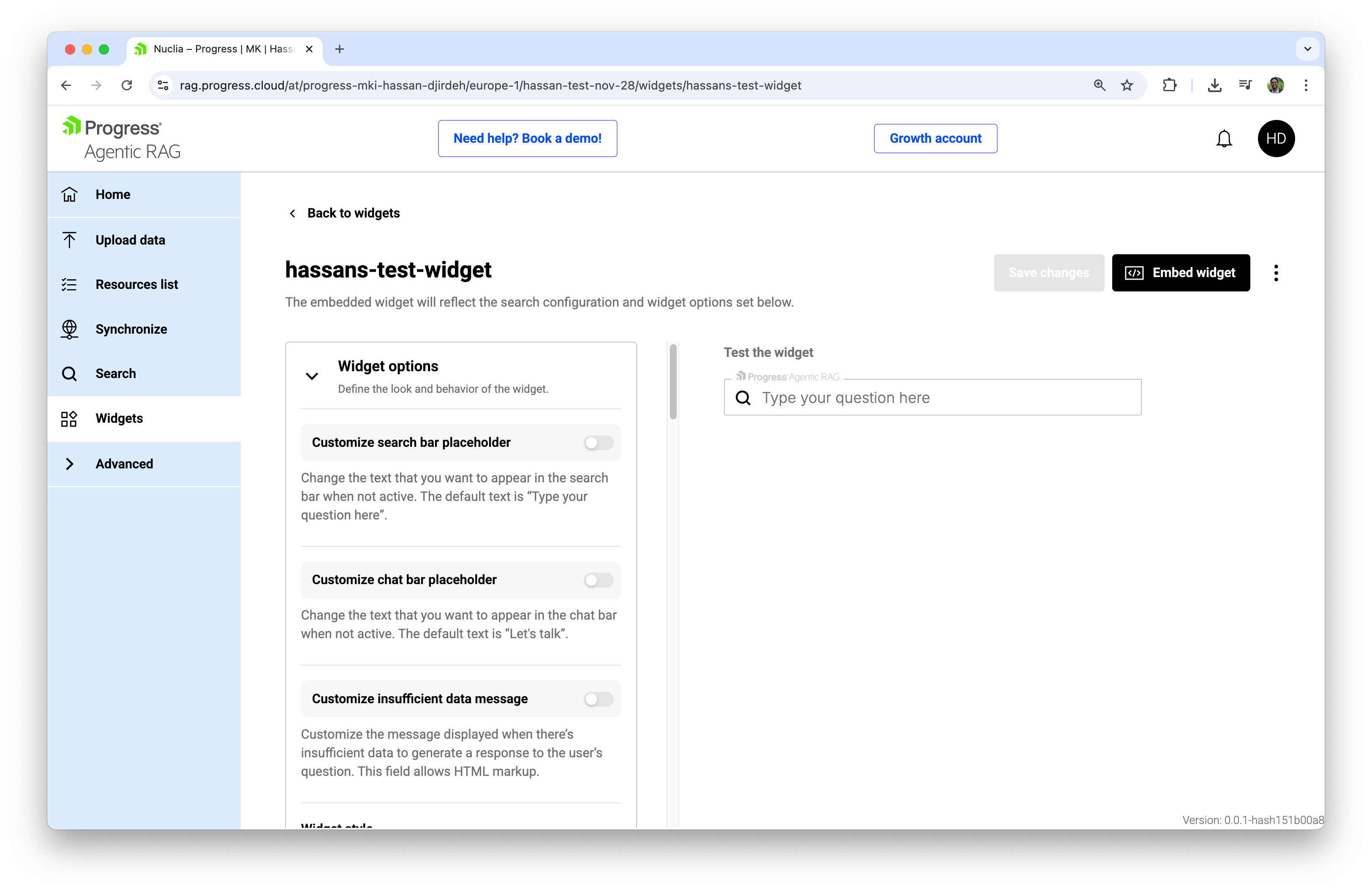
The easiest way to get this snippet for our own Knowledge Box is to use the Agentic RAG Dashboard. In the Widgets section, we can configure our options visually and then click the Embed widget button to generate the HTML snippet with our specific Knowledge Box ID and zone already filled in.
Configuring Widget Options
If we were to configure some of the options available to us, such as:
- Setting the search bar placeholder to “Search our documentation…”.
- Choosing Embedded in page as the widget style.
- Selecting the Light theme.
- Setting the Language to English.
… and then clicking the Embed widget button, we’d get a generated snippet like this:
<script src="https://cdn.rag.progress.cloud/nuclia-widget.umd.js"></script>
<nuclia-search-bar
  audit_metadata='{"config":"nuclia-standard","widget":"hassans-test-widget"}'
  knowledgebox="0ccac74a-9b8f-4c42-9ecf-a859c62caf77"
  zone="europe-1"
  state="PRIVATE"
  account="69b8252b-cfaa-4314-8692-607f16e1065f"
  kbslug="hassan-test-nov-28"
  apikey="YOUR_API_TOKEN"
  features="answers,rephrase,suggestions,autocompleteFromNERs,llmCitations,hideResults"
  rag_strategies="neighbouring_paragraphs|2|2"
  placeholder="Search our documentation..."
  feedback="none"></nuclia-search-bar>
<nuclia-search-results ></nuclia-search-results>
This is a widget configured to search the Knowledge Box we set up in the previous article, where we indexed Progress Software’s Q3 2025 Earnings Report. Let’s see how this looks when we embed it in an actual webpage.
Embedding in a Simple Webpage
To put this into practice, we can create a minimal HTML file that loads the widget. Here’s a complete example:
<!DOCTYPE html>
<html lang="en">
<head>
  <meta charset="UTF-8">
  <meta name="viewport" content="width=device-width, initial-scale=1.0">
  <title>Agentic RAG Search</title>
  <style>
    body {
      font-family: system-ui, sans-serif;
      max-width: 800px;
      margin: 2rem auto;
      padding: 0 1rem;
    }
  </style>
</head>
<body>
  <h1>Search Our Knowledge Base</h1>

  <script src="https://cdn.rag.progress.cloud/nuclia-widget.umd.js"></script>
  <nuclia-search-bar
    audit_metadata='{"config":"nuclia-standard","widget":"hassans-test-widget"}'
    knowledgebox="0ccac74a-9b8f-4c42-9ecf-a859c62caf77"
    zone="europe-1"
    state="PRIVATE"
    account="69b8252b-cfaa-4314-8692-607f16e1065f"
    kbslug="hassan-test-nov-28"
    apikey="YOUR_API_TOKEN"
    features="answers,rephrase,suggestions,autocompleteFromNERs,llmCitations,hideResults"
    rag_strategies="neighbouring_paragraphs|2|2"
    placeholder="Search our documentation..."
    feedback="none"></nuclia-search-bar>
  <nuclia-search-results></nuclia-search-results>

</body>
</html>
Note: Replace
YOUR_API_TOKENwith a valid API key from your Knowledge Box settings. For production use, it’s important to inject the API key through a backend proxy rather than exposing it in client-side code.
When we open this file in a browser, the widget library loads from the CDN and renders the search bar.
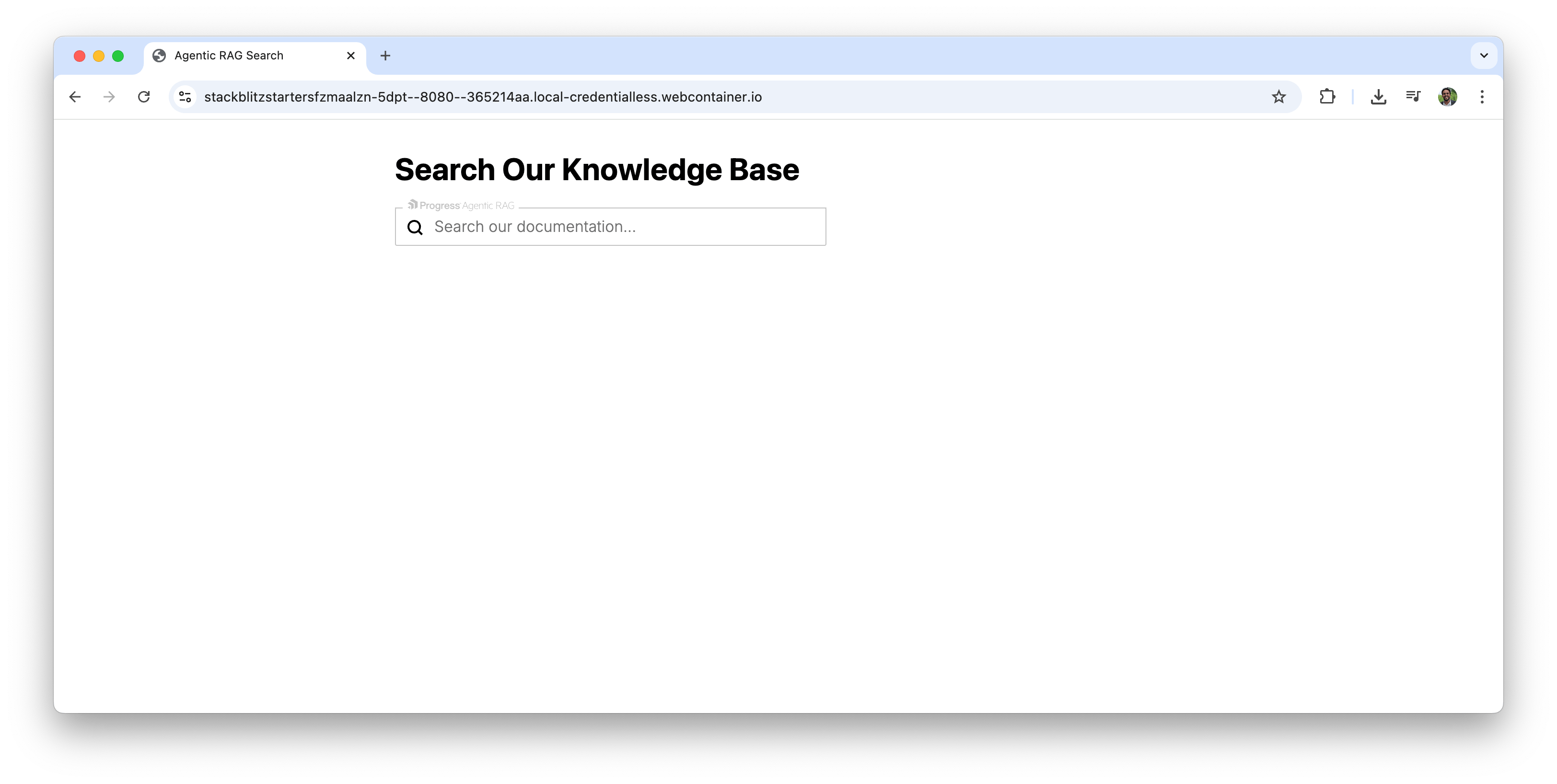
That’s all it takes to get a working RAG-powered search on a webpage! Let’s test it out with some real questions.
Asking Questions Through the Widget
Now that we have our widget embedded, we can ask it the same questions we used in the previous article when testing the dashboard. The difference is that we are now querying the Knowledge Box directly from our own webpage.
Extracting Specific Financials
Let’s start by asking for hard numbers from the earnings report.
Question: “What was Progress Software’s total revenue for the three months ended August 31, 2025, and what was the year-over-year growth rate?”
Answer: Progress Software’s total revenue for the three months ended August 31, 2025, was $249,795,000, and the year-over-year growth rate was 40%.
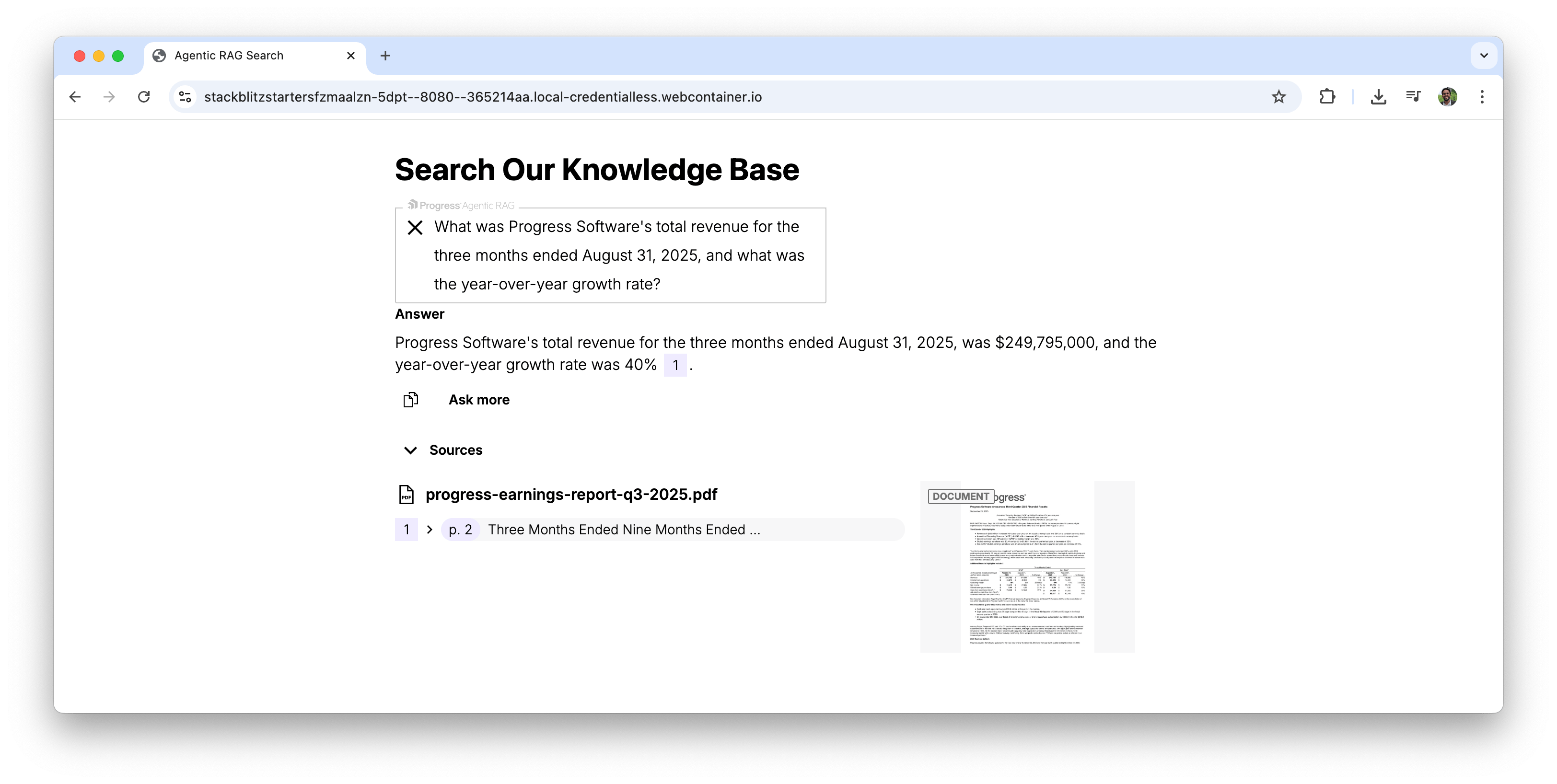
The widget displays the generated answer along with numbered citations. Clicking on a citation opens the source document, allowing users to verify the information themselves.
Understanding Strategic Context
Next, let’s ask a question that requires understanding context rather than just extracting numbers.
Question: “According to CEO Yogesh Gupta, what product capabilities is Progress investing in and why?”
Answer: Progress CEO Yogesh Gupta stated that the company is investing in AI capabilities, specifically agentic RAG technology. This technology is being embedded across their product portfolio to empower customers to extract more value from their own data using GenAI.
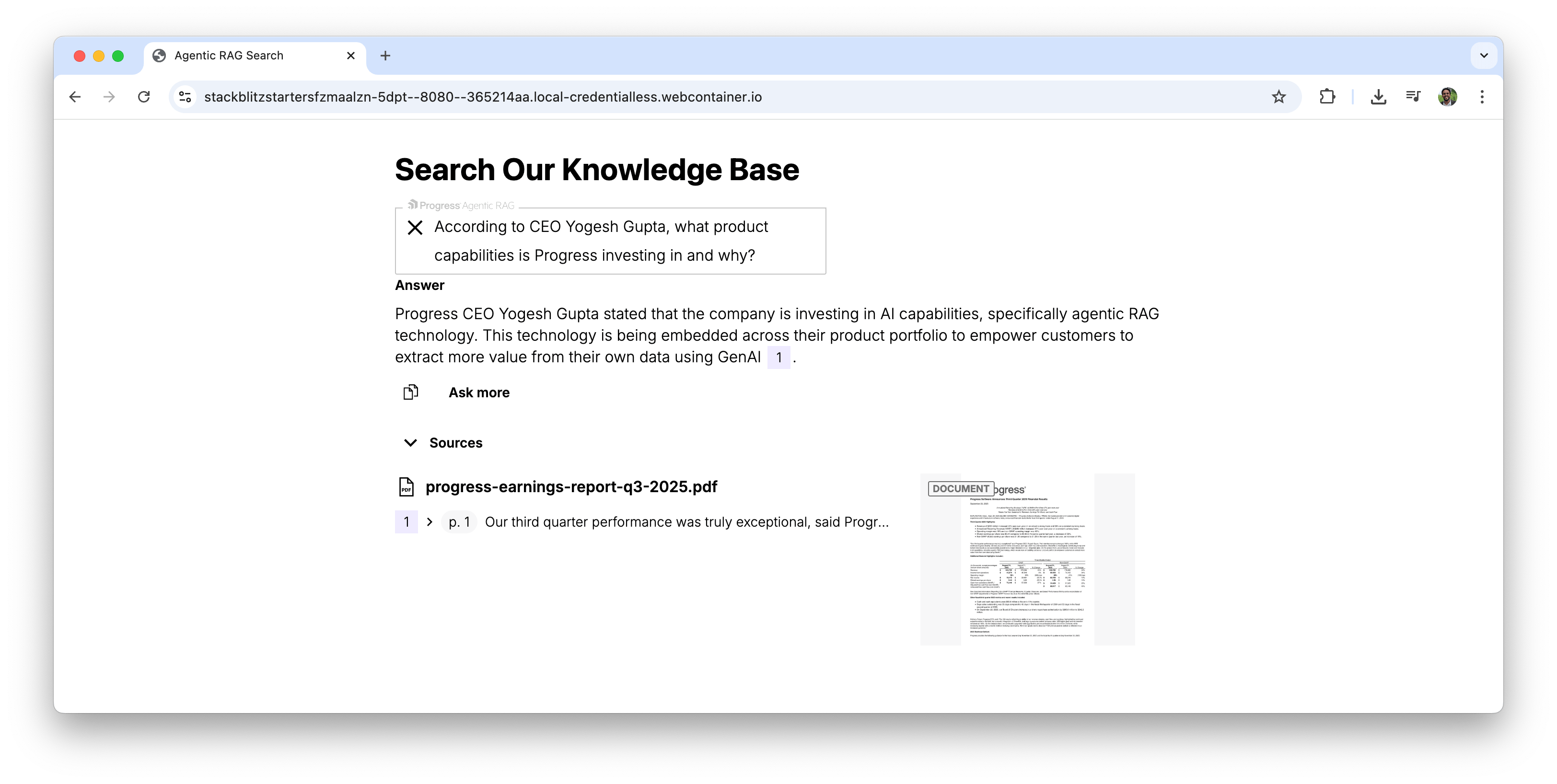
The widget finds the relevant quote from the CEO and synthesizes an answer, even though the question doesn’t use the exact terms from the document. This is the power of semantic search and RAG working together.
Widget Types and Features
We briefly saw some widget features in action above (like answers and suggestions). Now let’s take a closer look at the different widget types and features available to us.
Progress Agentic RAG offers three widget types, each suited for different use cases:
| Widget Type | Component | Best For |
|---|---|---|
| Embedded in Page | <nuclia-search-bar> + <nuclia-search-results> | Documentation sites, help centers or pages where search is a primary feature. |
| Chat Mode | <nuclia-chat> | Conversational interfaces, support assistants or interactive Q&A experiences. |
| Popup Modal | <nuclia-popup> | Adding search without disrupting the existing page layout. |
For example, if we want a full chat interface instead of a search bar, we’d use:
<nuclia-chat
  knowledgebox="YOUR-KB"
  zone="ZONE"
  features="answers,citations">
</nuclia-chat>
And if we want a pop-up that opens when clicked:
<nuclia-popup
  knowledgebox="YOUR-KB"
  zone="ZONE"
  features="answers">
</nuclia-popup>
The Features Parameter
The features parameter controls what capabilities our widget has. It accepts a comma-separated list of feature names. Here are some of the most useful ones:
| Feature | Description |
|---|---|
answers | Triggers the AI to generate answers from retrieved content. |
filter | Adds a filter dropdown so users can narrow results by labels. |
citations | Includes numbered citations linking back to source documents. |
suggestions | Shows suggested resource titles as the user types. |
hideThumbnails | Hides document thumbnails for a cleaner look. |
We can combine multiple features like this:
<nuclia-search-bar
  knowledgebox="YOUR-KB"
  zone="ZONE"
  features="answers,citations,filter,suggestions">
</nuclia-search-bar>
There are also a few other helpful parameters worth knowing:
| Parameter | Description |
|---|---|
placeholder | Custom placeholder text for the search input. |
mode | Set to dark for dark mode styling. |
lang | The language for the widget UI (en, es, fr, ca). |
Wrap-up
Progress Agentic RAG widgets make it straightforward to embed AI-powered search directly into any website. With just a few lines of HTML, we can add a fully functional RAG search bar, chat interface or pop-up modal.
For more details on widget configuration and advanced customization options, check out the following resources:
Keep reading this series of RAG posts:

Hassan Djirdeh
Hassan is a senior frontend engineer and has helped build large production applications at-scale at organizations like Doordash, Instacart and Shopify. Hassan is also a published author and course instructor where he’s helped thousands of students learn in-depth frontend engineering skills like React, Vue, TypeScript and GraphQL.
Related Posts
Comments
All articles
Topics
Web MobileMobile
Desktop
Design
Productivity
People