KendoReact Internationalization

Summarize with AI:
The React Internationalization component package can help translate your app’s numbers and dates into regionally appropriate formats.
When building applications for users around the world, displaying data in familiar formats is important. A date like “3/4/2024” might mean March 4 to Americans but April 3 to Europeans. Similarly, the number “1,234.56” uses different separators in different countries; some use commas for thousands and periods for decimals, while others do the opposite. This is where internationalization comes in.
In this article, we’ll explore the Progress KendoReact Internationalization package and see how it handles the parsing and formatting of dates and numbers according to different conventions.
The KendoReact Internationalization package is part of KendoReact, an enterprise-grade UI library with more than 120 components for building polished, performant apps.
Internationalization vs. Localization
Before we dive in, let’s clarify the difference between internationalization and localization, as these terms are often used interchangeably but can serve distinct purposes:
- Internationalization focuses on parsing and formatting dates and numbers according to locale-specific rules. It makes “1234.56” display as “1.234,56” in Germany or dates follow the DD/MM/YYYY format in the UK.
- Localization handles translating UI text and supporting right-to-left (RTL) layouts for languages like Arabic. It sets button labels, error messages and other interface text in the user’s preferred language.
For an introduction into localization and the KendoReact Localization package, check out our article on Getting Started with KendoReact Localization.
Together, these two packages provide the complete globalization features of KendoReact. In this article, we’ll focus exclusively on internationalization.
KendoReact Internationalization
The KendoReact Internationalization package is built on the Unicode Common Locale Data Repository (CLDR), which provides standardized locale data for hundreds of languages and regions. The React Internationalization package exports an IntlProvider component that supplies formatting and parsing capabilities throughout a React app’s component tree.
Setting Up Internationalization
To get started, we’ll need to install the package:
npm install @progress/kendo-react-intl
For locales other than the default en-US, we’ll also need CLDR data, which can be found by installing the necessary packages:
npm install cldr-core cldr-numbers-full cldr-dates-full
These packages contain the locale-specific formatting rules that the Internationalization package uses to format dates and numbers correctly.
Formatting Numbers
Let’s start with a practical example of number formatting. Different locales format numbers differently; what appears as “1,234.56” in the US becomes “1.234,56” in Germany and “1 234,56” in France.
Here’s how to format numbers for different locales using the IntlProvider and the useInternationalization hook:
import * as React from 'react';
import {
  IntlProvider,
  load,
  useInternationalization,
} from '@progress/kendo-react-intl';

// Import CLDR data
import likelySubtags from 'cldr-core/supplemental/likelySubtags.json';
import currencyData from 'cldr-core/supplemental/currencyData.json';
import weekData from 'cldr-core/supplemental/weekData.json';

import enNumbers from 'cldr-numbers-full/main/en/numbers.json';
import enCurrencies from 'cldr-numbers-full/main/en/currencies.json';
import deNumbers from 'cldr-numbers-full/main/de/numbers.json';
import deCurrencies from 'cldr-numbers-full/main/de/currencies.json';
import esNumbers from 'cldr-numbers-full/main/es/numbers.json';
import esCurrencies from 'cldr-numbers-full/main/es/currencies.json';

// Load CLDR data
load(
  likelySubtags,
  currencyData,
  weekData,
  enNumbers,
  enCurrencies,
  deNumbers,
  deCurrencies,
  esNumbers,
  esCurrencies
);

const NumberDisplay = ({ value }) => {
  const intl = useInternationalization();

  return (
    <div>
      <p><strong>Standard format:</strong> {intl.formatNumber(value, 'n2')}</p>
      <p><strong>Currency format:</strong> {intl.formatNumber(value, 'c')}</p>
      <p><strong>Percentage:</strong> {intl.formatNumber(value / 100, 'p2')}</p>
    </div>
  );
};

const App = () => {
  const numberValue = 1234.56;

  return (
    <div>
      <h3>English (US)</h3>
      <IntlProvider locale="en">
        <NumberDisplay value={numberValue} />
      </IntlProvider>

      <h3>German (Germany)</h3>
      <IntlProvider locale="de">
        <NumberDisplay value={numberValue} />
      </IntlProvider>

      <h3>Spanish (Spain)</h3>
      <IntlProvider locale="es">
        <NumberDisplay value={numberValue} />
      </IntlProvider>
    </div>
  );
};

export default App;
In this example, we load the necessary CLDR data at the top of our file using the load function. Then, we wrap each section with an IntlProvider that specifies the locale. Inside the NumberDisplay component, we use the useInternationalization hook to access the internationalization service, which provides the formatNumber method.
The formatNumber method accepts a value and a format string. Common format strings include:
'n2'- number with two decimal places'c'- currency'p2'- percentage with two decimal places
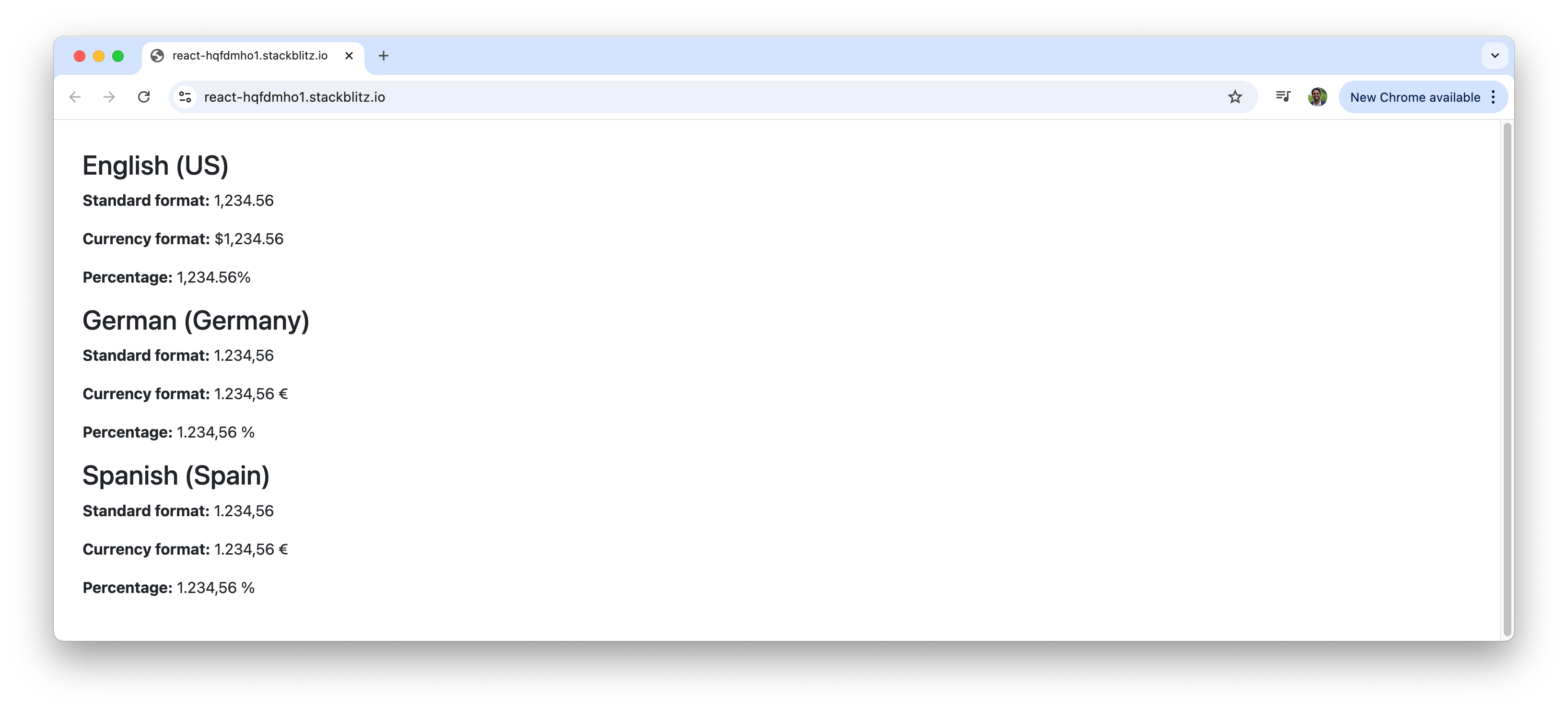
When we run this app, we see the same number value (1234.56) displayed in three different sections, each formatted according to its respective locale’s conventions:
Formatting Dates
Date formatting is equally important. The date November 6, 2000, can be written as “11/6/2000” in the US, “06/11/2000” in the UK or “6.11.2000” in Germany. Let’s see how to handle these variations:
import * as React from 'react';
import {
  IntlProvider,
  load,
  useInternationalization,
} from '@progress/kendo-react-intl';

// Import CLDR data
import likelySubtags from 'cldr-core/supplemental/likelySubtags.json';
import weekData from 'cldr-core/supplemental/weekData.json';

import enCaGregorian from 'cldr-dates-full/main/en/ca-gregorian.json';
import enTimeZoneNames from 'cldr-dates-full/main/en/timeZoneNames.json';
import deCaGregorian from 'cldr-dates-full/main/de/ca-gregorian.json';
import deTimeZoneNames from 'cldr-dates-full/main/de/timeZoneNames.json';
import esCaGregorian from 'cldr-dates-full/main/es/ca-gregorian.json';
import esTimeZoneNames from 'cldr-dates-full/main/es/timeZoneNames.json';

// Load CLDR data
load(
  likelySubtags,
  weekData,
  enCaGregorian,
  enTimeZoneNames,
  deCaGregorian,
  deTimeZoneNames,
  esCaGregorian,
  esTimeZoneNames
);

const DateDisplay = ({ value }) => {
  const intl = useInternationalization();

  return (
    <div>
      <p><strong>Short date:</strong> {intl.formatDate(value, 'd')}</p>
      <p><strong>Long date:</strong> {intl.formatDate(value, 'D')}</p>
      <p><strong>Full date:</strong> {intl.formatDate(value, 'EEEE, MMMM d, y')}</p>
    </div>
  );
};

const App = () => {
  const dateValue = new Date(2000, 10, 6); // November 6th, 2000

  return (
    <div>
      <h3>English (US)</h3>
      <IntlProvider locale="en">
        <DateDisplay value={dateValue} />
      </IntlProvider>

      <h3>German (Germany)</h3>
      <IntlProvider locale="de">
        <DateDisplay value={dateValue} />
      </IntlProvider>

      <h3>Spanish (Spain)</h3>
      <IntlProvider locale="es">
        <DateDisplay value={dateValue} />
      </IntlProvider>
    </div>
  );
};

export default App;
The formatDate method works similarly to formatNumber, accepting a date value and a format string. Common format patterns include:
'd'- short date pattern'D'- long date pattern- Custom patterns like
'EEEE, MMMM d, y'for full control
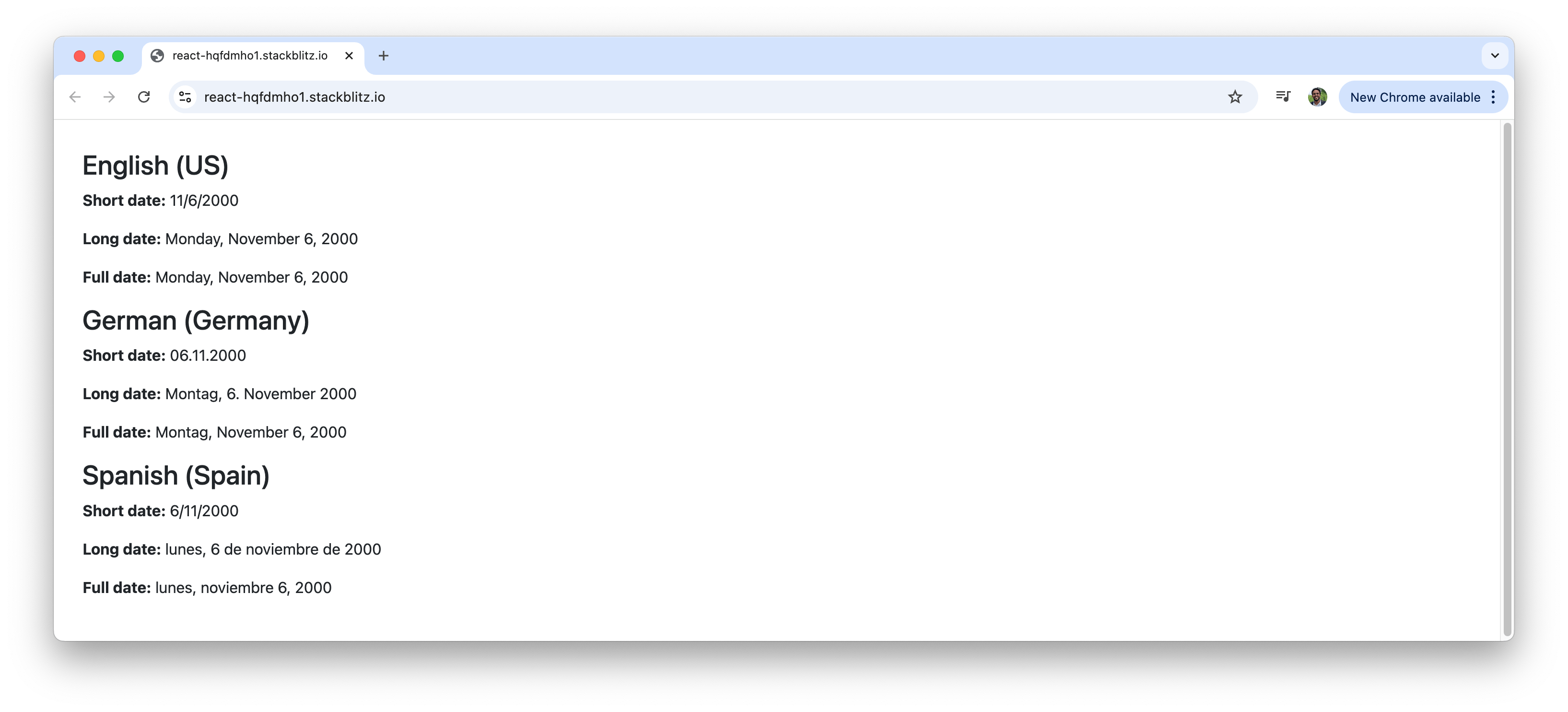
Running this app displays the same date (November 6, 2000) formatted in three different ways across English, German and Spanish locales:
Interactive Locale Switching
We’ll now build a more interactive example that allows users to switch between locales dynamically. This demonstrates how the Internationalization package can adapt to user preferences in real time:
import * as React from 'react';
import {
  IntlProvider,
  load,
  useInternationalization,
} from '@progress/kendo-react-intl';
import { DropDownList } from '@progress/kendo-react-dropdowns';

// Import CLDR data
import likelySubtags from 'cldr-core/supplemental/likelySubtags.json';
import currencyData from 'cldr-core/supplemental/currencyData.json';
import weekData from 'cldr-core/supplemental/weekData.json';

import enNumbers from 'cldr-numbers-full/main/en/numbers.json';
import enCurrencies from 'cldr-numbers-full/main/en/currencies.json';
import enCaGregorian from 'cldr-dates-full/main/en/ca-gregorian.json';
import enTimeZoneNames from 'cldr-dates-full/main/en/timeZoneNames.json';

import deNumbers from 'cldr-numbers-full/main/de/numbers.json';
import deCurrencies from 'cldr-numbers-full/main/de/currencies.json';
import deCaGregorian from 'cldr-dates-full/main/de/ca-gregorian.json';
import deTimeZoneNames from 'cldr-dates-full/main/de/timeZoneNames.json';

import esNumbers from 'cldr-numbers-full/main/es/numbers.json';
import esCurrencies from 'cldr-numbers-full/main/es/currencies.json';
import esCaGregorian from 'cldr-dates-full/main/es/ca-gregorian.json';
import esTimeZoneNames from 'cldr-dates-full/main/es/timeZoneNames.json';

// Load all CLDR data
load(
  likelySubtags,
  currencyData,
  weekData,
  enNumbers,
  enCurrencies,
  enCaGregorian,
  enTimeZoneNames,
  deNumbers,
  deCurrencies,
  deCaGregorian,
  deTimeZoneNames,
  esNumbers,
  esCurrencies,
  esCaGregorian,
  esTimeZoneNames
);

const DataDisplay = () => {
  const intl = useInternationalization();
  const orderDate = new Date(2024, 2, 15); // March 15, 2024
  const orderTotal = 1234.56;
  const taxRate = 0.08;

  return (
    <div className="data-card">
      <h4>Order Summary</h4>
      <div className="data-row">
        <span>Order Date:</span>
        <strong>{intl.formatDate(orderDate, 'd')}</strong>
      </div>
      <div className="data-row">
        <span>Subtotal:</span>
        <strong>{intl.formatNumber(orderTotal, 'c')}</strong>
      </div>
      <div className="data-row">
        <span>Tax Rate:</span>
        <strong>{intl.formatNumber(taxRate, 'p0')}</strong>
      </div>
      <div className="data-row">
        <span>Tax Amount:</span>
        <strong>{intl.formatNumber(orderTotal * taxRate, 'c')}</strong>
      </div>
      <div className="data-row total">
        <span>Total:</span>
        <strong>{intl.formatNumber(orderTotal * (1 + taxRate), 'c')}</strong>
      </div>
    </div>
  );
};

const App = () => {
  const [locale, setLocale] = React.useState('en');

  const handleLocaleChange = (event) => {
    setLocale(event.target.value.value);
  };

  const localeOptions = [
    { text: 'English (US)', value: 'en' },
    { text: 'Deutsch (Deutschland)', value: 'de' },
    { text: 'Español (España)', value: 'es' },
  ];

  return (
    <div>
      <div className="locale-selector">
        <p>Select Locale:</p>
        <DropDownList
          data={localeOptions}
          textField="text"
          dataItemKey="value"
          value={localeOptions.find((l) => l.value === locale)}
          onChange={handleLocaleChange}
        />
      </div>
      <IntlProvider locale={locale}>
        <DataDisplay />
      </IntlProvider>
    </div>
  );
};

export default App;
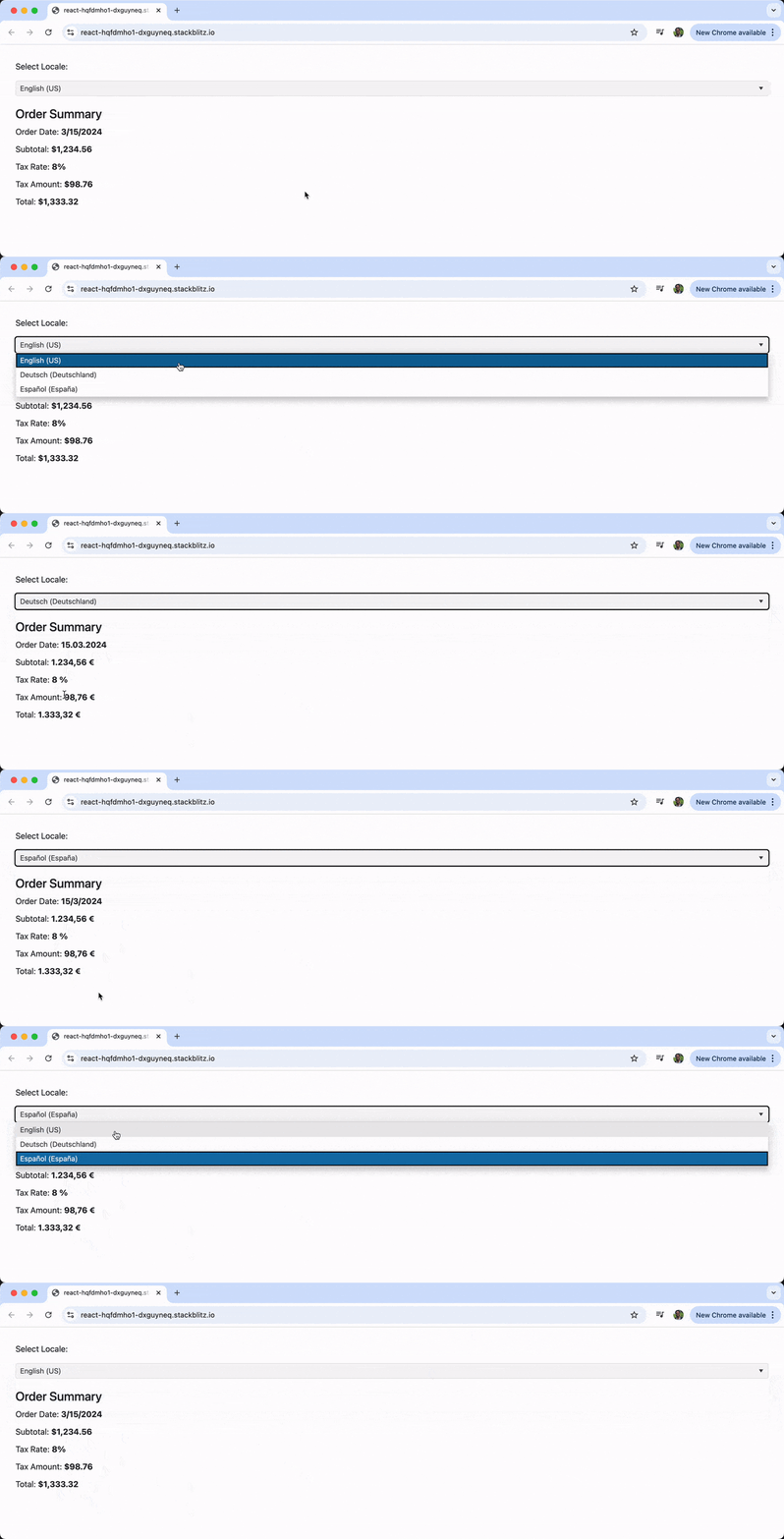
In the above example, we’ve created an order summary that displays dates, currency values and percentages. When the user selects a different locale from the dropdown, all values automatically update to match the formatting conventions of that locale. The date format changes, decimal separators adjust, currency symbols update and percentage displays follow local conventions—all without any manual formatting logic.
Wrap-up
The KendoReact Internationalization package provides an effective way to format dates and numbers according to cultural conventions. By leveraging CLDR data and the IntlProvider component, we can enable our React applications to display data in formats that feel natural to users, regardless of their location.
For more details on the KendoReact Internationalization package, including more advanced formatting options and parsing capabilities, check out the official documentation.
Try the library for yourself:

Hassan Djirdeh
Hassan is a senior frontend engineer and has helped build large production applications at-scale at organizations like Doordash, Instacart and Shopify. Hassan is also a published author and course instructor where he’s helped thousands of students learn in-depth frontend engineering skills like React, Vue, TypeScript and GraphQL.
Related Posts
Comments
All articles
Topics
Web MobileMobile
Desktop
Design
Productivity
People