Creating a Copy Code Button in Kendo UI for Vue

Summarize with AI:
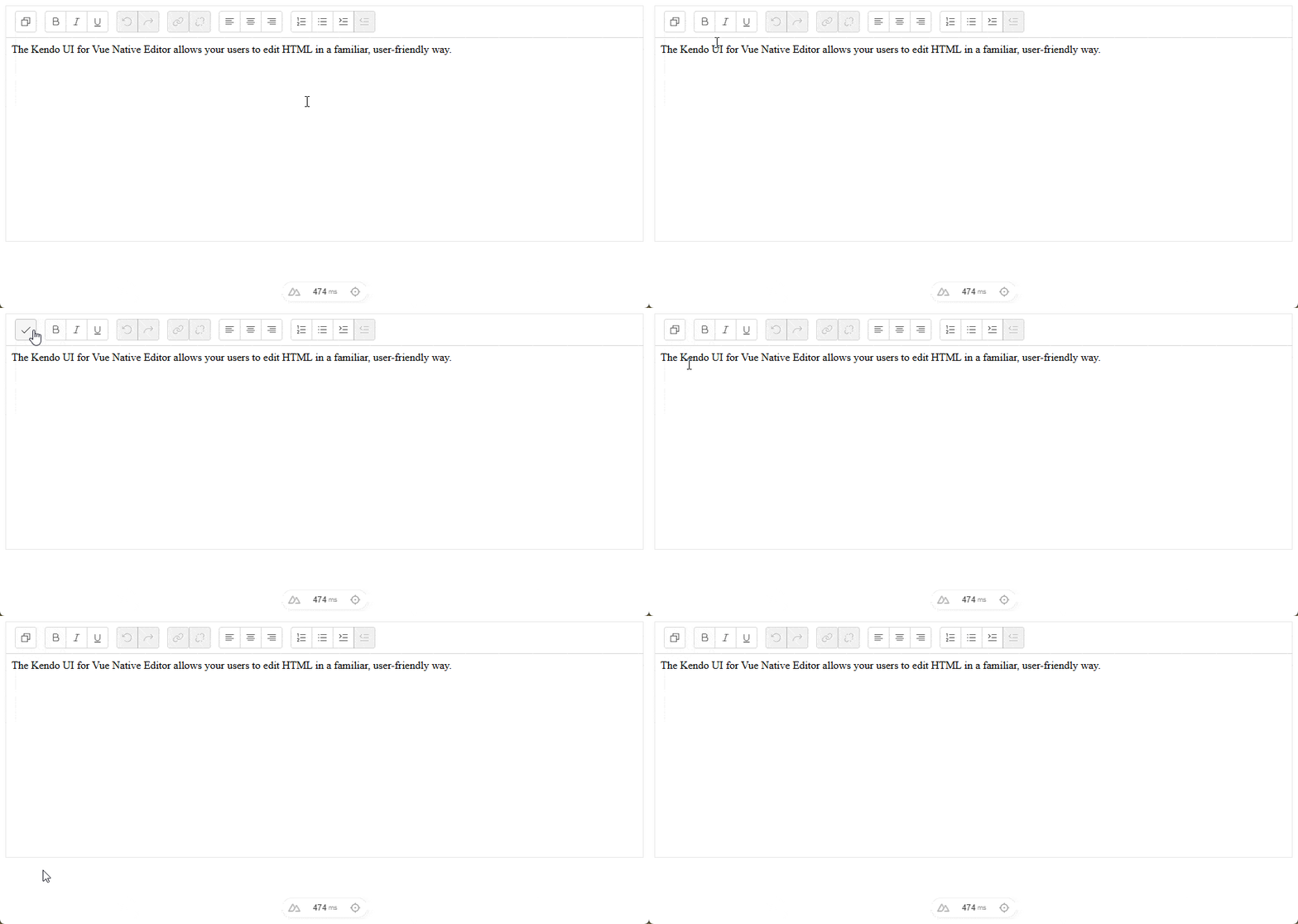
Let’s create a copy code button for the Kendo UI for Vue Editor, with correct styling and the copy icon built in.
Progress Kendo UI for Vue has a very useful editor, and it is also extensible!
TL;DR
This allows you to create a copy code button for Kendo UI for Vue and add it to the Editor. This will automatically use the correct styling and the built-in copy icon.
Setup
Create a new Nuxt App. You can also use Vue.js directly.
npm create nuxt@latest
Get a Kendo UI for Vue License
Log in to Progress Telerik and purchase a Kendo UI License for Vue or use the free trial.

Download the actual key, as you will need it later for deployment.
Install Kendo Licensing
npm i -S @progress/kendo-licensing
Then run:
npx kendo-ui-license activate
This will set up Kendo UI on your local machine for this project. Make sure you have a working license at this point, and to follow the correct setup.
Install Packages
npm i -S @progress/kendo-drawing @progress/kendo-svg-icons @progress/kendo-theme-fluent @progress/kendo-vue-buttons @progress/kendo-vue-dialogs @progress/kendo-vue-dropdowns @progress/kendo-vue-editor @progress/kendo-vue-inputs @progress/kendo-vue-intl @progress/kendo-vue-layout @progress/kendo-vue-pdf @progress/kendo-vue-popup @progress/kendo-vue-progressbars
Install all the packages you will need for this demo.
Nuxt Setup
Update your nuxt.config.ts to optimize Vue dependencies and include the CSS for the Kendo UI Theme you want to use. Progress Kendo UI has a Custom ThemeBuilder for any colors you want!
import tailwindcss from '@tailwindcss/vite'

// https://nuxt.com/docs/api/configuration/nuxt-config
export default defineNuxtConfig({
  compatibilityDate: '2025-07-15',
  devtools: { enabled: true },
  css: ['~/assets/css/tailwind.css', '@progress/kendo-theme-fluent/dist/all.css'],
  vite: {
    plugins: [tailwindcss()],
    optimizeDeps: {
      include: [
        '@progress/kendo-svg-icons',
        '@progress/kendo-vue-buttons',
        '@progress/kendo-vue-editor',
        '@vue/devtools-core',
        '@vue/devtools-kit',
      ]
    }
  }
})
Copy Button Editor
First, we need functionality.
Copy Button Composable
We need a reusable composable that can be used in any component.
export function useCopyCode(timeoutMs = 1500) {
    const copied = ref(false);
    let resetTimer: ReturnType<typeof setTimeout> | undefined;

    async function copyCode(value: string) {
        await navigator.clipboard.writeText(value);

        copied.value = true;

        if (resetTimer) {
            clearTimeout(resetTimer);
        }

        resetTimer = setTimeout(() => {
            copied.value = false;
        }, timeoutMs);
    }

    onScopeDispose(() => {
        if (resetTimer) {
            clearTimeout(resetTimer);
        }
    });

    return {
        copied: readonly(copied),
        copyCode,
    };
}
- Navigator has a clipboard property that is widely available in all browsers.
- We set a timeout so that the button looks more fluid for the UX. We can get rid of the timer when the composable is unmounted with
onScopeDispose. - We also return the
copiedvalue.
Editor Copy Component
Next, we configure the editor.
<script setup lang="ts">
import { Button } from "@progress/kendo-vue-buttons";
import { Editor, type EditorChangeEvent } from "@progress/kendo-vue-editor";
import { checkIcon, copyIcon } from "@progress/kendo-svg-icons";

const content = `<p>The Kendo UI for Vue Native Editor allows your users to edit HTML in a familiar, user-friendly way.</p>`;

const editorHtml = ref(content);

function handleEditorChange(event: EditorChangeEvent) {
  editorHtml.value = event.html;
}

const tools = [
  [{ render: "CopyCodeTool" }],
  ["Bold", "Italic", "Underline"],
  ["Undo", "Redo"],
  ["Link", "Unlink"],
  ["AlignLeft", "AlignCenter", "AlignRight"],
  ["OrderedList", "UnorderedList", "Indent", "Outdent"],
];

const { copied, copyCode } = useCopyCode();
</script>

<template>
  <Editor
    class="mx-auto w-full max-w-180"
    :tools="tools"
    :value="editorHtml"
    @change="handleEditorChange($event)"
  >
    <template #CopyCodeTool>
      <Button
        type="button"
        class="k-toolbar-button"
        :svg-icon="copied ? checkIcon : copyIcon"
        :title="copied ? 'Copied' : 'Copy Code'"
        :aria-label="copied ? 'Copied' : 'Copy Code'"
        @mousedown.prevent
        @click="copyCode(editorHtml)"
      />
    </template>
  </Editor>
</template>
- We really only need
handleEditorChangefor more advanced use cases. - We pass the HTML to the copy code function in the composable, and we use the state to toggle the icon.
Each tools group the buttons into sections.
const tools = [
  [{ render: "CopyCodeTool" }],
  ["Bold", "Italic", "Underline"],
  ["Undo", "Redo"],
  ["Link", "Unlink"],
  ["AlignLeft", "AlignCenter", "AlignRight"],
  ["OrderedList", "UnorderedList", "Indent", "Outdent"],
];
Here we use render to show the component we want inside our template.
<template #CopyCodeTool>
  <Button
    type="button"
    class="k-toolbar-button"
    :svg-icon="copied ? checkIcon : copyIcon"
    :title="copied ? 'Copied' : 'Copy Code'"
    :aria-label="copied ? 'Copied' : 'Copy Code'"
    @mousedown.prevent
    @click="copyText"
  />
</template>
🛸 Bonus: Copy Code Block Button
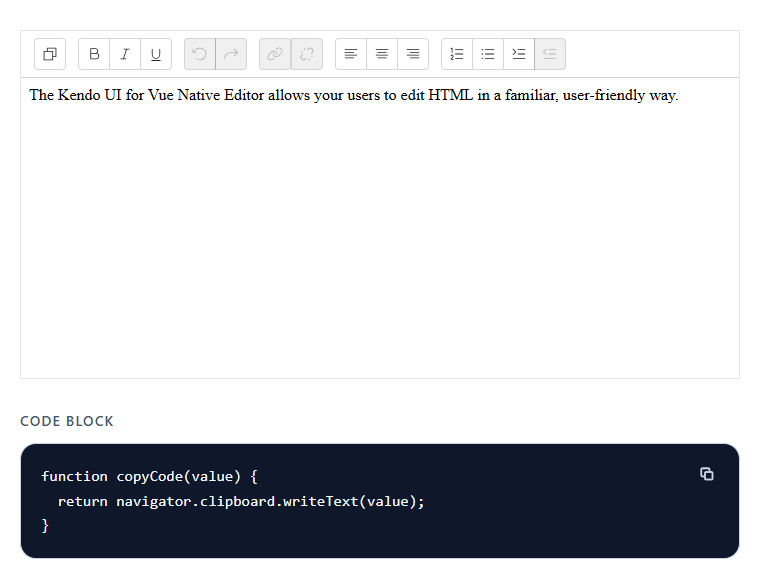
I created a code block copy button using our composable.
<script setup lang="ts">
import { Button } from "@progress/kendo-vue-buttons";

const exampleCode = `function copyCode(value) {
  return navigator.clipboard.writeText(value);
}`;

const { copied, copyCode } = useCopyCode();
</script>

<template>
  <section class="mx-auto w-full max-w-180">
    <p
      class="mb-3 text-sm font-semibold uppercase tracking-[0.08em] text-slate-600"
    >
      Code Block
    </p>

    <div class="relative">
      <div class="absolute right-4 top-4 z-10">
        <Button
          type="button"
          fill-mode="flat"
          class="h-8! w-8! rounded-lg! border-0! bg-transparent! p-0! text-slate-300! shadow-none! transition hover:bg-white/10! hover:text-white! focus:shadow-none!"
          :title="copied ? 'Copied' : 'Copy Code'"
          :aria-label="copied ? 'Copied' : 'Copy code'"
          @mousedown.prevent
          @click="copyCode(exampleCode)"
        >
          <svg
            v-if="copied"
            aria-hidden="true"
            class="h-4.5 w-4.5"
            viewBox="0 0 24 24"
            fill="none"
            stroke="currentColor"
            stroke-width="2.75"
            stroke-linecap="round"
            stroke-linejoin="round"
          >
            <path d="M20 6 9 17l-5-5" />
          </svg>

          <svg
            v-else
            aria-hidden="true"
            class="h-4.5 w-4.5"
            viewBox="0 0 24 24"
            fill="none"
            stroke="currentColor"
            stroke-width="2.5"
            stroke-linecap="round"
            stroke-linejoin="round"
          >
            <rect x="8" y="8" width="10" height="10" rx="1.5" />
            <path d="M6 14H5a2 2 0 0 1-2-2V5a2 2 0 0 1 2-2h7a2 2 0 0 1 2 2v1" />
          </svg>
        </Button>
      </div>

      <pre
        class="m-0 overflow-x-auto rounded-2xl border border-slate-300 bg-slate-900 p-5 pr-20 text-[0.95rem] leading-relaxed text-slate-50"
      ><code>{{ exampleCode }}</code></pre>
    </div>
  </section>
</template>
- I generated some SVG Copy buttons, as the Kendo UI Copy Buttons didn’t look correct for this use case. The composable works the exact same way and is extremely easy to use.
- The norm for code blocks is to use
preandcodetags. - If you plan on displaying code blocks in your app, you should install a Syntax Highlighting Library.
Repo: GitHub
Demo: Vercel Serverless
Remember, Kendo UI for Vue comes with a free 30-day trial!

Jonathan Gamble
Jonathan Gamble has been an avid web programmer for more than 20 years. He has been building web applications as a hobby since he was 16 years old, and he received a post-bachelor’s in Computer Science from Oregon State. His real passions are language learning and playing rock piano, but he never gets away from coding. Read more from him at https://code.build/.
Related Posts
Comments
All articles
Topics
Web MobileMobile
Desktop
Design
Productivity
People