New to Telerik UI for WPF? Start a free 30-day trial
Create a Menu Button with RadContextMenu and ToggleButton
Updated on Sep 28, 2026
Environment
| Product Version | 2026.1.415 |
| Product | RadContextMenu for WPF |
Description
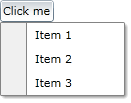
Create a drop-down menu button that displays additional options when the user clicks a ToggleButton.
Solution
Attach a RadContextMenu to the ToggleButton and bind the ToggleButton.IsChecked property to the RadContextMenu.IsOpen property.
- Define the ToggleButton and attach the RadContextMenu.
Define the ToggleButton and RadContextMenu
XAML
<ToggleButton xmlns:telerik="http://schemas.telerik.com/2008/xaml/presentation"
              Content="Click me"
              HorizontalAlignment="Left"
              IsChecked="{Binding IsOpen, ElementName=radContextMenu, Mode=TwoWay}">
    <telerik:RadContextMenu.ContextMenu>
        <telerik:RadContextMenu x:Name="radContextMenu" Placement="Bottom">
            <telerik:RadMenuItem Header="Item 1" />
            <telerik:RadMenuItem Header="Item 2" />
            <telerik:RadMenuItem Header="Item 3" />
        </telerik:RadContextMenu>
    </telerik:RadContextMenu.ContextMenu>
</ToggleButton>
The IsChecked binding keeps the ToggleButton state synchronized with the RadContextMenu.IsOpen property.
RadContextMenu Menu Button