New to Telerik UI for WPF? Start a free 30-day trial
Window Settings
Updated on Sep 23, 2026
The RadSpellChecker class exposes the WindowSettings property which allows you to customize the appearance of the spell checker window. It is of type WindowSettings and it exposes the following properties:
Top—Gets or sets the top position of the window settings in the proofing module.TopOffset—Gets or sets the top offset of the proofing window settings (in pixels from the top edge of the screen).Left—Gets or sets the left position of the window settings.LeftOffset—Gets or sets the left offset of the window settings (in pixels).StartupLocation—Gets or sets the starting location for the proofing window when it is opened.Theme—Gets or sets the theme settings for the proofing window.IsAddToDictionaryButtonVisible—Gets or sets whether the Add to Dictionary button is visible in the proofing window.IsIgnoreAllButtonVisible—Gets or sets whether the Ignore All button is visible in the proofing window.IsEditCustomDictionaryButtonVisible—Gets or sets whether the Edit Custom Dictionary button is visible in the proofing window.ShowAlertWhenSpellCheckingCompleted—Gets or sets whether an alert is shown when spell checking is completed.SpellCheckingWindowsWidth—Gets or sets the width of the spell checking windows (in pixels).SpellCheckingWindowsHeight—Gets or sets the height of the spell checking windows (in pixels).SpellCheckingWindowsStyle—Gets or sets the style settings for the spell checking windows.
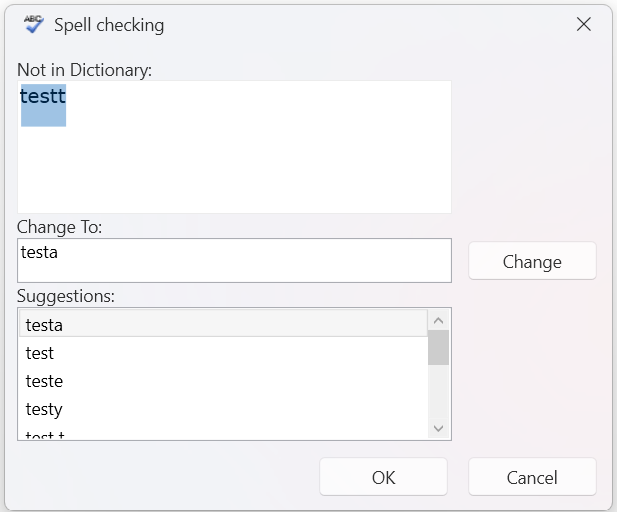
The following example showcases how to hide the Add to Dictionary, the Ignore All and the Edit Custom Dictionary buttons in the proofing window:
C#
public partial class MainWindow : Window
{
    static MainWindow()
    {
        RadSpellChecker.WindowSettings.IsAddToDictionaryButtonVisible = false;
        RadSpellChecker.WindowSettings.IsIgnoreAllButtonVisible = false;
        RadSpellChecker.WindowSettings.IsEditCustomDictionaryButtonVisible = false;
    }

    public MainWindow()
    {
        InitializeComponent();
    }

    private void Button_Click(object sender, RoutedEventArgs e)
    {
        RadSpellChecker.Check(this.textBox, SpellCheckingMode.AllAtOnce);
    }
}
Proofing window with the Add to Dictionary, the Ignore All and the Edit Custom Dictionary buttons hidden: