Resizing Items
By default, the RadPanelBar items cannot be resized through the UI. To enable the UI resizing on the items you can use the IsResizingEnabled property of the RadPanelBar control. It is enabled by setting the IsResizingEnabled property to True.
Enabling Items Resizing
<telerik:RadPanelBar IsResizingEnabled="True"/>The IsResizingEnabled property can be set in code as well.
Enabling Items Resizing in Code
radPanelBar.IsResizingEnabled = true;Enabling Items Resizing in Code
radPanelBar.IsResizingEnabled = TrueControling the Items Expanded Length
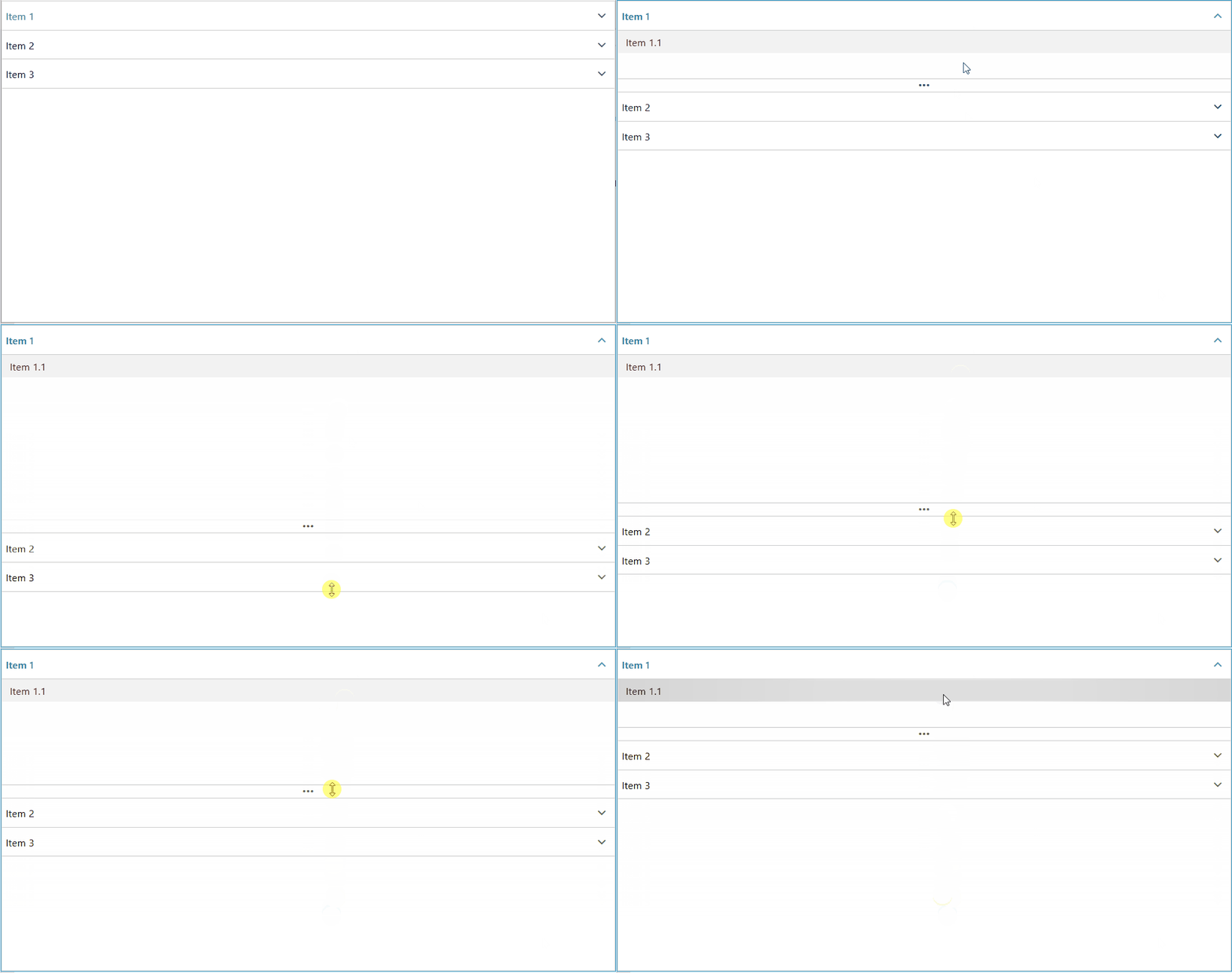
The expanded length of the RadPanelBarItem element can be controlled via its ExpandedLength property. To control the minimum and maximum expanded length, set the ExpandedMinLength and ExpandedMaxLength properties. The expanded length values will be applied only when the IsResizingEnabled property is set to True.
Setting PanelBarItem Expanded Length Constraints
<telerik:RadPanelBar Name="radPanelBar">
    <telerik:RadPanelBarItem Header="Item 1" ExpandedLength="200" ExpandedMinLength="150" ExpandedMaxLength="250"/>
</telerik:RadPanelBar>
RadPanelBarItem with Expanded Length Constraints
Enabling RadPanelBarItem Scrolling
The RadPanelBar control exposes an IsScrollViewerInsideItemsEnabled property that allows to scroll the content of each RadPanelBarItem element. The property controls the ScrollBarVisibility of the ScrollViewer control, which is present inside the ControlTemplate of the RadPanelBarItem control.
To allow the RadPanelBarItem control to scroll its content, set the IsScrollViewerInsideItemsEnabled property to True.
Setting the IsScrollViewerInsideItemsEnabled Property
<telerik:RadPanelBar IsScrollViewerInsideItemsEnabled="True"/>