Data Binding
RadPanelBar can be bound to a collection of objects and dynamically create its collection of items. The collection that is provided as ItemsSource can contain either RadPanelBarItems or any other type of objects. If the ItemsSource collection contains RadPanelBarItems, they are directly made children of the RadPanelBar control. Otherwise, the objects in the ItemsSource collection are wrapped in RadPanelBarItem objects and are pushed into the Items collection of the RadPanelBar control.
Naturally, if the collection you are binding to implements the INotifyCollectionChanged interface, whenever your source collection is changed, the change would be immediately reflected in the Items collection of the RadPanelBar.
Binding ItemsSource to a Collection of Strings
The following examples demonstrate how you can bind the RadPanelBar to a collection of strings:
RadPanelBar Definition
<telerik:RadPanelBar ItemsSource="{Binding}" />Binding RadPanelBar to a List of Strings
public partial class MainWindow : Window
    {
        public MainWindow()
        {
            InitializeComponent();

            List<string> myListDataSource = new List<string>();
            myListDataSource.Add("Item 1");
            myListDataSource.Add("Item 2");
            myListDataSource.Add("Item 3");

            this.DataContext = myListDataSource;
        }
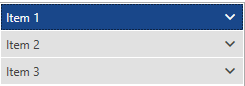
}By default, the string values from the ItemsSource collection will be assigned to the Header property of each RadPanelBarItem in the RadPanelBar control you are populating.
Result from the Previous Example in the Office2016 Theme
Binding ItemsSource to a Collection of Objects
In case you want to display (in the item headers) a specific property of an object in a source collection, you can use either the DisplayMemberPath, or the ItemTemplate property of RadPanelBar. The approach of using an ItemTemplate is demonstrated in the following examples:
RadPanelBar Definition with ItemTemplate
<HierarchicalDataTemplate x:Key="headerTemplate" ItemsSource="{Binding Items}">
	<TextBlock Text="{Binding Text}" />
</HierarchicalDataTemplate>

<telerik:RadPanelBar ItemsSource="{Binding}"
					 ItemTemplate="{StaticResource headerTemplate}"/>
Displaying a Specific Property as a Header
public class SampleItem : ViewModelBase
    {
        private string text;
        private ObservableCollection<SampleItem> items;

        public string Text
        {
            get
            {
                return this.text;
            }

            set
            {
                if (this.text != value)
                {
                    this.text = value;
                    this.OnPropertyChanged("Text");
                }
            }
        }

        public ObservableCollection<SampleItem> Items
        {
            get
            {
                return this.items;
            }

            set
            {
                if (this.items != value)
                {
                    this.items = value;
                    this.OnPropertyChanged("Items");
                }
            }
        }
    }

public partial class MainWindow : Window
    {
        public MainWindow()
        {
            InitializeComponent();

		var source = new ObservableCollection<SampleItem>();
		for (int i = 1; i <= 3; i++)
		{
			var secondLevelItems = new ObservableCollection<SampleItem>() { new SampleItem() { Text = "Second level " + i } };
			source.Add(new SampleItem() { Text = "First level " + i, Items = secondLevelItems });
		}

		this.DataContext = source;
        }
}Result from the Previous Example in the Office2016 Theme
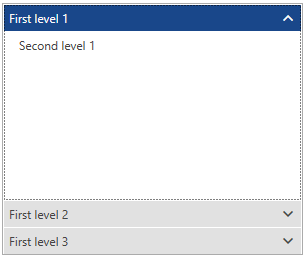
Binding to Hierarchical Data
RadPanelBarItem inherits from HeaderedItemsControl therefore it can display hierarchical data, e.g. collections that contain other collections.
The HierarchicalDataTemplate class is designed to be used with HeaderedItemsControl types to display such data. There should be virtually no differences between the usage of HierarchicalDataTemplate in RadPanelBar and other controls.
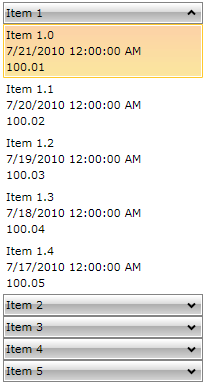
The following example demonstrates how to create a hierarchical data source and bind a RadPanelBar to it, using a HierarchicalDataTemplate. The ItemsSource property of the HierarchicalDataTemplate specifies the binding that has to be applied to the ItemsSource property of each item. The DataTemplate property specifies the template that has to be applied on each item, while the ItemTemplate is the template applied on its child items.
-
Create a new class and name it MyViewModel:
C#public class MyViewModel { public MyViewModel() { this.RelatedItems = new ObservableCollection<object>(); } public string Title { get; set; } public DateTime DateCreated { get; set; } public double Price { get; set; } public IList<object> RelatedItems { get; set; } }The class has four properties:
-
Property Price which is of type double.
-
Property CreatedOn which is of type DateTime.
-
Property Title which is of type string.
-
Property RelatedItems which is a collection of objects. These are the child items. Add a static method to the class which aims to create some mock-up data:
Adding a Method to Generate Mock-up Hierarchical Data
C#public static IList<object> GenerateItems() { var result = new ObservableCollection<object>(); foreach (var num in Enumerable.Range(1, 5)) { var item = new MyViewModel(); item.DateCreated = DateTime.Today.AddDays(-num % 15); item.Price = num * 100 + Convert.ToDouble(num) / 100; item.Title = String.Format("Item {0}", num); for (int i = 0; i < 5; i++) { var child = new MyViewModel(); child.DateCreated = DateTime.Today.AddDays(-num % 5 - i); child.Price = num * 100 + Convert.ToDouble(num + i) / 100; child.Title = String.Format("Item {0}.{1}", num, i); item.RelatedItems.Add(child); } result.Add(item); } return result; } -
-
Declare a HierarchicalDataTemplate
XAML<Window.Resources> <DataTemplate x:Key="PanelBarItemTemplate"> <StackPanel> <TextBlock Text="{Binding Title}"/> <TextBlock Text="{Binding DateCreated}"/> <TextBlock Text="{Binding Price}"/> </StackPanel> </DataTemplate> <HierarchicalDataTemplate x:Key="PanelBarHeaderTemplate" ItemsSource="{Binding RelatedItems}" ItemTemplate="{StaticResource PanelBarItemTemplate}"> <TextBlock Text="{Binding Title}" /> </HierarchicalDataTemplate> </Window.Resources> -
Define the RadPanelBar and set its ItemTemplate property
XAML<telerik:RadPanelBar x:Name="radPanelBar" Width="200" HorizontalAlignment="Center" VerticalAlignment="Top" ItemTemplate="{StaticResource PanelBarHeaderTemplate}"> </telerik:RadPanelBar> -
Set the ItemsSource property of the RadPanelBar
C#this.radPanelBar.ItemsSource = MyViewModel.GenerateItems();