Getting Started with WinForms Sparkline
This tutorial will help you to quickly get started using the control.
Adding Telerik Assemblies Using NuGet
To use RadSparkline when working with NuGet packages, install the Telerik.UI.for.WinForms.AllControls package. The package target framework version may vary.
Read more about NuGet installation in the Install using NuGet Packages article.
With the 2025 Q1 release, the Telerik UI for WinForms has a new licensing mechanism. You can learn more about it here.
Adding Assembly References Manually
When dragging and dropping a control from the Visual Studio (VS) Toolbox onto the Form Designer, VS automatically adds the necessary assemblies. However, if you're adding the control programmatically, you'll need to manually reference the following assemblies:
- Telerik.Licensing.Runtime
- Telerik.WinControls
- Telerik.WinControls.UI
- TelerikCommon
The Telerik UI for WinForms assemblies can be install by using one of the available installation approaches.
Defining the RadSparkline
1. To start using the RadSparkLine first you need to place the control on the form. By default the control should look like a regular panel.
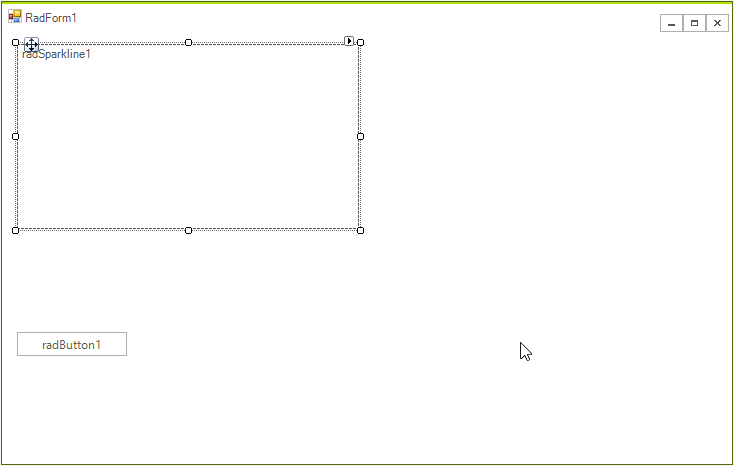
2. Once the control is on the form go to the code behind and create a new SparkBarSeries.
Adding SparkBarSeries to RadSparkline
private void SparklineCode_Load(object sender, EventArgs e)
{
    var series = new SparkBarSeries();
    series.CategoryMember = "Category";
    series.ValueMember = "Values";
    series.DataSource = GetData();
    series.ShowHighPointIndicator = true;
    series.ShowLowPointIndicator = true;

    radSparkline1.Series = series;

}3. Here is the method that returns the sample data as well.
Sample Data
public static DataTable GetData()
{
    DataTable table = new DataTable();

    table.Columns.Add("Values");
    table.Columns.Add("Category");

    table.Rows.Add(1, "John");
    table.Rows.Add(3, "Adam");
    table.Rows.Add(5, "Peter");
    table.Rows.Add(12, "Sam");
    table.Rows.Add(6, "Paul");

    return table;
}4. The RadSparkline now shows the data and indicates the high an low points.
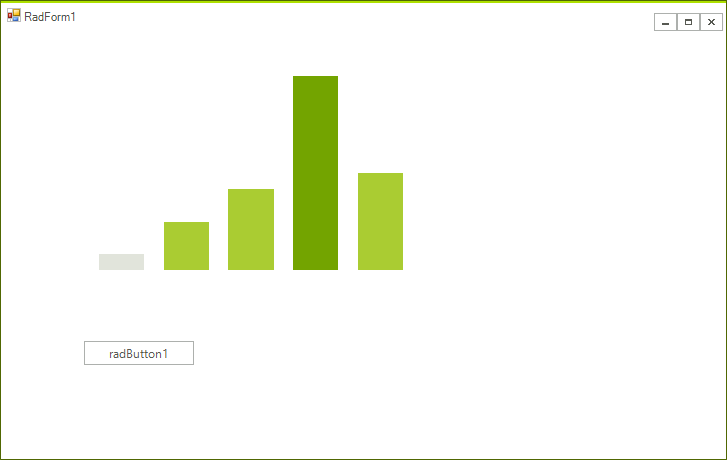
Telerik UI for WinForms Learning Resources
- Telerik UI for WinForms Sparkline Component
- Getting Started with Telerik UI for WinForms Components
- Telerik UI for WinForms Setup
- Telerik UI for WinForms Converter
- Telerik UI for WinForms Visual Studio Templates
- Deploy Telerik UI for WinForms Applications
- Telerik UI for WinForms Virtual Classroom(Training Courses for Registered Users)
- Telerik UI for WinForms License Agreement)