New to Telerik UI for WinForms? Start a free 30-day trial
Week View
Updated on Aug 27, 2026
Overview
The Week view by default shows a full seven-day week week at a time, which can be set to start at a predefined day (say Monday, or Sunday). To move to the next or previous week, you can use the back and forward keyboard arrows, or the SchedulerNavigator control, which also allows you to control whether to show weekends or not.
Figure 1: Week View
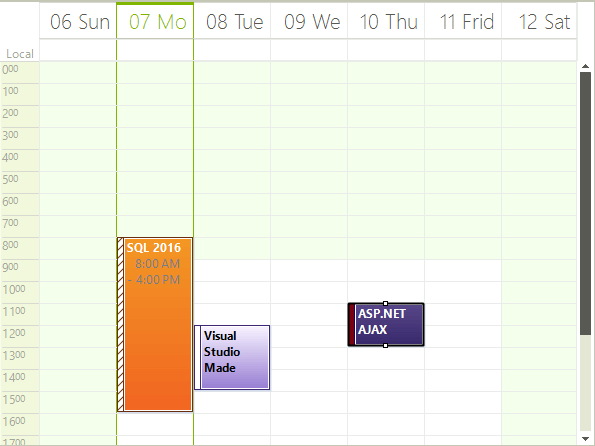
Set Week View
To explicitly set the Work Week to be the default view which the user sees on the form:
Set ActiveViewType
C#
this.radScheduler1.ActiveViewType = SchedulerViewType.Week;
Get Week View
To get the instance to the SchedulerWeek view from the RadScheduler object, either:
- use the GetWeekView method:
GetWeekView Method
C#
SchedulerWeekView weekView = this.radScheduler1.GetWeekView();This method returns null if the active view of the scheduler is not SchedulerWeekView.
- use the RadScheduler ActiveView property:
ActiveView Property
C#
if (this.radScheduler1.ActiveViewType == SchedulerViewType.Week)
{
    SchedulerWeekView activeWeekView = (SchedulerWeekView)this.radScheduler1.ActiveView;
}Showing/Hiding The Weekend
By default the weekends are shown, but you can hide them by using the ShowWeekend property:
Show Weekend
C#
weekView.ShowWeekend = false;