WinForms RibbonBar Overview
| RELATED VIDEOS | |
|---|---|
| RadRibbonBar Overview This video contains a brief overview of the RadRibbonBar. (Runtime: 02:15) |  |
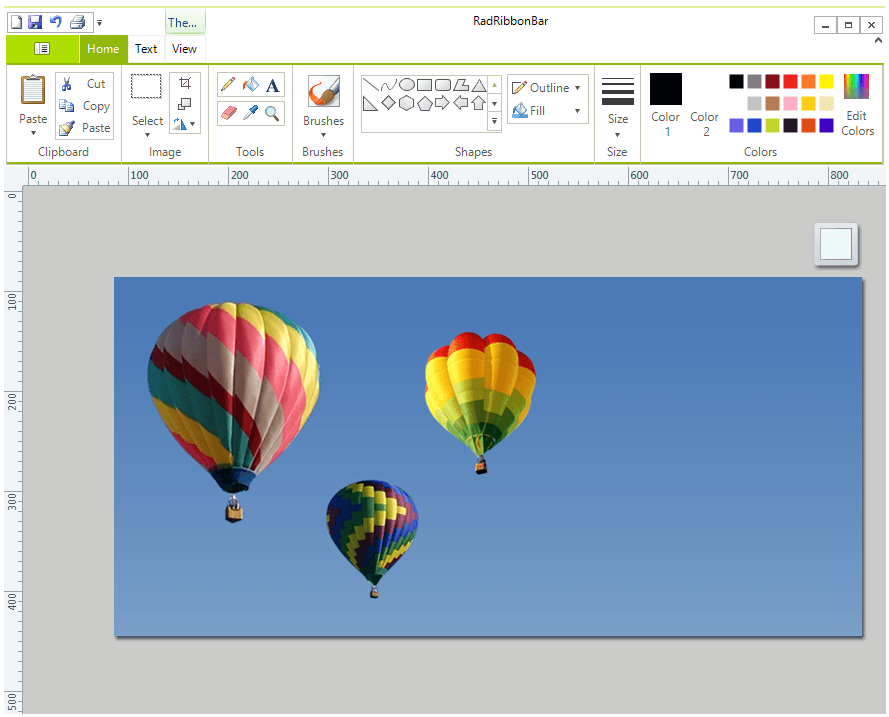
With the RadRibbonBar control you can build user interfaces similar to those used in Microsoft Office. The figure below shows an example of a RadRibbonBar usage scenario:
 Start Free Trial
Figure 1: RadRibbonBar
RadRibbonBar control provides a flexible way for organizing all the functionality of your application:
-
The entire application functionality is accessible from a single place.
-
RadRibbonBar is divided into tabs such as Write, Insert, and Page Layout. Tabs can be permanently visible or shown contextually.
-
When the users clicks on a tab, they are presented with the ribbon groups such as Clipboard, Font, and Paragraph.
-
Each group can hold an unlimited number of controls including toolbars, combo boxes, galleries, and other Telerik controls.
-
The Application Menu Button in the upper left of the ribbon provides quick access to the most important commands listed in the Application Menu.
-
An optional Quick Access Toolbar above or below the ribbon tabs an be used for customization or frequently-used commands.
-
Key tips can be used to help users learn the shortcut keys to activate individual controls.
Telerik UI for WinForms Learning Resources
- Telerik UI for WinForms RibbonBar Homepage
- Get Started with the Telerik UI for WinForms RibbonBar
- Telerik UI for WinForms API Reference
- Getting Started with Telerik UI for WinForms Components
- Telerik UI for WinForms Virtual Classroom (Training Courses for Registered Users)
- Telerik UI for WinForms Forum
- Telerik UI for WinForms Knowledge Base
Telerik UI for WinForms Additional Resources
- Telerik UI for WinForms Product Overview
- Telerik UI for WinForms Blog
- Telerik UI for WinForms Videos
- Telerik UI for WinForms Roadmap
- Telerik UI for WinForms Pricing
- Telerik UI for WinForms Code Library
- Telerik UI for WinForms Support
- What’s New in Telerik UI for WinForms