New to Telerik UI for WinFormsStart a free 30-day trial

First Steps with Telerik UI for WinForms

Updated on Apr 1, 2026

This tutorial explains how to use the Telerik UI for WinForms components in a WinForms desktop project. You will create a new application from scratch, learn how to add the UI for WinForms components in Visual Studio, and utilize the Telerik NuGet source that lets you download and install all Telerik controls automatically.

Prerequisites

Step 0: Start Your Free Trial

  • If you already have an active license for Telerik UI for WinForms, skip this step and continue with the next step.

  • If you don't have an active license, follow the steps below to activate your free trial:

    1. Download the WinForms Installer and start the installation.

    2. Make sure that Telerik UI for WinForms is selected and continue with the setup.

    3. Log in with your Telerik account and complete the installation.

    After the successful installation of Telerik UI for WinForms, the Installer activates your 30-day free trial. The installer also downloads your license key file, so you can skip the next step and continue with Step 2: Create a new WinForms Telerik Project.

Step 1: Download Your License Key File

Telerik UI for WinForms suite requires license activation through a license key (trial or commercial). To download and install your Telerik license key file:

  1. Go to the License Keys page in your Telerik account.
  2. Click the Download License Key button.
  3. Save the telerik-license.txt file to %AppData%\Telerik\telerik-license.txt.

This will make the license key available to all Telerik apps that you develop on your local machine.

To download automatically Telerik license key, use Telerik Visual Studio Extensions.

Step 2: Create a new WinForms Telerik Project

In this step, we will create a basic Telerik WinForms project as a starting point for your application development:

  1. Open Visual Studio and select Create a new project in the start window.

  2. Select the Telerik C# Windows Forms Application template, and click the Next button. This template should create .NET project. If you want to create .NET Framework project, then choose Telerik C# Windows Forms Application (Net Framework) project template.

Figure 1: Create a new Telerik WinForms project
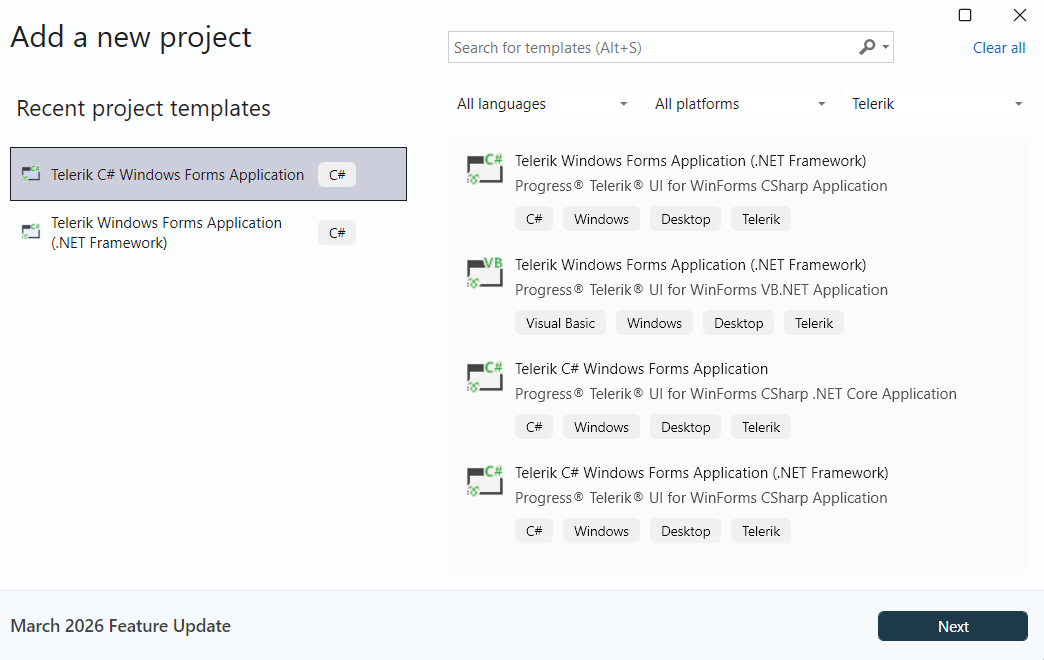
Create new project

Telerik project templates are available in C# and VB for .NET/.NET Framework.

Step 3: Add the Telerik NuGet Server

Telerik maintains a NuGet feed with official UI for Telerik UI for WinForms releases. These packages are available for registered users with an active trial or commercial license. Adding the Telerik NuGet server as a source in Visual Studio lets you download and install Telerik packages containing controls and utilities.

As the Telerik NuGet server requires authentication, the first step is to obtain an API key that you will use instead of a password. Using an API key instead of a password is a more secure approach, especially when working with the NuGet.Config file.

  1. Go to the API Keys page in your Telerik account.

  2. Click Generate New Key +.

    generate-api-key

  3. In the Key Note field, add a note that describes the API key.

  4. When ready, click Generate Key.

  5. Select Copy and Close. Once you close the window, you can no longer copy the generated key. For security reasons, the API Keys page displays only a portion of the key.

  6. Store the generated NuGet API key, as you will need it in the next steps. Whenever you need to authenticate your system with the Telerik NuGet server, use api-key as the username and your generated API key as the password.

Telerik API keys expire after two years. Telerik will send you an email when a key is about to expire, but we recommend that you set your own calendar reminder with information about where you used that key: file paths, project links, AzDO and GitHub Action variable names, and so on.

Next, add the Telerik NuGet feed to Visual Studio:

  1. In Visual Studio and go to Tools > NuGet Package Manager > Package Manager Settings.

  2. Select Package Sources and then click the + button to add a new package source.

  3. Enter a Name for the new package source, for example, telerik.com.

  4. Add the https://nuget.telerik.com/v3/index.json URL as a Source. Click OK.

  5. Whenever Visual Studio displays a dialog to enter credentials for nuget.telerik.com, use api-key as the username and your NuGet API key as the password.

    generate-api-key

Step 4: Download Telerik UI for WinForms Controls

The easiest way to get the Telerik UI for WinForms controls to your development machine is to install them by using nuget package direktly from NuGet Package Manager in Visual Studio.

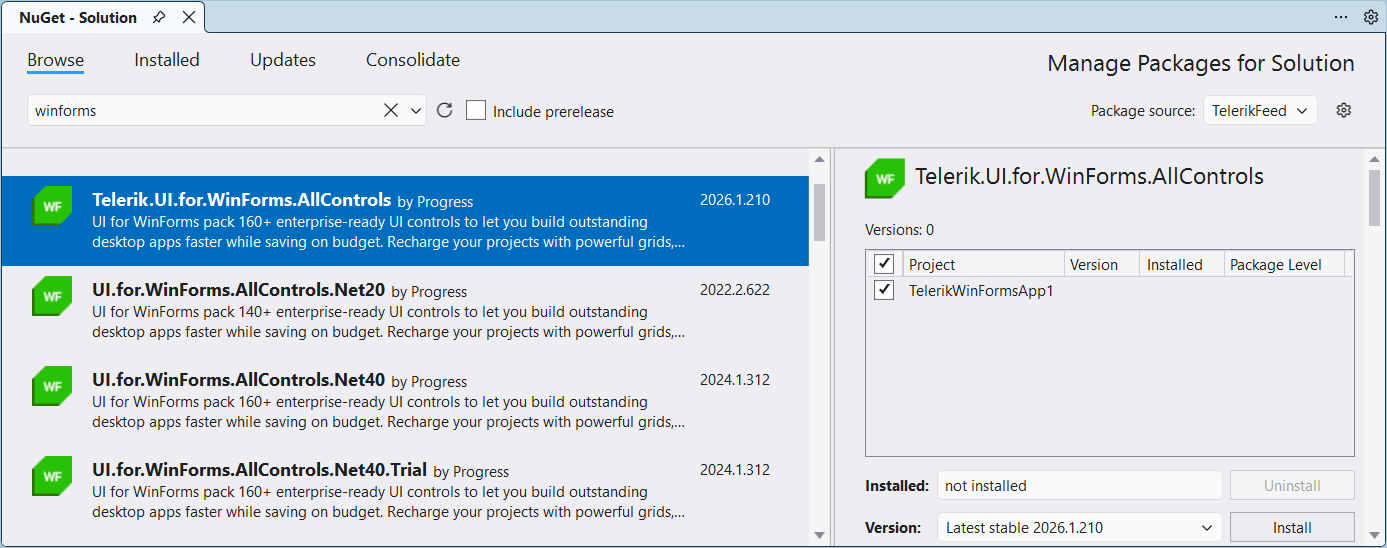
  1. In Visual Studio and go to Tools > NuGet Package Manager > Manage NuGet Packages for Solution....

  2. Install the UI.for.WinForms.AllControls package:

    Install the UI.for.WinForms.AllControls

You can include prerelease versions by selecting the Include prerelease checkbox.

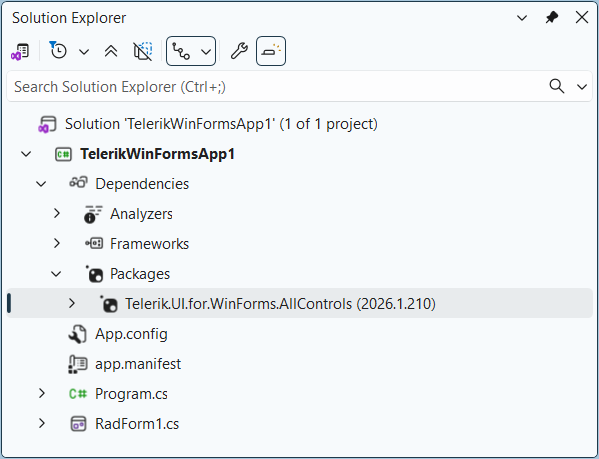
After installation, the UI.for.WinForms.AllControls package appears under Packages in Solution Explorer:

Install the UI.for.WinForms.AllControls

Step 5: Add a Telerik UI for WinForms Control to the RadForm

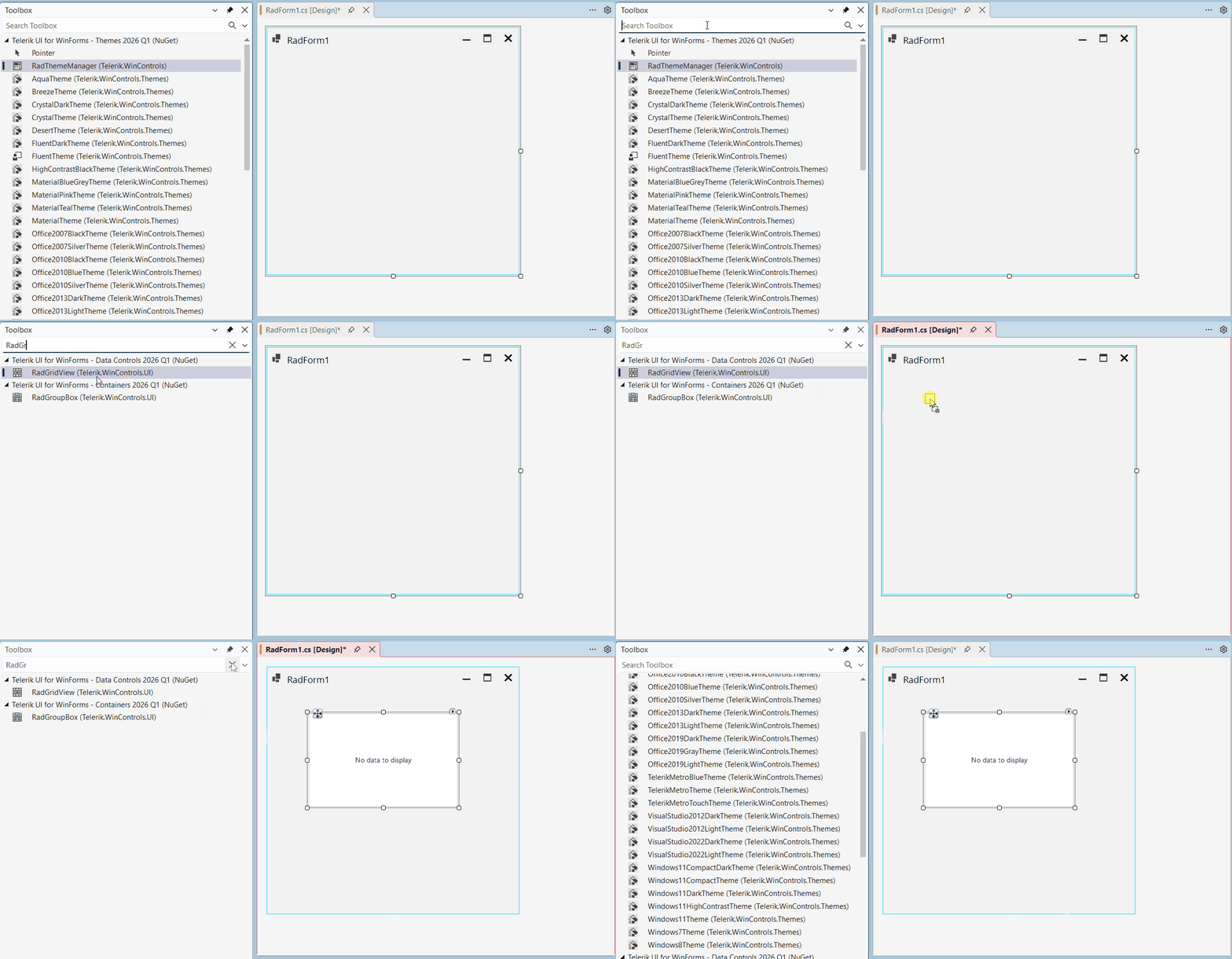
After installing Telerik UI for WinForms, the controls get populated in the Visual Studio Toolbox. To add a Telerik component, just drag it from the Toolbox and drop it onto the form.

5.1 Add RadGridView to the RadForm

Let's add the RadGridView control. Search for RadGridView in the toolbox, then drag it onto the form designer surface.

Figure 3: Add RadGridView from the Toolbox

Add RadGridView control from the toolbox

That's it - RadGridView control is now added to the form. Next, let's populate the grid with data to display meaningful information.

5.2 Bind to BindingList of Custom Object

The example below defines an Employee class with several properties and binds a BindingList<Employee> to the RadGridView.

C#
public class Employee
{
    public int EmployeeID { get; set; }
    public string FullName { get; set; }
    public string JobTitle { get; set; }
    public string Department { get; set; }
    public string Country { get; set; }
    public string TimeZone { get; set; }
    public string WorkMode { get; set; }
}

Create a BindingList<Employee> and assign it to the RadGridView DataSource property. Thus, RadGridView will automatically generate columns and populate them with the corresponding data from the data object Employee.

C#
public partial class RadForm1 : Telerik.WinControls.UI.RadForm
{
    private BindingList<Employee> employees;
    public RadForm1()
    {
        InitializeComponent();

        employees = new BindingList<Employee>
        {
            new Employee
            {
                EmployeeID = 84217,
                FullName = "Luca Bianchi",
                JobTitle = "Software Developer",
                Department = "Engineering",
                Country = "Italy",
                TimeZone = "EET (UTC+1)",
                WorkMode = "Remote"
            },
             new Employee
        {
            EmployeeID = 91354,
            FullName = "Sofia Ivanova",
            JobTitle = "Product Manager",
            Department = "Product",
            Country = "Bulgaria",
            TimeZone = "EET (UTC+2)",
            WorkMode = "Hybrid"
        },
            new Employee
            {
                EmployeeID = 77529,
                FullName = "Anna Müller",
                JobTitle = "UX Designer",
                Department = "Design",
                Country = "Germany",
                TimeZone = "CET (UTC+1)",
                WorkMode = "On-site"
            },
            new Employee
            {
                EmployeeID = 99012,
                FullName = "John Smith",
                JobTitle = "Prompt Engineer",
                Department = "AI Research",
                Country = "USA",
                TimeZone = "EST (UTC-5)",
                WorkMode = "Remote"
            },
            new Employee
            {
                EmployeeID = 73166,
                FullName = "Noah Duboisa",
                JobTitle = "Software Engineer",
                Department = "Engineering",
                Country = "Japan",
                TimeZone = "JST (UTC+9)",
                WorkMode = "On-site"
            },
            new Employee
            {
                EmployeeID = 55891,
                FullName = "Carlos García",
                JobTitle = "DevOps Engineer",
                Department = "IT",
                Country = "Spain",
                TimeZone = "CET (UTC+1)",
                WorkMode = "Remote"
            }
        };
        this.radGridView1.DataSource = employees;
        this.radGridView1.AutoSizeColumnsMode = GridViewAutoSizeColumnsMode.Fill;
    }
}

To run the application, press F5. Congratulations, you created your first application with a Telerik UI for WinForms control!

Figure 2: Here is the final result:

gridview-overview

Next Steps

Now that you have the Telerik UI for WinForms controls running in your project, you may want to explore their features, customize their behavior or change their appearance. Below you can find guidance on getting started with such tasks:

Utilizing the Telerik AI Tools

Telerik UI for WinForms offers AI-powered development assistance through a unified MCP (Model Context Protocol) server. It delivers intelligent, context-aware guidance directly in your IDE. The unified MCP server integrates with your IDE to provide contextual help and automate repetitive tasks, so you can explore the library more easily and build feature-rich applications faster.

If you are interested in getting started with the Telerik AI tool, follow this guide: Getting Started with the Telerik UI for WinForms AI Coding Assistant

See Also