Explore Telerik UI for WinForms Tools and Features
Once you have Telerik UI for WinForms working in your project, explore the tools and design-time features that help you discover, preview, and customize the available controls.
Demos
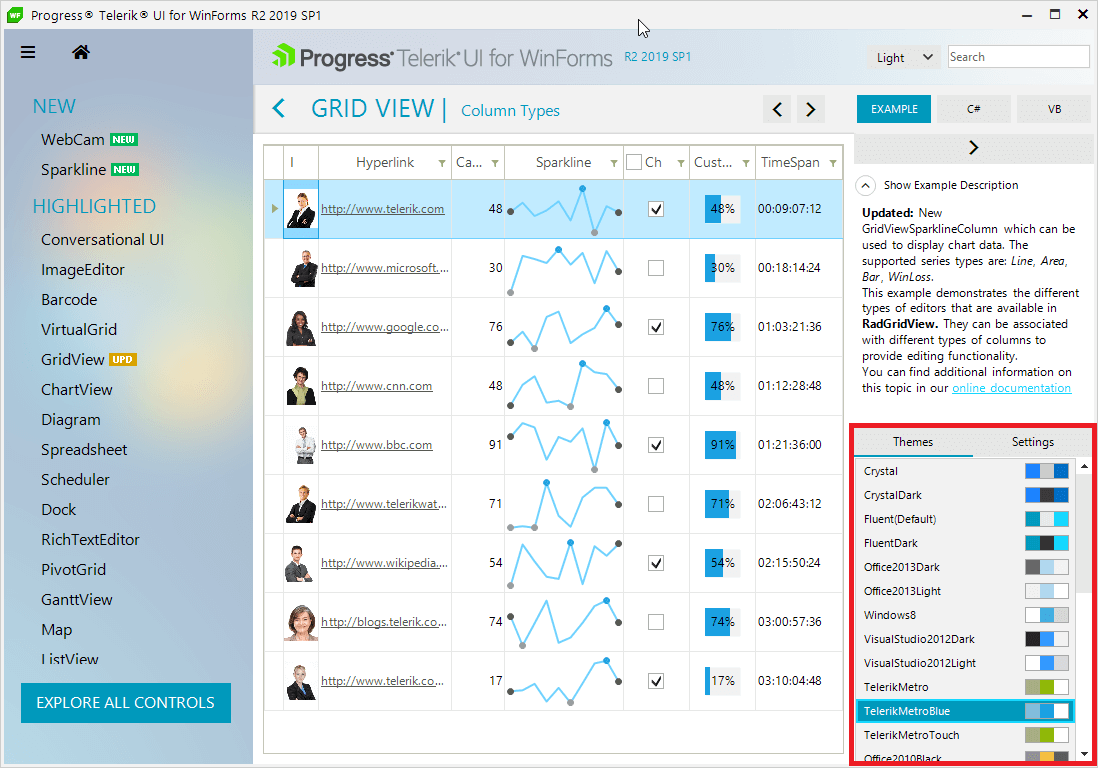
To access the Live Demo simply click on the Windows Start button and type WinForms Demo.
If you are not able to find the Live Demos using that approach you can also download the WinForms Live Demos installer directly.

Preview Custom Theme
Using the Live Demo is an easy and fast way to preview different Telerik WinForms control themes.
Figure 1: Live Demo
ThemeViewer
ThemeViewer is a tool that gives you the ability to preview a custom or a predefined theme for all controls of the suite. It can be started from the Live Demo under Featured Applications.
Figure 2: ThemeViewer

Custom Shapes
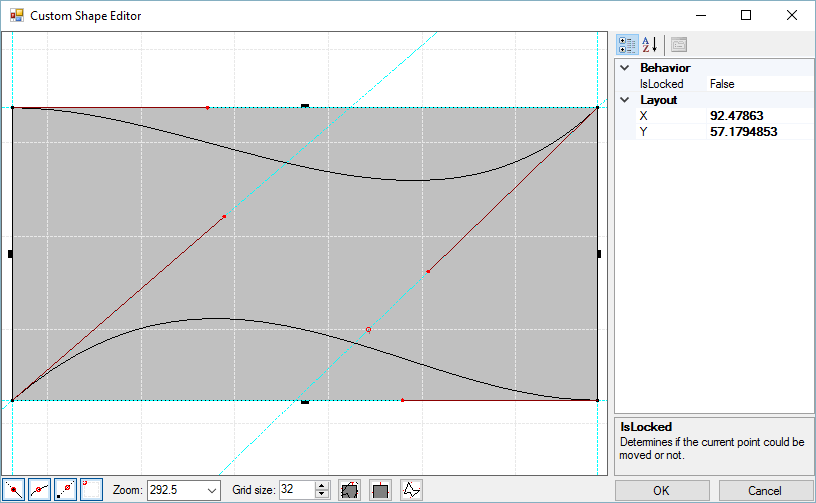
The Custom Shape Editor provides an easy way for creating all kinds of custom shapes only by adding, removing and dragging the points which represent the shape.
Figure 3: Custom Shape Editor
Change Control Appearance
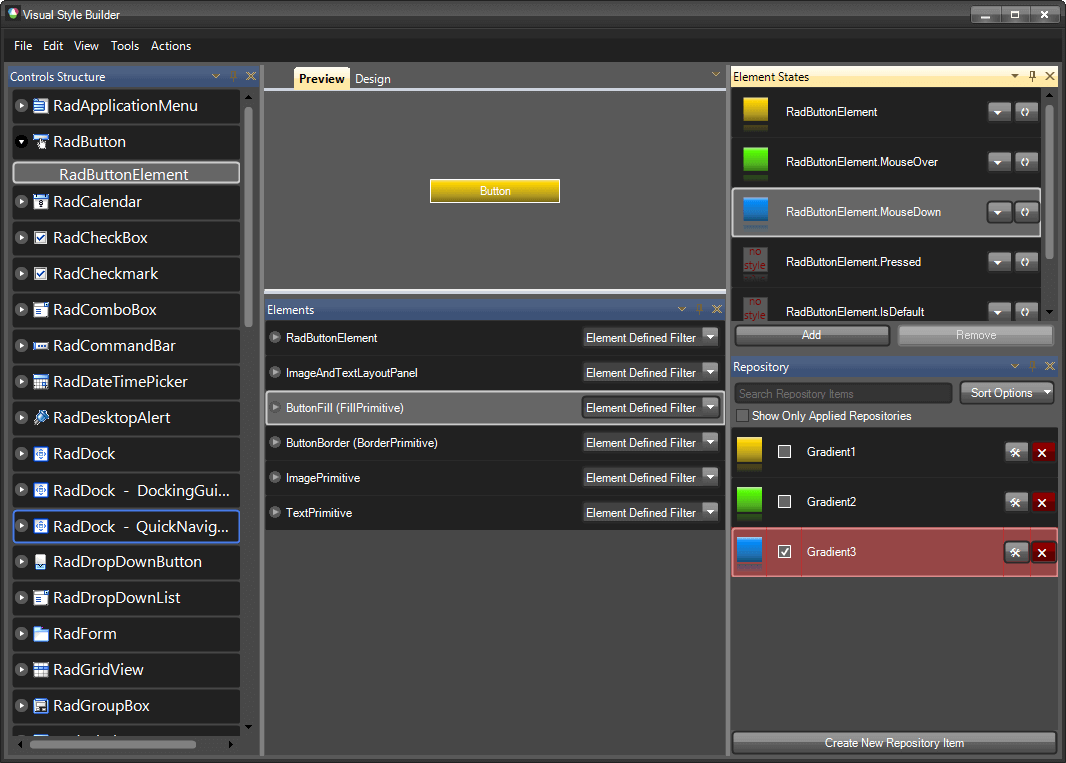
Visual Style Builder is a stand alone application that allows you to create custom or edit predefined themes. Using Visual Style Builder you can alter, at design-time or run time, a predefined set of properties of a control. Because all Telerik controls are composed of primitives, this customization can be applied at a very fine level of detail.
Figure 4: Visual Style Builder Tool
Design Time Support
You can explore the properties, events, and inner tags exposed by a control directly in Visual Studio through the Properties window and IntelliSense. This gives you a quick overview of each control's capabilities.
Figure 1: Explore Control Properties in Form Designer
