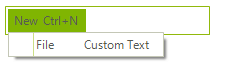
Assign Shortcuts to Menu Items
The following tutorial demonstrates how to assign a shortcut to a RadMenuItem:
1. In a new Windows Application add a RadMenu to the form.
2. On the RadMenu that reads "Type here" enter New. This will automatically create a menu item object "radMenuItem1":
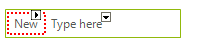
3. Click the newly created item to open the drop down menu and create a sub menu item. By default, the text of the new item will be set to radMenuItem2. Change it to File:
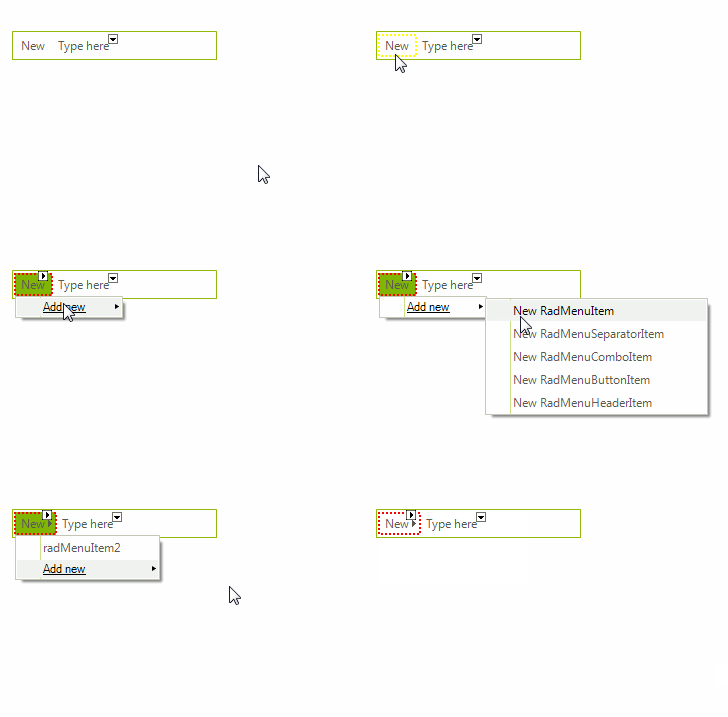
4. In the Properties Window locate the Click events for radMenuItem1 and radMenuItem2 and double-click them to create event handlers.
5. Inside the event handlers add the following code:
RadMenuItems Click event handlers
void radMenuItem1_Click(object sender, EventArgs e)
{
    MessageBox.Show("New");
}

void radMenuItem2_Click(object sender, EventArgs e)
{
    MessageBox.Show("File");
}6. Now all you have to do is to add the shortcuts to the desired items
Adding shortcuts to menu items
this.radMenuItem1.Shortcuts.Add(new RadShortcut(Keys.Control, Keys.N));
this.radMenuItem2.Shortcuts.Add(new RadShortcut(Keys.Shift, Keys.F, Keys.K));In the constructor of RadShortcut, you should first pass the key modifier as a parameter and then an array of the key mappings.
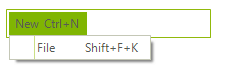
As a result, you will get this picture runtime. As you can see, the shortcuts are automatically displayed for the RadMenuItems:
Interesting functionality to mention is the ability to set your own custom text to describe the shortcut added. This can be achieved via the HintText property of the menu item:
Assigning HintText
radMenuItem2.HintText = "Custom Text";