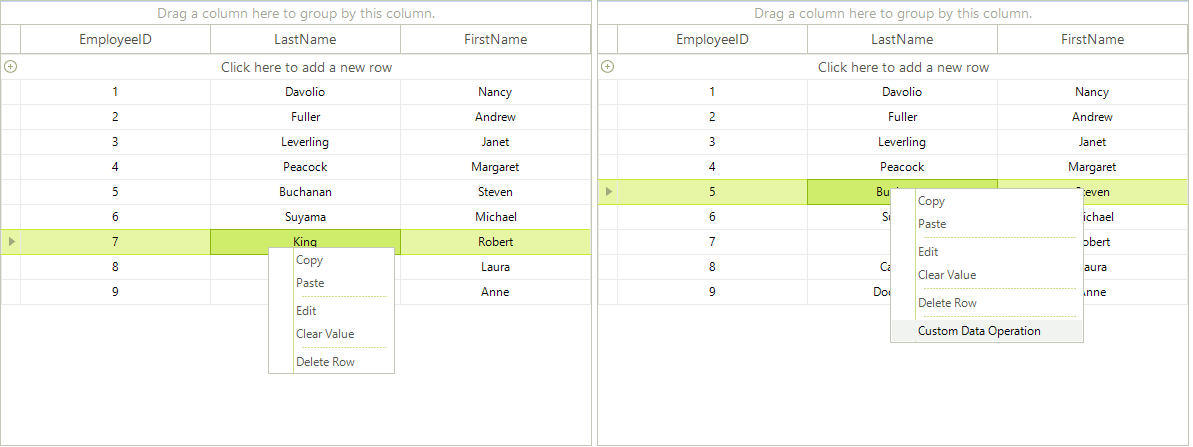
Modifying the Default Context Menu
The default RadGridView context menu can be customized in the ContextMenuOpening event handler.
Removing an item from default RadGridView context menu:
In order to remove an item, you need to make a loop iterating the e.ContextMenu.Items and check if the e.ContextMenu.Items[index].Text is equal to the text of the menu item that you want to hide. If so, just set the Visibility of the menu item to Collapsed:
void radGridView1_ContextMenuOpening(object sender, Telerik.WinControls.UI.ContextMenuOpeningEventArgs e)
{
    for (int i = 0; i < e.ContextMenu.Items.Count; i++)
    {
        if (e.ContextMenu.Items[i].Text == "Conditional Formatting")
        {
            // hide the Conditional Formatting option from the header row context menu
            e.ContextMenu.Items[i].Visibility = Telerik.WinControls.ElementVisibility.Collapsed;
            // hide the separator below the CF option
            e.ContextMenu.Items[i + 1].Visibility = Telerik.WinControls.ElementVisibility.Collapsed;
        }
    }
}If your grid is localized you can get the item text from the localization provider - `if (e.ContextMenu.Items[i].Text == RadGridLocalizationProvider.CurrentProvider.GetLocalizedString(RadGridStringId.ConditionalFormattingMenuItem))'
Adding menu items to the default RadGridView context menu
In order to add custom menu items to the default context menu, you should create menu item instances in the ContextMenuOpening event handler and add them to the e.ContextMenu.Items:
void radGridView1_ContextMenuOpening1(object sender, Telerik.WinControls.UI.ContextMenuOpeningEventArgs e)
{
    RadMenuItem customMenuItem = new RadMenuItem();
    customMenuItem.Text = "Custom Data Operation";
    RadMenuSeparatorItem separator = new RadMenuSeparatorItem();
    e.ContextMenu.Items.Add(separator);
    e.ContextMenu.Items.Add(customMenuItem);
}You can subscribe to the Click event of the newly added menu items and thus execute the desired action when a RadMenuItem is clicked.
Changing the Size of a Context Menu Item
The items in the default RadGridView context menu are RadMenuItem instances hosted by a RadDropDownMenu. To change an item's width or height, find the item in the ContextMenuOpening event handler, set AutoSize to false, and assign the desired Size.
The following example sets the size of the Delete Row item. Replace the item text with the text of the menu item that you want to customize.
using System.Drawing;

private void RadGridView1_ContextMenuOpening(object sender, ContextMenuOpeningEventArgs e)
{
	for (int i = 0; i < e.ContextMenu.Items.Count; i++)
	{
		RadMenuItem menuItem = e.ContextMenu.Items[i] as RadMenuItem;
		if (menuItem != null && menuItem.Text == "Delete Row")
		{
			menuItem.AutoSize = false;
			menuItem.Size = new Size(200, 40);
			break;
		}
	}
}Imports System.Drawing
Private Sub RadGridView1_ContextMenuOpening(sender As Object, e As ContextMenuOpeningEventArgs)
For i As Integer = 0 To e.ContextMenu.Items.Count - 1
Dim menuItem As RadMenuItem = TryCast(e.ContextMenu.Items(i), RadMenuItem)
If menuItem IsNot Nothing AndAlso menuItem.Text = "Delete Row" Then
menuItem.AutoSize = False
menuItem.Size = New Size(200, 40)
Exit For
End If
Next
End SubSet AutoSize to false before assigning Size so the item keeps the specified dimensions. Apply the setting in the ContextMenuOpening event so it is applied whenever the default context menu is displayed.
The result of combining the approaches from this article is shown on the screenshot below: