WinForms GridView AI Features
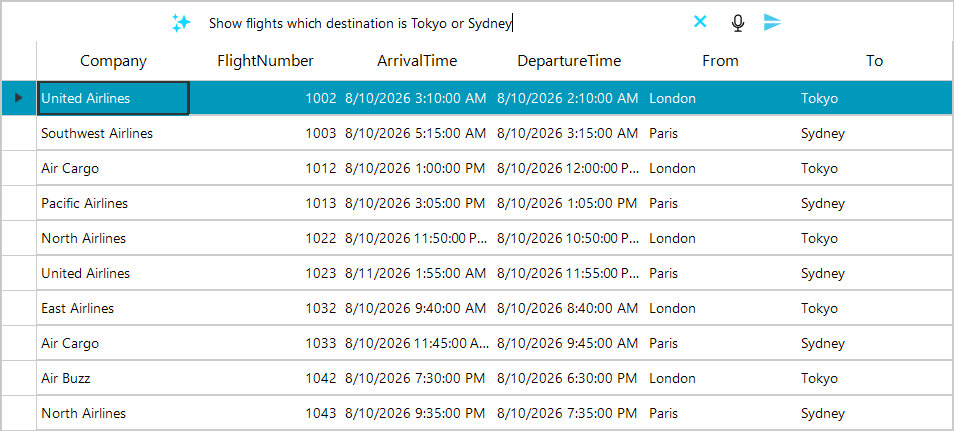
The AI features of RadGridView enable natural language interactions with the grid. Users type a text prompt and the grid translates the AI model response into grid operations such as sorting, filtering, grouping, selection, paging, column manipulation, and data export.
The feature introduces a built-in prompt input panel, an extensible command-based API for communicating with an AI model, and a JSON response processor that applies the returned commands to the grid.
Enabling AI Features
To activate the AI prompt panel, set the IsAIEnabled property to True. The grid automatically creates a default GridViewAISettings instance when IsAIEnabled is set to True and no settings object exists. The AISettings property of RadGridView provides access to configuration options.
Enabling AI features
this.radGridView1.IsAIEnabled = true;The panel that allows AI text input contains a
RadSpeechToTextButtonthat requires to install the following NuGet package:Microsoft.Web.WebView2.
Configuring AI Settings
The AISettings property accepts an instance of GridViewAISettings that controls the prompt input panel behavior.
Configuring AISettings
GridViewAISettings aiSettings = new GridViewAISettings
{
    SubmitPromptOnSelection = false,
    IsSuggestedPromptsVisible = true,
    IsRecentPromptsVisible = true,
    EnableIsBusy = true,
    OpenPromptSuggestionsOnFocus = true
};
this.radGridView1.AISettings = aiSettings;The following table lists the available properties of the GridViewAISettings class.
| Property | Type | Description |
|---|---|---|
InputText | string | Gets or sets the text in the prompt input field. |
SuggestedPrompts | IEnumerable<string> | Gets or sets the collection of suggested prompts displayed in the suggestions dropdown. |
RecentPrompts | IEnumerable<string> | Gets or sets the collection of recent prompts. Automatically updated when a prompt is submitted. |
SubmitPromptOnSelection | bool | When set to True, selecting a suggested prompt submits the request immediately. Default is False. |
IsSuggestedPromptsVisible | bool | Gets or sets whether the suggested prompts section is visible. Default is True. |
IsRecentPromptsVisible | bool | Gets or sets whether the recent prompts section is visible. Default is True. |
EnableIsBusy | bool | Gets or sets whether the grid shows a busy indicator during prompt processing. Default is True. |
OpenPromptSuggestionsOnFocus | bool | Gets or sets whether the prompt suggestions dropdown opens when the input receives focus. Default is True. |
The smart AI features of RadGridView work with a special JSON format that is constructed by using a combination between the internal GridView workings and an AI client (like AzureOpenAIClient).
Setting up an AI chat client
IChatClient aiChatClient;

public Form1()
{
    InitializeComponent();

    var azureClient = new AzureOpenAIClient(new Uri("azure-AI-resource-address-here"), new Azure.AzureKeyCredential("azure-key-here")).GetChatClient("gpt-5");
    aiChatClient = new ChatClientBuilder(azureClient.AsIChatClient()).UseFunctionInvocation().Build();
}
The aiChatClient from the example above will be used in the HandlePromptRequest to produce the required JSON contents.
Handling Prompt Requests
When the user submits a prompt, the GridView raises the HandlePromptRequest event. Subscribe to this event to send the request to your AI model and set the response JSON.
Handling the prompt request event
this.radGridView1.HandlePromptRequest += OnHandlePromptRequest;

private async void OnHandlePromptRequest(object sender, GridViewPromptRequestCommandEventArgs e)
{
    var request = JsonSerializer.Deserialize<GridAIRequest>(e.RequestJson);
    var options = new ChatOptions();
    ChatOptionsExtensions.AddGridChatTools(options, request.Columns);
    List<ChatMessage> messages = request.Contents.Select(m => new ChatMessage(ChatRole.User, m.Text)).ToList();
    ChatResponse completion = await this.aiChatClient.GetResponseAsync(messages, options);
    var gridResponse = completion.ExtractGridResponse();
    var prop = new JsonSerializerOptions() { PropertyNamingPolicy = JsonNamingPolicy.CamelCase };
    var response = JsonSerializer.Serialize(gridResponse, prop);

    e.ResponseJson = response;
}Runnable example with GridView AI Features is available in our Telerik UI for WinForms Demo.
The example above requires to install the following NuGet packages:
Azure.AI.OpenAIMicrosoft.Extensions.AI.OpenAITelerik.AI.SmartComponents.Extensions
The GridViewPromptRequestCommandEventArgs class provides the following members:
| Member | Type | Description |
|---|---|---|
Prompt | string | The user's text prompt. |
RequestJson | string | The JSON payload with grid metadata (columns and content) sent to the AI model. |
ResponseJson | string | Set this property with the AI model's JSON response. The grid processes the commands when the value is set. |
HasError | bool | Set to True to indicate an error during processing. |
Handling Prompt Request Cancellation
To handle cancellation of an in-flight prompt request, subscribe to the CancelPromptRequest event.
Handling cancellation
this.radGridView1.CancelPromptRequest += CancelPromptRequest;

private void CancelPromptRequest(object sender, EventArgs e)
{
    // Cancel the ongoing AI request.
}