Chat Messages in RadChat
ChatMessage is the base message type in RadChat. Use the message classes in this article to display plain text, media, cards, overlays, suggested actions, and time separators in a conversation.
By default, when a user types in the input box and sends a message, RadChat adds the message automatically. Clear AutoAddUserMessages when you need to validate, replace, or delay user messages. Handle the SendMessage event when you need to inspect or modify a message before RadChat renders it.
Starting with R3 2018, all message types expose a
UserDataproperty. UseUserDatato attach application-specific data such as identifiers, status values, or business objects to a message.
Choose a Chat Message Type
Use the following guidance to select the correct message type:
ChatTextMessage: Displays plain text from a user, bot, or system message.ChatMediaMessage: Displays an image together with author and timestamp information.ChatCardMessage: Displays a single card based on aBaseChatCardElement.ChatCarouselMessage: Displays multiple cards in one horizontally scrollable message.ChatOverlayMessage: Prompts the user for input in an overlay, such as selecting a date or a list item.ChatSuggestedActionsMessage: Displays quick-reply actions that the user can select.ChatTimeSeparatorMessage: Inserts a visual separator between messages when enough time has passed.
Use ChatTimeSeparatorMessage to Group Messages by Time
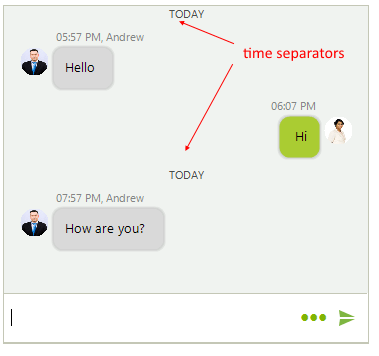
ChatTimeSeparatorMessage adds a visual divider between messages based on elapsed time. Set TimeSeparatorInterval when you want RadChat to insert separators automatically between message groups.
Figure 1: Time separators in RadChat
Set TimeSeparatorInterval
Use the following example to configure TimeSeparatorInterval:
this.radChat1.ChatElement.MessagesViewElement.TimeSeparatorInterval = TimeSpan.FromHours(1);
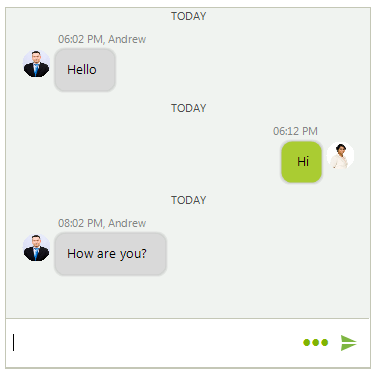
Handle the TimeSeparatorAdding event when you need custom logic. This event lets you suppress or force a separator regardless of the configured TimeSeparatorInterval. The following example adds a time separator when the interval between messages is more than 20 seconds:
Handle TimeSeparatorAdding
private void radChat1_TimeSeparatorAdding(object sender, TimeSeparatorEventArgs e)
{
    if (e.Item != null && e.PreviousItem != null)
    {
        e.ShouldAddSeparator = e.Item.Message.TimeStamp - e.PreviousItem.Message.TimeStamp > new TimeSpan(0, 0, 20);
    }
}
Figure 2: Custom time separator behavior
Use ChatTextMessage for Plain Text
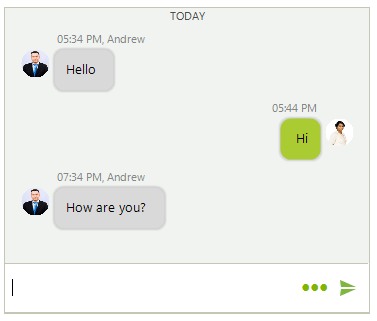
ChatTextMessage displays a single text entry from a specific author at a specific time. Use it for standard user, bot, or system replies that do not require custom content.
Figure 3: Text messages in RadChat
Add Text Messages
Use the following example to add text messages:
this.radChat1.Author = new Author(Properties.Resources.nancy1, "Nancy");
Author author2 = new Author(Properties.Resources.andrew1, "Andrew");

ChatTextMessage message1 = new ChatTextMessage("Hello", author2, DateTime.Now.AddHours(1));
this.radChat1.AddMessage(message1);

ChatTextMessage message2 = new ChatTextMessage("Hi", this.radChat1.Author, DateTime.Now.AddHours(1).AddMinutes(10));
this.radChat1.AddMessage(message2);

ChatTextMessage message3 = new ChatTextMessage("How are you?", author2, DateTime.Now.AddHours(3));
this.radChat1.AddMessage(message3);
Use ChatMediaMessage for Images
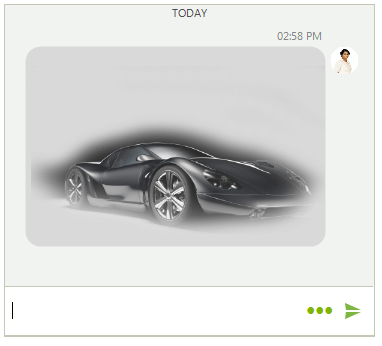
ChatMediaMessage displays an image together with the same author and timestamp metadata that other chat messages use. Use it when the message content is an image instead of plain text.
Figure 4: Media messages in RadChat
Add a Media Message
Use the following example to add a media message:
ChatMediaMessage mediaMessage = new ChatMediaMessage(Properties.Resources.TV_car1, new Size(300, 200), this.radChat1.Author, DateTime.Now, null);
this.radChat1.AddMessage(mediaMessage);
Use ChatCardMessage for a Single Card
ChatCardMessage displays one card element derived from BaseChatCardElement. Use it when one structured layout, such as a product card or a summary card, fits better than plain text.
For the available card types and configuration details, see Cards.
Use ChatCarouselMessage for Multiple Cards
ChatCarouselMessage displays multiple card elements in one horizontally scrollable message. Use it when you want to present several related choices without sending several separate messages.
Starting with R3 2019, set ShowScrollBar when you want to display the horizontal scrollbar.
Figure 5: A carousel message in RadChat

Add a Carousel Message with Cards
Use the following example to add a carousel message with cards:
Telerik.WinControls.UI.ChatImageCardDataItem imageCard = new ChatImageCardDataItem(Properties.Resources.architect, "Benjamin Vilanders", "Senior Architect",
                                                                                                                                                            "As a Senior Architect his experience in the industry allows him to take on increased responsibility. Like other architects, he design buildings " +
                                                                                                                                                            "and makes sure they are structurally sound. Due to his track record of quality performance, Benjamin also serves as a manager, a mentor, an advisor and coordinator.",
    null, null);

ChatProductCardDataItem productCard = new ChatProductCardDataItem(Properties.Resources.TV_car1, "Arrive & Drive", "Rating 7/10",
                                                                                                                              "With our Arrive & Drive Packages, the only thing you will have to think about is driving. We make it simple for you to get more of what you love. We streamline the " +
                                                                                                                              "entire process and have everything ready for you when you arrive at the track so you can get straight to racing.", "Packages from $340", null, null);

ChatWeatherCardDataItem weatherCard = new ChatWeatherCardDataItem("Florence", Properties.Resources.sunny, "33°C", "Humidity: 76%", "Dew: 31°C",
    "Pressure: 1031 mb", "Wind Speed: 15 km/h NW");

List<FlightInfo> flights = new List<FlightInfo>();
flights.Add(new FlightInfo("Los Angelis", "LAX", DateTime.Now.AddDays(7), "New York", "JFK", DateTime.Now.AddDays(7).AddHours(5.5)));
flights.Add(new FlightInfo("New York", "JFK", DateTime.Now.AddDays(14).AddHours(3), "Los Angelis", "LAX", DateTime.Now.AddDays(14).AddHours(9.1)));
ChatFlightCardDataItem flightCard = new ChatFlightCardDataItem("Andrew Fuller", flights, Properties.Resources.CardPlane, "$341", null);

List<BaseChatCardDataItem> cards = new List<BaseChatCardDataItem>();
cards.Add(imageCard);
cards.Add(productCard);
cards.Add(weatherCard);
cards.Add(flightCard);
Author author = new Author(Properties.Resources.architect, "Ben");

ChatCarouselMessage carouselMessage = new ChatCarouselMessage(cards, author, DateTime.Now);
this.radChat1.AddMessage(carouselMessage);
Use ChatOverlayMessage for User Input
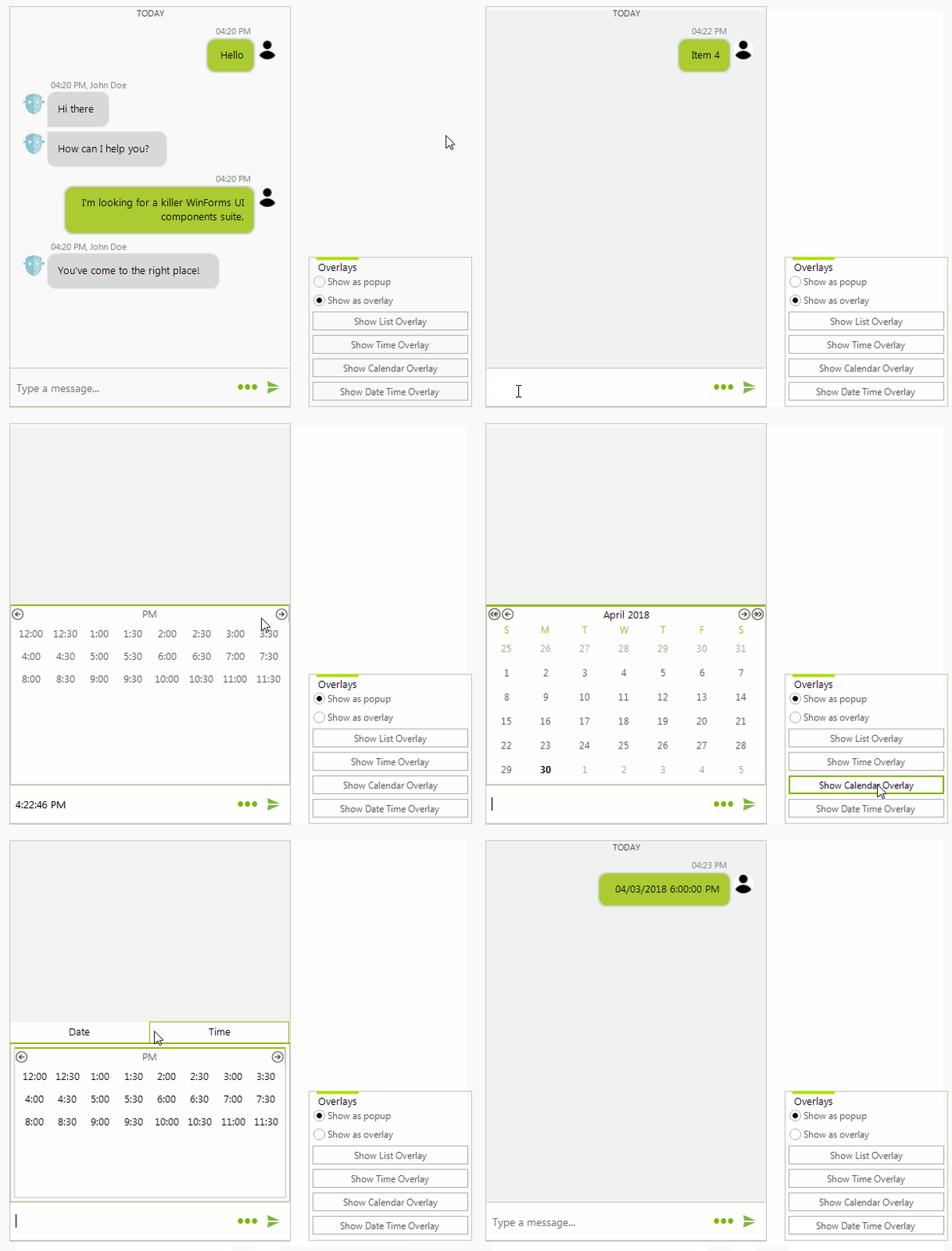
ChatOverlayMessage hosts a chat overlay either as a popup or over the messages container. Use it when the user must complete an action, such as selecting a date, time, or list item, before the conversation continues.
Figure 6: An overlay message in RadChat
Add a ChatListOverlay Message
Use the following example to display a ChatListOverlay inside a ChatOverlayMessage:
ChatListOverlay chatListOverlay = new ChatListOverlay("List overlay");
for (int i = 0; i < 10; i++)
{
    chatListOverlay.ListView.Items.Add("Item " + i);
}
bool showAsPopup = false;
Author author = new Author(Properties.Resources.andrew1, "Andrew");
ChatOverlayMessage overlayMessage = new ChatOverlayMessage(chatListOverlay, showAsPopup, author, DateTime.Now);
this.radChat1.AddMessage(overlayMessage);
Figure 7: ChatListOverlay hosted in ChatOverlayMessage
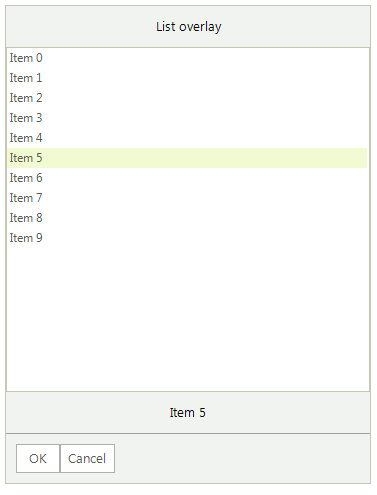
ChatOverlayMessage can host any BaseChatOverlay implementation, including ChatCalendarOverlay, ChatDateTimeOverlay, ChatListOverlay, and ChatTimeOverlay.
Use ChatSuggestedActionsMessage for Quick Replies
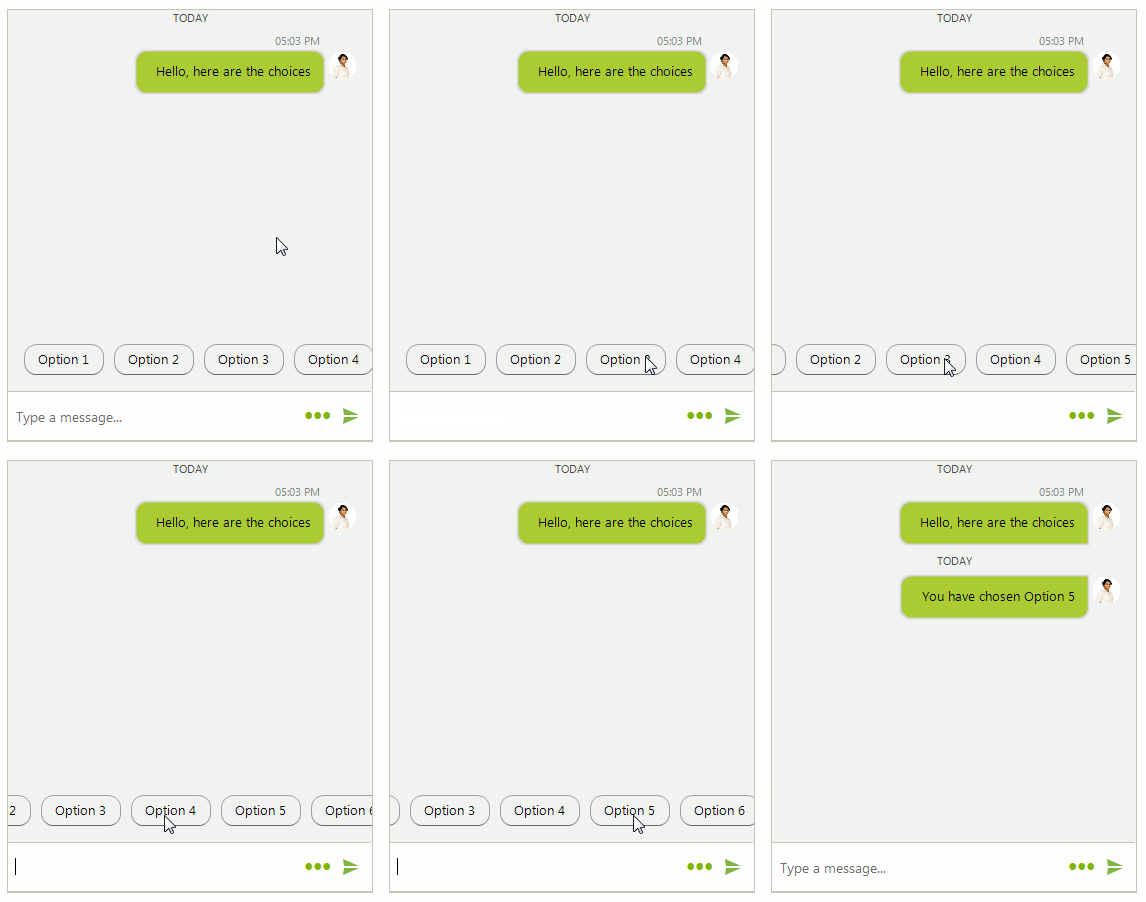
ChatSuggestedActionsMessage displays a list of SuggestedActionDataItem options that the user can select. Use it for quick replies and short guided flows where the next step is known in advance.
When the user selects an action, the SuggestedActionClicked event fires so that you can update the conversation or trigger application logic. Starting with R3 2019, set ShowScrollBar when you want to display the horizontal scrollbar.
Figure 8: Suggested actions in RadChat
Add a ChatSuggestedActionsMessage
Use the following example to add suggested actions:
private void AddSuggestedActions()
{
    this.radChat1.AddMessage(new ChatTextMessage("Hello, here are the choices", this.radChat1.Author, DateTime.Now));

    List<SuggestedActionDataItem> actions = new List<SuggestedActionDataItem>();
    for (int i = 0; i < 7; i++)
    {
        actions.Add(new SuggestedActionDataItem("Option " + (i + 1)));
    }
    Author author = new Author(Properties.Resources.andrew1, "Andrew");
    ChatSuggestedActionsMessage suggestionActionsMessage = new ChatSuggestedActionsMessage(actions, author, DateTime.Now);
    this.radChat1.AddMessage(suggestionActionsMessage);
    this.radChat1.SuggestedActionClicked += radChat1_SuggestedActionClicked;
}

private void radChat1_SuggestedActionClicked(object sender, SuggestedActionEventArgs e)
{
    this.radChat1.AddMessage(new ChatTextMessage("You have chosen " + e.Action.Text, this.radChat1.Author, DateTime.Now));
}