Sharing Resources with Assets Manager
To share resources (like company logos, data files) when crafting reports in the Web Report Designer, use the Assets Manager, which helps you manage shared resources used across multiple reports. It provides centralized resource management, allowing users to upload, organize, rename, and delete various types of assets directly on the server. Shared report resources ensure a unified, consistent look and feel across reports and enable teams to work together—data experts can manage sources, while designers focus on presentation.
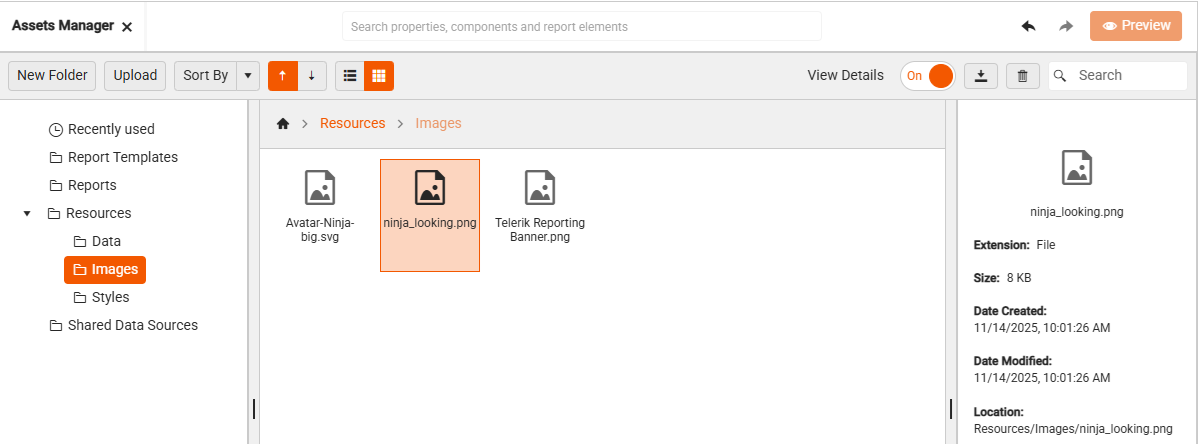
You can share and reuse:
-
Images (for example, logos, backgrounds): Suitable for using a company logo across multiple reports when the logo is stored at one centralized place.
-
Data files (for example, CSV, JSON, shapefiles): Share common data that can be reused across multiple users.
-
Stylesheets (for consistent report styling): Styles created in a report can be exported and then used in other reports.
-
Shared Data Sources (predefined connections to data): Enable report designers to easily create and reuse a data source component across multiple reports. Read more in Shared Data Source.
-
Report Templates (.trtx file): Offer initial report layout and styling, and allow creating reports with consistent look and feel. Read more in Creating and Using Report Templates in Web Report Designer.
Once uploaded, you can reuse the assets in multiple reports, ensuring consistency and reducing duplication. For example, updating a company logo in the Assets Manager updates it across all reports using that asset.
Sharing a Resource
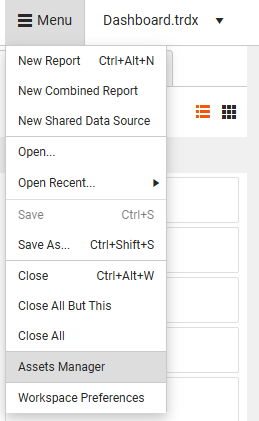
To share a resource (e.g. an image), you need to invoke the Assets Manager in the Telerik Web Report Designer:
-
Launch the Web Report Designer in your browser.
-
Click the Main Menu at the top left corner.
-
Select Assets Manager from the menu options:
You do not always need to go through the menu. When you are editing a report item like a PictureBox, click the asset picker next to the Value field. This will instantly open the Assets Manager so you can select an image right away:
Resource Folders
Several default folders that help organizing shared resources for usage across multiple reports are created automatically and cannot be renamed or deleted by end-users, though developers can configure them differently on the backend.
The main root folder contains three predefined subfolders:
-
Data—Stores data files like.csv,.json, and shapefiles used in Map items. -
Images—Contains image files used in PictureBox items, backgrounds, logos, and so on. -
Styles—Holds stylesheets (for example,.xml) used for consistent styling across reports.
You can create subfolders within these categories to better organize their assets.
Reports
The Reports folder is a dedicated folder for storing report definitions, which includes all available reports on the server. It is possible to organize them into subfolders, grouping the reports by category, department, or purpose. Shared reports can be reused as SubReports in other designs.
Shared Data Sources
The Shared Data Sources folder within the Assets Manager contains reusable data source definitions (.sdsx files) that can be shared across multiple reports. Each .sdsx file encapsulates the configuration for a data source, including: connection strings, queries or endpoints, parameters, metadata (e.g., name, description).
Report Templates
The report templates enable rapid, consistent report creation by providing reusable layouts, styling, and structure. Read more in Creating and Using Report Templates in Web Report Designer.
Enhanced UI Features
To help you manage your shared resources with ease and flexibility, the Assets Manager provides several intuitive features:
-
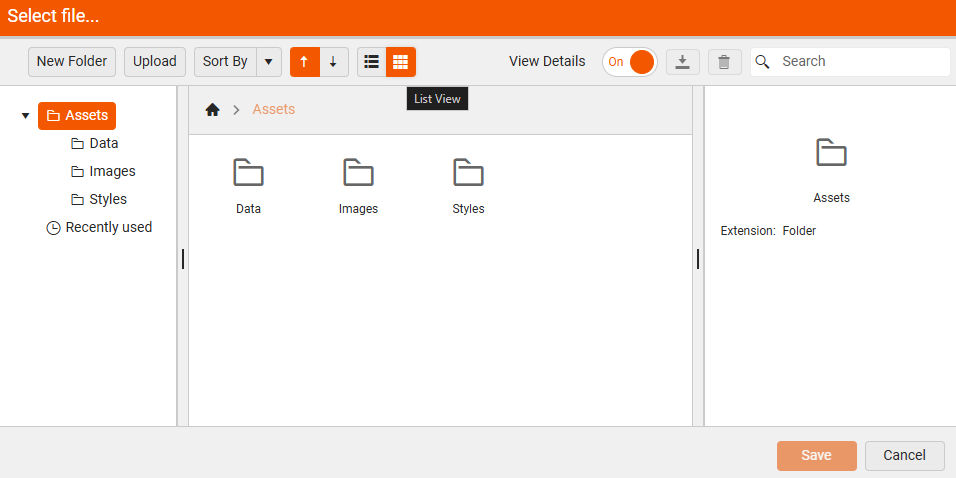
Choose Your View: Grid or List—You can switch between Grid View and List View depending on your workflow. The Grid View also supports column resizing for better visibility.
Grid View List View 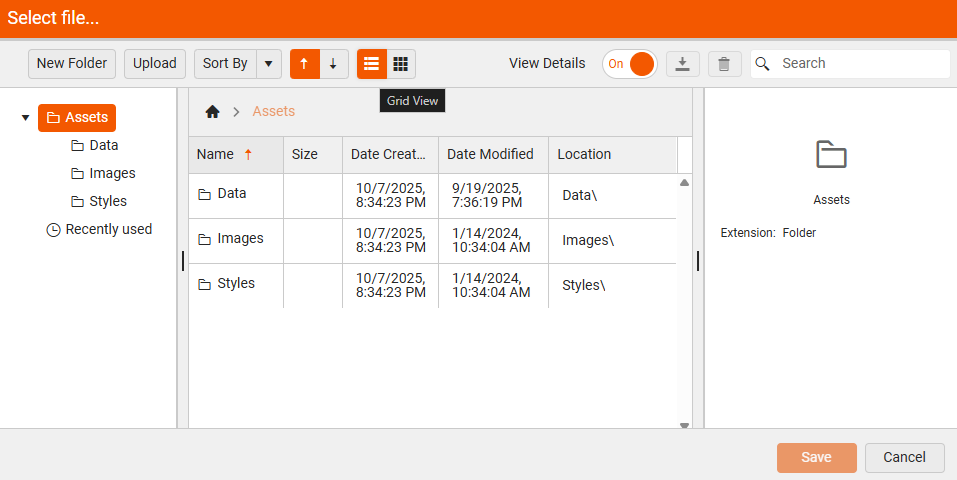
-
Manage Files—Upload, download, rename, move, or delete files and folders—all in one place. You can also drag and drop files directly into the manager for quick uploads.
-
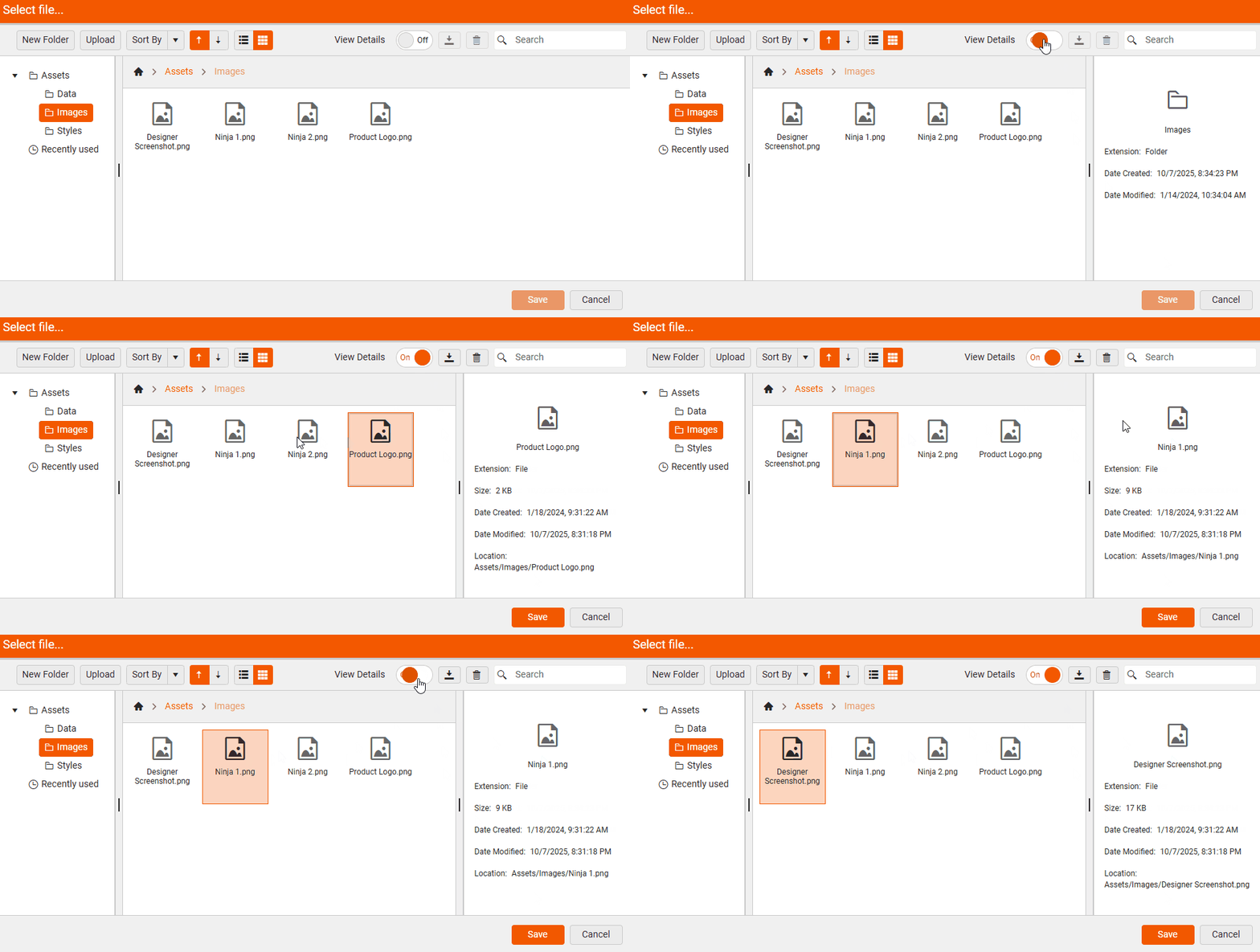
View Asset Details—Selecting an asset and toggling the View Details button brings up a panel on the right that shows metadata like file name, type, and size:
-
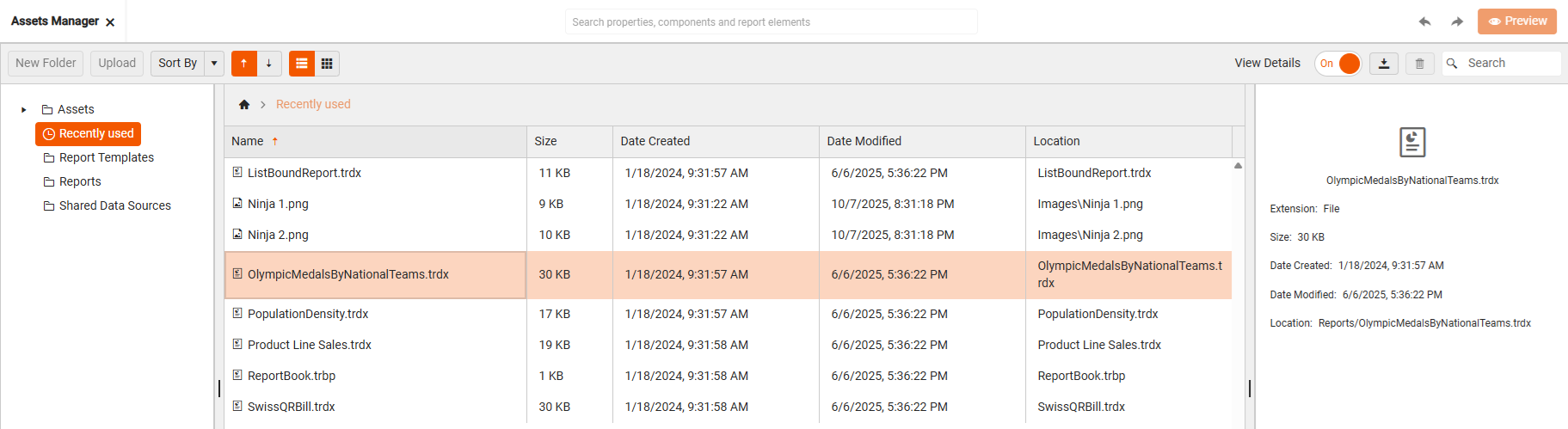
Quick Access to Recent Assets—Your recently accessed assets are tracked and easily accessible.
Some users might not see the Assets Manager menu item if they don't have such permissions (configured by the app developer).