Styling Reports Using Style Sheets
Using style sheets in the Web Report Designer lets you apply centralized, reusable styles to multiple report items, similar to CSS in web development.
The Web Report Designer allows you to use two types of style sheets:
-
Quick style sheets that you create for each report and that live within each report
- Inline in a particular item's Style property—it allows granular control of the item's style properties.
- Style sheet on the report level—allows applying common style to multiple items of the report using style selectors.
-
External, or Referenced Style sheets that live in a separate file and that you can reuse across multiple reports
When a style property is defined in multiple locations—such as inline on a report item, within the report‑level style sheet, or in an external style sheet—the inline definition takes precedence, followed by the report‑level style sheet, and finally the external style sheet.
Style Selector Concept
Telerik Reporting uses a CSS‑like styling model where style rules can be applied automatically to report items based on different selector types. Style Selectors define which report items a StyleRule applies to, similar to how CSS selectors target elements.
Style Selectors are defined inside a StyleRule (either inline, in a report‑level style sheet, or in an external style sheet). When the report is rendered or previewed in the Web Report Designer, these selectors determine how styles are applied to items on the design surface.
You can apply styles based on:
- TypeSelector: Applies to all items of a specific type (e.g., all TextBox items).
- AttributeSelector: Applies to items with specific attributes.
- StyleSelector: Applies to items with a specific StyleName.
- DescendantSelector: Applies to items nested within others.
Creating a Style Sheet in a Report
In the Web Report Designer after selecting the Report object:
-
Navigate to the Style sheet property using the search box at the top.
-
Click the
+button to open the StyleRule Collection Editor. -
Click Add to create a new StyleRule.
-
Define the Style (e.g., background color, font, borders).
-
Add Selectors to target specific items (e.g., all TextBox, PictureBox items).
The following tutorial shows how to define a style rule in the report's style sheet and apply the style to multiple items by using selectors (for example, by item name or type):
Using External Style Sheets
External style sheets (XML files) allow you to reuse and modify style rules across multiple reports. This type of style sheet is external to each report and this allows you to reference them from an arbitrary number of reports. Each style sheets file contains one or more style rules that define how report items must look.
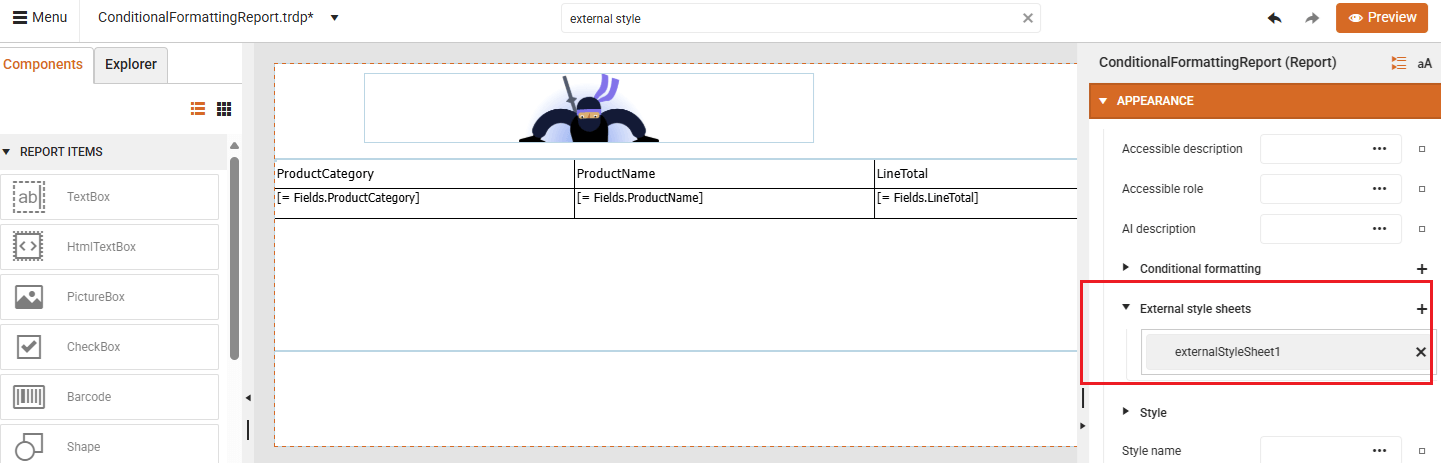
To add an External StyleSheet in the Web Report Designer:
-
Select the Report object.
-
Go to the External style sheets property.
-
Click the
+button to add an external StyleSheet.
You can define an external style sheet with:
-
Absolute Path/URL: for example https://www.mysite.com/Application1/StyleSheets/StyleSheet1.xml
-
Relative Path/URL: for example .\StyleSheets\StyleSheet1.xml or ~/StyleSheets/StyleSheet1.xml
Sample StyleRule
External style sheets in Telerik Reporting are stored in a structured XML format. This format is used internally by the reporting engine to define style rules, selectors, and visual properties such as colors, fonts, and backgrounds. Report authors are not expected to open, edit, or maintain these files manually in a text or code editor. All style management is intended to happen through the Web Report Designer interface. Still, the raw XML representation can be helpful for reviewing which style properties are affected by a given rule. For example, the XML clearly shows:
- Which report items a style rule targets (via selectors)
- Which visual properties the rule sets
- How rules are structured within the
document
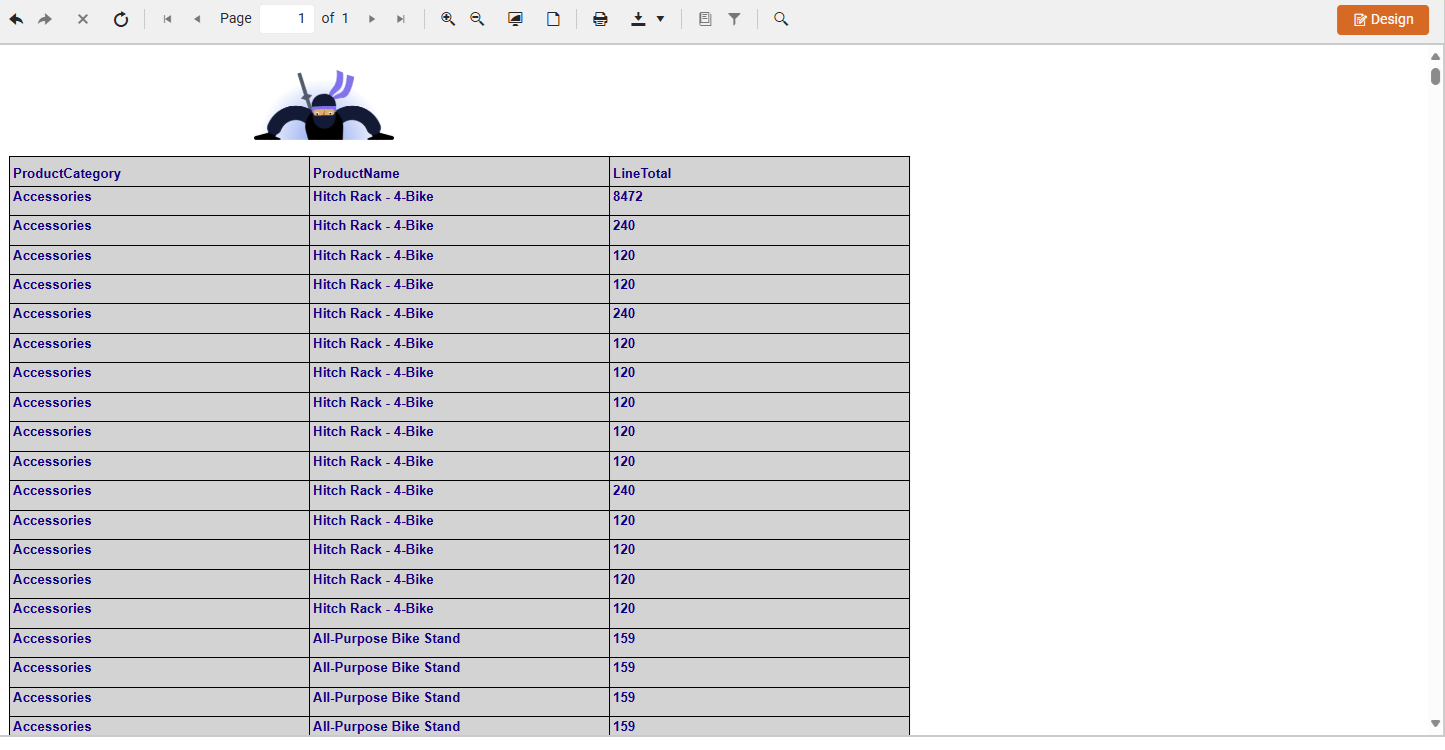
Here's an example that styles all TextBox items with a light gray background, dark blue text, and bold Arial font:
<StyleSheet>
	<StyleRule>
		<Selectors>
			<TypeSelector Type="Telerik.Reporting.TextBox"/>
		</Selectors>
		<Style>
			<BackgroundColor>LightGray</BackgroundColor>
			<Color>DarkBlue</Color>
			<Font>
				<Name>Arial</Name>
				<Size>10pt</Size>
				<Bold>true</Bold>
			</Font>
		</Style>
	</StyleRule>
</StyleSheet>
And here's how it looks in the report preview:
This structure is provided only for transparency. You do not need to modify it, and in normal workflows you should rely on the UI designer for creating and editing the styles.