Filter Control Template
The Telerik UI for .NET MAUI DataGrid provides a built-in Filtering UI which enables users to quickly filter the displayed data. To customize the built-in Filtering UI for a concrete column, use the FilterControlTemplate property of the typed columns (text, boolean, numeric, date, time, and picker columns).
In addition, as the template column does not provide a default Filtering UI, with the FilterControlTemplate property you can allow users to filter data in template columns as well.
FilterControlTemplate(DataTemplate)—Specifies the user defined template used for Filtering UI. The template must contain an instance of theTelerik.Maui.Controls.DataGrid.DataGridFilterControlBaseclass.
The DataGrid provides the following predefined filter controls which are applied depending on the column type:
DataGridTextFilterControlDataGridNumericFilterControlDataGridBooleanFilterControlDataGridDateTimeFilterControlDataGridTimeFilterControlDataGridComboBoxFilterControl
The FilterControlTemplate property of the columns allows you to customize its corresponding filter control. If the default filter control does not meet the requirements, you can create a custom filter control from scratch.
Example with Modified TextFilterControl
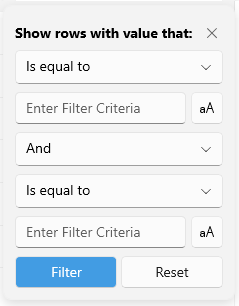
The example below shows how to apply the DataGridTextFilterControl as a FilterControlTemplate of the text column and set the filter match case options to False. This means that the toggle buttons inside the filter template for switching to case-sensitive filter will be untoggled when the Filtering UI appears.
<telerik:RadDataGrid x:Name="dataGrid"
                     ItemsSource="{Binding GridSource}"
                     AutoGenerateColumns="False"
                     UserEditMode="Cell">
    <telerik:RadDataGrid.Columns>
        <telerik:DataGridNumericalColumn PropertyName="Population"
                                         CanUserFilter="False"/>
        <telerik:DataGridTextColumn PropertyName="Name">
            <telerik:DataGridTextColumn.FilterControlTemplate>
                <DataTemplate>
                    <telerik:DataGridTextFilterControl IsFirstDescriptorCaseSensitive="False"
                                                       IsSecondDescriptorCaseSensitive="False" />
                </DataTemplate>
            </telerik:DataGridTextColumn.FilterControlTemplate>
        </telerik:DataGridTextColumn>
    </telerik:RadDataGrid.Columns>
</telerik:RadDataGrid>
Here is the DataGridTextFilterControl with the match case properties applied:
In addition, you can hide the toggle buttons for matching the case with the following implicit style:
<Style TargetType="telerik:RadToggleButton">
	<Setter Property="IsVisible" Value="False" />
</Style>
Example with a custom filter control
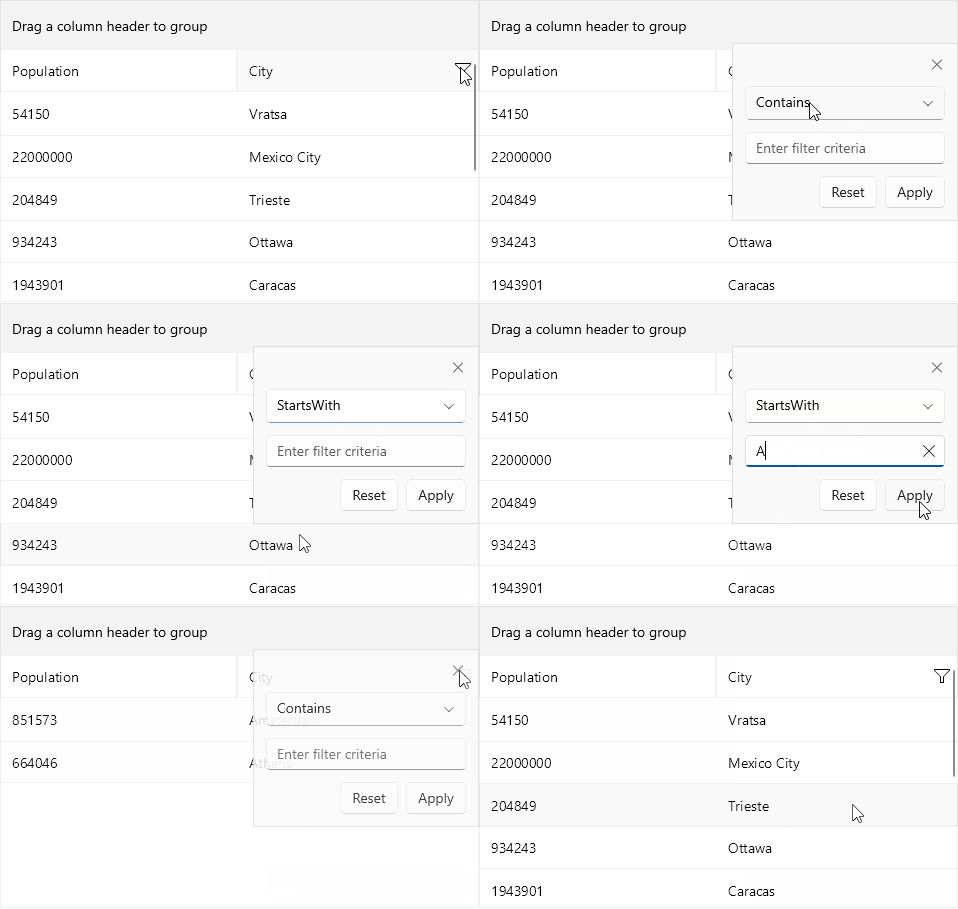
Check a quick example on how to create a custom FilterControlTemplate below.
1. Add the following snippet to declare a sample CityFilterControl - it should inherit from Telerik.Maui.Controls.DataGrid.DataGridFilterControlBase:
<telerik:DataGridFilterControlBase xmlns="http://schemas.microsoft.com/dotnet/2021/maui"
xmlns:x="http://schemas.microsoft.com/winfx/2009/xaml"
xmlns:telerik="http://schemas.telerik.com/2022/xaml/maui"
xmlns:local="clr-namespace:SDKBrowserMaui.Examples.DataGridControl.FilteringCategory.CustomFilterTemplateExample"
x:Class="SDKBrowserMaui.Examples.DataGridControl.FilteringCategory.CustomFilterTemplateExample.CityFilterControl"
x:Name="dataGridFilterControl">
<telerik:RadBorder BackgroundColor="#F9F9F9"
BorderBrush="#DFDFDF"
BorderThickness="1">
<Grid Padding="12"
RowSpacing="12"
RowDefinitions="Auto, Auto, Auto, Auto">
<Label FontFamily="TelerikFontExamples"
FontSize="16"
Text=""
TextColor="#666666"
HorizontalOptions="End">
<Label.GestureRecognizers>
<TapGestureRecognizer Command="{Binding CloseCommand, Source={x:Reference dataGridFilterControl}}" />
</Label.GestureRecognizers>
</Label>
<telerik:RadComboBox x:Name="descriptorOperatorSelector"
Grid.Row="1"
IsClearButtonVisible="False"
MinimumWidthRequest="200" />
<telerik:RadEntry x:Name="filterTextEntry"
Grid.Row="2"
Placeholder="Enter filter criteria"
ReserveSpaceForErrorView="False" />
<HorizontalStackLayout Grid.Row="3"
HorizontalOptions="End"
VerticalOptions="Center"
Spacing="8">
<telerik:RadButton Text="Reset"
Command="{Binding ResetFilterCommand, Source={x:Reference dataGridFilterControl}}" />
<telerik:RadButton Text="Apply"
Command="{Binding ApplyFilterCommand, Source={x:Reference dataGridFilterControl}}" />
</HorizontalStackLayout>
</Grid>
</telerik:RadBorder>
</telerik:DataGridFilterControlBase>2. Here is the code behind of the CityFilterControl:
public partial class CityFilterControl : DataGridFilterControlBase
{
	public CityFilterControl()
	{
		InitializeComponent();
	}

    public FilterDescriptorBase FilterDescriptor { get; set; }

    public override FilterDescriptorBase BuildDescriptor()
    {
        TextFilterDescriptor textDescriptor = new TextFilterDescriptor();
        textDescriptor.PropertyName = this.PropertyName;
        textDescriptor.Value = this.filterTextEntry.Text;
        textDescriptor.Operator = (TextOperator)this.descriptorOperatorSelector.SelectedItem;

        return textDescriptor;
    }

    protected override void Initialize()
    {
        this.descriptorOperatorSelector.ItemsSource = this.GetOperators();
        var textFilterDescriptor = this.FilterDescriptor as TextFilterDescriptor;
        if (textFilterDescriptor != null)
        {
            this.descriptorOperatorSelector.SelectedIndex = (int)textFilterDescriptor.Operator;
            this.filterTextEntry.Text = textFilterDescriptor.Value.ToString();
        }
        else
        {
            this.descriptorOperatorSelector.SelectedIndex = 0;
            if (!string.IsNullOrEmpty(this.filterTextEntry.Text))
            {
                this.filterTextEntry.Text = null;
            }
        }
    }
    private List<TextOperator> GetOperators()
    {
        var operators = new List<TextOperator>
            {
                TextOperator.Contains,
                TextOperator.DoesNotContain,
                TextOperator.StartsWith,
                TextOperator.EndsWith,
            };
        return operators;
    }
}
3. Add the RadDataGrid instance - you'd need to manually define the columns and apply the custom Filter Control Template through the FilterTemplate property:
<telerik:RadDataGrid x:Name="dataGrid"
                     ItemsSource="{Binding GridSource}"
                     AutoGenerateColumns="False"
                     UserEditMode="Cell">
    <telerik:RadDataGrid.Columns>
        <telerik:DataGridNumericalColumn PropertyName="Population"
                                         CanUserFilter="False"/>
        <telerik:DataGridTextColumn HeaderText="City"
                                    PropertyName="Name">
            <telerik:DataGridTextColumn.FilterControlTemplate>
                <DataTemplate>
                    <local:CityFilterControl PropertyName="Name"/>
                </DataTemplate>
            </telerik:DataGridTextColumn.FilterControlTemplate>
        </telerik:DataGridTextColumn>
    </telerik:RadDataGrid.Columns>
</telerik:RadDataGrid>
Check the result below: