.NET MAUI AutoComplete Filtering
The Telerik .NET MAUI AutoComplete control filters the source by the entered text. By using the CompletionMode (enum of type Telerik.Maui.Controls.AutoCompleteCompletionMode) property you can specify how the ItemsSource will be filtered when the user types in the input area. The StartsWith filters the items that start with the text typed in the input area and the Contains—filters the items that contain the text typed in the input area.
The filtered items are stored in the FilteredItems collection, which can be accessed through the following property:
FilteredItems(IEnumerable)—Allows you to get the collection containing the search results of the AutoComplete. The property can be used in scenarios where the search results are visualized at a different place or inside another container.
When filtering is performed and there are matching items, the items are displayed in the SuggestionView. By default, the first item in the SuggestionView is highlighted. To modify this behavior, you can use the following property:
HighlightItemFunc(Func<IEnumerable<object>, string, object>)—Specifies the function used to specify the highlighted item in the drop-down after filtering is performed. The function receives the filtered collection of items and the current search text as parameters and returns the item from the filtered collection that should be highlighted.
Example: Removing the highlighted item
var autoComplete = new RadAutoComplete();
autoComplete.HighlightItemFunc = (filteredItems, searchText) => null;
Example: Setting the highlighted item to the last item from the SuggestionView
var autoComplete = new RadAutoComplete();
autoComplete.HighlightItemFunc = (filteredItems, searchText) => filteredItems.LastOrDefault();
Custom Filtering
The control allows users to define custom filtering logic through the following property:
Filter(Telerik.Maui.Controls.AutoComplete.IAutoCompleteFilter)—Defines the function that will be used to filter items.
The IAutoCompleteFilter interface contains a Filter (bool) function that is called by the RadAutoComplete control to filter items. The Filter function provides the following properties:
-
item—The item to be checked. -
searchText—The current text in the RadAutoComplete control. -
completionMode—The currentCompletionModeof RadAutoComplete. -
CompletionModeof RadAutoComplete.
The function returns true when the item is added into RadAutoComplete FilteredItems collection, otherwise it returns false and the item won't be added into RadAutoComplete FilteredItems collection.
The RadAutoComplete
TextSearchPathproperty is required in custom filtering scenarios.
Example
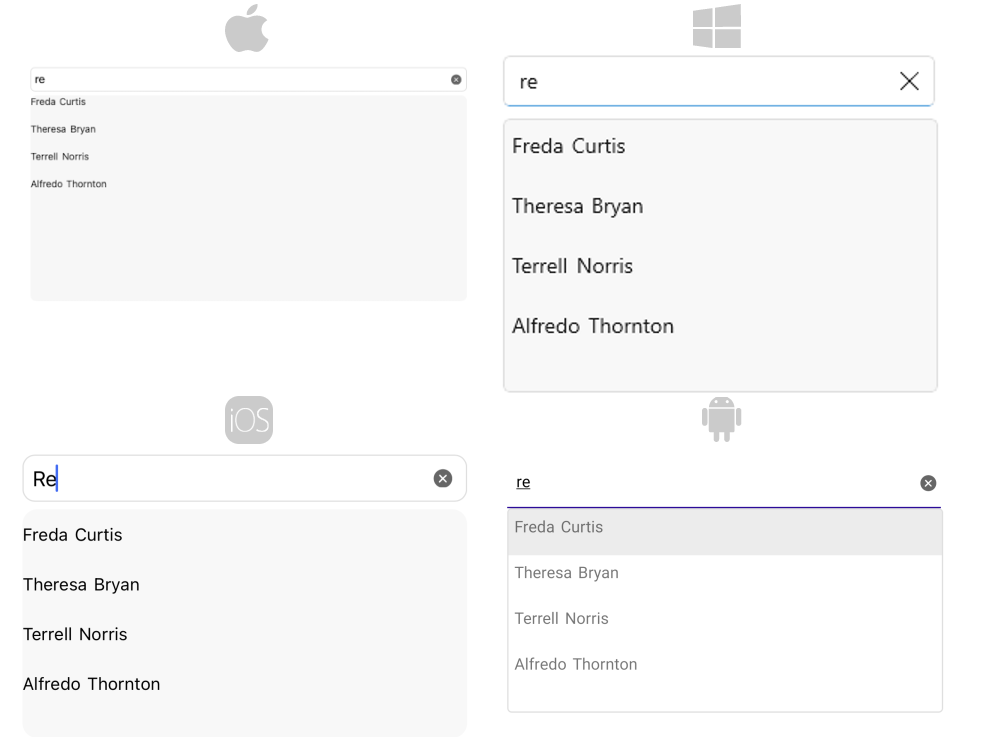
Here is an example how the AutoComplete Custom Filtering works when searching in two properties:
1. Create the needed business objects, for example type Person with the following properties:
public class Person
{
    public Person() { }

    public Person(string firstName, string lastName)
    {
        this.FirstName = firstName;
        this.LastName = lastName;
    }

    public string FirstName { get; set; }
    public string LastName { get; set; }
}
2. Create a CustomFilterViewModel with a collection of Person objects:
public class CustomFilteringViewModel
{
    public CustomFilteringViewModel()
    {
        this.Source = new ObservableCollection<Person>()
        {
            new Person("Freda", "Curtis"),
            new Person("Jeffery", "Francis"),
            new Person("Eva", "Lawson"),
            new Person("Emmett", "Santos"),
            new Person("Theresa", "Bryan"),
            new Person("Terrell", "Norris"),
            new Person("Eric", "Wheeler"),
            new Person("Alfredo", "Thornton"),
            new Person("Roberto", "Romero"),
            new Person("Orlando", "Mathis"),
            new Person("Eduardo", "Thomas"),
            new Person("Harry", "Douglas"),
            new Person("Merry", "Lasker")
        };

        this.Filter = new CustomAutoCompleteFilter();
    }

    public ObservableCollection<Person> Source { get; set; }

    public CustomAutoCompleteFilter Filter { get; set; }
}
3. Create a class for example CustomAutoCompleteFilter that implements the IAutoCompleteFilter interface:
public class CustomAutoCompleteFilter : IAutoCompleteFilter
{
    public bool Filter(object item, string searchText, AutoCompleteCompletionMode completionMode)
    {
        Person person = (Person)item;
        string lowerFirstName = person.FirstName.ToLower();
        string lowerLastName = person.LastName.ToLower();
        string lowerSearchText = searchText.ToLower();
        return lowerFirstName.Contains(lowerSearchText) || lowerLastName.Contains(lowerSearchText);
    }
}
4. Use the following snippet to declare a RadAutoComplete in XAML:
<telerik:RadAutoComplete x:Name="autoComplete"
                         Filter="{Binding Filter}"
                         TextSearchPath="FirstName"
                         ItemsSource="{Binding Source}"
                         Placeholder="Search here..."
                         SuggestionViewMaxHeight="300">
    <telerik:RadAutoComplete.SuggestionItemTemplate>
        <DataTemplate>
            <HorizontalStackLayout HeightRequest="30"
                                   Spacing="5"
                                   Margin="5, 0">
                <HorizontalStackLayout.Resources>
                    <Style x:Key="LabelStyle" TargetType="Label">
                        <Setter Property="VerticalOptions" Value="Center" />
                        <Setter Property="TextColor" Value="#000000" />
                    </Style>
                    <Style x:Key="LabelStyle_MacCatalyst" TargetType="Label" BasedOn="{StaticResource LabelStyle}">
                        <Style.Triggers>
                            <DataTrigger TargetType="Label"
                                         Binding="{Binding IsMouseOver, Source={RelativeSource AncestorType={x:Type ContentView}}}"
                                         Value="True">
                                <Setter Property="TextColor" Value="#FFFFFF" />
                            </DataTrigger>
                            <DataTrigger TargetType="Label"
                                         Binding="{Binding IsCurrent, Source={RelativeSource AncestorType={x:Type ContentView}}}"
                                         Value="True">
                                <Setter Property="TextColor" Value="#FFFFFF" />
                            </DataTrigger>
                            <MultiTrigger TargetType="Label">
                                <MultiTrigger.Conditions>
                                    <BindingCondition Binding="{Binding IsCurrent, Source={RelativeSource AncestorType={x:Type ContentView}}}"
                                                      Value="True" />
                                    <BindingCondition Binding="{Binding IsMouseOver, Source={RelativeSource AncestorType={x:Type ContentView}}}"
                                                      Value="True" />
                                </MultiTrigger.Conditions>
                                <Setter Property="TextColor" Value="#FFFFFF" />
                            </MultiTrigger>
                        </Style.Triggers>
                    </Style>
                </HorizontalStackLayout.Resources>
                <Label Text="{Binding FirstName}"
                       Style="{OnPlatform Default={StaticResource LabelStyle}, MacCatalyst={StaticResource LabelStyle_MacCatalyst}}" />
                <Label Text="{Binding LastName}"
                       Style="{OnPlatform Default={StaticResource LabelStyle}, MacCatalyst={StaticResource LabelStyle_MacCatalyst}}" />
            </HorizontalStackLayout>
        </DataTemplate>
    </telerik:RadAutoComplete.SuggestionItemTemplate>
    <telerik:RadAutoComplete.BindingContext>
        <local:CustomFilteringViewModel/>
    </telerik:RadAutoComplete.BindingContext>
</telerik:RadAutoComplete>
This is the result:
For AutoComplete Filtering example refer to the SDKBrowser Demo application.
Handling Punctuation
By default, the .NET string.Contains method will take all punctuation into consideration. If you find punctuation to be hindering your user experience, you can use a custom filter that removes the punctuation before the strings are compared.
For example, if the source string is Main Street, 101 and the user searches Main Street 101, string.Contains will return false and the result will not appear in the FilteredItems view. The custom filter below removes the commas before the string is used with the Contains method.
public class CustomAutoCompleteFilter : IAutoCompleteFilter
{
    public bool Filter(object item, string searchText, AutoCompleteCompletionMode completionMode)
    {
        var googleSearchResult = (string)item;

        // Remove commas from the source value before comparing with the search term
        var googleSearchResultNoCommas = googleSearchResult.Replace(",", "");

        var normalizedPlace = googleSearchResultNoCommas.ToLowerInvariant();
        var normalizedSearchText = searchText.ToLowerInvariant();

        return normalizedPlace.Contains(normalizedSearchText);
    }
}