New to Telerik UI for .NET MAUI? Start a free 30-day trial
Output View Styling
Updated on Aug 20, 2026
The Output View of the AIPrompt control provides the following customization property:
OutputItemStyle(Style)—Defines the style that is to be applied to the output items.
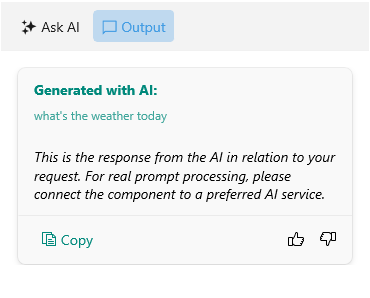
The following example demonstrates how to modify the output items' appearance:
1. Add a Style property with TargetType set to AIPromptOutputItemView as well as additional Style properties for the various elements of each output item to the page's resources:
XAML
 <Style x:Key="MyTitleStyle" TargetType="Label">
    <Setter Property="TextColor" Value="#00897B" />
</Style>
<Style x:Key="MySubtitleStyle" TargetType="Label">
    <Setter Property="TextColor" Value="#BF00897B" />
</Style>
<Style x:Key="MyResponseTextStyle" TargetType="Label">
    <Setter Property="FontAttributes" Value="Italic" />
</Style>
<Style x:Key="MyActionButtonStyle" TargetType="telerik:RadTemplatedButton">
    <Setter Property="TextColor" Value="#00897B" />
</Style>
<Style x:Key="MyOutputItemStyle" TargetType="telerik:AIPromptOutputItemView">
    <Setter Property="TitleLabelStyle" Value="{StaticResource MyTitleStyle}" />
    <Setter Property="InputTextLabelStyle" Value="{StaticResource MySubtitleStyle}" />
    <Setter Property="ResponseTextLabelStyle" Value="{StaticResource MyResponseTextStyle}" />
    <Setter Property="CopyButtonStyle" Value="{StaticResource MyActionButtonStyle}" />
    <Setter Property="RetryButtonStyle" Value="{StaticResource MyActionButtonStyle}" />
</Style>
2. Add the RadAIPrompt control with the above style properties applied:
XAML
<telerik:RadAIPrompt x:Name="aiPrompt"
                     InputText="{Binding InputText}"
                     PromptRequestCommand="{Binding PromptRequestCommand}"
                     OutputItems="{Binding OutputItems}"
                     OutputItemStyle="{StaticResource MyOutputItemStyle}" />
Here is how the customized Output View looks: