Node Setup on Windows with nvm-windows
nvm-windows is a lightweight version manager for Node.js on Windows. After you install it once, you can install and switch between multiple Node versions with a few commands. Each Node installation includes npm, so you do not need to install npm separately.
Why use nvm-windows
- Keep multiple Node versions on one machine.
- Switch versions per project without reinstalling Node.
- Upgrade safely while keeping older versions available.
Prerequisites
- Windows machine with administrator rights for installation.
- Internet connection to download Node versions.
1. Download nvm-windows
Go to the official releases page:
Download the latest installer (nvm-setup.exe).
2. Install nvm-windows
Run nvm-setup.exe and complete the installer like any standard Windows application.
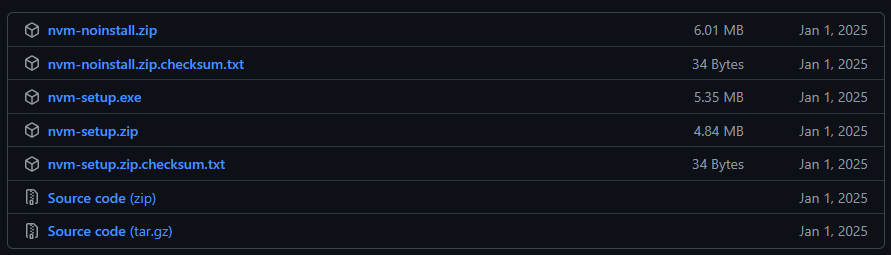
After the installation finishes, open a new terminal window (Command Prompt, PowerShell, or Windows Terminal).
3. Verify the installation
Check that nvm is available:
nvm versionIf a version number is shown, nvm-windows is installed correctly.
4. Install Node.js
Install Node 24 (recommended for new projects):
nvm install 24Install Node 22 (LTS option):
nvm install 22nvm-windows installs npm together with Node.js.
5. Select the active Node.js version
Activate Node 24:
nvm use 24Confirm the active versions:
node -v
npm -v
Common nvm-windows commands
List installed Node versions:
nvm listList Node versions available for installation:
nvm list availableInstall a specific exact version:
nvm install 24.3.0Switch to a specific exact version:
nvm use 24.3.0Remove an unused version:
nvm uninstall 22.15.0Example workflows
Use Node 24 for a new Kendo project:
nvm install 24
nvm use 24
node -v
Switch to Node 22 for an older project:
nvm use 22
node -v
Troubleshooting
If nvm is not recognized:
- Close all terminals and open a new one.
- Check that nvm-windows is installed in
C:\Program Files\nvm(default path). - Restart Windows if PATH changes were not picked up.
If node -v does not change after nvm use:
- Run the terminal as Administrator.
- Ensure another global Node installation is not overriding your PATH.