Building Custom Kendo UI Scripts Locally
The local custom builder is a practical way to reduce script size and include only the Kendo UI for jQuery components and features your project needs.
With this approach, you can:
- Build a tailored script package on your machine.
- Select a specific product version, starting with the current
2026.1.212release. - Reuse a configuration file when you need to build the same selection again.
- Integrate the custom build process as part of your CI pipeline.
- Keep payloads smaller by shipping only required components.
- Control optional component-level features, such as Grid editing and export.
Prerequisites
Ensure you have the latest Node 22 or Node 24 installed. See Node Setup on Windows with nvm-windows for a quick setup guide.
Install the Kendo CLI package:
npm i -g @progress/kendo-cliUsing an existing config.json from the online download builder
Creating a custom bundle from an existing config.json is extremely easy.
-
Find your existing
config.jsonfile. -
Rename it to
kendo-config.json. -
Open a terminal in the folder that contains
kendo-config.json. -
Run the following command:
shkendo custom-build jquery --no-interactive
The command generates kendo.custom.min.js, containing only the components and features from your existing configuration. The build uses the latest available Kendo UI for jQuery version by default.
When a new release is published, run the same command again to produce an updated custom bundle with the latest version.
Creating a new config or editing an existing one
If you want to create a brand new configuration, or add and remove components from an existing one, follow these steps.
1. Create a Working Folder
Create a dedicated folder for the custom build process, for example custom-build, and navigate to it.
mkdir custom-build
cd custom-build
If you want to create a brand new configuration file, make sure the folder does not contain an existing kendo-config.json file. If your goal is to edit an existing configuration, keep kendo-config.json in the folder and continue.
2. Start the Custom Build Process
Run the custom builder command:
kendo custom-build jquery The CLI starts an interactive flow where you can choose the output that matches your project.
3. Select the Product Version
To select a specific Kendo UI for jQuery version, run the command with the --version flag:
kendo custom-build jquery --version 2026.1.212Version selection through --version works for versions starting with 2026. If you run kendo custom-build jquery without the flag, the CLI uses the latest available version.
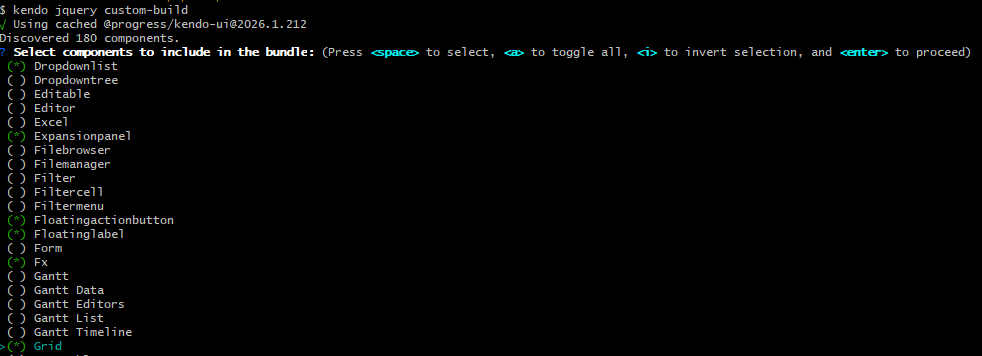
4. Select Components
Choose only the components your application requires.
For example, you can include Grid, DropDownList, Editor, and other components based on your scenario.
5. Select Optional Component Features
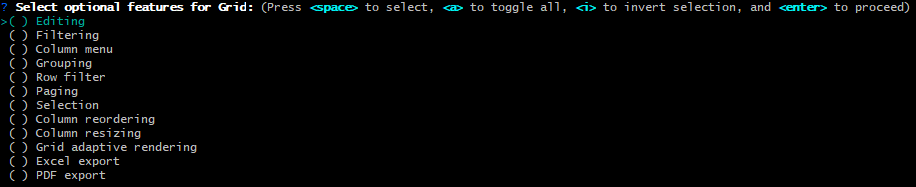
For selected components, the builder lets you choose optional features.
For the Grid, for example, you can select options like editing, filtering, grouping, paging, selection, and export features.
6. Work with kendo-config.json
You can drive the process with a predefined configuration file named kendo-config.json.
- If
kendo-config.jsonalready exists in the folder, the builder can use it to preselect components and options. - If you complete the selection manually, the builder generates a
kendo-config.jsonfile in the same folder. - You can keep reusing this file for future builds, including when you switch to a different product version.
- You can edit the file manually at any time, or rerun the interactive command to update selected components and feature options.
This reusable configuration makes the local custom builder a strong option for teams that need predictable outputs across multiple environments.