Fiddler Debugging Assistant
The Fiddler Debugging Assistant enables you to use large language models to increase developer productivity. This built-in chat feature provides additional insights by combining your preferred language model with the Fiddler powerful traffic analysis capabilities.
Prerequisites
- The latest version of Fiddler Everywhere.
- A Fiddler Everywhere Pro or higher subscription tier.
- An API key with access to one of the supported language models. Fiddler Everywhere currently supports the following providers:
- OpenAI
- Anthropic
- Azure OpenAI
- Google Gemini
Requests are processed using your own API key and billed directly to your account with the model provider. Data usage and retention follow the provider's Terms of Service and Privacy Policy.
Configuring Debugging Assistant
The Debugging Assistant is accessible through the Ask Assistant button in the Fiddler toolbar. To use it, you must provide a valid API key for one of the supported model providers.
Select your preferred model provider and set its API key through Settings > Assistant.
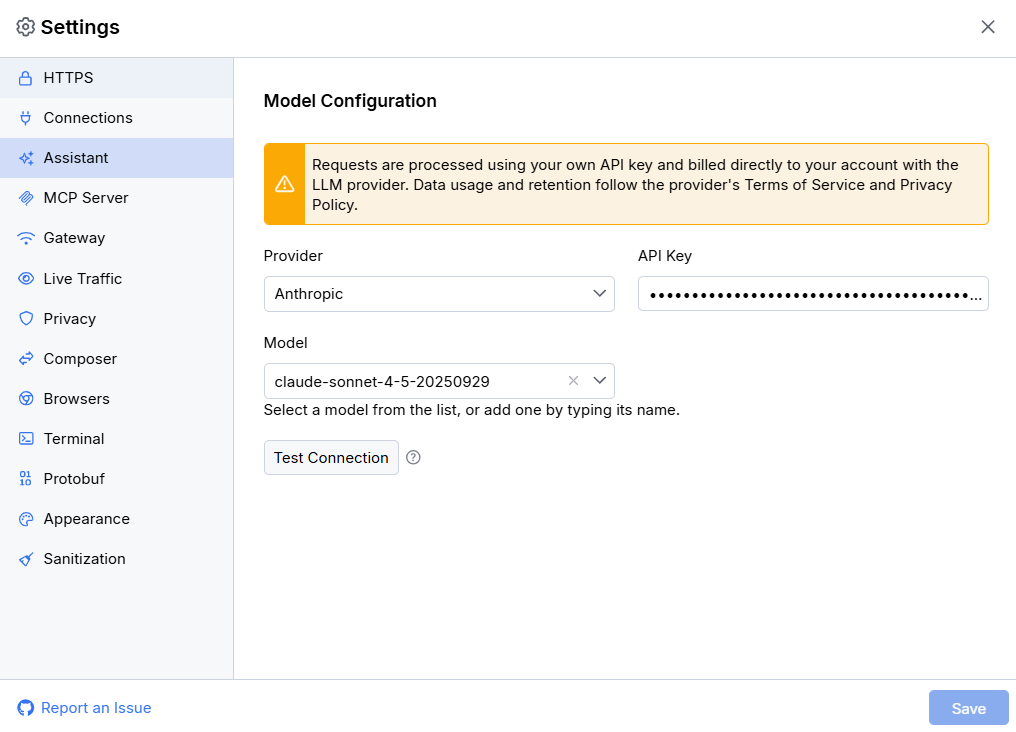
Once all properties are set, use the Test Connection button to verify that the connection is properly established.
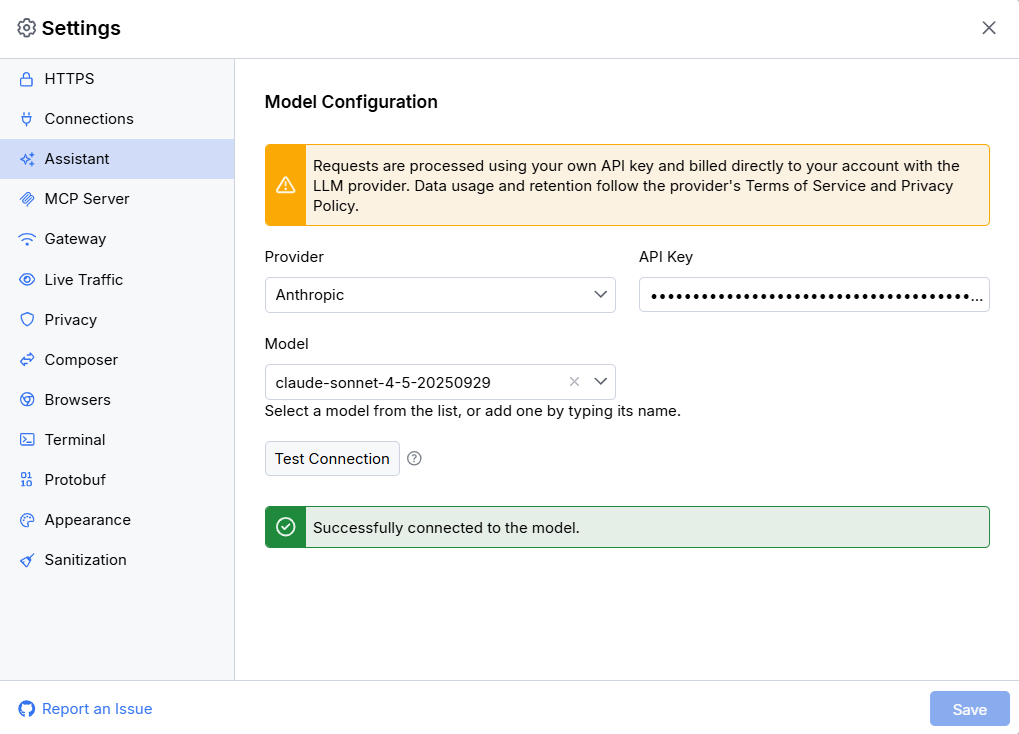
When setting the model, you can choose from the dropdown list of available models or enter a custom model name if it is not listed.
When setting the Azure target URI, note that this must be a complete URL containing the endpoint, deployment name, and API version. You can find this target URI in the deployment details page in Azure AI Foundry.
Getting Started with a Free Gemini API Key
Google provides a free‑tier Gemini API key through Google AI Studio that lets you use the Debugging Assistant without a paid model provider subscription; however, you still need a Fiddler Everywhere Pro (or higher) subscription to access the Debugging Assistant.
Obtaining the API Key
- Navigate to https://aistudio.google.com/api-keys.
- Sign in with your Google account.
- Click Create API key and follow the prompts.
- Copy the generated API key.
Configuring in Fiddler Everywhere
- Open Fiddler Everywhere and go to Settings > Assistant.
- Select Google Gemini as the provider.
- Paste your API key from Google AI Studio.
- Select a supported Gemini model from the dropdown list.
- Click Test Connection to confirm the setup.
Supported Models and Free-Tier Limits
Fiddler Everywhere supports the following Gemini models. Of these, only two are currently available under the Google AI Studio free tier:
| Model | Free-Tier Available |
|---|---|
| Gemini 2.5 Pro | No |
| Gemini 2.5 Flash | Yes |
| Gemini 2.5 Flash Lite | Yes |
| Gemini 2.0 Flash | No |
| Gemini 2.0 Flash Lite | No |
For the latest model availability and rate limit information, see the Google AI Studio rate limits page.
Google may use data submitted through the free-tier API to improve its models. Avoid sharing sensitive, confidential, or personally identifiable information when using the free Gemini API key. Review Google's Terms of Service and Privacy Policy before use.
Using Debugging Assistant
To use the Debugging Assistant:
-
Open the Fiddler Everywhere application.
-
Click the Ask Assistant button.
-
Ask questions in natural language about Fiddler or the captured traffic data.
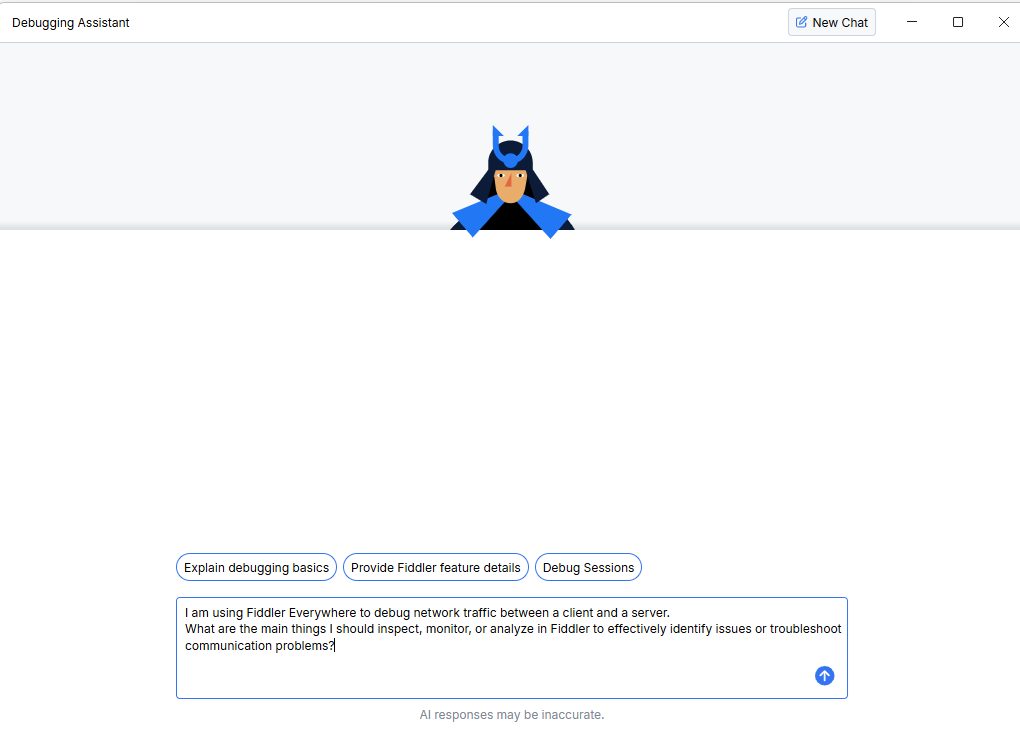
Use the New Chat button to start a fresh conversation and clear the current chat history from the context.
Limitations
When working with the Debugging Assistant, consider the following limitations:
-
The current version of the Debugging Assistant does not have access to captured traffic in live sessions or saved snapshots. To analyze specific captured sessions, you need to copy and paste the relevant traffic details into the chat.
-
Most language models (such as Claude Sonnet, GPT-5, Gemini Pro) work only with preexisting training data or information provided in the conversation. Internet connectivity features (such as web search) depend on the selected model.
Debugging Assistant Access Policies
Fiddler Everywhere provides managed application policies through its Enterprise tier. License administrators can use these policies to control access to the Fiddler Debugging Assistant for licensed users.
For more information about configuring enterprise policies, see the Managed App Configuration article.
Windows
IT teams managing Windows systems can apply app configuration keys using their preferred administrative tooling by setting values in the following registry path:
HKEY_CURRENT_USER\SOFTWARE\Policies\Progress\Fiddler Everywhere| Key Name | Description | Value Type | Value Example |
|---|---|---|---|
DisableAssistant | Enables or disables the Debugging Assistant | DWORD-32 (hexadecimal) | 1 |
DefaultAssistantSettings | Sets the default settings (model provider, API key, and model) for the Debugging Assistant | REG_SZ (string) | See the JSON structure below |
DisableAssistantSettingsUpdate | Enables or disables the option to update the Debugging Assistant settings | DWORD-32 (hexadecimal) | 1 |
macOS
IT teams managing macOS systems can apply app configuration using their preferred device management solution (such as Jamf, Intune, or similar) by setting the following keys:
| Key Name | Description | Value Type | Value Example |
|---|---|---|---|
DisableAssistant | Enables or disables the Debugging Assistant | integer | 1 |
DefaultAssistantSettings | Sets the default settings (model provider, API key, and model) for the Debugging Assistant | String | See the JSON structure below |
DisableAssistantSettingsUpdate | Enables or disables the option to update the Debugging Assistant settings | integer | 1 |
The DefaultAssistantSettings policy expects a JSON object that contains the following properties:
provider- Sets the model provider. Supports the following values (case-sensitive):
openai
anthropic
azure_openai
google_geminiproviderApiKey- Sets the API key for the selected provider.model- Sets a specific model from the selected provider. Available when theproviderkey is set toopenai,anthropic, orgoogle_gemini.azureUri- Sets the Azure OpenAI resource URI . Available only when theproviderkey is set toazure_openai.
For more information on using managed application configurations, see the Managed Application Policies article.
Configuring the DefaultAssistantSettings Policy
The DefaultAssistantSettings policy expects a JSON object that contains the following properties:
provider- Sets the model provider. Supports the following case-sensitive values:
openai
anthropic
azure_openai
google_geminiproviderApiKey- Sets the API key for the selected provider.model- Sets a specific model from the selected provider. Available when theproviderkey is set toopenai,anthropic, orgoogle_gemini.azureUri- Sets the Azure OpenAI resource URI. Available only when theproviderkey is set toazure_openai.
Example JSON for setting Anthropic using provider, providerApiKey, and model:
{
    "provider": "anthropic",
    "providerApiKey": "my-api-key",
    "model": "claude-sonnet-4-20250514"
}
Example JSON for setting Azure using provider, providerApiKey, and azureUri:
{
    "provider": "azure_openai",
    "providerApiKey": "my-api-key",
    "azureUri": "https://<your-azure-app-endpoint>/openai/deployments/gpt-4.1-mini/chat/completions?api-version=2025-01-01-preview"
}