Visual Studio 2026, 6 Months Later

Summarize with AI:
Throughout this post, we’ll discuss Visual Studio updates and improvements, such as performance, GitHub Copilot, Hot Reload and more.
I remember exactly where I was when Visual Studio 2026 dropped back in November: at my desk, watching the Microsoft launch event with one eye and refactoring an IDataReader implementation with the other.
The keynote was typical Microsoft. There was a lot of “reimagining how developers work.” There was, of course, a slide with the word “intelligent” on it at least eight times. And the word “Copilot” appeared on screen so many times I started to wonder if Microsoft’s marketing team had been replaced by an infinite loop that just prints Copilot forever.
Then I installed the thing.
The first week with VS 2026 was the most disoriented I’ve felt in a Visual Studio release since the menu bar went all-caps in 2012 and I spent a month reading angry forum threads about it.
In 2026, I was tripped up by the just-slightly different Solution Explorer, the Copilot panel that lives where my Test Explorer used to live, the general Copilot onslaught and the interesting design choices. I felt like everything on my desk had been moved slightly to the left.
That was temporary. As with most new technology, eventually things felt normal again. I was finding workflows that genuinely beat my old ones and I stopped noticing the cosmetic changes. So here’s where I am six months later … same machine, same kind of solution I work in every day, just a different IDE around it.
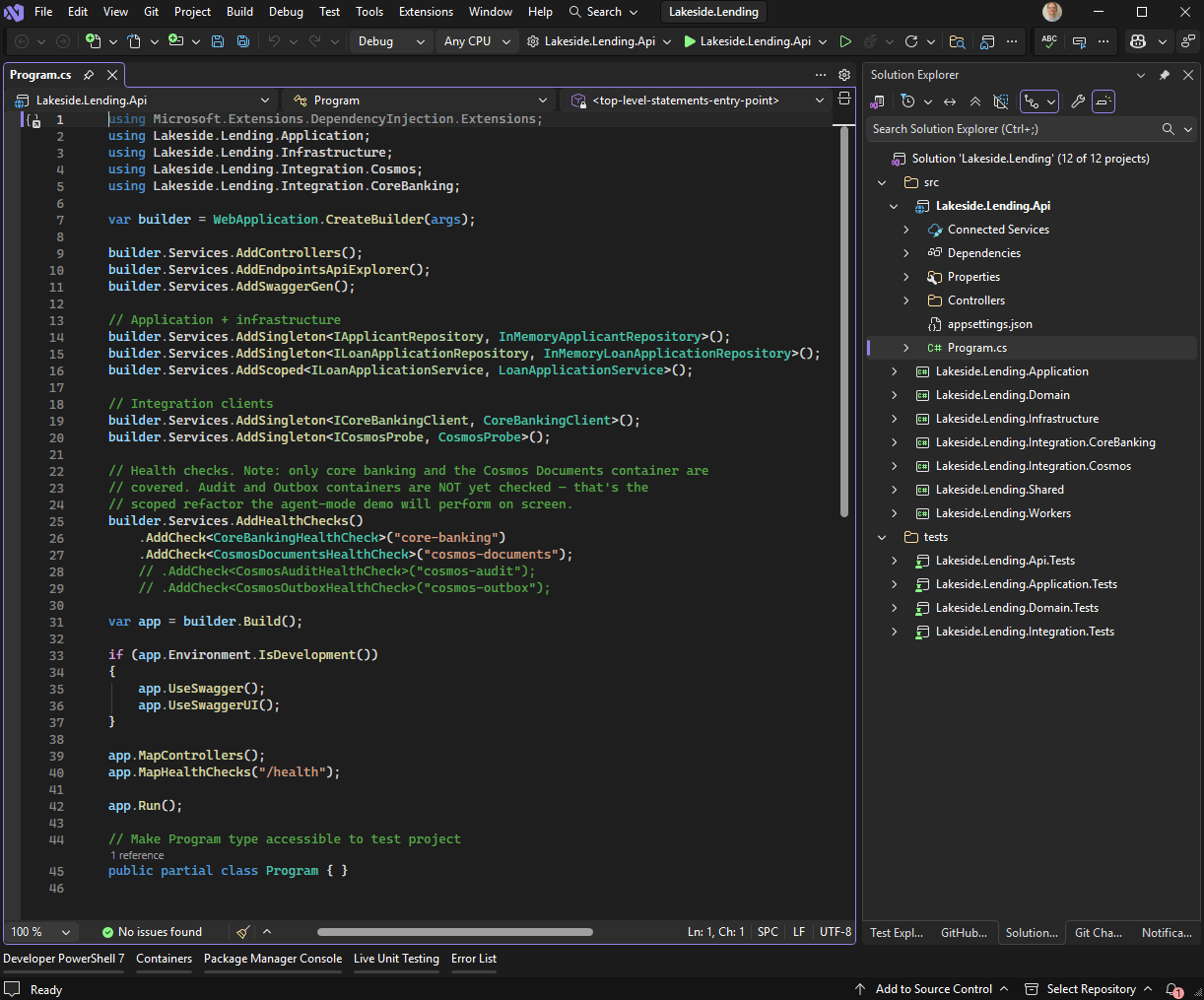
We meet again, old friend. At least the menu bar isn't in caps.
Six months in, I feel comfortable. Six months is long enough to live with the rough edges, and find what’s genuinely useful. So I’m here to share them with you.
As an aside: to keep my sanity intact, I’m going to use the word “Copilot” only when I absolutely have to. Microsoft has decided that every feature in Visual Studio is now Copilot-something … Copilot Chat, Copilot Edits, Copilot Agent, Copilot Workspaces, GitHub Copilot, Copilot for Azure, Copilot for Pull Requests and so on. So when I say “the agent” or “the AI thing in the sidebar,” you’ll know what I mean.
The Performance Story Is Real
I’ll lead with this, mostly because it was the thing I was most skeptical about. Every Visual Studio release for the past decade has touted “X% faster solution load!” and, to me, every Visual Studio release for the last decade has felt (roughly) the same speed once you test it with your beefy codebase.
VS 2026 is genuinely faster. Not “marketing-faster” … actually faster. The 64-bit-everywhere story that started with VS 2022 has matured into something that handles large solutions without the periodic “please hold” pauses we’re all familiar with. In Microsoft’s VS2026 launch post, they say they cut hangs by over 50%.
The IntelliSense responsiveness is the part I notice most. Typing a . after an object now produces suggestions roughly when I expect them to appear. A low bar? Definitely, but previous versions frequently limboed under it.
Agent Mode Is Useful, When You Pick the Right Job
GitHub Copilot’s agent mode in Visual Studio 2026—or, as Microsoft prefers, GitHub Copilot Agent Mode powered by Copilot in Visual Studio with Copilot—has improved tremendously since Visual Studio 2022. Six months in, I think it’s genuinely useful, but for a specific set of tasks.
In my experience, it works well with scoped, well-defined refactors. If I want to ask: Hey Copilot, add a new health check for this Cosmos container and follow the pattern in my existing health checks. (Yes, I sometimes talk to Copilot like a home assistant.) Or: Take my new controller and add the same logging pattern as the others in this project. And, after discovering some methods in a codebase with 11 nested if statements: Convert this for loop to a LINQ expression but keep it readable. It’s effective enough that I’ve stopped writing this kind of code by hand.
In my experience, things get harder when the agent needs to understand why something exists. The agent will happily refactor a piece of code that only exists because of, say, a weird third-party integration constraint from 2018, and the resulting code will be cleaner, more maintainable … and broken in production. Did I actually break something in production? Not this time. But I would have.
To be fair to the agent, this is exactly where it needs context. It doesn’t read minds (although it sure does try). Here’s a pattern I’ve leaned on.
// AGENT NOTES:
// - This service must remain synchronous; the upstream caller cannot
//   be made async without a contract change.
// - The string "PRIME" is required by the third-party integration.
//   I don't like it but they won't change it. Do not "improve" it
//   to PersonType.Prime.ToString().
// - Cancellation tokens must be forwarded; do NOT pass `default`.
When the agent has clear context like this, it really delivers. Below is the agent producing two new health check files plus a registration update in Program.cs, all from one prompt asking it to mirror an existing pattern. The result is a careful refactoring with the right substitutions swapped in. That’s exactly the kind of work I’m happy to hand off.
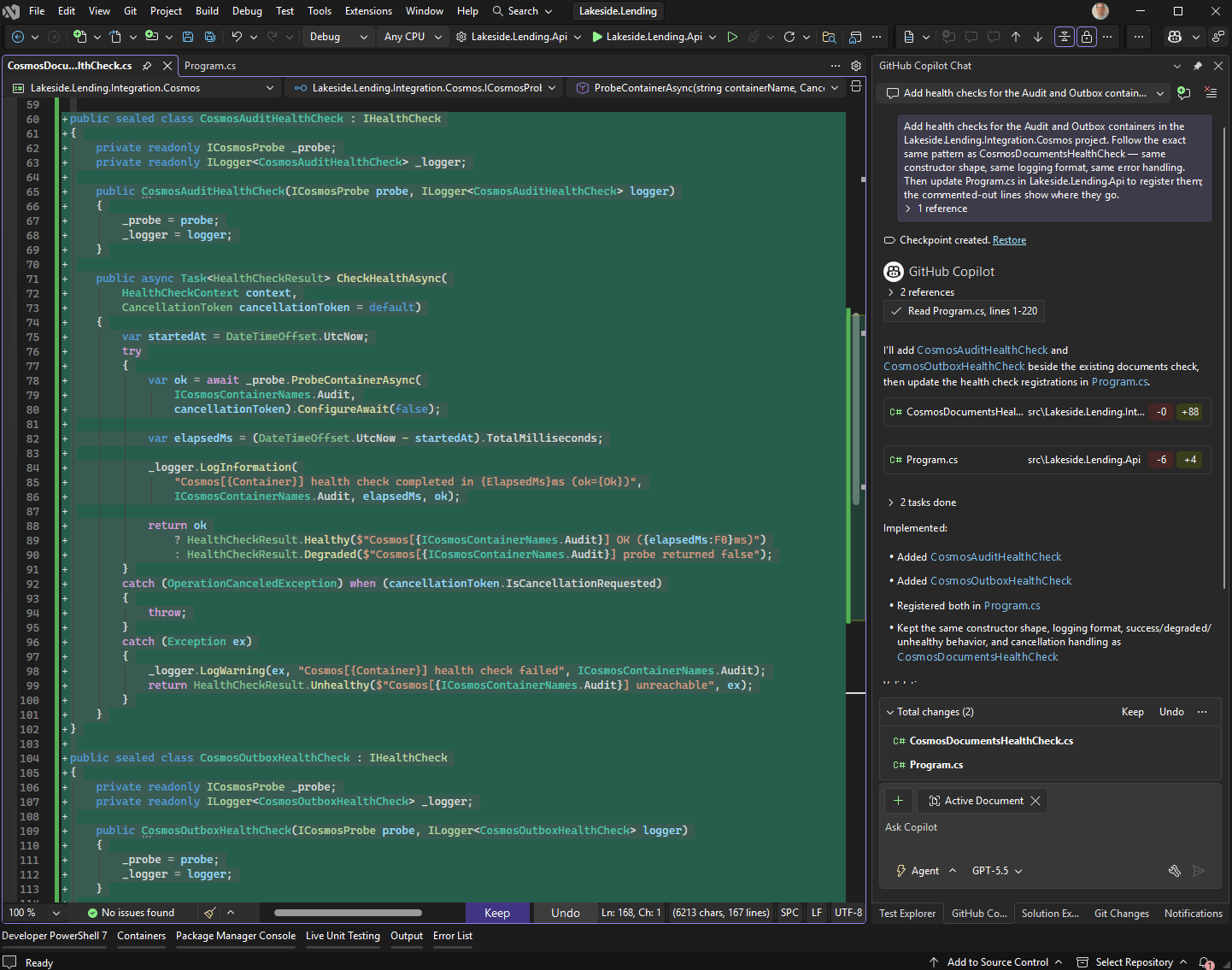
The agent panel and one of the two generated files. Three files changed, zero hand-written by me. (My team is thankful for the latter.)
This sounds like babysitting, and it is. Welcome to AI-driven development, my friends. The 10 seconds of setup saves me from a 10-minute cleanup later. When the prep is solid, the result is solid.
For more information on custom instructions, check out the Microsoft documentation.
Test Explorer Isn’t Frustrating
In my experience, the Test Explorer seems to be much improved in Visual Studio 2026. If I had to sum it up in previous versions, I’d say “it’s fine” … after all, do we ever get jazzed about tests? In previous releases, I kept saying “it’s fine” until I had a few thousand tests, at which point it started getting opinionated about which tests to run.
The new version is faster, the filtering predictably works, and it doesn’t lose track of which tests are running when you switch branches mid-execution. Try it yourself. Run your full test suite and watch the Test Explorer not embarrass itself. It’s a small joy.
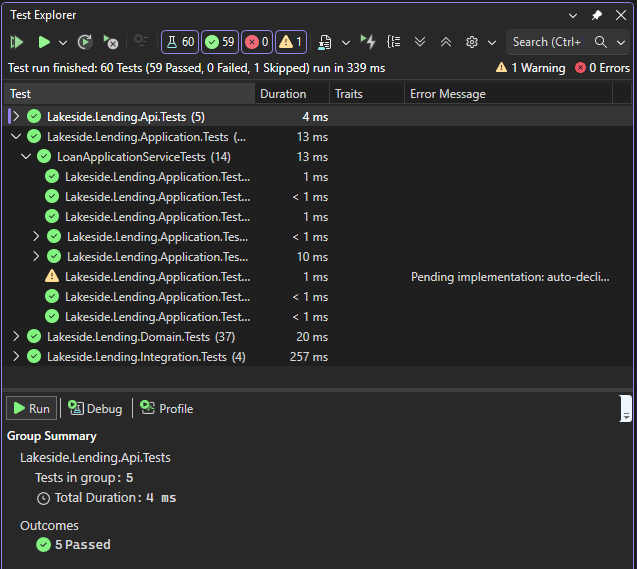
One of those things you don't notice until it stops getting in your way.
Better Git Integration
Visual Studio’s Git tooling has historically been one of the IDE’s more underwhelming features. Until recently, my workflow was:
- Make code changes in Visual Studio.
- Run Git commands in my terminal (or a third-party tool like GitHub Desktop)
- Ignore the IDE’s Git panel entirely.
With VS 2026, I’m finally doing real Git work inside the tool. The new staging interface is better. The conflict resolution UI is also better than it used to be. The “please show me an actual diff and not a vague summary” feature is good.
Now, it’s no GitKraken and it doesn’t try to be. But it’s good enough that I no longer switch over to a terminal for routine operations, and that works for me.
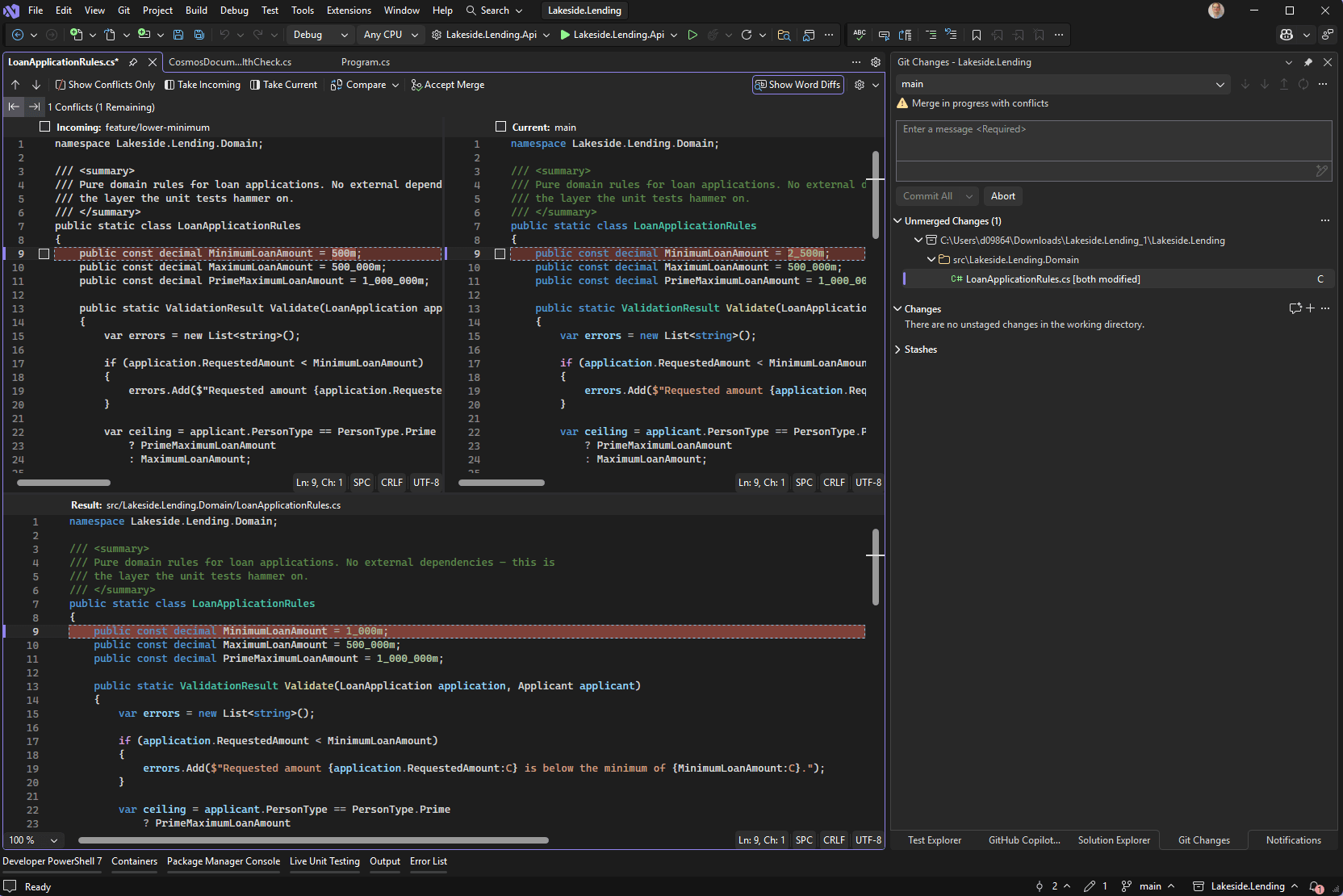
Three-way merge view, in the IDE I'm already in. Rejoice!
Hot Reload That Reloads More Often
Hot Reload has been one of those features that worked on Friday afternoons if I said “please work” (especially for ASP.NET Core). Any other time, I’d change a method body, save, watch the IDE think very hard about it, and then get: “Hot Reload was unable to apply your changes. Restart the application?”
The “hot” in “Hot Reload” was stretching the truth at times (with the understanding that getting it right isn’t as simple in .NET as it is for languages like JavaScript).
With VS 2026, I now reach for it instinctively instead of cynically. Method-body edits in controllers, services and Razor pages just apply. You change a string in a controller, hit Save and see the change. You know, the way it was supposed to work in 2021. The way it kind of worked in 2023. The way it now actually works in 2026.
When Hot Reload can’t apply a change (because the change requires a metadata update or you’ve added a field or whatever the actual reason is), the IDE now tells me clearly why instead of vaguely throwing up its hands. That alone goes a long way. I know whether to keep iterating or to just restart the host.
Debugger Improvements (Especially with Async Traces)
Have you ever stared at an async stack trace and felt your soul leave your body? Just me?
Historically, when an exception bubbled up from somewhere deep in an async/await chain, the stack trace was a wall of MoveNext calls and state machine internals. It was tremendously useful if you wanted to learn about the C# compiler, but not great if you wanted to know which of your methods actually threw.
Things are looking better in Visual Studio 2026. The debugger now stitches together async call chains into something that reads like the call graph you actually wrote. The MoveNext noise is collapsed by default. The original calling method is shown as the parent frame and not buried six levels down. When an exception is thrown inside a Task.WhenAll, you can see which task threw without reverse-engineering the parallel structure.
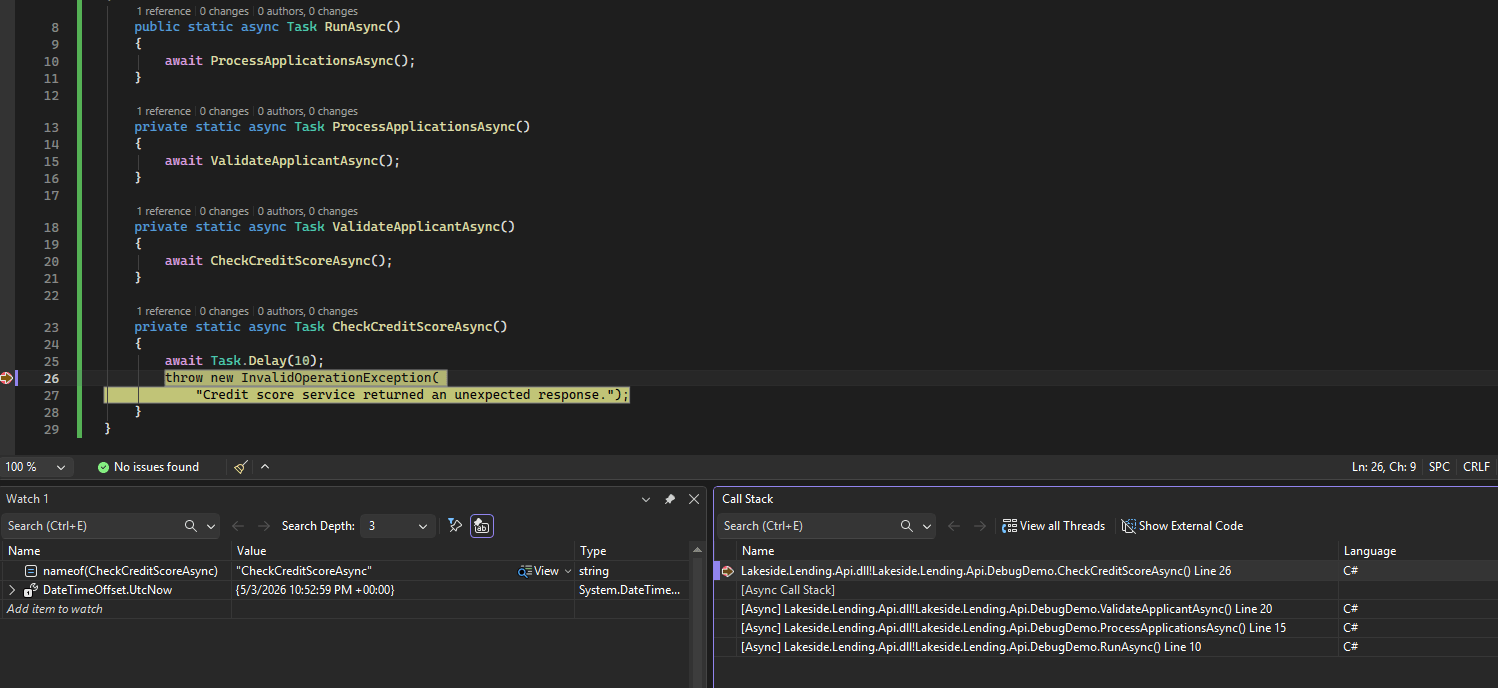
An async exception, with the actual call chain visible. No MoveNext translation required.
On top of that, conditional breakpoints feel faster to evaluate, and the tracepoints (where you can log a message without breaking) is a one-click affair instead of a buried right-click option.
Small wins. But debugging is the thing I do every day, and small wins on the thing you do every day add up fast.
The Verdict
Look, the Copilot stuff is genuinely impressive. The agent demos at the keynote were the kind of thing that makes you want to fire up the installer immediately. And after six months, I’ll admit that I use it every day.
But Visual Studio 2026 is a genuine step forward for the boring reasons. The performance is real. The Test Explorer doesn’t stress me out. The debugger provides stack traces a human can read. The agent mode handles the kind of work I’d previously do by hand. Those are the wins that show up in my daily work, not the ones that show up in keynote demos.
If you’re on Visual Studio 2022 and wondering whether to upgrade: yes. Ignore the marketing, and let the unglamorous improvements do their job. Six months later, you won’t be excited about Visual Studio 2026 … and that’s exactly the point. You’ll just be working faster.

Dave Brock
Dave Brock is a software engineer, writer, speaker, open-source contributor and former Microsoft MVP. With a focus on Microsoft technologies, Dave enjoys advocating for modern and sustainable cloud-based solutions.
Related Posts
Comments
All articles
Topics
Web MobileMobile
Desktop
Design
Productivity
People