Customizing MonthView in ScheduleView for UI for WPF
Environment
| Product Version | Product | Author |
|---|---|---|
| 2026.1.210 | RadScheduleView for WPF | Dinko Krastev |
Description
In this tutorial we will demonstrate how to customize the MonthView in the ScheduleView for UI for WPF to visually highlight the days belonging to the current month.
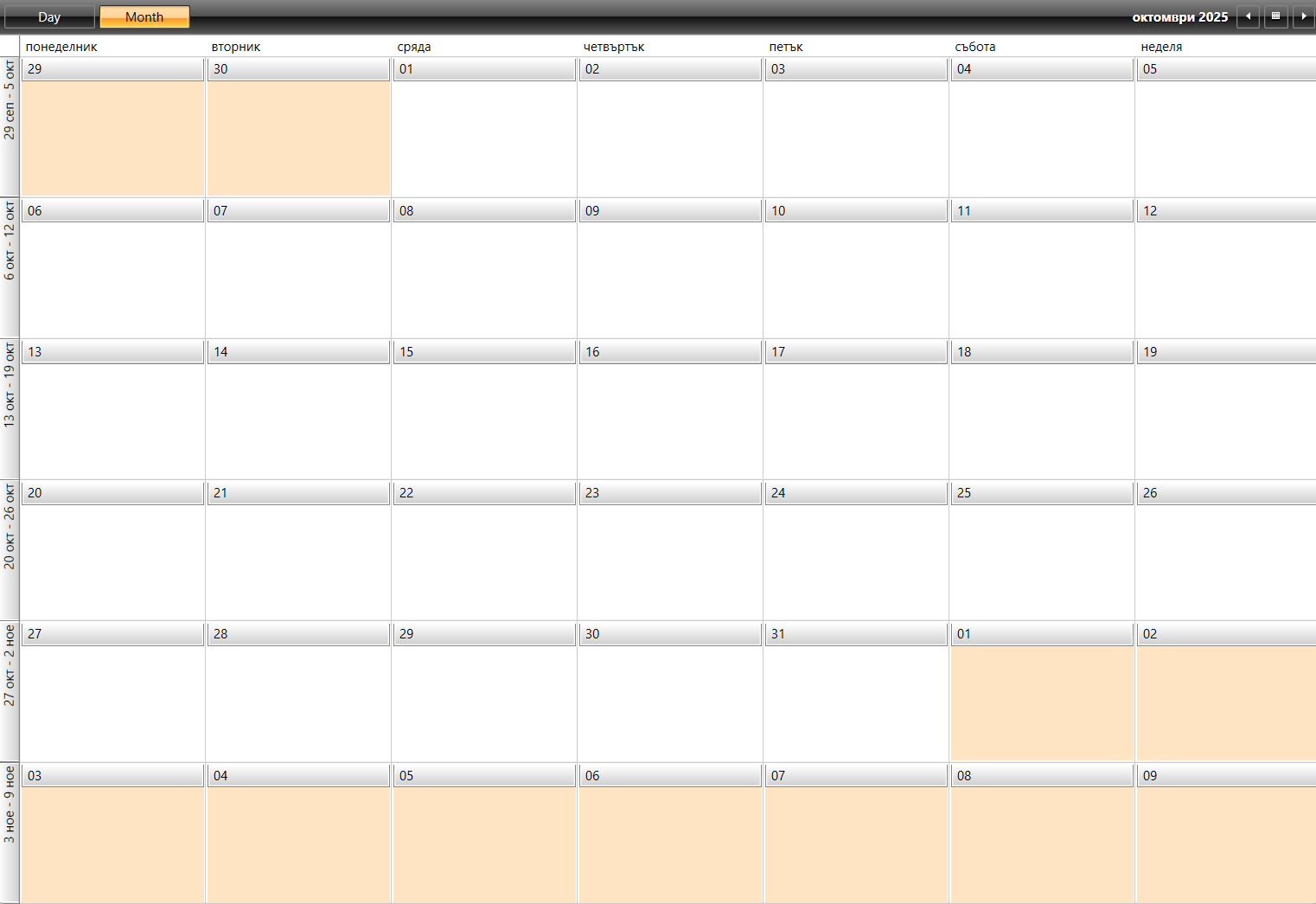
Solution
To highlight the days of the current month in the MonthView, follow these steps:
-
Use the
TimeRulerItemStyleSelectorto styleTimeRulerItems. For the MonthView, the style items areTimeRulerMonthViewItemStyle. Refer to the Styling the TimeRulerItems documentation. -
Extract the default template of the
TimeRulerMonthViewItem. Refer to the Editing Control Templates documentation for steps to extract the template. -
Modify the template by setting the
Backgroundproperty of the first Grid that wraps the content. -
Implement an
IMultiValueConverterto determine which items belong to the current month. Pass necessary values to the converter for comparison.
Example
Here is an example implementation using an IMultiValueConverter:
- Use TimeRulerItemStyleSelector.
<telerik:OrientedTimeRulerItemStyleSelector x:Key="TimeRulerItemStyleSelector"
	MonthViewGroupStyle="{StaticResource TimeRulerMonthViewGroupItemStyle}"
	MonthViewTickStyle="{StaticResource CustomTimeRulerMonthViewItemStyle}"
	MonthViewTodayTickStyle="{StaticResource TimeRulerMonthViewTodayItemStyle}"
	HorizontalGroupItemStyle="{StaticResource TimeRulerGroupItemStyle}"
	VerticalGroupItemStyle="{StaticResource TimeRulerGroupItemStyle_Vertical}"
	MajorHorizontalTickStyle="{StaticResource MajorHorizontalTimeRulerItemStyle}"
	MajorVerticalTickStyle="{StaticResource MajorVerticalTimeRulerItemStyle}"
	MinorHorizontalTickStyle="{StaticResource MinorHorizontalTimeRulerItemStyle}"
	MinorVerticalTickStyle="{StaticResource MinorVerticalTimeRulerItemStyle}"
	HorizontalLineStyle="{StaticResource TimeRulerLineStyle}"
	VerticalLineStyle="{StaticResource TimeRulerLineStyle}">
</telerik:OrientedTimeRulerItemStyleSelector>- Extract and modify the default template of the
TimeRulerMonthViewItem.
<local:DateMultiValueConverter x:Key="DateMultiValueConverter" />

<Style x:Key="CustomTimeRulerMonthViewItemStyle" TargetType="telerik:TimeRulerMonthViewItem">
    <Setter Property="Template">
        <Setter.Value>
            <ControlTemplate TargetType="telerik:TimeRulerMonthViewItem">
                <Grid Margin="2">
                    <Grid.Background>
                        <MultiBinding Converter="{StaticResource DateMultiValueConverter}">
                            <Binding RelativeSource="{RelativeSource TemplatedParent}" Path="Content"/>
                            <Binding Path="."/>
                            <Binding RelativeSource="{RelativeSource TemplatedParent}" Path="Content.DateTime.Date"/>
                        </MultiBinding>
                    </Grid.Background>
                    <telerik:RadButton
                    Padding="0"
                    VerticalAlignment="Top"
                    Height="21"
                    AutomationProperties.Name="{Binding RelativeSource={RelativeSource TemplatedParent}, Path=Content.DateTime.Date}"
                    Style="{StaticResource GoToDayButtonStyle}"
                    Command="{x:Static telerik:RadScheduleViewCommands.SetDayViewMode}"
                    CommandParameter="{Binding RelativeSource={RelativeSource TemplatedParent}, Path=Content.DateTime.Date}">
                        <ContentPresenter  Margin="{TemplateBinding Padding}"/>
                    </telerik:RadButton>
                    <telerik:RadToggleButton
                    Visibility="{Binding ExpandButtonVisibility}"
                    AutomationProperties.Name="{Binding RelativeSource={RelativeSource TemplatedParent}, Path=Content.DateTime.Date}"
                    IsChecked="{Binding IsExpanded, Mode=TwoWay}"
                    Style="{StaticResource ExpandMonthViewButtonStyle}"
                    HorizontalAlignment="Right"
                    VerticalAlignment="Bottom"/>
                </Grid>
            </ControlTemplate>
        </Setter.Value>
    </Setter>
</Style>
- Implement an
IMultiValueConverter.
public class DateMultiValueConverter : IMultiValueConverter
{
    public object Convert(object[] values, Type targetType, object parameter, CultureInfo culture)
    {
        var itemProxy = values[0] as TimerRulerItemProxy;
        var groupHeader = values[1] as GroupHeader;
        var scheduleView = groupHeader.ParentOfType<RadScheduleView>();
        if (scheduleView != null)
        {
            var currentMonth = scheduleView.CurrentDate.Month;
            if (itemProxy.DateTime.Month != currentMonth)
            {
                return new SolidColorBrush(Colors.Bisque); ;
            }
        }

        return new SolidColorBrush(Colors.Transparent);
    }

    public object[] ConvertBack(object value, Type[] targetTypes, object parameter, CultureInfo culture)
    {
        throw new NotImplementedException();
    }
}