Adding UI for WPF to Visual Studio Toolbox
The following tutorial will show you how to add UI for WPF controls to the Visual Studio toolbox.
This article is relevant for .NET Framework projects. If you use NET 8 and later, see the "Design-Time Support" section of the .NET Overview article.
Adding UI for WPF to Visual Studio Toolbox
To manually add Telerik UI for WPF to the Visual Studio Toolbox, follow the steps below:
-
Open your application in Visual Studio.
-
Expand the Toolbox (View->Toolbox or use the shortcut Ctrl+Alt+X).
-
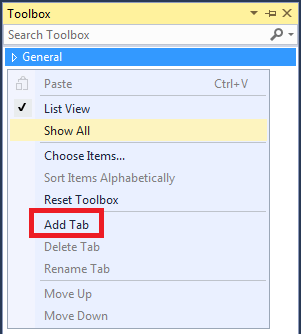
Right-mouse button click in the toolbox area and choose "Add Tab" from the context menu.
-
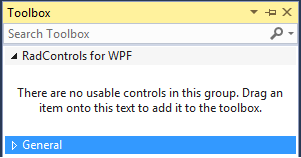
Add a new tab with name "UI for WPF".
-
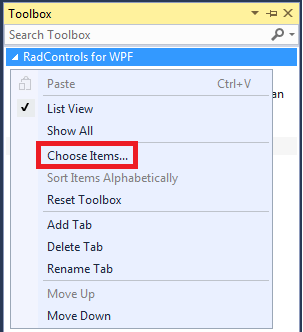
Select the "UI for WPF" tab in the toolbox. Right-mouse click and select "Choose Items...".
-
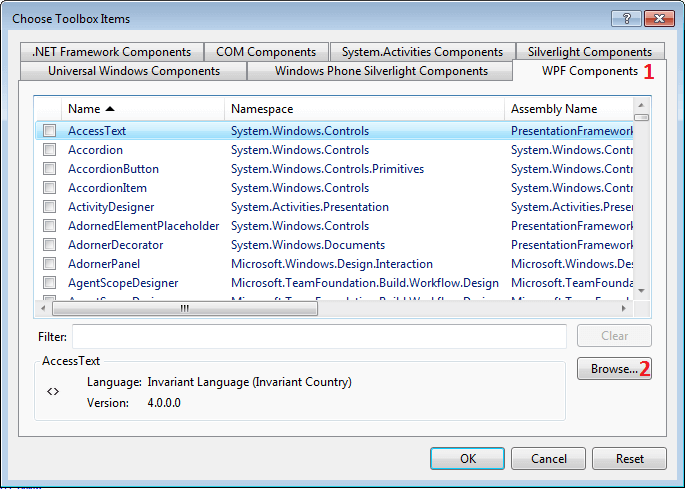
In the "Choose Toolbox Items" dialog, go to the "WPF Components" tab and click "Browse...".
-
Navigate to the folder where the binaries are located. Select the DLL you want to import and click OK or press Enter.
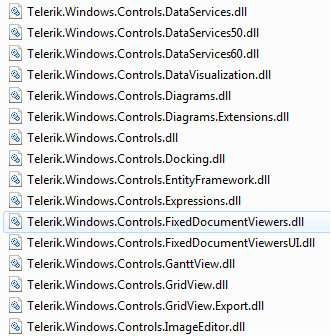
If you wonder which control belongs to which assembly, take a look at the main topic about Telerik UI for WPF control-to-assembly dependencies.
-
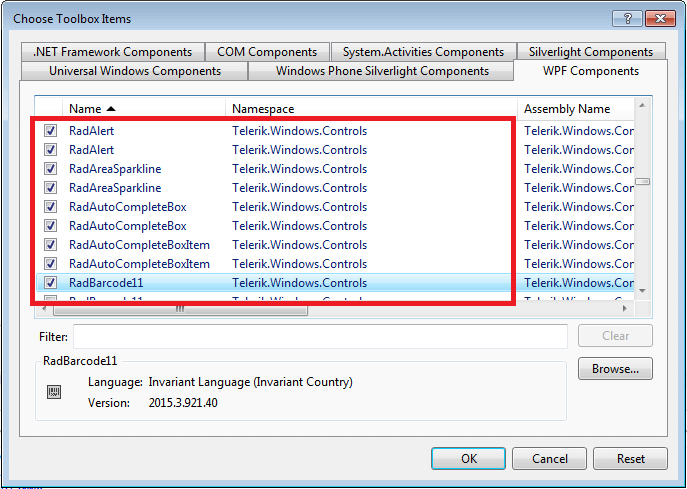
Press OK to include the controls in your toolbox or filter the controls you want to add.
-
Expand your toolbox. You will see the newly added controls in the "UI for WPF" section.
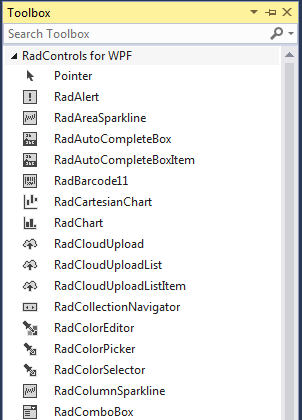
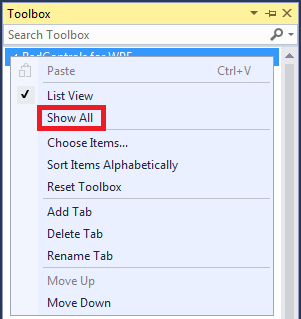
After clicking the OK button of the "Choose Toolbox Items", it is possible that the "UI for WPF" tab in the toolbox may be hidden. If that happens, move the mouse pointer over the Toolbox area and right-click the mouse and then select the Show All command from the shortcut menu.