Cell Text Rotation
RadSpreadsheet allows you to change the orientation of the text displayed inside a cell by rotating it. This is useful, for example, when you want to fit narrow column headers by displaying their text at an angle or vertically instead of horizontally.
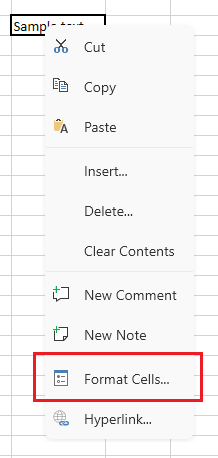
The text orientation of the selected cells can be changed through the ribbon, the worksheet editor's context menu that can be used to open the Format Cells dialog. It can also be set programmatically through the API of RadWorksheetEditor.
Changing the Text Orientation through the UI
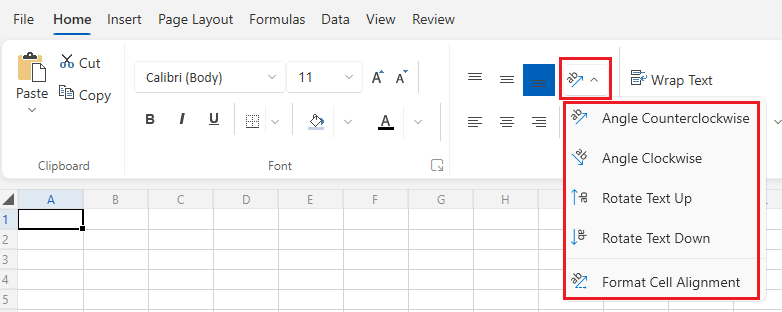
The Home tab of the ribbon exposes a Text Orientation drop-down button in the Alignment group. It provides four predefined orientations and a shortcut to the Format Cells dialog for setting a custom angle:
- Angle Counterclockwise—Rotates the text 45 degrees counterclockwise.
- Angle Clockwise—Rotates the text 45 degrees clockwise.
- Rotate Text Up—Rotates the text 90 degrees, so it reads vertically from bottom to top.
- Rotate Text Down—Rotates the text -90 degrees, so it reads vertically from top to bottom.
- Format Cell Alignment—Opens the Alignment tab of the Format Cells dialog.
RadSpreadsheet Text Orientation Ribbon Button
Rotation options are available also in the Alignment tab of the Format Cells dialog. The text orientation element lets you drag to any angle between -90 and 90 degrees, or type the exact number of degrees.
RadSpreadsheet Text Orientation via the Format Cells Dialog
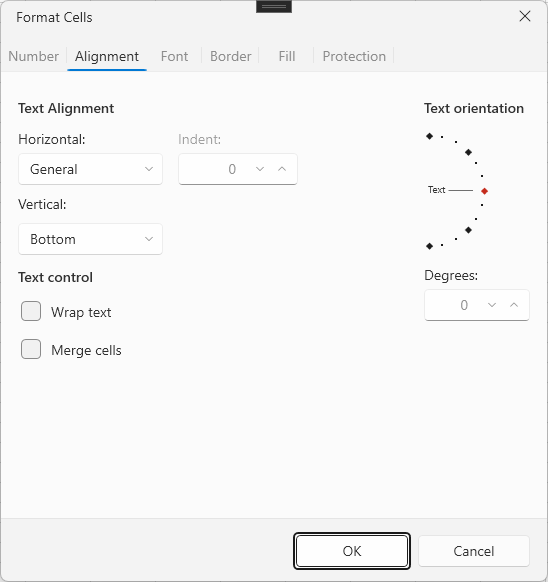
Setting the rotation angle to 0 (either from the dial or by typing it) clears any existing rotation and restores the default horizontal text.
Setting the Text Orientation Programmatically
The rotation options available in the UI map to the TextOrientationType enumeration, exposed in the Telerik.Windows.Controls.Spreadsheet namespace:
AngleCounterclockwise—Corresponds to a 45-degree rotation.AngleClockwise—Corresponds to a -45-degree rotation.RotateTextUp—Corresponds to a 90-degree rotation.RotateTextDown—Corresponds to a -90-degree rotation.
Using the SetTextOrientationCommand
RadWorksheetEditor exposes the SetTextOrientationCommand through its Commands property. The command applies the requested orientation to the currently selected cells and is the same command used by the ribbon and the context menu.
Rotating the Text of the Selected Cells through a Command
RadWorksheetEditor editor = this.radSpreadsheet.ActiveWorksheetEditor;
editor.Selection.Select(new CellRange(0, 0, 0, 0));

editor.Commands.SetTextOrientationCommand.Execute(TextOrientationType.RotateTextUp);
The command is also exposed as a SetTextOrientation command descriptor on WorksheetCommandDescriptors, which lets you bind the IsEnabled state of a custom button to the current selection and protection state. For more information on command descriptors, see the Command Descriptors article.
Binding a Custom Menu Item to the Text Orientation Command Descriptor
<telerik:RadMenuItem Header="Rotate Text Up"
                      Command="{Binding Path=SetTextOrientation.Command}"
                      CommandParameter="{x:Static spreadsheet:TextOrientationType.RotateTextUp}" />
The spreadsheet namespace prefix used above maps to clr-namespace:Telerik.Windows.Controls.Spreadsheet;assembly=Telerik.Windows.Controls.Spreadsheet.
Setting an Arbitrary Rotation Angle Directly on the Cells
To set a custom rotation angle without going through the command (for example, when generating a workbook in code), use the SetTextRotation(), GetTextRotation(), and ClearTextRotation() methods exposed on a cell selection.
Reading and Changing the Rotation of a Cell
Worksheet worksheet = this.radSpreadsheet.ActiveWorksheet;
CellSelection cell = worksheet.Cells[0, 0];

// The rotation angle must be between -90 and 90 degrees.
cell.SetTextRotation(30);

int currentRotation = cell.GetTextRotation().Value;

// Clears the rotation and restores the default horizontal text.
// cell.ClearTextRotation();
The
TextRotationproperty is also available onCellStyleinstances, so a rotation angle can be included when you define a reusable cell style through the Style dialog.