Frozen Columns
With the R1 2018, RadGridView supports pinning columns both on its left and right side. Prior this version, the FrozenColumnsCount property was available, through which columns could be frozen on the left side only. With the newer functionality this property is obsolete. It is replaced with the LeftFrozenColumnCount and RightFrozenColumnCount properties.
Left Frozen Columns
RadGridView provides an easy way to select one or more columns and exclude them from the horizontal scrolling. The frozen columns stay static on top of the horizontal scrolling. To freeze a column on the left, the user has to drag the left frozen columns separator.
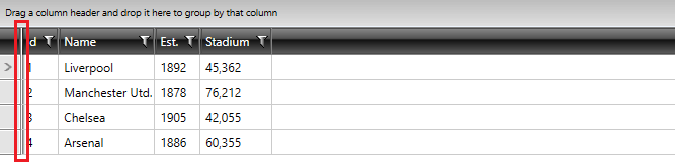
Once there is a frozen column, you can freeze other columns by dragging their headers behind the frozen columns separator.
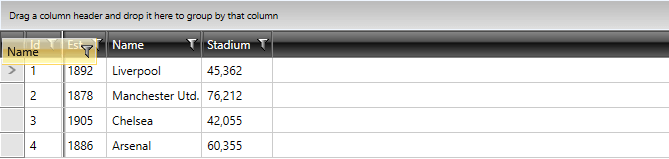
Similarly, you can unfreeze columns by dragging their headers outside the frozen columns separator.
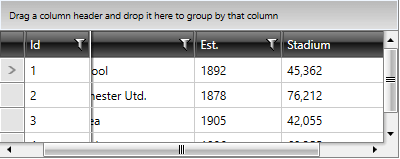
A frozen column always stays on top of horizontal scrolling.
Right Frozen Columns
The approach of using the right side frozen columns is basically the same. The only difference is that the RightFrozenColumnsSplitterVisibility property of RadGridView needs to be set to Visible, as by default it is hidden.
Freezing Columns Programmatically
In order to programmatically freeze columns on the right side, the RightFrozenColumnsSplitterVisibility property needs to be set to Visible.
You can freeze columns programmatically using the LeftFrozenColumnCount and RightFrozenColumnCount properties of RadGridView control. They are both numeric and you have to set them to the number of columns you wish to freeze.
In the following example, the first two columns are frozen starting from left to right.
Setting LeftFrozenColumnCount
<telerik:RadGridView LeftFrozenColumnCount="2" />Setting LeftFrozenColumnCount
this.radGridView.LeftFrozenColumnCount = 2;Me.radGridView.LeftFrozenColumnCount = 2In the following example, the first two columns are frozen starting from right to left.
Setting RightFrozenColumnCount
<telerik:RadGridView RightFrozenColumnCount="2" />Setting RightFrozenColumnCount
this.radGridView.RightFrozenColumnCount = 2;Me.radGridView.RightFrozenColumnCount = 2Disabling Frozen Columns
To disable the freezing of a column, just set the CanUserFreezeColumns to False (as shown in the following example) and the frozen columns separator will disappear.
Disabling Frozen Columns
<telerik:RadGridView x:Name="radGridView"
             CanUserFreezeColumns="False" />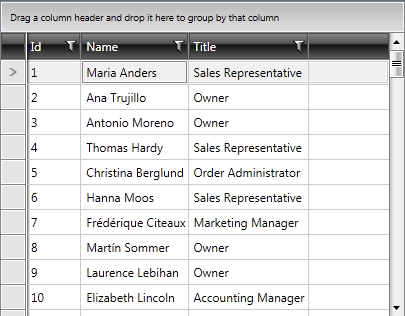
Hiding the Left Frozen Columns Splitter
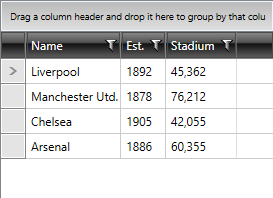
You can set the FrozenColumnsSplitterVisibility property of the RadGridView control in order to hide/show the left frozen columns splitter.
The property has one of three values:
Visible—Displays the element.Hidden—Does not display the element, but reserves space for the element in the layout.Collapsed—Does not display the element, and does not reserve space for it in the layout.
FrozenColumnsSplitterVisibility set to Visible and Hidden/Collapsed, respectively

Frozen Columns Events
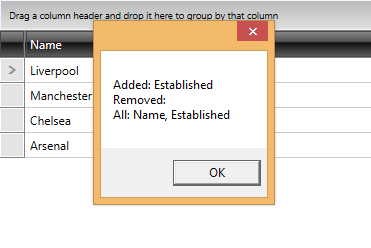
The RadGridView control exposes the FrozenColumnsChanged event which is fired whenever columns are frozen or unfrozen.
The following example shows that you can subscribe to the event either declaratively or at runtime like this:
Subscribing to the FrozenColumnsChanged Event
<telerik:RadGridView x:Name="gridView"
             FrozenColumnsChanged="gridView_FrozenColumnsChanged" />
Subscribing to the FrozenColumnsChanged Event
gridView.FrozenColumnsChanged += new EventHandler<FrozenColumnsChangedEventArgs>(gridView_FrozenColumnsChanged);AddHandler Me.gridView.FrozenColumnsChanged, AddressOf gridView_FrozenColumnsChangedVia the FrozenColumnsChangedEventArgs, you can get the:
AddedFrozenColumns—the columns that were added to the collection of frozen columnsRemovedFrozenColumns—the columns that were removed from the collection of frozen columnsAllFrozenColumns—the collection of frozen columns
The next example shows how you can get the names of the columns currently in the frozen columns collection as well as the columns added or removed from it.
Using the FrozenColumnsChanged Event
private void gridView_FrozenColumnsChanged(object sender, Telerik.Windows.Controls.GridView.GridView.FrozenColumnsChangedEventArgs e)
{
    var msg = "Added: " + string.Join(", ", e.AddedFrozenColumns.Select(x => x.UniqueName)) +
        "\nRemoved: " + string.Join(", ", e.RemovedFrozenColumns.Select(x => x.UniqueName)) +
        "\nAll: " + string.Join(", ", e.AllFrozenColumns.Select(x => x.UniqueName));
    MessageBox.Show(msg);
}Private Sub gridView_FrozenColumnsChanged(ByVal sender As Object, ByVal e As Telerik.Windows.Controls.GridView.GridView.FrozenColumnsChangedEventArgs)
Dim msg = "Added: " & String.Join(", ", e.AddedFrozenColumns.Select(Function(x) x.UniqueName)) & ControlChars.Lf & "Removed: " & String.Join(", ", e.RemovedFrozenColumns.Select(Function(x) x.UniqueName)) & ControlChars.Lf & "All: " & String.Join(", ", e.AllFrozenColumns.Select(Function(x) x.UniqueName))
MessageBox.Show(msg)
End Sub
Frozen Columns Threshold
The RadGridView control allows you to specify a threshold for both the left and right frozen columns' splitters when dragging. The drag delta (distance) required for the splitter to freeze or unfreeze a column is controlled by the LeftFrozenColumnSplitterThreshold and RightFrozenColumnSplitterThreshold properties of RadGridView. The properties are of type double and accepted values are between 0 and 1. Setting one of the properties to 0 means that the column will be frozen/unfrozen immediately when the splitter is dragged and 1 means that the column will be frozen/unfrozen only when the splitter is dragged all the way to the end of the column's width. The default value for both properties is 0.5, which means that the column will be frozen/unfrozen when the splitter drag delta reaches at least half (50%) of the column's width.
Setting the LeftFrozenColumnSplitterThreshold and RightFrozenColumnSplitterThreshold Properties
<telerik:RadGridView x:Name="radGridView"
             	LeftFrozenColumnSplitterThreshold="0.3"
RightFrozenColumnSplitterThreshold="0.7" />this.radGridView.LeftFrozenColumnSplitterThreshold = 0.3;
this.radGridView.RightFrozenColumnSplitterThreshold = 0.7;Me.radGridView.LeftFrozenColumnSplitterThreshold = 0.3
Me.radGridView.RightFrozenColumnSplitterThreshold = 0.7