HTML-like Text Formatting
Use HTML-like text formatting to display styled text in Telerik UI for WinForms controls that render text through the Telerik Presentation Framework (TPF). Start the text value with the <html> tag, and then apply supported tags to control font styling, links, lists, paragraphs, and images.
Related Video
Enhanced HTML-like Markup Support explains the text rendering tags introduced in the R3 2009 release, shows RadMarkupEditor, and demonstrates how to use it in your applications.
How HTML-like Text Formatting Works
TPF extends the text primitive that Telerik UI for WinForms controls use to render text. As a result, many Telerik controls can display rich text by parsing a limited set of HTML-like tags. This formatting engine is intended for styled text output. It is not a full HTML or CSS renderer.
As of R1 2021, HTML-like formatting supports custom fonts.
To enable HTML-like formatting:
- Set the text property of a Telerik control to a string that starts with
<html>. - Add the supported tags that describe the formatting you want.
- Use
<span>when you need to apply color, font family, or font size in a way that is compatible withRadMarkupEditor.
The following example shows the minimum required structure:
<html><b>Formatted text</b></html>Supported Tags
| Tag | End Tag | Description |
|---|---|---|
<font> | N/A | Sets the font family. Prefer <span> because RadMarkupEditor does not support <font>. |
<color> | N/A | Sets the text color. Prefer <span> because RadMarkupEditor does not support <color>. |
<size> | N/A | Sets the font size. Prefer <span> because RadMarkupEditor does not support <size>. |
<b>, <strong> | </b>, </strong> | Displays bold text. |
<i>, <em> | </i>, </em> | Displays italic text. |
<u> | </u> | Underlines text. |
<br> | N/A | Inserts a line break. |
<p> | </p> | Creates a paragraph. |
<span> | </span> | Applies limited inline styling through font-family, font-size, color, and background-color. Use this tag when possible. |
<ol> | </ol> | Creates an ordered list. |
<ul> | </ul> | Creates an unordered list. |
<li> | </li> | Creates a list item inside an ordered or unordered list. |
<strike> | </strike> | Displays strikethrough text. |
<a> | </a> | Creates a hyperlink. |
<img> | N/A | Displays an image. |
Common Formatting Examples
The examples below cover the most common formatting tasks.
Bold, Italic, and Underline
The following example combines bold, italic, and underlined text:
<html>
	<b>some <i> text </i></b><u> some text </u>
</html>
Paragraphs
Use <p> to separate text into paragraphs:
<html>
	<p>First paragraph</p>
	<p>Second paragraph</p>
</html>
Font Color
Set the text color by using a named color such as red or a hexadecimal value such as #0000FF:
<html>
	<span style="color:red">font color (color name) </span>
	<span style="color:#0000FF">font color (hex color) </span>
</html>
Font Size
You can use relative sizes such as larger and smaller, named absolute sizes such as small or x-large, or point values. The default font size in Windows Forms on most systems is 8.25pt, which is the value returned by SystemFonts.DefaultFont.
<html>
    <span style="font-size:large">font size(absolute) </span>
	<span style="font-size:12">font size in pt(s) (absolute) </span>
    <span style="font-size:smaller">font size(relative) </span>
</html>
Highlighted Text
Use background-color to highlight text:
<html><span style="background-color:red">Highlighted Text</span></html>Font Family
Set the font family through the style attribute of a <span> tag:
<html><span style="font-family:georgia">Font Family</span></html>Strikethrough Text
Use <strike> to display strikethrough text:
<html><strike> Some text </strike></html>Links and Images
Use hyperlinks when you want formatted text to navigate to another location, and use images when text alone is not enough.
Links
The following example shows the Telerik hyperlink markup that opens an external link:
<html><a href="<externalLink><linkText>www.telerik.com</linkText><linkUri>http://www.telerik.com</linkUri></externalLink>"> Telerik Corporation</a></html>Images
Use <img> to display an image in the formatted text:
<html><img src="ImagePath"></html>The image path can point to an embedded resource or to a file on disk. To specify a resource, use the res: prefix:
<img src="res:Telerik.Examples.WinControls.SomeImage.jpg">To specify a file on disk, provide the full path, for example src="C:\some path\image.png", or use ~ to refer to the current directory, for example src="~\some path\image.gif". All image formats supported by the .NET Image class are supported by the <img> tag.
RadMarkupEditor specifics
RadMarkupEditor and TextPrimitive share much of the same formatting model, but they do not support exactly the same tags. TextPrimitive also supports several non-standard tags.
See the RadMarkupDialog article for the list of supported tags. The
font,color, andsizetags are rendered byTextPrimitive, but they are not supported byRadMarkupDialog.
You can use <size=[+|-]value> to change the font size, <br> to insert a new line, and the matching opening and closing tags to apply bold, underline, or italic formatting. Set the font family through <font=Family>.
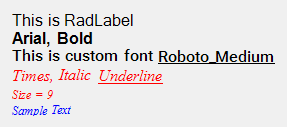
The following code snippet produces the formatted result shown in the screenshot:
RadLabel markup with mixed font styles, colors, sizes, and custom font content
this.radLabel1.Text = "<html><size=12>This is RadLabel <br><b><font=Arial>Arial, Bold</b><br><i><color= Red><font=Times New Roman>Times, Italic <u>Underline</u><br><size=9>Size = 9<br><color= 0, 0, 255>Sample Text";
Figure 1: A RadLabel that displays multiple HTML-like text styles
Display Multiple Hyperlinks in RadLabel
RadLabel can display multiple hyperlinks in a single formatted text block. The following example shows how to define several links:
this.radLabel1.Text = "<html><size=12><a href=www.telerik.com>Telerik</a>" + Environment.NewLine +
                      "<a href=www.telerik.com/help/winforms>Documentation</a> " + Environment.NewLine +
                      "<a href=www.telerik.com/forums/winforms>Forum</a> ";
The hyperlink colors are controlled by these static properties:
TinyHTMLParsers.LinkColor: Default hyperlink color.TinyHTMLParsers.LinkClickedColor: Visited hyperlink color.
Figure 2: A RadLabel that displays multiple hyperlinks

Detect the Clicked Hyperlink
If a RadLabel contains multiple hyperlinks, you can detect which one the user clicked. The example below inspects the TextPrimitiveHtmlImpl.TextBlock.Lines collection and finds the FormattedText instance under the mouse pointer.
private void RadLabel1_MouseDown(object sender, MouseEventArgs e)
{
    TextPrimitiveHtmlImpl text = this.radLabel1.LabelElement.LabelText.Impl as TextPrimitiveHtmlImpl;
    FormattedTextBlock textBlock = text.TextBlock;
    FormattedText clickedLink = IsMouseOverBlock(textBlock, e);
    if (clickedLink != null)
    {
        MessageBox.Show(clickedLink.Text + " pressed");
    }
}

private FormattedText IsMouseOverBlock(FormattedTextBlock textBlock, MouseEventArgs e)
{
    Point elementAtPoint = this.radLabel1.LabelElement.PointFromControl(e.Location);
    int linesCount = textBlock.Lines.Count;
    for (int i = 0; i <= linesCount - 1; i++)
    {
        TextLine textLine = textBlock.Lines[i];
        int textLineCount = textLine.List.Count;
        for (int j = 0; j <= textLineCount - 1; j++)
        {
            FormattedText formattedText = textLine.List[j];
            if (formattedText.DrawingRectangle.Contains(elementAtPoint))
            {
                //found link under mouse
                return formattedText;
            }
        }
    }

    return null;
}