New to Telerik UI for WinForms? Start a free 30-day trial
Updating the Header Text of RadScheduler in Month View
Updated over 1 year ago
Environment
| Product | Version | Author |
|---|---|---|
| RadScheduler for WinForms | 2024.2.514 | Nadya Todorova |
Description
An example demonstrating how the header text that shows the start/end week date of the RadScheduler can be updated to show the dates in different format when the control is setup in Month View.
Solution
To change the format of the header cells that are shown in the MonthViewVerticalHeader you can use the ElementInvalidated event. Please refer to the following code snippet that demonstrates how you can change the date format to "dd.MM.yyyy".
Figure 1: Custom Header Text
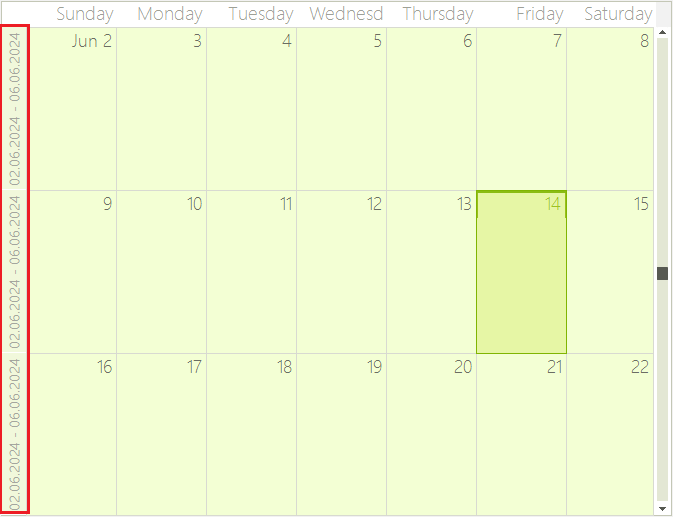
Updating Header in MonthViewVerticalHeader
C#
public RadForm1()
{
    InitializeComponent();
    this.radScheduler1.ActiveViewType = Telerik.WinControls.UI.SchedulerViewType.Month;
    this.radScheduler1.ElementInvalidated += RadScheduler1_ElementInvalidated;
}

private void RadScheduler1_ElementInvalidated(object sender, EventArgs e)
{
    SchedulerHeaderCellElement cell = sender as SchedulerHeaderCellElement;
    string firstDayFormat = "dd.MM.yyyy";
    string lastDayFormat = "dd.MM.yyyy";
    SchedulerMonthView MonthView = this.radScheduler1.GetMonthView();
    if (MonthView != null)
    {
        DateTime dateToRender = MonthView.StartDate;
        int days = 6;

        if (MonthView.ShowWeekend)
        {
            days = 4;
        }

        if (cell != null && cell.Parent is MonthViewVerticalHeader)
        {
            cell.Text = String.Format(this.radScheduler1.DateTimeFormat, "{0} - {1}",
                dateToRender.ToString(firstDayFormat, this.radScheduler1.DateTimeFormat),
                dateToRender.AddDays(days).ToString(lastDayFormat, this.radScheduler1.DateTimeFormat));

            dateToRender = this.radScheduler1.DateTimeFormat.Calendar.AddWeeks(dateToRender, 1);
        }
    }
}