New to Telerik UI for WinForms? Start a free 30-day trial
Accessing and Customizing Elements
Updated on Aug 27, 2026
RadVirtualKeyboard arranges its keys in logical layouts which control the specific position for each key. Before proceeding further, it is recommended to get yourself familiar with the Structure and Logical Keyboard Layout of the virtual keyboard.
The VirtualKeyboardLayout offers a public Rows property which is an ObservableCollection of Row instances. Each Row represents a logical structure used to organize the keys stored in the Keys property. Thus, accessing the keys collection for the respective layout, you can customize a certain Key.
The following code snippet demonstrates how to customize the F1 button from the functions layout and the * key from the numpad layout.
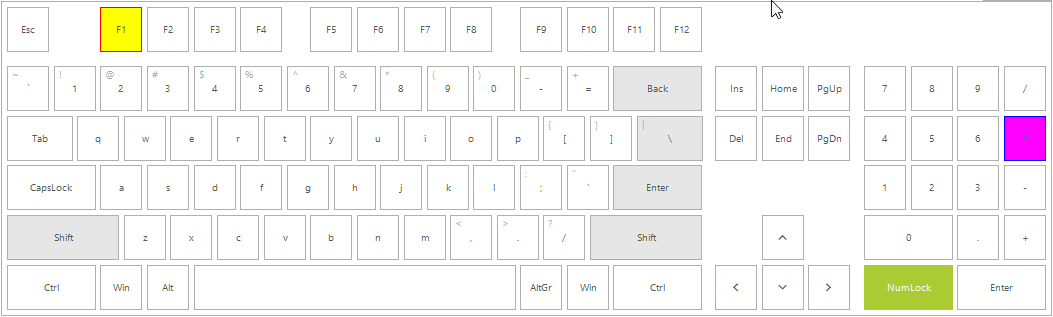
C#
this.radVirtualKeyboard1.LayoutType = Telerik.WinControls.VirtualKeyboard.KeyboardLayoutType.Extended;
ExtendedVirtualKeyboardLayoutPanel extendedKeyboard = radVirtualKeyboard1.MainLayoutPanel as ExtendedVirtualKeyboardLayoutPanel;
VirtualKeyboardLayout functionsLayout = extendedKeyboard.FunctionButtonsLayout;
VirtualKeyboardLayout numpadLayout = extendedKeyboard.NumpadButtonsLayout;
Key key = functionsLayout.Rows[0].Keys[2] as Key;
key.BackColor = Color.Yellow;
key.BorderBoxStyle = BorderBoxStyle.SingleBorder;
key.BorderColor = Color.Red;
key.BorderGradientStyle = GradientStyles.Solid;
key = numpadLayout.Rows[1].Keys[3] as Key;
key.BackColor = Color.Fuchsia;
key.BorderBoxStyle = BorderBoxStyle.SingleBorder;
key.BorderColor = Color.Blue;
key.BorderGradientStyle = GradientStyles.Solid;