New to Telerik UI for WinForms? Start a free 30-day trial
Custom Overlay Screen
Updated on Aug 27, 2026
This tutorial will walk you through how you can create a custom Overlay Screen.
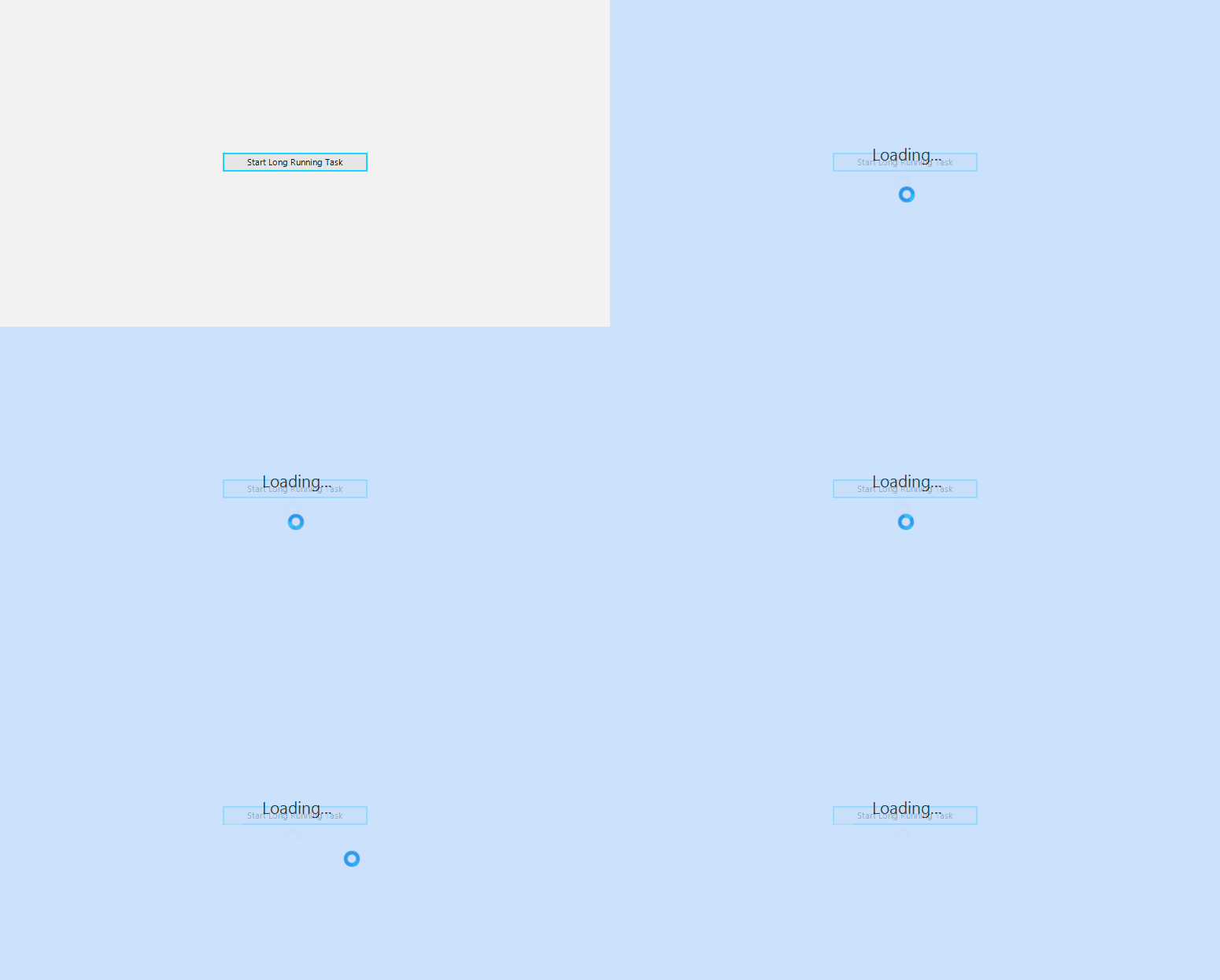
1. To create a custom overlay screen, we can create our own form/class which derives from RadOverlayForm. Then, we can construct our new overlay form per our requirements. For the purpose of this example, we are going to add a label in the midding of the form. We can call the base class with a false parameter to remove the default RadWaitingBar control.
Custom RadOverlayForm
C#
public class CustomOverlayForm : RadOverlayForm
{
    private RadLabel loadingLabel;
    public CustomOverlayForm() : base(false)
    {
        loadingLabel = new RadLabel();
        this.loadingLabel.Parent = this;
        this.loadingLabel.ForeColor = Color.Black;
        this.loadingLabel.Font = new Font(loadingLabel.Font.FontFamily, 16);
        this.loadingLabel.Text = "Loading...";
    }
    protected override void OnSizeChanged(EventArgs e)
    {
        base.OnSizeChanged(e);

        this.UpdateLoadingLabelLocation();
    }
    private void UpdateLoadingLabelLocation()
    {
        if (this.loadingLabel == null)
        {
            return;
        }

        var total = this.ClientSize;
        var wbSize = this.loadingLabel.Size;
        Point location = new Point();
        location.X = (total.Width - wbSize.Width) / 2;
        location.Y = (total.Height - wbSize.Height) / 2;
        this.loadingLabel.Location = location;
    }
}C#
public class CustomOverlayForm : RadOverlayForm
{
	private RadLabel loadingLabel;
	public CustomOverlayForm() : base(false)
	{
		loadingLabel = new RadLabel();
		this.loadingLabel.Parent = this;
		this.loadingLabel.ForeColor = Color.Black;
		this.loadingLabel.Font = new Font(loadingLabel.Font.FontFamily, 16);
		this.loadingLabel.Text = "Loading...";
	}
	protected override void OnSizeChanged(EventArgs e)
	{
		base.OnSizeChanged(e);

		this.UpdateLoadingLabelLocation();
	}
	private void UpdateLoadingLabelLocation()
	{
		if (this.loadingLabel == null)
		{
			return;
		}

		var total = this.ClientSize;
		var wbSize = this.loadingLabel.Size;
		Point location = new Point();
		location.X = (total.Width - wbSize.Width) / 2;
		location.Y = (total.Height - wbSize.Height) / 2;
		this.loadingLabel.Location = location;
	}
}
2. Next step is to apply our custom form by returning it in the CreateFrom of the OverlayScreen class.
Custom OverlayScreen
C#
public class CustomOverlayScreen : OverlayScreen
{
    public override RadOverlayForm CreateFrom()
    {
        return new CustomOverlayForm();
    }
}C#
public class CustomOverlayScreen : OverlayScreen
{
	public override RadOverlayForm CreateFrom()
	{
		return new CustomOverlayForm();
	}
}
3. Our final step is to replace the default overlay screen with our custom one by setting the RadOverlayManager.OverlayInstance static property.
Override OverlayInstance
C#
public void SetCustomOverlayScreen()
{
    RadOverlayManager.OverlayInstance = new CustomOverlayScreen();
}C#
public void SetCustomOverlayScreen()
{
	RadOverlayManager.OverlayInstance = new CustomOverlayScreen();
}