Working with Resources
When RadScheduler is grouped by resources, it stores them in the Resources collection. Each Resource offers the following properties:
| Resource's properties | Description | Type |
|---|---|---|
| Name | Gets or sets the name of the resource. | string |
| Id | Gets or sets the id of the resource. | EventId |
| Image | Gets or sets the image of the resource. | Image |
| Visible | Gets or sets a value indicating whether this resource is visible. | bool |
| Color | Gets or sets the color that is associated with the resource. | Color |
One Appointment may refer to one or many resources. Each Appoinment offers two properties that allow managing its resource/resources:
- ResourceId - represents the EventId of the resource to which this appointment is associated.
- ResourceIds - represents an ObservableCollection of EventIds to which this appointment is associated.
Using the EditAppointmentDialog allows you to assign only a single resource for the appointment. If you want to specify which multiple resources exactly are applied, it can be set programmically to the Appointment via the ResourcesIds property. However, selecting Any from the dialog, will generate an event for all existing resources in RadScheduler.
Apply a single resource to an appointment
Appointment appointment = new Appointment(DateTime.Today.AddDays(1).AddHours(12).AddMinutes(30), TimeSpan.FromHours(2), "Business Lunch");
appointment.ResourceId = this.radScheduler1.Resources[2].Id;
this.radScheduler1.Appointments.Add(appointment);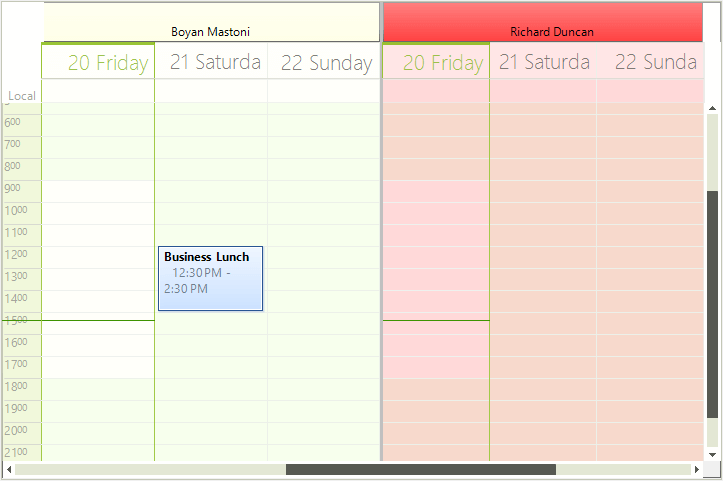
Apply multiple resources to an appointment
Appointment appointmentWithMultipleResources = new Appointment(DateTime.Today.AddDays(1).AddHours(12).AddMinutes(30), TimeSpan.FromHours(2), "Business Lunch");
appointmentWithMultipleResources.ResourceIds.Add(this.radScheduler1.Resources[2].Id);
appointmentWithMultipleResources.ResourceIds.Add(this.radScheduler1.Resources[1].Id);
this.radScheduler1.Appointments.Add(appointmentWithMultipleResources);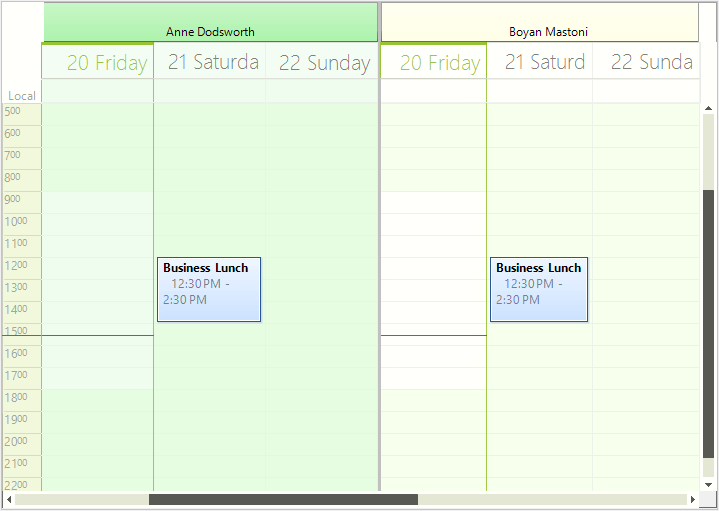
When multiple resources are associated with an appointment, the Resource field in the EditAppointmentDialog shows Any:
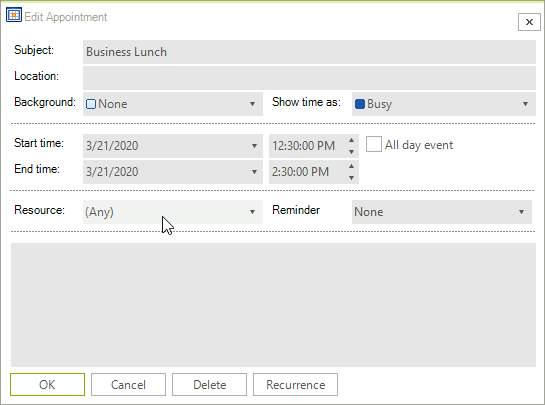
As of R1 2021 the EditAppointmentDialog provides UI for selecting multiple resources per appointment. In certain cases (e.g. unbound mode), the Resource RadDropDownList is replaced with a RadCheckedDropDownList. Otherwise, the default drop down with single selection for resources is shown. To enable the multiple resources selection in bound mode, it is necessary to specify the AppointmentMappingInfo. Resources property. The Resources property should be set to the name of the relation that connects the Appointments and the AppointmentsResources tables.
EditAppointmentDialog with multiple Resources
