Drag and Drop from Another Control
This article will demonstrate how you can create shapes in RadDiagram after dragging an object from a separate control, in our case RadGridView.
Figure 1: Grid to Diagram Drag and Drop
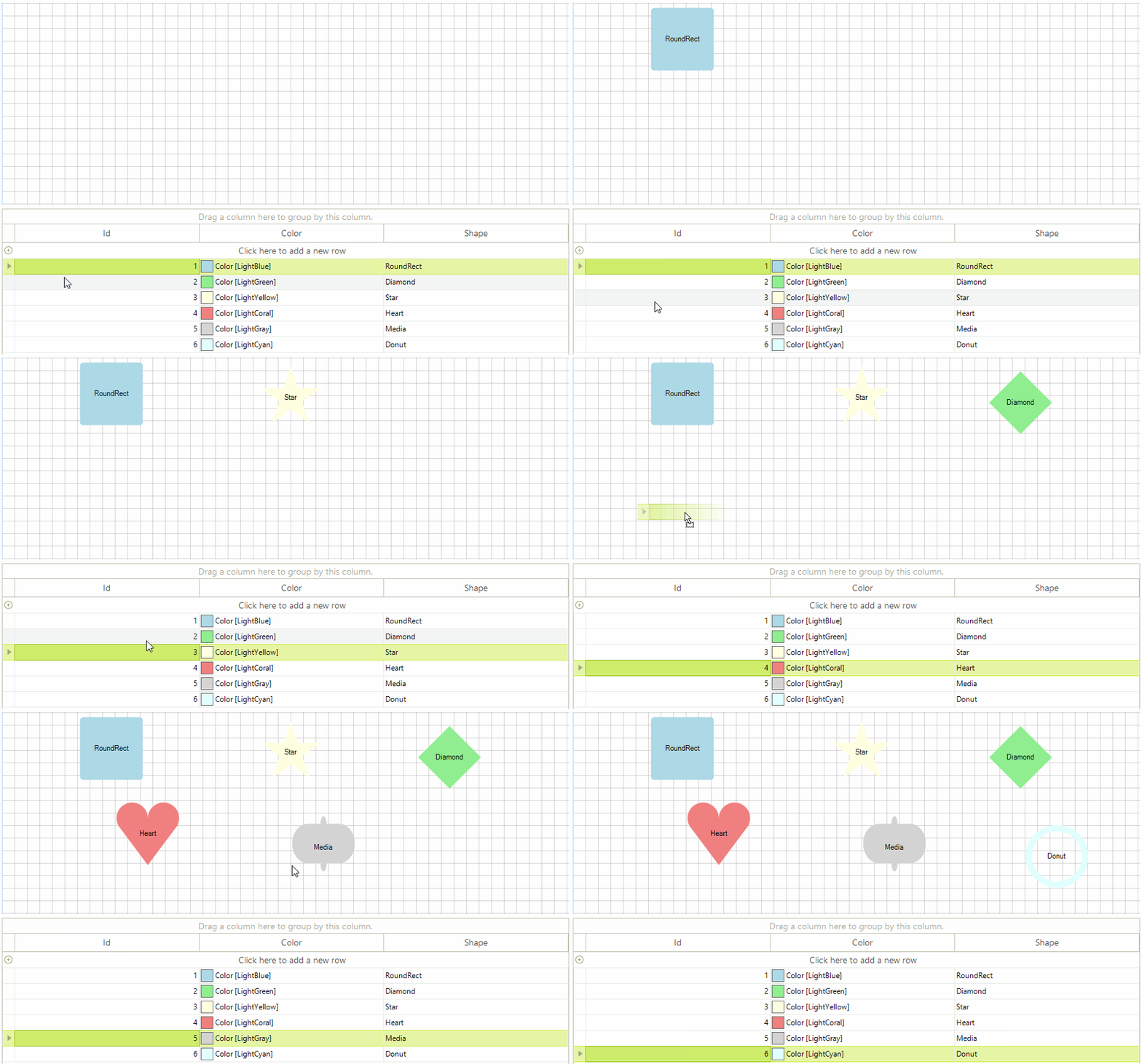
Preparing RadGridView for Drag and Drop
The drag and drop behavior in RadGridView is controlled by a service class. We are going to start this service when performing a mouse down operation on a certain row in the grid. In order to execute our custom logic we also need a custom row behavior class responsible for handling the user actions. We can change the default row behavior and subscribe to the service events in the form`s constuctor.
Setup RadGridView
public DiagramDragAndDropGrid()
{
    InitializeComponent();

    BaseGridBehavior gridBehavior = this.radGridView1.GridBehavior as BaseGridBehavior;
    gridBehavior.UnregisterBehavior(typeof(GridViewDataRowInfo));
    gridBehavior.RegisterBehavior(typeof(GridViewDataRowInfo), new CustomRowGridBehavior());

    this.radGridView1.DataSource = this.GetData();
    this.radGridView1.AutoSizeColumnsMode = Telerik.WinControls.UI.GridViewAutoSizeColumnsMode.Fill;

    RadGridViewDragDropService svc = this.radGridView1.GridViewElement.GetService<RadGridViewDragDropService>();
    svc.PreviewDragDrop += svc_PreviewDragDrop;
    svc.PreviewDragOver += svc_PreviewDragOver;
    svc.PreviewDragStart += svc_PreviewDragStart;
}

private BindingList<GridModel> GetData()
{
    Color[] colors = new Color[] { Color.LightBlue, Color.LightGreen, Color.LightYellow, Color.LightCoral, Color.LightGray, Color.LightCyan };
    string[] shapes = new string[] { "RoundRect", "Diamond", "Star", "Heart", "Media", "Donut" };

    BindingList<GridModel> data = new BindingList<GridModel>();
    for (int i = 0; i < shapes.Length; i++)
    {
        data.Add(new GridModel
        {
            Id = i + 1,
            Color = colors[i],
            Shape = shapes[i]
        });
    }

    return data;
}For the purpose of the example we will define a grid model object storing information about the shapes.
Grid Helpers
public class GridModel
{
    public int Id { get; set; }

    public Color Color { get; set; }

    public string Shape { get; set; }
}

public class CustomRowGridBehavior : GridDataRowBehavior
{
    protected override bool OnMouseDownLeft(MouseEventArgs e)
    {
        GridDataRowElement row = this.GetRowAtPoint(e.Location) as GridDataRowElement;
        if (row != null)
        {
            RadGridViewDragDropService svc = this.GridViewElement.GetService<RadGridViewDragDropService>();
            svc.Start(row);
        }

        return base.OnMouseDownLeft(e);
    }
}Handling Events
RadDiagram will accept the dragged data only if it is dropped on the diagram element. The PreviewDragDrop event handler will be responsible for reading the data and transforming it to a shape.
Drag and Drop Events
private void svc_PreviewDragStart(object sender, PreviewDragStartEventArgs e)
{
    e.CanStart = true;
}

private void svc_PreviewDragOver(object sender, RadDragOverEventArgs e)
{
    if (e.DragInstance is GridDataRowElement)
    {
        e.CanDrop = e.HitTarget is RadDiagramElement;
    }
}

private void svc_PreviewDragDrop(object sender, RadDropEventArgs e)
{
    RadDiagramElement targetElement = e.HitTarget as RadDiagramElement;
    GridDataRowElement draggedRow = e.DragInstance as GridDataRowElement;

    if (draggedRow == null)
    {
        return;
    }

    GridModel data = (GridModel)draggedRow.Data.DataBoundItem;
    RadDiagramShape shape = new RadDiagramShape()
    {
        Text = data.Shape,
        ElementShape = this.GetShapeFromModel(data),
        BackColor = data.Color
    };

    shape.Position = e.DropLocation;
    this.radDiagram1.AddShape(shape);
}

private ElementShape GetShapeFromModel(GridModel data)
{
    ElementShape shape = null;
    switch (data.Shape)
    {
        case "RoundRect":
            shape = new RoundRectShape();
            break;
        case "Diamond":
            shape = new DiamondShape();
            break;
        case "Star":
            shape = new StarShape();
            break;
        case "Heart":
            shape = new HeartShape();
            break;
        case "Media":
            shape = new MediaShape();
            break;
        case "Donut":
            shape = new DonutShape();
            break;
        default:
            shape = new CustomShape();
            break;
    }

    return shape;
}