Using Conditional Formatting
To visually highlight important data, Conditional formatting lets you automatically style report items based on the values they display. This makes your reports more dynamic and easier to read. For example, you can set a TextBox showing revenue to turn red if the value drops below 10,000. This helps you draw attention to numbers that need review or action.

Formatting a Single Item
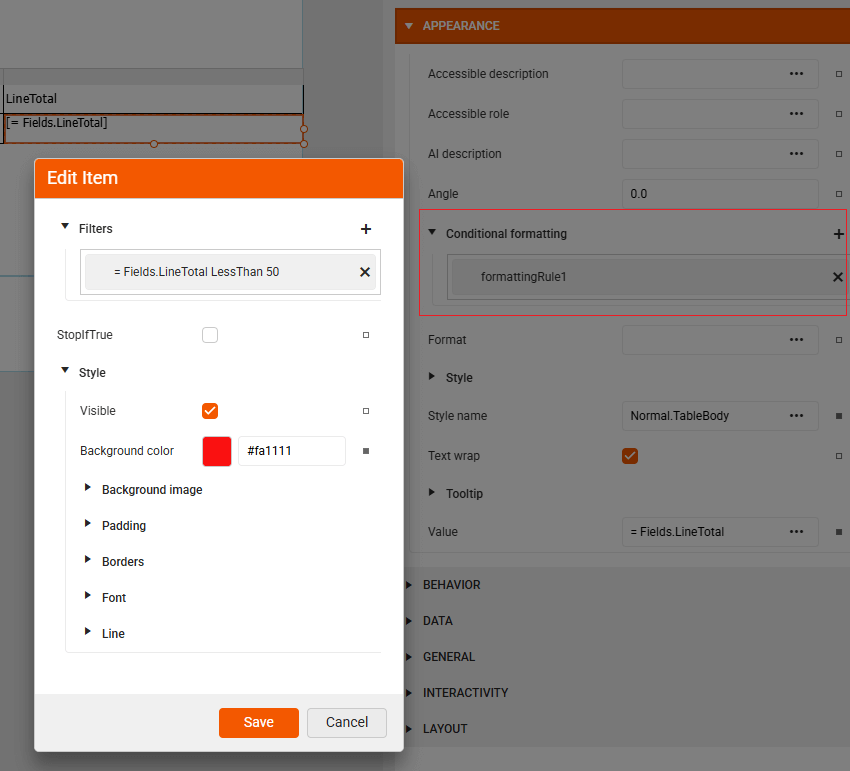
To format a single cell value based on a specific condition, for example, LineTotal < 50:
-
Populate a Table report item with data to format.
-
Select the desired TextBox item (for example, LineTotal).
-
Type "Conditional formatting" in the search box.
-
Add a new formatting rule with the desired expression (for example, "=Fields.LineTotal LessThan 50").
-
Apply the desired style settings for the added rule (for example, red background).
The quick video tutorial below shows how to apply conditional formatting to a LineTotal TextBox in a table by changing its color to red when a value is less than 50.
Formatting Multiple Items
If you want to apply the same rule to the entire row with data, it requires you to apply rules individually to each item one by one. However, to save time, you can group items inside a Panel and apply the conditional formatting to the panel itself. This way, the Panel (and everything inside it) will be styled based on your condition. This approach is shown in the following video:
Some style properties are inherited (for example, font-related properties). These would be inherited by each item in the container (panel in this case). Others are not inherited (for example, borders). If you want to apply borders to multiple items, select each item and edit the conditional formatting for the respective item.
Alternating Row Style
To make it easier for users to distinguish between rows, especially in large tables or lists, applying alternating background colors (e.g., white and orange) improves readability.
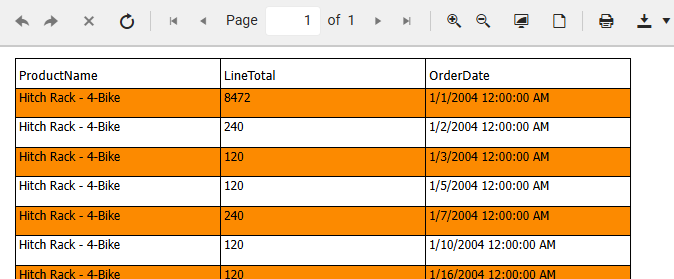
This is done by setting the following conditional formatting rule to one single item or all items within the row.
| Expression | Operator | Value |
|---|---|---|
| = RowNumber() % 2 | Equal | 1 |
%(orMod) performs the modulo operation and it means remainder after division.RowNumber() % 2returns:
- 0 for even rows (2, 4, 6, 8…): 8 % 4 → remainder is 0 (because 8 divides evenly by 4)
- 1 for odd rows (1, 3, 5, 7…): 5 % 2 → remainder is 1
The following video shows how to achieve alternating row style which prevents misreading values by visually separating rows, which is critical for accuracy in data-heavy reports.