Telerik Reporting MCP Server
The Telerik Reporting MCP (Model Context Protocol) server enhances your AI-powered development experience by providing specialized context about Telerik Reporting.
This MCP server enables AI-powered IDEs and tools to generate more accurate, tailored code that leverages Telerik Reporting APIs.
You can ask complex questions about integrating Telerik Reporting in web applications, request specific implementations, and generate comprehensive code solutions.
Prerequisites
To use the Telerik Reporting MCP Server, you need:
- .NET 8+ SDK.
- A Telerik user account.
- An active Telerik Reporting subscription license.
- An application that uses the Telerik Reporting.
- An MCP-compatible client (IDE, Code Editor, or App) that supports MCP tools. For example, the latest Visual Studio 2026.
Installation
Depending on your environment, you can install the Telerik Reporting MCP server in any of the following ways:
single command line sets up the MCP server for your IDE automatically:
telerik mcp config reportingThis command automatically creates or updates the .mcp.json configuration file for all supported IDEs. You can also specify a target IDE with the --ide option (for example, telerik mcp config reporting --ide vscode). For more details, see Telerik CLI - Install Reporting MCP Server.
dnx Telerik.Reporting.MCPNext, make sure the configuration in your mcp.json is correct, and then add your Telerik license.
Configuring mcp.json
Use the settings in the following table to configure the Telerik Reporting MCP server in the mcp.json file of your code editor. Select the correct value based on your development environment.
| Setting Name | .NET 10 Value | .NET 8/9 Value |
|---|---|---|
| Package Name | "Telerik.Reporting.MCP" | "Telerik.Reporting.MCP" |
| Type | "stdio" | "stdio" |
| Command | "dnx" | "dotnet" |
| Arguments | ["Telerik.Reporting.MCP", "--yes"] | ["tool", "run", "telerik-reporting-assistant"] |
| Server Name | "telerik-reporting-assistant" | "telerik-reporting-assistant" |
Configuring Your License
An active Telerik Reporting license is required to use the Telerik Reporting MCP server.
-
When installing the MCP server by using the .NET tooling (
dnxordotnet tool install), the license key file will be retrieved automatically if it is present in the default directory on your system (%AppData%\Telerik\telerik-license.txt on Windows and ~/.telerik/telerik-license.txt on Linux). -
When using the .NET tooling, if your license key file is not in the default directory, you can add the license key file as an environment variable in the
mcp.jsonfile using one of the following options:JSON"env": { "TELERIK_LICENSE_PATH": "THE_PATH_TO_YOUR_LICENSE_FILE" }JSON"env": { "TELERIK_LICENSE": "YOUR_LICENSE_KEY_HERE" }
Using a license file path is recommended unless you are sharing settings across different systems. Remember to update the license key when renewing.
Visual Studio Configuration
- Early Visual Studio 17.14 versions require the Copilot Chat window to be open when a solution loads for the MCP server to work properly.
- For complete setup instructions, see Use MCP servers in Visual Studio.
The Telerik Reporting MCP server is available as a NuGet package: https://www.nuget.org/packages/Telerik.Reporting.MCP.
Automatic Configuration through the Visual Studio UI
-
Open the Configure MCP server menu in Visual Studio
- Open the Visual Studio GitHub Copilot Chat
- Click on the button at the bottom right corner to open the Select tools context menu.
- Click on the
+button at the top right corner of the menu to open the Configure MCP server menu.

-
Use the following values for the configuration fields:
- In
Destinationselect either Global-Available in all solutions or Solution-Available in this solution. - For
Server IDuse telerik-reporting-assistant. - Select stdio as
Type. - The
Command (with optional arguments)field should contain dnx Telerik.Reporting.MCP --yes. - Click on the
Savebutton to preserve the configuration.

- In
-
Enable the
telerik-reporting-assistanttool in the Copilot Chat window's tool selection dropdown.The
telerik-reporting-assistanttool should now appear in the Select tools context menu. Check it to enable the Telerik Reporting AI Coding Assistant:
Manual Configuration
The steps below describe the sample procedure for configuring the Telerik Reporting MCP server in Visual Studio.
-
Add an
.mcp.jsonfile to either of the following locations:- For a workspace-specific setup, add the file to the solution's folder.
- For a global setup, add the file to your user directory,
%USERPROFILE%(for example,C:\Users\YourName\.mcp.json).
-
Add the following configuration to the
.mcp.jsonfile:JSON{ "servers": { "telerik-reporting-assistant": { "type": "stdio", "command": "dnx", "args": [ "Telerik.Reporting.MCP", "--yes" ] } } },JSON{ "servers": { "telerik-reporting-assistant": { "type": "stdio", "command": "dotnet", "args": [ "tool", "run", "telerik-reporting-assistant" ] } } }, -
Restart Visual Studio.
-
Enable the
telerik-reporting-assistanttool in the GitHub Copilot Chat's tool selection menu.
Known Issue: Hanging tool calls in Visual Studio
When using Telerik AI tools in Visual Studio, GitHub Copilot may:
- hang during tool invocation;
- show UI for a successful tool response, but actually fail silently;
- continue generation without waiting for parallel tool calls.
In these cases, the response may be generated but not provided to the Copilot Agent UI.
This is a known issue in Visual Studio Copilot, not related to Telerik MCP servers or AI tools, and does not reproduce in VS Code.
For more details, see the related Visual Studio Developer Community issue:
https://developercommunity.visualstudio.com/t/Copilot-stopped-working-after-latest-upd/10936456
Microsoft has acknowledged the issue and marked it as Fixed - Pending Release. A future Visual Studio update is expected to resolve it.
Telerik Visual Studio Extension Setup:
The .mcp.json file can be created and updated by using the Telerik Visual Studio Extension menu in Visual Studio.
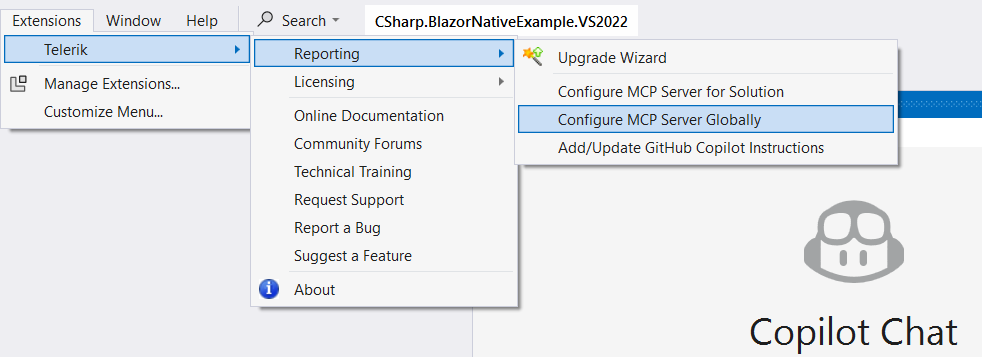
The Configure MCP Server Globally option creates (or updates if existing) the global %USERPROFILE%\.mcp.json file and adds the Telerik Reporting server entry.
The Configure MCP Server for Solution option is visible only if you have a project opened in Visual Studio. The option creates (or updates if existing) the .mcp.json file in the solution directory.
The Add/Update GitHub Copilot Instructions option is visible only if you have a project opened in Visual Studio. The option creates (or updates if existing) a copilot-instructions.md file in the .github\ folder of the solution (\SolutionDir\.github\copilot-instructions.md), which includes extra context that is automatically used with the prompt given to the Copilot chat in Visual Studio.
Visual Studio Usage
After configuration and restart:
-
Open Copilot Chat.
-
Enable the
telerik-reporting-assistanttool. -
Grant permissions when prompted (per session, workspace, or always).
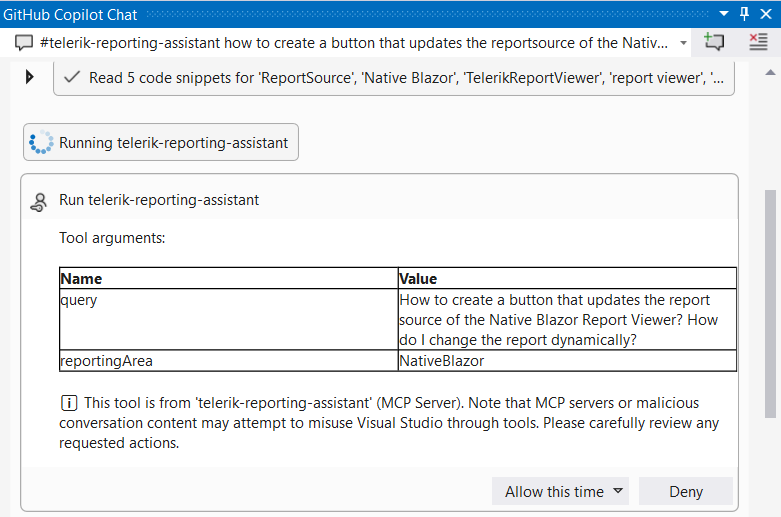
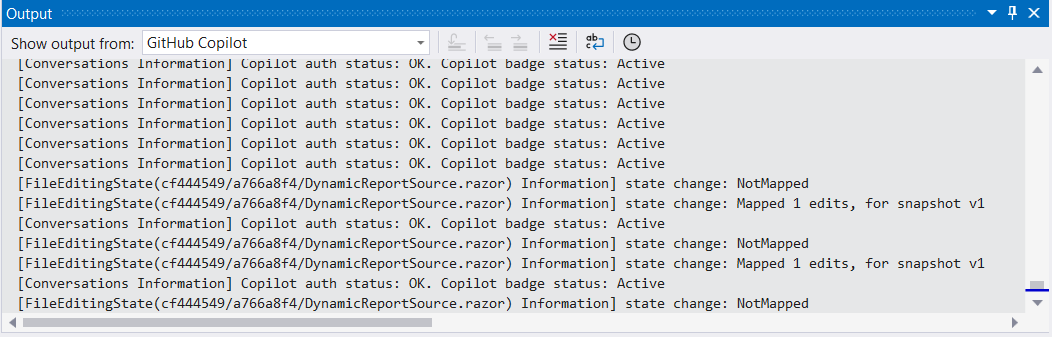
Start fresh sessions for unrelated prompts to avoid context pollution. You can check the Output pane of Visual Studio for diagnostics (select output from GitHub Copilot).
Visual Studio Code
- Visual Studio Code 1.102.1 or later is required to use the Telerik Reporting MCP Server.
- For complete setup instructions, see Use MCP servers in Visual Studio Code.
The basic setup in Visual Studio Code involves the following steps:
-
Enable
chat.mcp.enabledin Visual Studio Code settings. -
Create
.vscode/mcp.jsonin your workspace root (or user folder for global setup).The settings below allow you to use the
#telerik-reporting-assistanthandle to call the Telerik Reporting MCP server. To use a custom handle, change the server name in themcp.json.JSON{ "servers": { "telerik-reporting-assistant": { "type": "stdio", "command": "dnx", "args": [ "Telerik.Reporting.MCP", "--yes" ] } } },JSON{ "servers": { "telerik-reporting-assistant": { "type": "stdio", "command": "dotnet", "args": [ "tool", "run", "telerik-reporting-assistant" ] } } }, -
For global discovery, enable
chat.mcp.discovery.enabledinsettings.json:JSON{ "chat.mcp.discovery.enabled": true }, -
Restart Visual Studio Code.

Cursor
For complete setup instructions, see Model Context Protocol.
Create a .cursor/mcp.json file in your workspace root (or user folder for global setup):
{
  "mcpServers": {
    "telerik-reporting-assistant": {
      "type": "stdio",
      "command": "dnx",
      "args": [ "Telerik.Reporting.MCP", "--yes" ]
    }
  }
},{
"mcpServers": {
"telerik-reporting-assistant": {
"type": "stdio",
"command": "dotnet",
"args": [ "tool", "run", "telerik-reporting-assistant" ]
}
}
}This enables you to call the MCP Server with the #telerik-reporting-assistant handle. To use a custom handle, change the server name in the mcp.json.
Usage
When switching between tasks and files, start a new session in a new chat window to avoid polluting the context with irrelevant or outdated information.
To use the Telerik Reporting MCP Server:
-
Choose your preferred mode and model.
At the time of publishing, Claude Sonnet 4 and GPT-5 produce optimal results. -
Start your prompt with
#telerik-reporting-assistant(or with '#' followed by your custom MCP server name, if set): -
Inspect the output and verify that the MCP server is used. Look for messages similar to the ones below:
- Visual Studio:
Running telerik-reporting-assistant - Visual Studio Code:
Running telerik-reporting-assistant - Cursor:
Calling MCP tool telerik-reporting-assistant
- Visual Studio:
-
If the Telerik Reporting MCP server is not used even though it's installed and enabled, double-check the server name in your configuration and try rephrasing your prompt.
-
If requested, grant the Telerik Reporting MCP Server permissions to run for this session, workspace, or always.
-
Start fresh sessions for unrelated prompts to avoid context pollution.
Improving Server Usage
Determining the Reporting Area: To better specify the context for each prompt, the MCP Server will attempt to determine the Telerik Reporting Area the prompt relates to. These areas represent the supported web frameworks and backend technologies, as listed below as pairs consisting of an identifier and a description:
- AngularWrapper - Angular Report Viewer (wrapper of the HTML5 Report Viewer)
- NativeAngular - Native Angular Report Viewer (built with Kendo UI for Angular)
- BlazorWrapper- Blazor Report Viewer (wrapper of the HTML5 Report Viewer)
- NativeBlazor - Native Blazor Report Viewer (built with Telerik UI for Blazor)
- HTML5 - HTML5 Report Viewer (built with Kendo UI for jQuery)
- React - React Report Viewer (wrapper of the HTML5 Report Viewer)
- RESTService - Reporting REST Service for .NET Framework
- RESTServiceCore - Reporting REST Service for .NET Core/.NET 8+
- General - General question
If the Reporting Area cannot be determined automatically, the MCP Server will display a dialog asking to pick the corresponding area in which the prompt falls in:

After clicking on the 'Respond' button, the MCP Server will display a drop-down list with all the areas and wait for selecting the corresponding Reporting Area. If there is no applicable entry, please select the 'General' entry at the end of the list.

Custom Instructions: To increase the likelihood of the Telerik MCP server being used, or to call it without the need to mention "telerik-reporting" explicitly, add custom instructions to your AI tool:
Sample Prompts
The following examples demonstrate useful prompts for the Telerik Reporting MCP Server:
- "
#telerik-reporting-assistantAdd a Native Angular Report Viewer to my Angular application." - "
#telerik-reporting-assistantConnect the Telerik Report Viewer to my Telerik Report Server instance."
Visit the Telerik Reporting Prompt Library for more sample prompts.
Usage Limits
A Telerik Subscription or Trial license is required to use the Telerik Reporting AI Coding Assistant.
Perpetual licenses do not include access, but you can start a free trial to evaluate it.
See the Usage Limits section for details.
Connect to Local AI Model
You can use the Telerik Reporting MCP server with local large language models (LLMs):
- Run a local model, for example, through Ollama.
- Use a bridge package like MCP-LLM Bridge.
- Connect your local model to the Telerik MCP server.
This setup allows you to use the Telerik AI Coding Assistant without cloud-based AI models.