Tasks
The Tasks area in the Forge Desktop App lists every workflow and command run in the selected project. Start an issue-linked workflow or a one-off command, search task history, monitor progress, and review workflow results and generated artifacts.
Open the Tasks Area
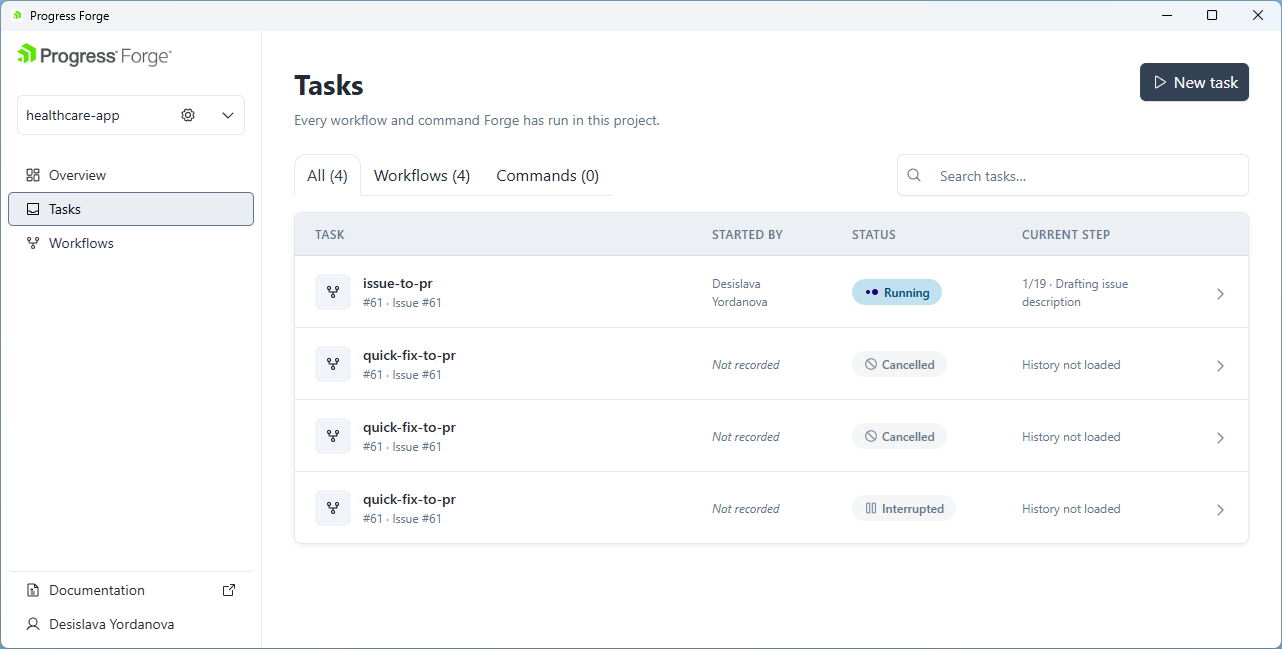
- Select the project from the project selector at the top of the left navigation.
- Select Tasks in the left navigation.
- Select All, Workflows, or Commands to filter the task history. Each tab shows the number of entries in that view.
- Review the Task, Started By, Status, and Current Step columns. Rows show the workflow or command name and can include an issue identifier or scope. Select a row or its chevron to open the task details. Depending on the task, Started By can show a user or Not recorded, and Current Step can show History not loaded.
- Use Search tasks... to find a task, or select New task to start one.
Run a Workflow Task
To start an issue-linked workflow, select New task and choose Workflow in the New task panel.
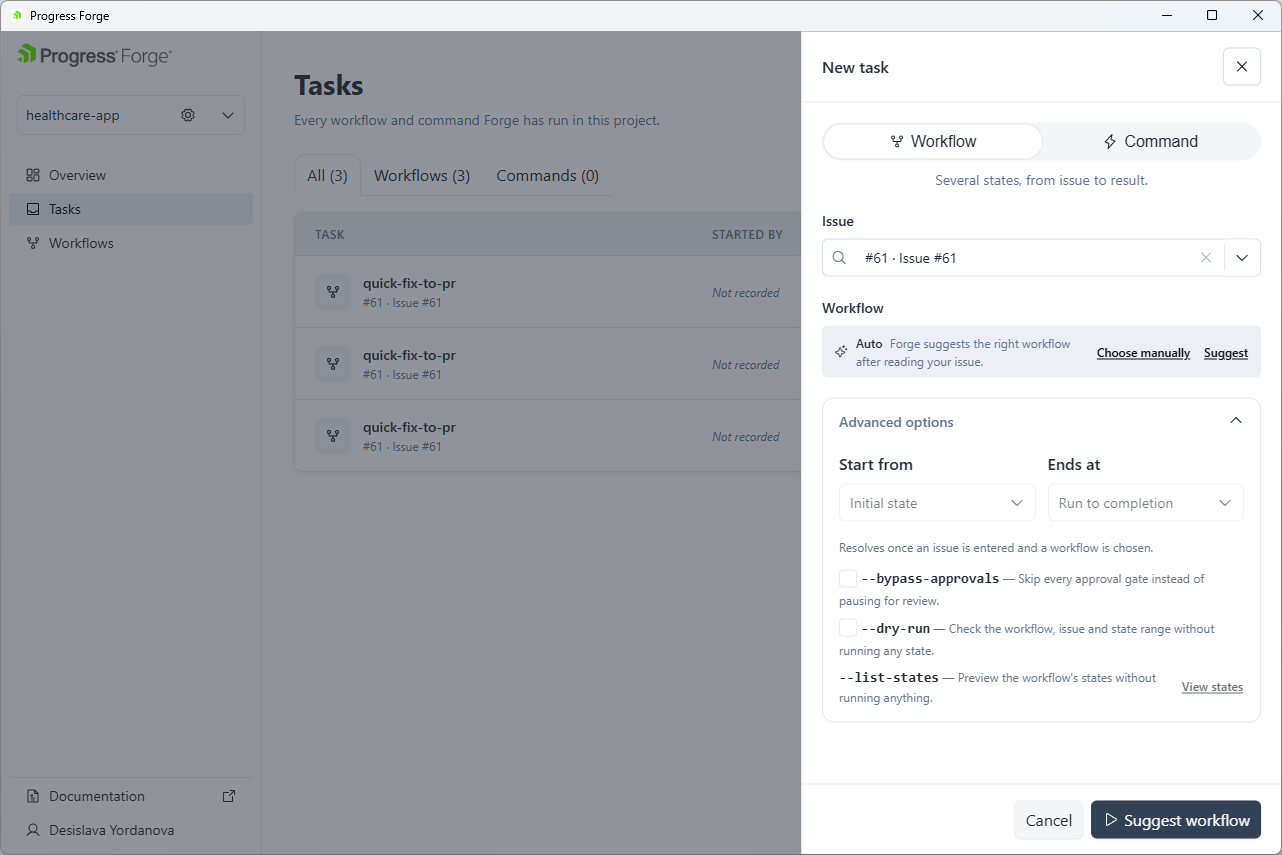
- In Issue, select an issue from the dropdown, search for an issue, or paste its ID.
- Under Workflow, keep Auto selected to have Forge suggest the right workflow after reading the issue. Select Choose manually to browse and select a workflow yourself. The Suggest link beside it also requests a recommendation.
- With Auto selected, select Suggest workflow to have Forge recommend a workflow for the issue. Review the recommendation and follow the prompt to start the workflow. If you choose a workflow manually, use the action shown in the panel to start the selected workflow.
- Optionally expand Advanced options to limit the run with Start from and Ends at. The displayed defaults are Initial state and Run to completion. The panel notes that the setting resolves once an issue is entered and a workflow is chosen.
- Use the advanced options when needed:
- Enable --bypass-approvals to skip every approval gate instead of pausing for review.
- Enable --dry-run to check the workflow, issue, and state range without running any state.
- --list-states previews the workflow's states without running anything. Select View states to open the preview.
- Select Cancel or × to close the panel without starting a task.
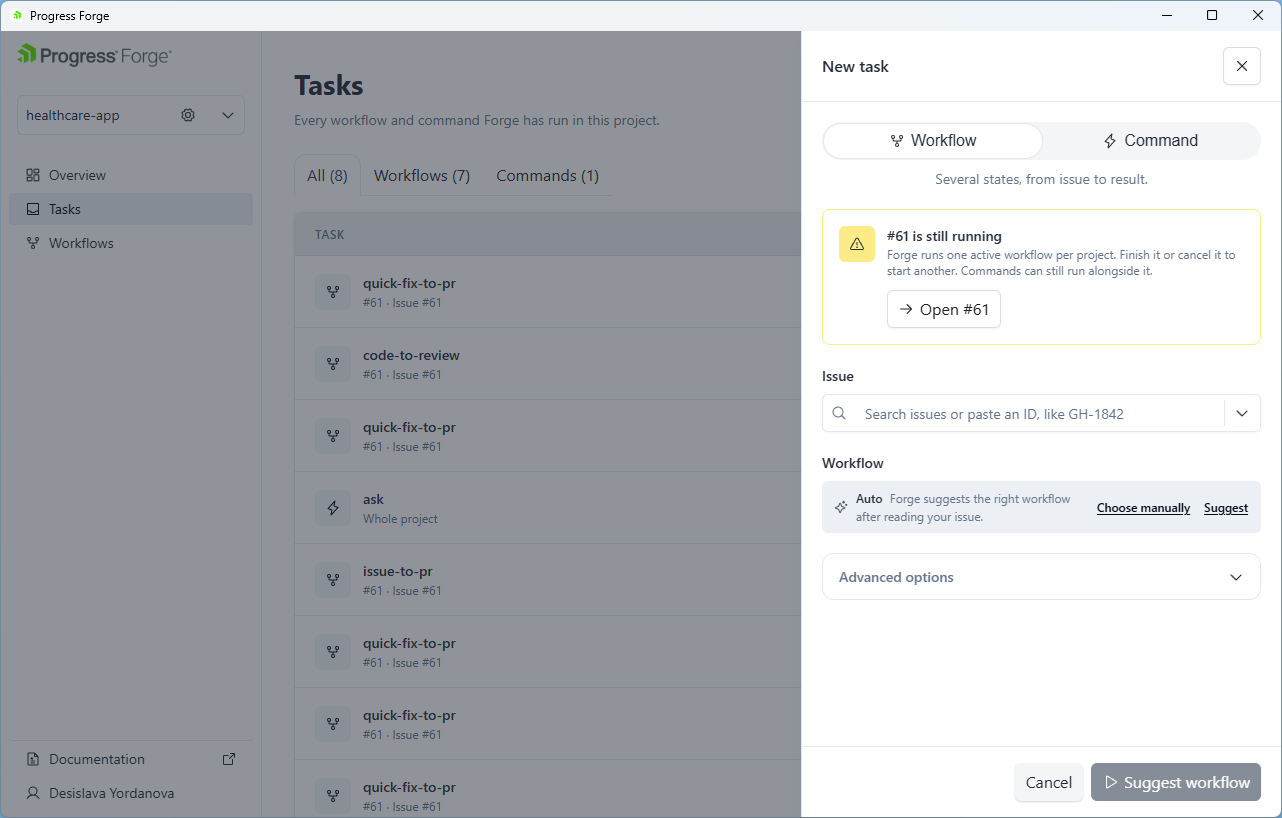
A project can have only one active workflow at a time. If a workflow is already running, the New task panel displays a warning. See Configure Task Execution.
Configure Task Execution
If a workflow is already running in the selected project, the New task panel displays a warning such as #61 is still running. Forge runs one active workflow per project. Finish or cancel the active workflow before starting another. Commands can still run alongside it.
Select Open #61 to view the active workflow. The Suggest workflow button is unavailable while the project already has an active workflow. Select Command at the top of the panel to run a command alongside the workflow. Select Cancel or × to close the panel.
Run a Command Task
Run a command task when you need one operation rather than a multi-step workflow. In the New task panel, choose Command. The command is a One step, run once operation. Its catalog groups command cards under GENERAL and ISSUE.
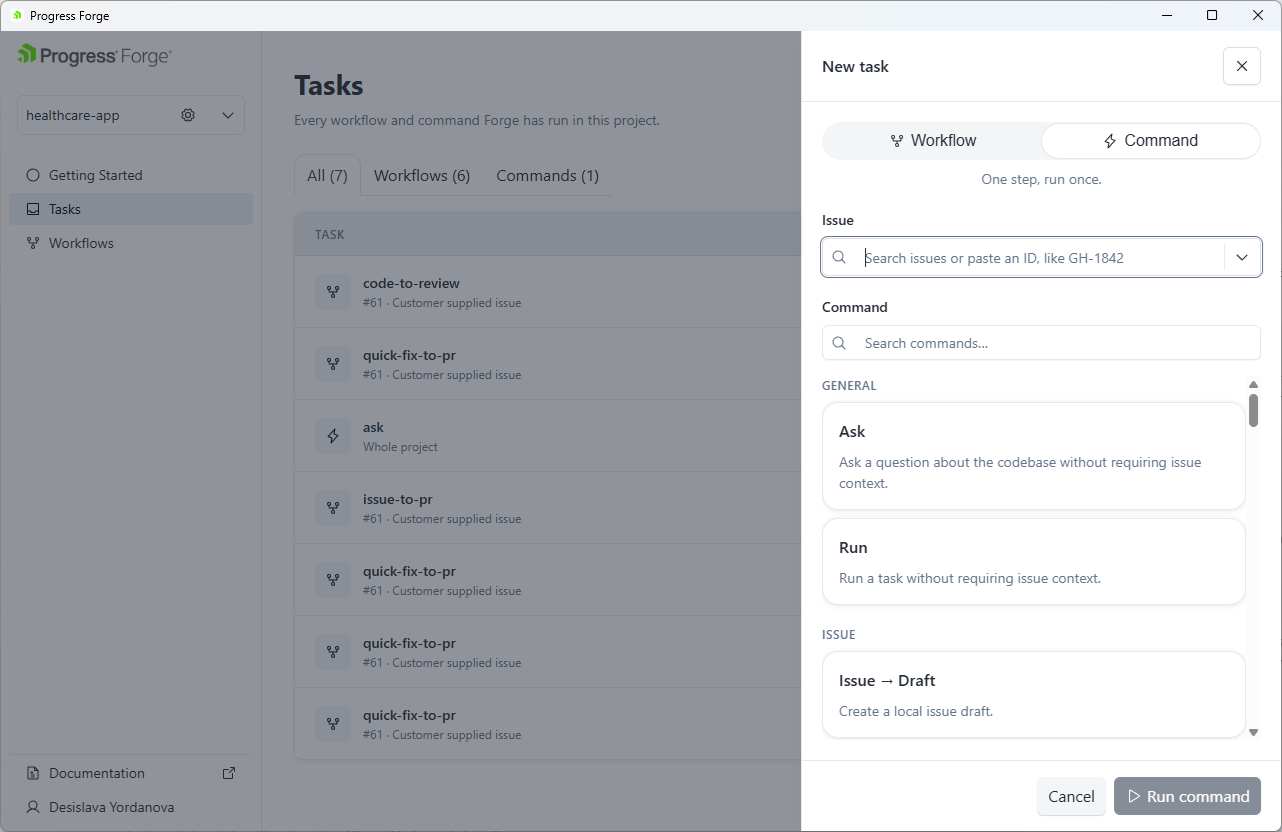
- If the command needs issue context, use Issue to search for an issue or paste its ID. The issue is optional for commands that do not require it.
- Search in Search commands..., or browse cards under GENERAL and ISSUE. For example, Ask asks a question about the codebase without requiring issue context, and Run runs a task without requiring issue context. The ISSUE category includes Issue → Draft, which creates a local issue draft.
- Select a command card, then select Run command. Select Cancel or × to close the panel without starting the task.
After it starts, follow the task in the Tasks list and select its row to inspect progress and results. See Monitor Task Progress and Review Results.
Monitor Task Progress
After you start a task, the Tasks list displays a new row.
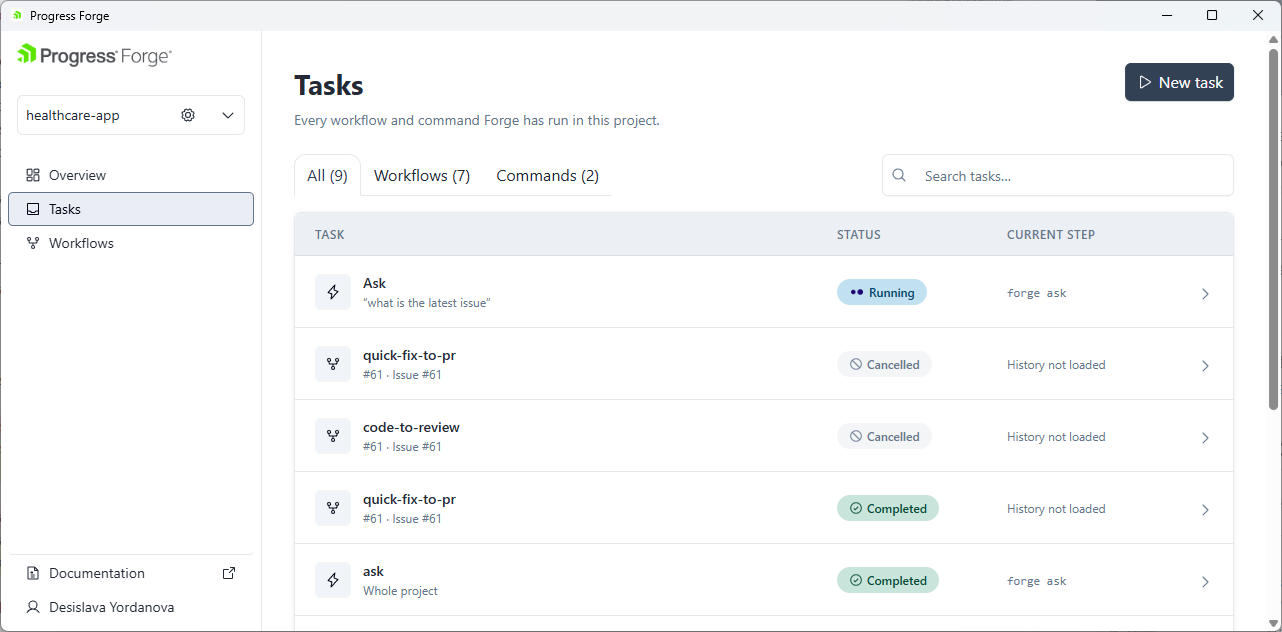
Select a task row to open its details. While the task is active, its status is shown in the task list.
Review Results
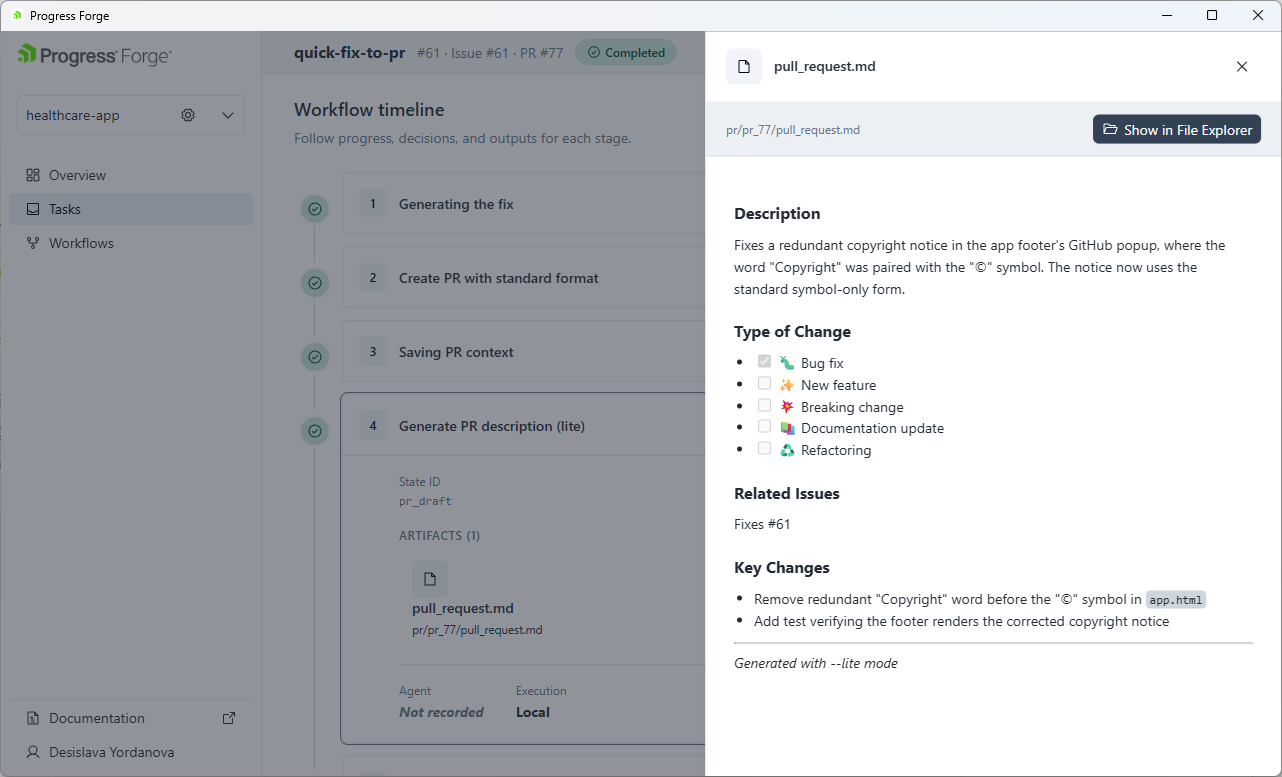
Select a completed workflow row to open its timeline and results. The header shows the workflow name, issue and pull-request references when available, and the overall status. Each timeline stage shows its completion state. Expand a stage to review its state ID, artifacts, agent, and execution context.
Select an artifact to open its preview. The example shows pull_request.md. Its preview includes a Description, Type of Change, Related Issues, and Key Changes. The artifact lists Fixes #61, identifies the selected change type as Bug fix, and shows its key changes. Select Show in File Explorer to open the artifact's location in the file system, or select × to close the preview.