Workflows Overview
The Workflows area in the Forge Desktop App lists every workflow available in the selected project, including workflows you have created. Browse workflow summaries, use the row controls, and open a workflow to review its ordered steps.
Browse the Workflow Catalog
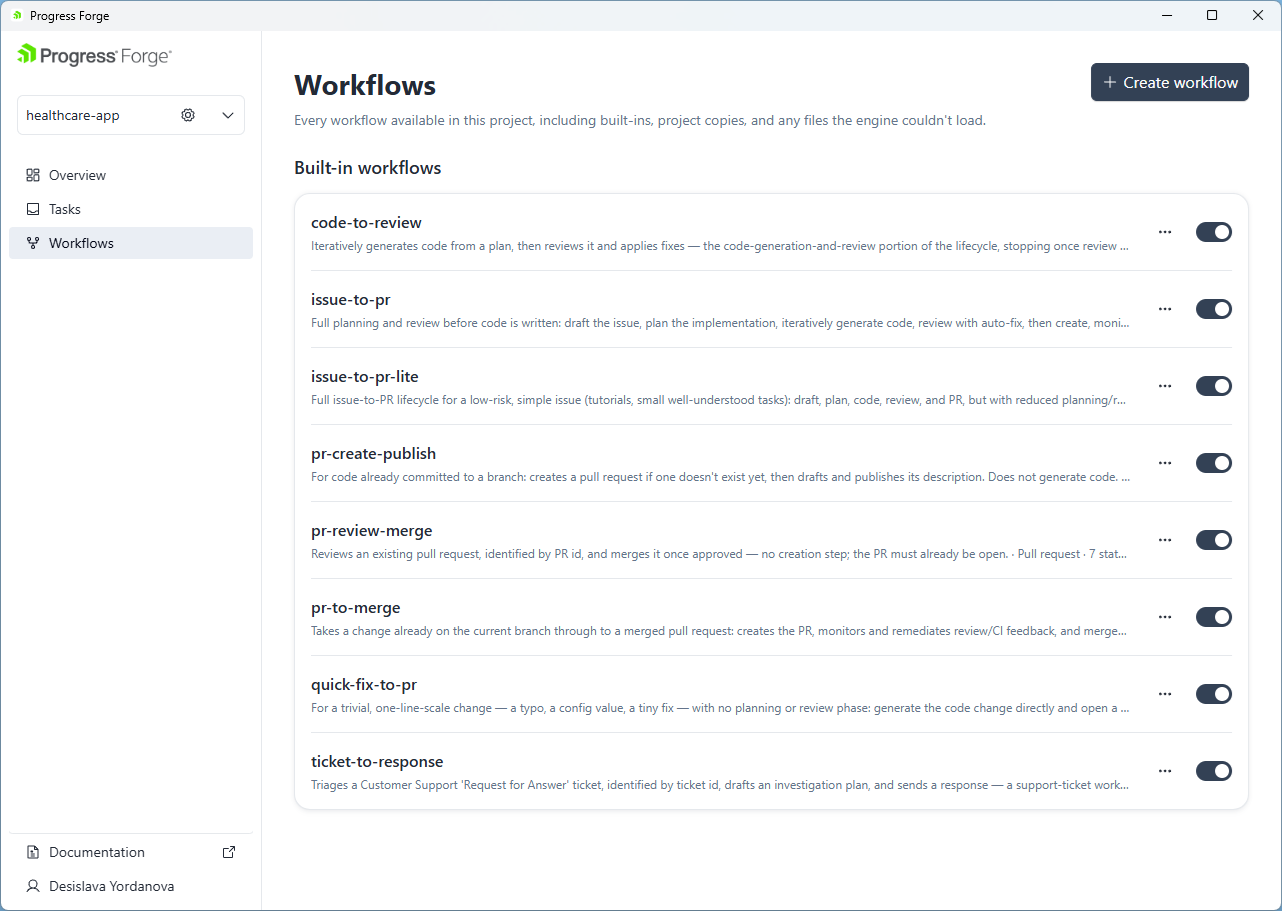
The project selector at the top of the left navigation identifies the active project. The sidebar includes Overview, Tasks, and Workflows. Select Workflows to open the catalog. The catalog is grouped under Forge workflows. Each row shows a workflow name and summary, an ellipsis (…) control, and a toggle switch.
Enable or Disable a Workflow
Each workflow row includes an enablement toggle switch. Enabled workflows are available for both Auto and manual selection when starting a task.
Edit a Workflow
To edit a workflow, select the Customize option from the ellipsis (…) action menu.
Run a Workflow
To run a workflow, select the Run option from the ellipsis (…) action menu.
Create a Workflow
Select Create workflow in the upper-right corner of the catalog to create a workflow. See the dedicated workflow-creation documentation for further instructions.
Review a Workflow's Steps
Select a workflow's name or row to open its overview and inspect its steps.
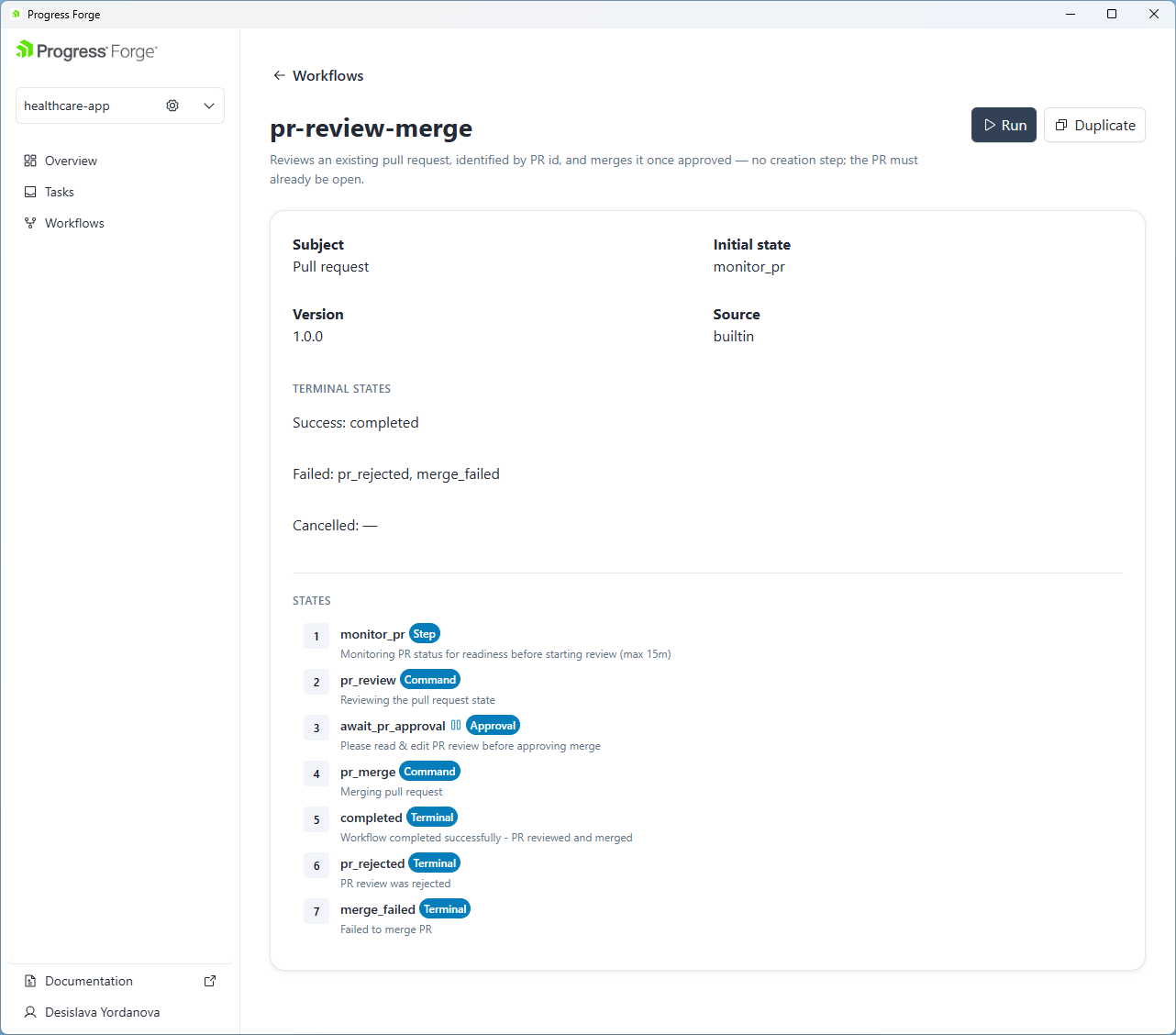
An individual workflow overview provides a step list. This view helps you understand the workflow's intended progression and identify approval points without detailing how to configure or run it.
For example, Review and merge a pull request contains these steps:
- Review PR — Review an existing pull request's diff and CI status.
- Address feedback — Apply fixes for outstanding review comments or failing checks.
- Approve merge — Wait for human approval before merging. An icon appears beside this step.
- Merge PR — Merge the pull request once checks and approval pass.
The workflow summary notes that the pull request must already be open, clarifying an important prerequisite at a glance.