Running Workflows
Run a project workflow for an issue from the Forge Desktop App and monitor its progress in the task view. The run page shows the selected workflow and issue, overall status, current step, execution context, and a timeline of states and outputs. A run can pause with Needs input when a state requires your attention.
Open the Workflows Area
- Select the project from the project selector in the upper-left corner of the Forge Desktop App.
- Select Workflows in the left navigation.
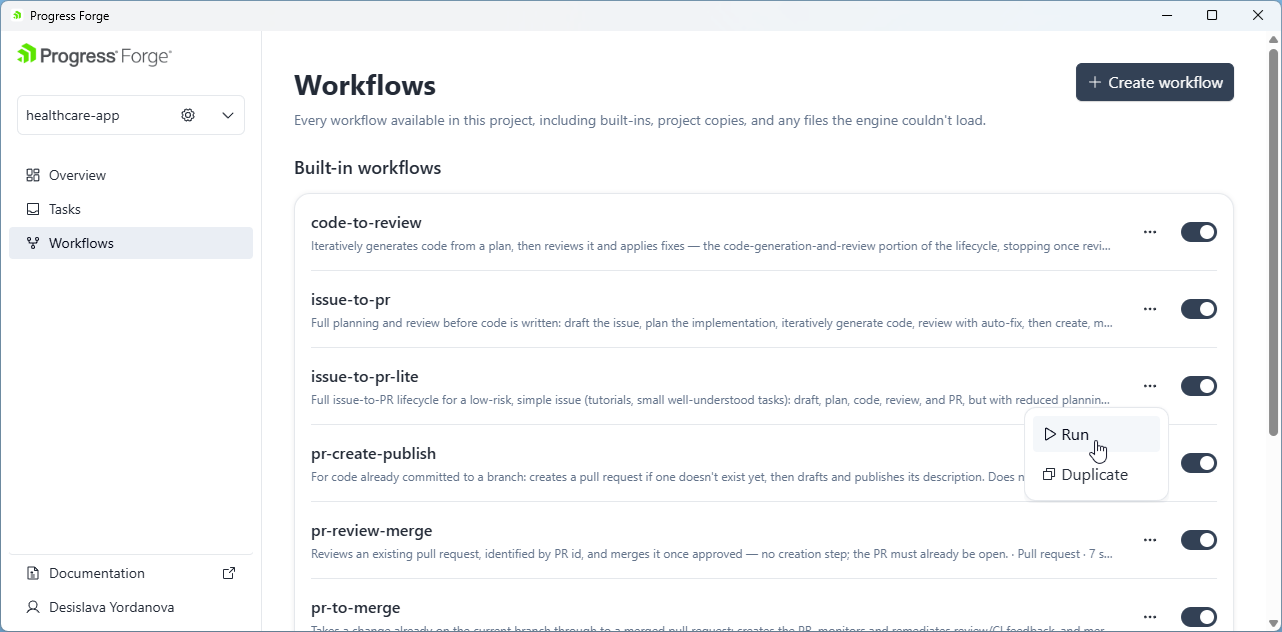
- Find the workflow you want. In its row, open the ellipsis (…) menu and select Run.
The Workflows page groups available workflows under Built-in workflows. Each listed workflow has an on/off toggle and an ellipsis menu.
Configure and Start a Workflow
The Run workflow panel lets you select an issue and confirm which workflow Forge will run.
- In Issue, search for and select the issue. Confirm the selected issue in the field.
- Review the workflow card and its description. Select Change to select a different workflow, or Suggest to request a workflow suggestion for the issue.
- Optionally expand Advanced options to review additional run settings.
Select Run workflow to start the run, or Cancel or × to close the panel without starting it.
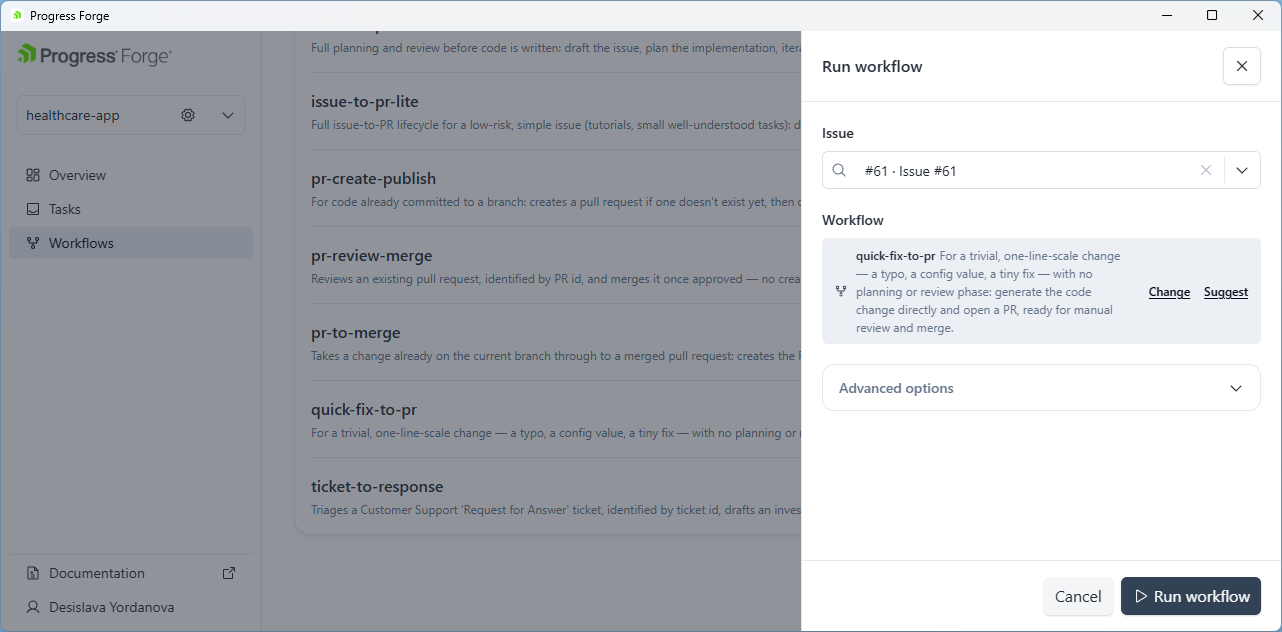
After you select Run workflow, the panel closes and Forge opens the run in the Tasks area.
Monitor Workflow Execution
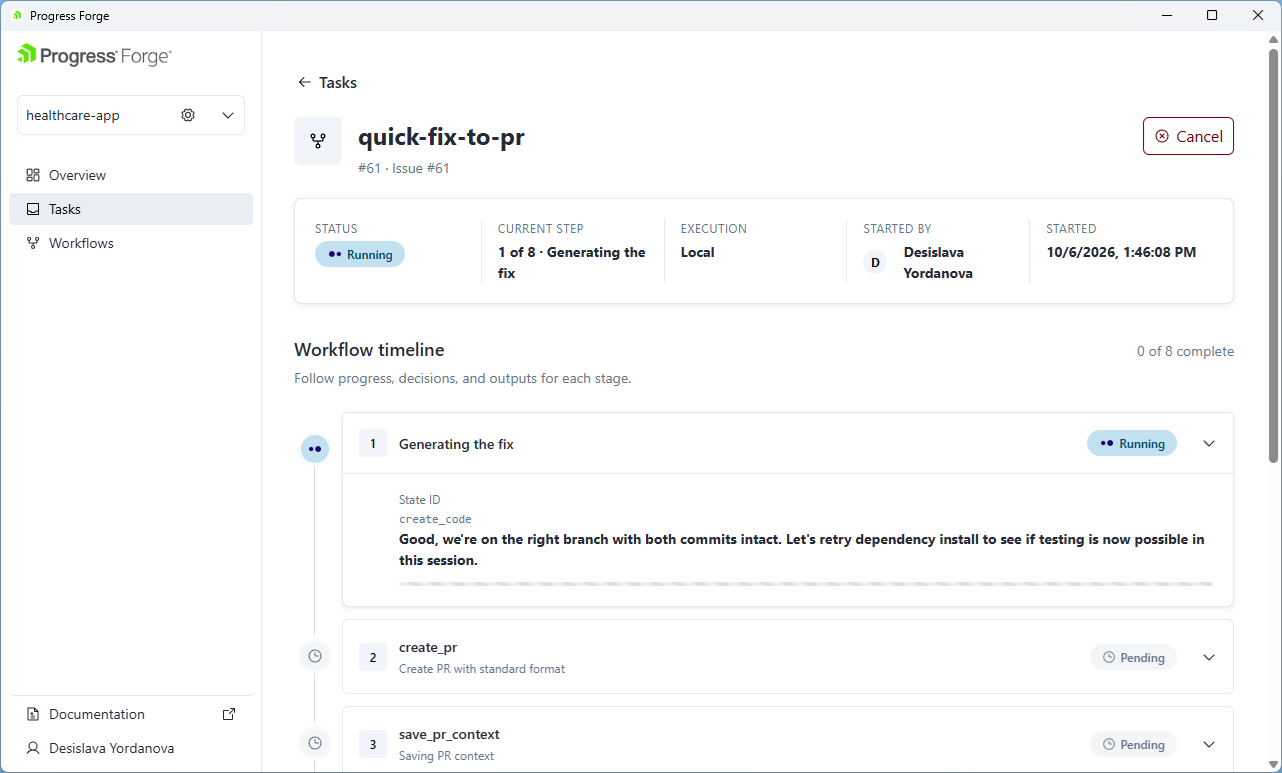
The summary panel provides a quick read of the run:
- Status: The overall run state, such as Running or Needs input.
- Current step: The active state number and name, such as 1 of 8 · Generating the fix.
- Execution: The execution context, such as Local.
- Started by identifies the user who started the run.
- Started shows when the run began.
Below the summary, Workflow timeline shows each state in sequence and a completion count. Status badges identify states as Running, Completed · Done, Needs input, or Pending. The visual markers also distinguish active, completed, and pending states.
Expand a state card to inspect its State ID and any state-specific details or activity message. States that have not run yet remain Pending.
View Workflow Results
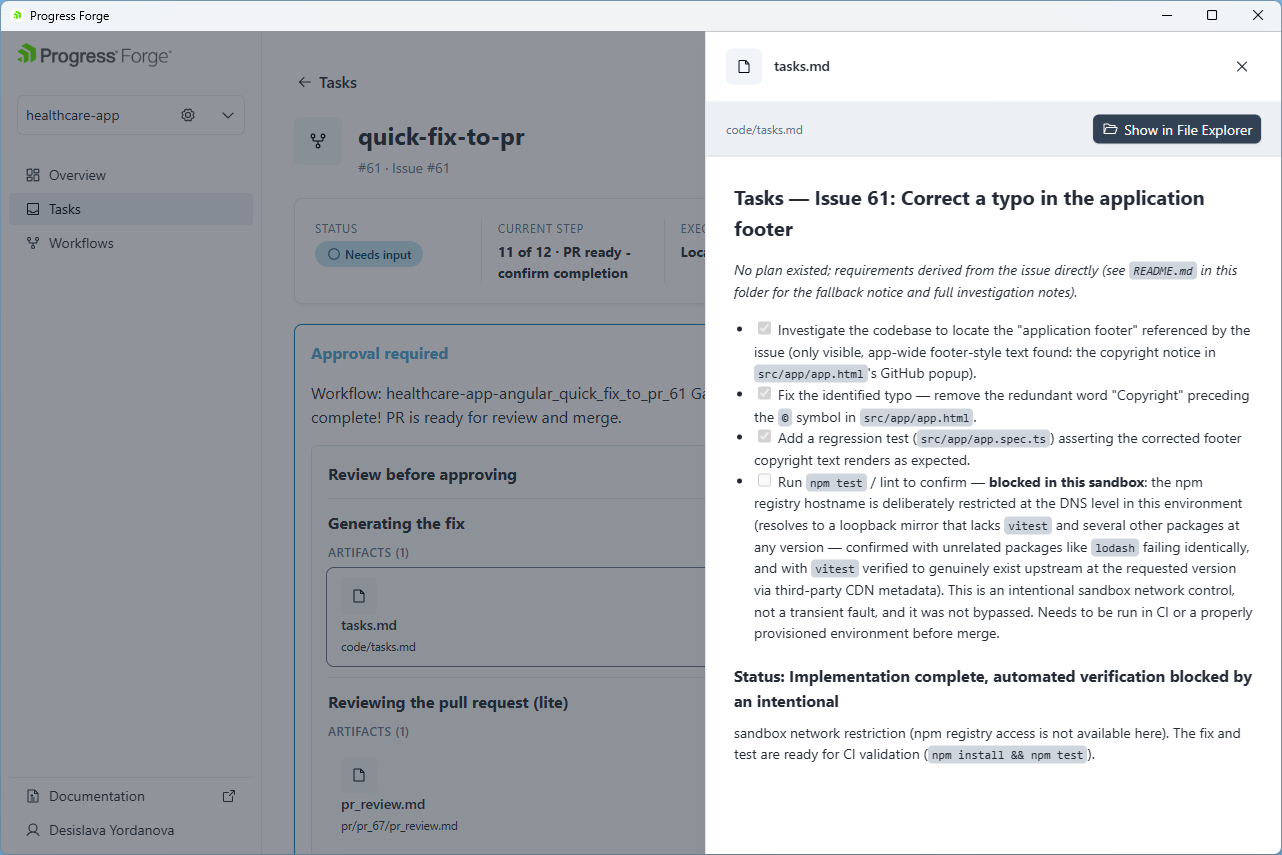
Expand a state card to review its output. When the run provides an artifact, it appears under ARTIFACTS with its name and project-relative path. In the example, the artifact is tasks.md at code/tasks.md. Select the artifact to open its contents in a side panel. Select Show in File Explorer to locate it in the project folder, or select × to close the panel.
The artifact panel can display Markdown content. The state card and task summary remain available behind the panel so you can relate the artifact to the run that produced it.
Manage Workflow Executions
The run view provides Cancel in the upper-right corner. Use it to stop the workflow run. Expand the current state to inspect its activity or details. The timeline shows the status of later states as they become active or remain pending.
Approval Gates
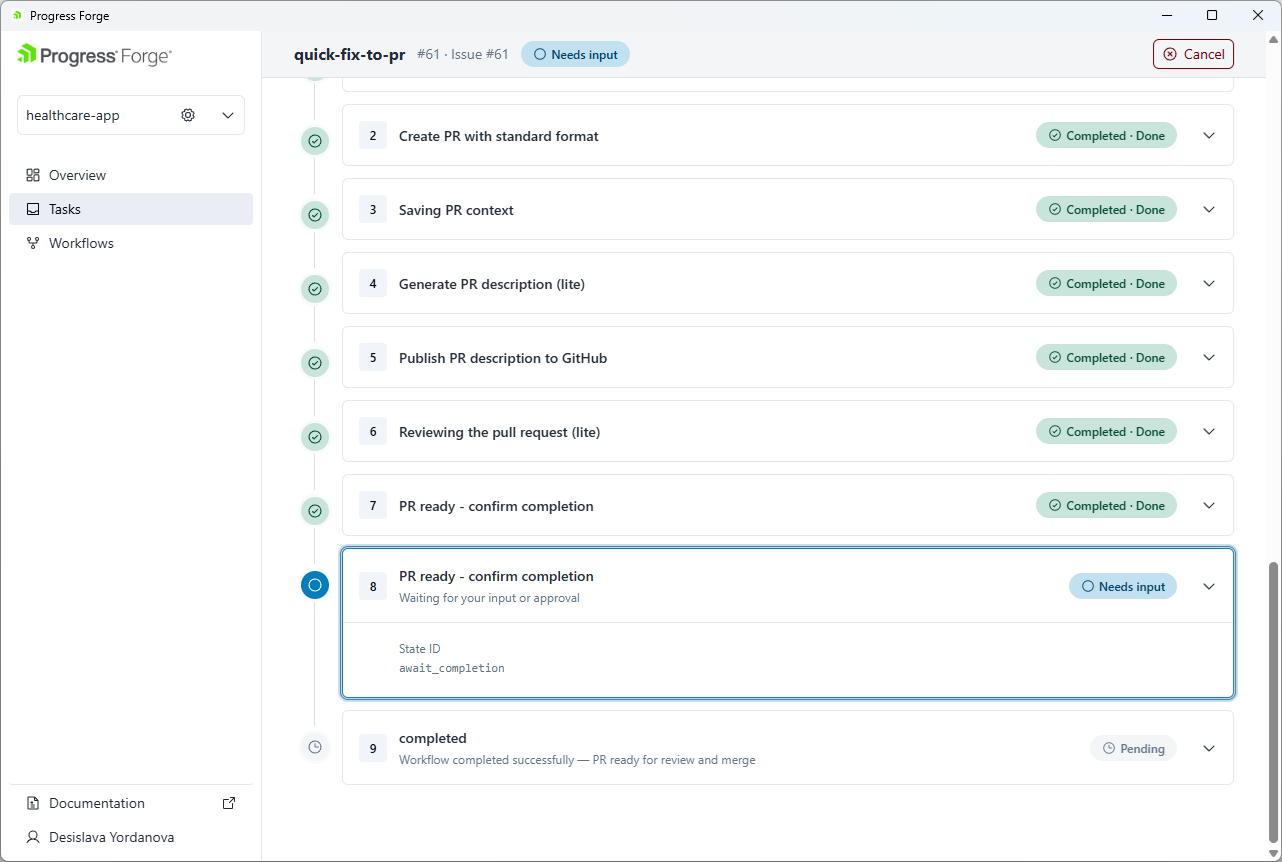
When a workflow reaches a state that requires a decision or confirmation, the overall status changes to Needs input. The current state card indicates that it is waiting for input or approval. In the example, the active state is PR ready - confirm completion, and its State ID is await_completion.
Review the current state message and any associated artifacts. The timeline shows earlier states as Completed · Done, the current state as Needs input, and the next state as Pending. This indicates that the run is waiting at the current state. Later states have not yet run.
Best Practices
- Confirm the project, selected issue, and workflow in the Run workflow panel before starting.
- Use Change to select another workflow or Suggest to request a recommendation for the issue.
- Follow Current step and the timeline completion count to understand where the workflow is and which steps remain.
- Select an artifact listed in a state to inspect its contents, and use Show in File Explorer when you need to locate the file.
- Use the status label to distinguish an actively Running workflow from one that Needs input or has completed.